
Written byChristinaUpdated on Oct 10, 2026

Before we start: To clone a failing hard drive to a new SSD in Windows 11 without data loss, connect your target SSD, stop non-essential background apps, and use a specialized disk cloning tool like Donemax Disk Clone. Donemax utilizes sector-by-sector cloning technology to bypass bad sectors on the dying HDD, copying your entire Windows 11 OS, settings, and files to the new SSD.
PAGE CONTENT:
Is your Windows 11 computer suddenly running extremely slow? Are you noticing strange clicking noises from your computer tower, experiencing random blue screen (BSOD) errors, or seeing warning popups about disk errors? These are classic signs that your mechanical hard disk drive (HDD) is failing.
When a hard drive starts dying, every minute counts. Reinstalling Windows 11 from scratch, setting up all your applications, and restoring personal files can take hours or even days. Worse yet, continuing to write new files to a degraded drive can cause complete storage failure.
The fastest and safest solution is disk cloning. By learning how to clone failing hard drive to new SSD windows 11, you can transfer your exact operating system, installed software, personal photos, and settings to a blazing-fast SSD before your old drive dies completely.
Before diving into the cloning steps, it is essential to confirm whether your hard drive is actually experiencing hardware failure.
If your hard drive is rapidly deteriorating, keep these emergency practices in mind:
chkdsk /f /r on a physically failing drive. Disk repair utilities force heavy read/write operations that can cause total mechanical failure.Many users try to rescue their data by manually dragging and dropping folders to an external drive. However, when dealing with a failing drive, this approach usually crashes.
1. Bad Sectors Freeze File Explorer
As a mechanical hard drive fails, magnetic sectors degrade. When Windows File Explorer hits a bad sector during a regular copy operation, it stops responding, freezes the system, or throws an I/O device error.
2. Windows Built-in System Image Tool Limitations
Windows 11 includes a legacy backup utility, but it is notoriously sensitive to disk errors. If your source drive has even a few corrupted sectors, the Windows backup utility will abort the process midway.
3. Non-Bootable Clones
Simply copying system files does not copy the Hidden System Partition, EFI boot loader, or registry configurations. To make your new SSD bootable in Windows 11, you need specialized cloning software capable of handling low-level disk structures.
Proper preparation reduces strain on your failing drive and ensures a smooth transfer to the new SSD:
Donemax Disk Clone is an easy-to-use, powerful disk copying software designed for Windows 11/10/8/7. Its advanced algorithm can bypass unreadable bad sectors on failing drives and create a bootable clone on your target SSD.
Step 1: Choose System Clone or Disk Clone Mode
Download and install Donemax Disk Clone on your Windows 11 PC. Launch the application and select your Disk Clone mode to copy the entire physical drive, including system partition, all data partitions and hidden recovery sectors.
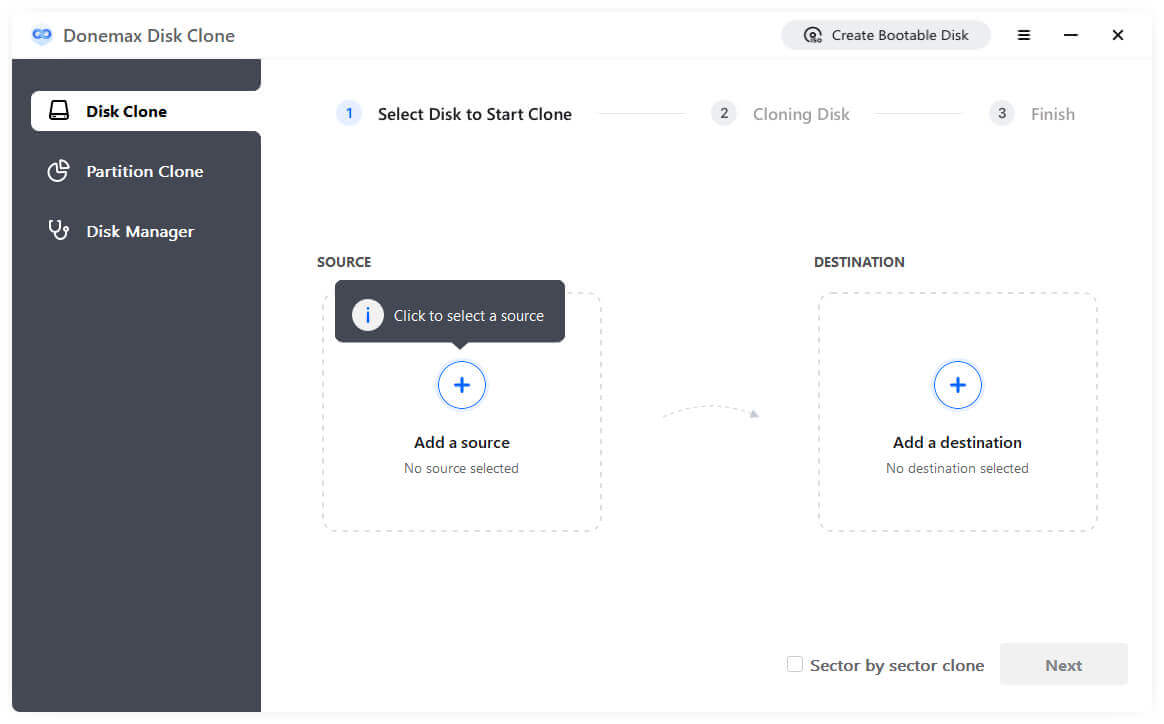
Step 2: Select the Source Failing HDD and Target SSD
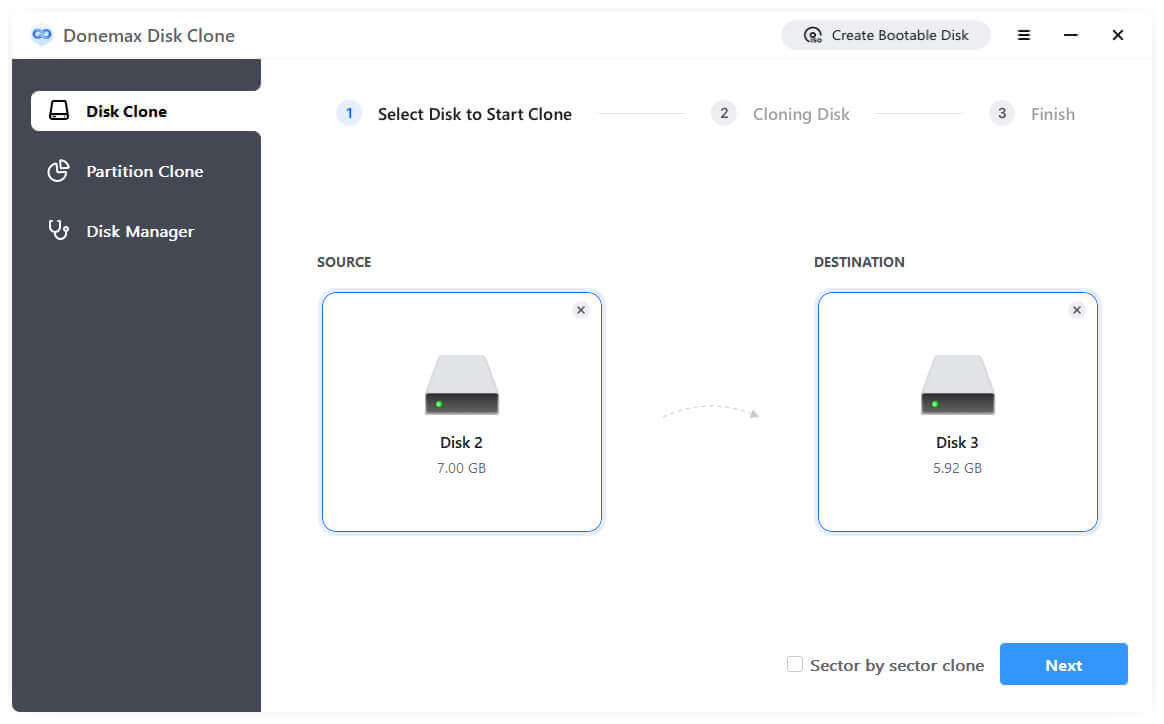
In the selection screen, mark your failing mechanical hard drive as the Source drive. Next, mark your newly connected SSD as the Destination drive. Enable Sector by sector clone option which is crucial for dying drives. Sector-by-sector cloning forces Donemax Disk Clone to copy raw storage blocks individually, skipping unreadable bad sectors without aborting the cloning operation.
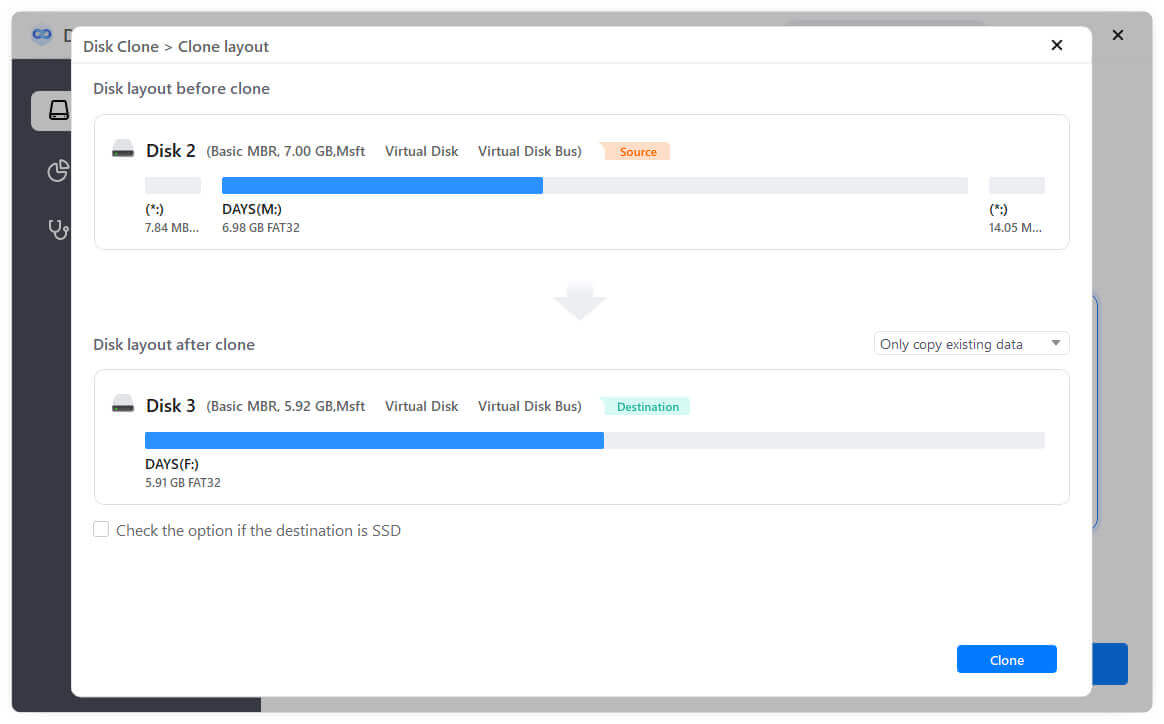
Step 3: Preview and Modify Disk Layout
Before executing the cloning process, you can preview the disk layout on the target SSD. If necessary, you can change the disk layout in different ways. Also, ensure to tick Check the option if the destination is SSD.
Step 4: Execute the Clone and Wait for Completion
Click 'Clone' button. Donemax Disk Clone will initiate the transfer. Depending on the size of your drive and the extent of disk damage, the process usually takes between 20 to 60 minutes.
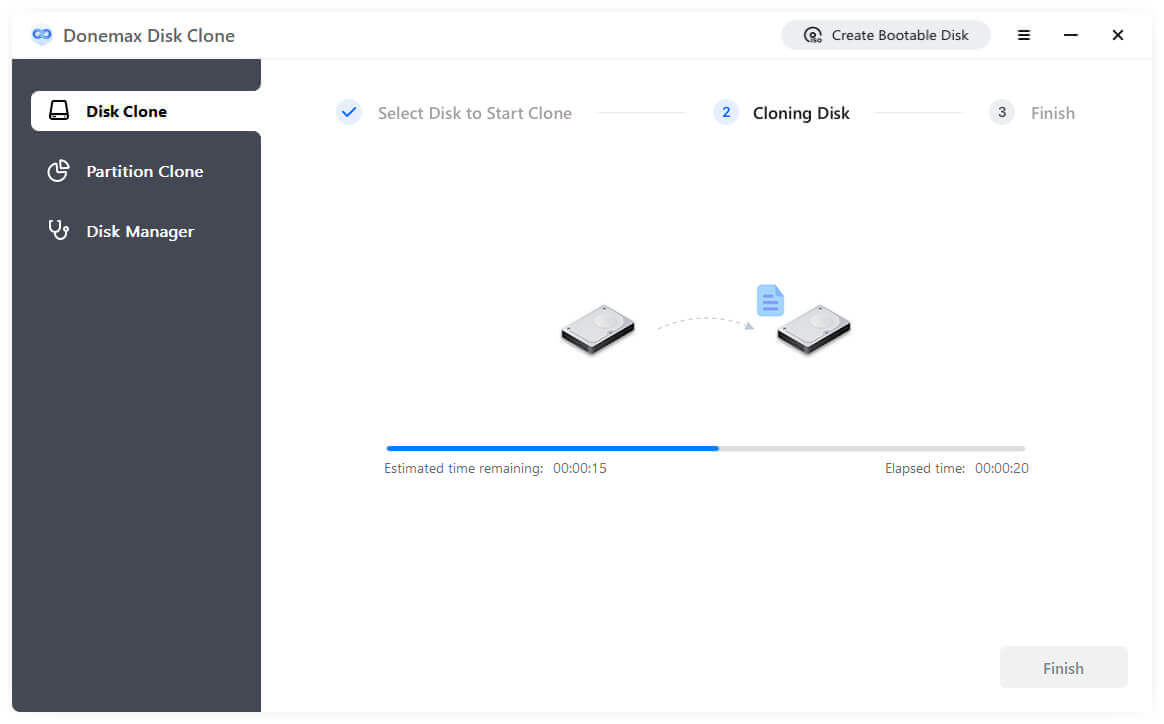
Once the cloning process completes successfully, your new SSD contains a complete, bootable replica of your Windows 11 system. Follow these steps to start using your SSD:
Option A: Physical Drive Replacement (Laptops & Single-Bay PCs)
Power down your computer completely. Unplug the power cable, open the case, remove the old failing mechanical drive, and insert the new SSD into the internal SATA or M.2 slot. Reassemble and power on your machine. Windows 11 will boot in seconds.
Option B: BIOS/UEFI Boot Order Configuration (Desktops with Multiple Slots)
If you are keeping both drives connected, restart your PC and repeatedly tap the BIOS key (usually F2, F12, Del, or Esc). Navigate to the 'Boot' menu, set the new SSD as the primary Boot Option #1, and save settings (F10). Your PC will boot directly into Windows 11 from the new fast SSD.
A failing hard drive doesn't have to mean total data loss or painful system reinstalls. By knowing how to clone failing hard drive to new SSD windows 11, you can save your operating system, applications, and personal data before it's too late.
With reliable disk cloning software like Donemax Disk Clone, upgrading from a dying HDD to a lightning-fast SSD is simple, fast, and safe. Download Donemax Disk Clone today and secure your Windows 11 system in just a few clicks!
Donemax Disk Clone
An award-winning disk cloning program to help Windows users and Mac users clone HDD/SSD/external device. It also can create full bootable clone backup for Windows PCs and Macs.
Christina
Christina is the senior editor of Donemax software who has worked in the company for 4+ years. She mainly writes the guides and solutions about data erasure, data transferring, data recovery and disk cloning to help users get the most out of their Windows and Mac. She likes to travel, enjoy country music and play games in her spare time.
Gerhard Chou
In order to effectively solve the problems for our customers, every article and troubleshooting solution published on our website has been strictly tested and practiced. Our editors love researching and using computers and testing software, and are willing to help computer users with their problems