
Written byCharlesUpdated on Sep 02, 2026

Before we start: Donemax Data Recovery is a powerful USB data recovery software. It can easily and completely recover permanently deleted files from a USB flash drive, and recover lost files from a formatted or corrupted USB flash drive. If you are looking for a tool for recovering deleted files from a USB flash drive, just download and install it on your computer.
PAGE CONTENT:
USB flash drives are widely used for storing and transferring important files due to their portability and convenience. However, data loss can occur for various reasons. If you've lost valuable files from your USB flash drive, do not loose hope. This article will help you explore different methods to recover deleted files from your USB flash drives and prevent future data loss.

Losing files from any storage device can be frustrating, especially if they contain essential documents, photos, or work-related data. While it may seem like the files are gone forever, there are several ways to recover them - provided you act quickly and avoid overwriting the lost data.
Stop using the USB flash drive, then choose a method to get the deleted files back.
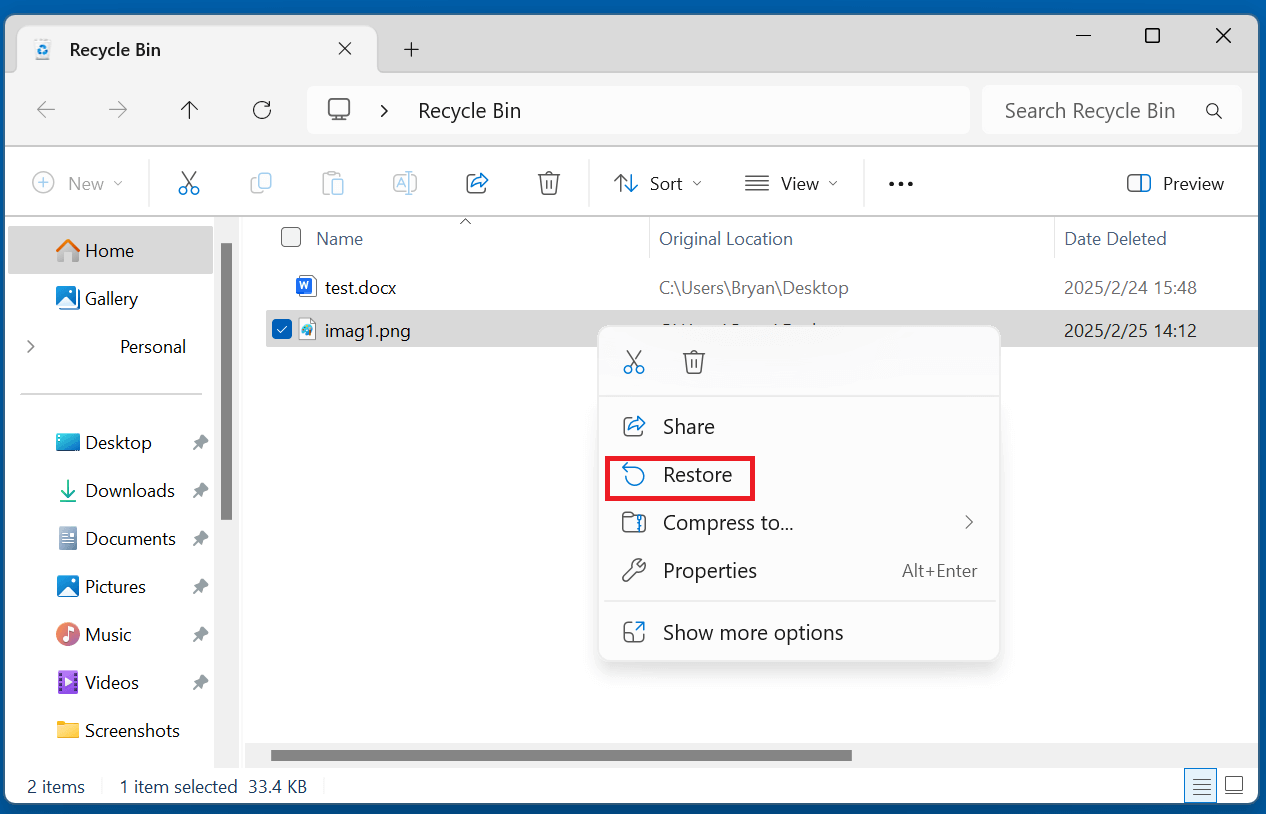
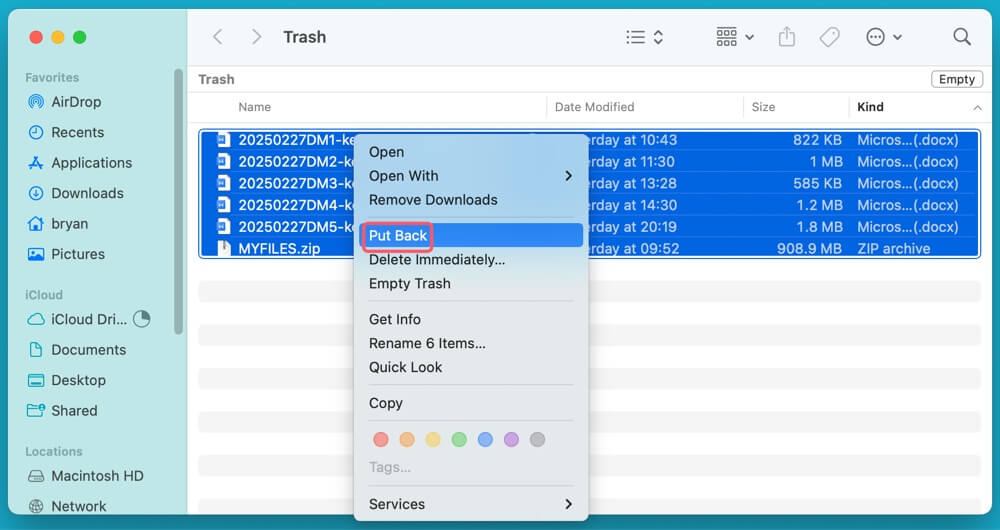
If you deleted the files while your USB was connected to a Windows or macOS computer, they might be in the Recycle Bin or Trash.
For Windows:
For macOS:
Windows has a built-in feature called File History that allows you to recover previous versions of files.
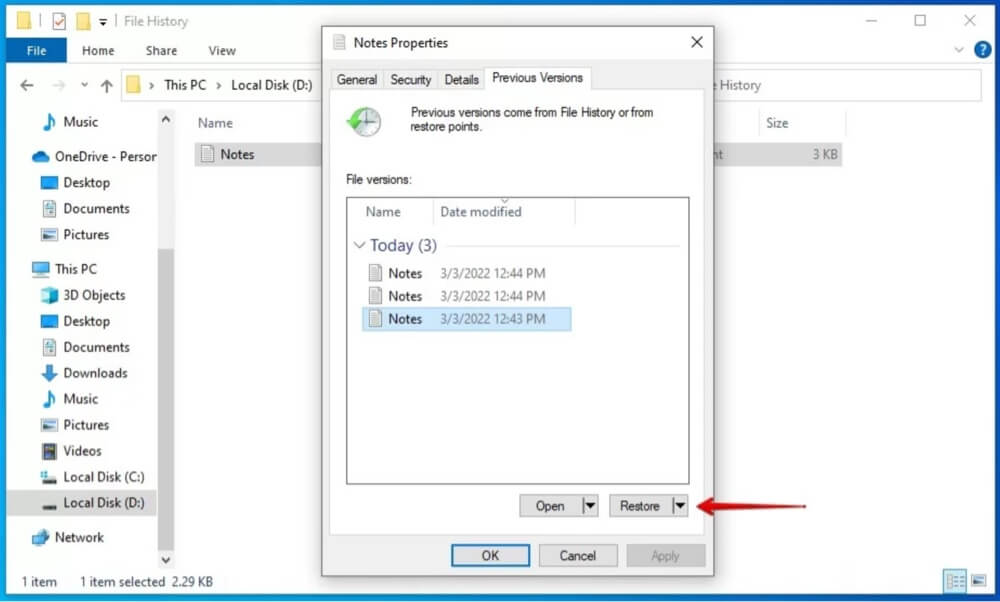
💡 Note: This method works only if File History was enabled before file deletion.
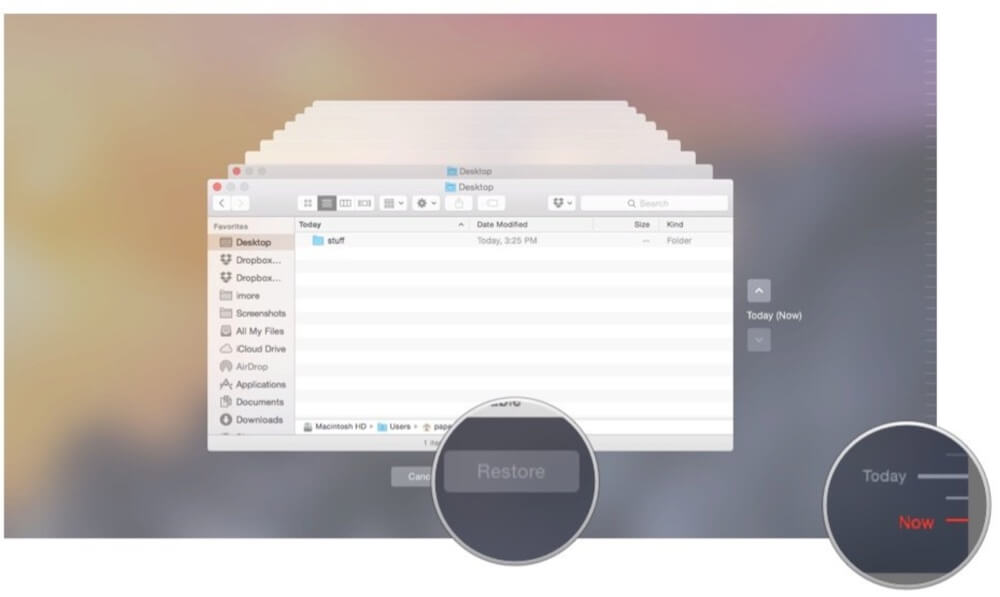
For macOS, if you have backed up the USB flash drive with Time Machine, you can restore the deleted files via Time Machine backups.
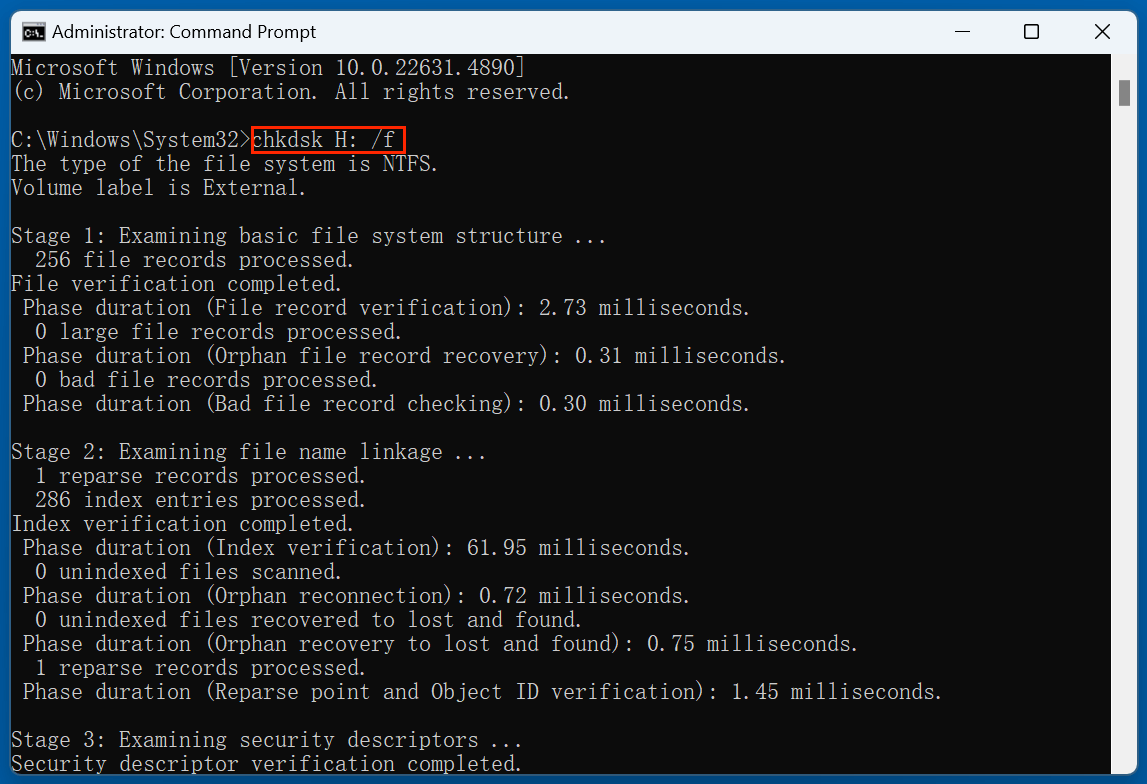
If your USB drive is corrupted, files might be hidden rather than deleted. You can use Command Prompt to restore them.
On Windows: Using CHKDSK to Fix USB Errors
CHKDSK (Check Disk) scans and repairs file system errors on storage devices.
chkdsk X: /f (Replace "X" with your USB drive letter.)
Using ATTRIB Command to Recover Hidden Files
attrib -h -r -s /s /d X:\*.*

(Replace "X" with your USB drive letter.)
On macOS: Using First Aid to Repair the USB Flash Drive
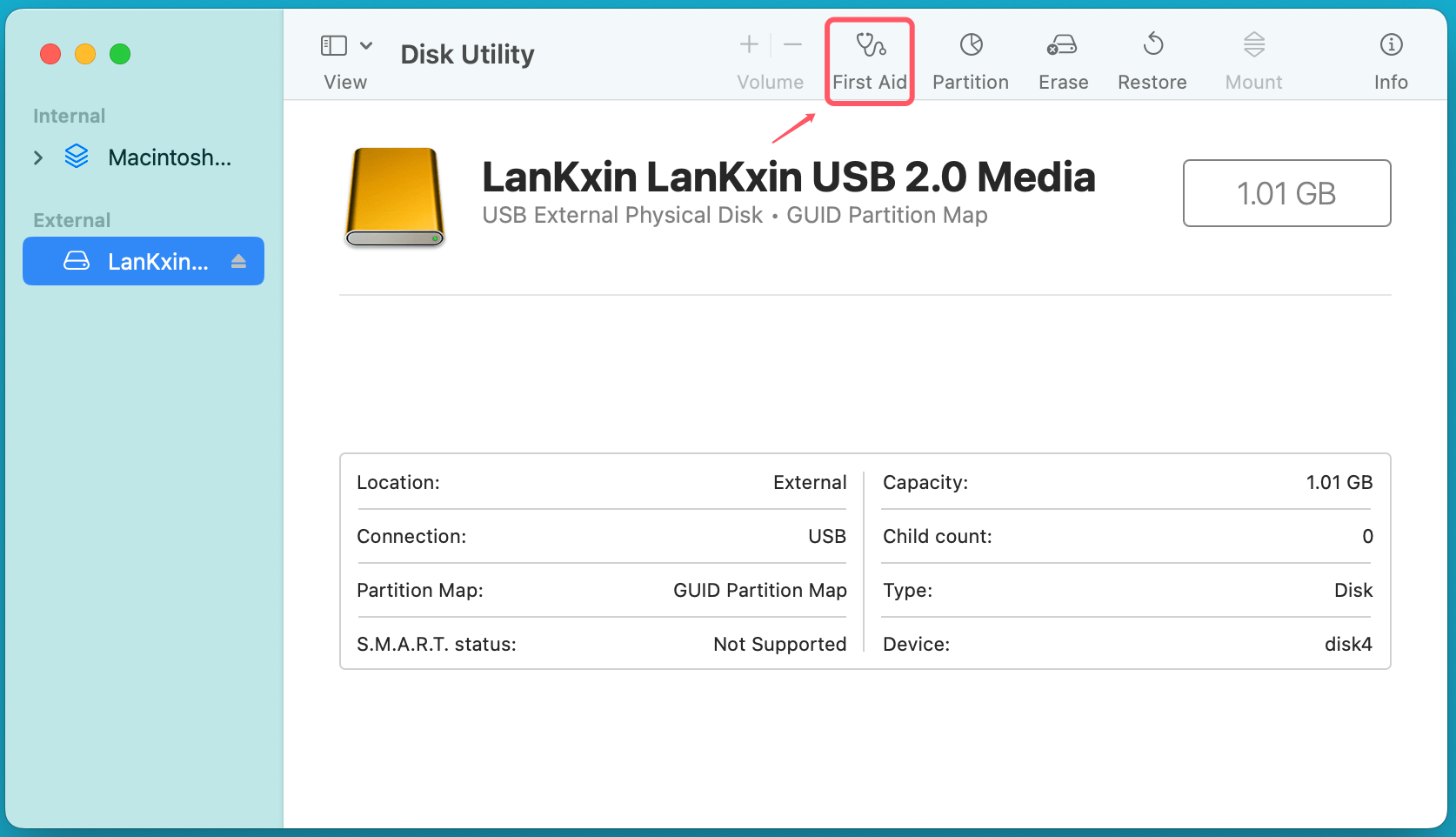
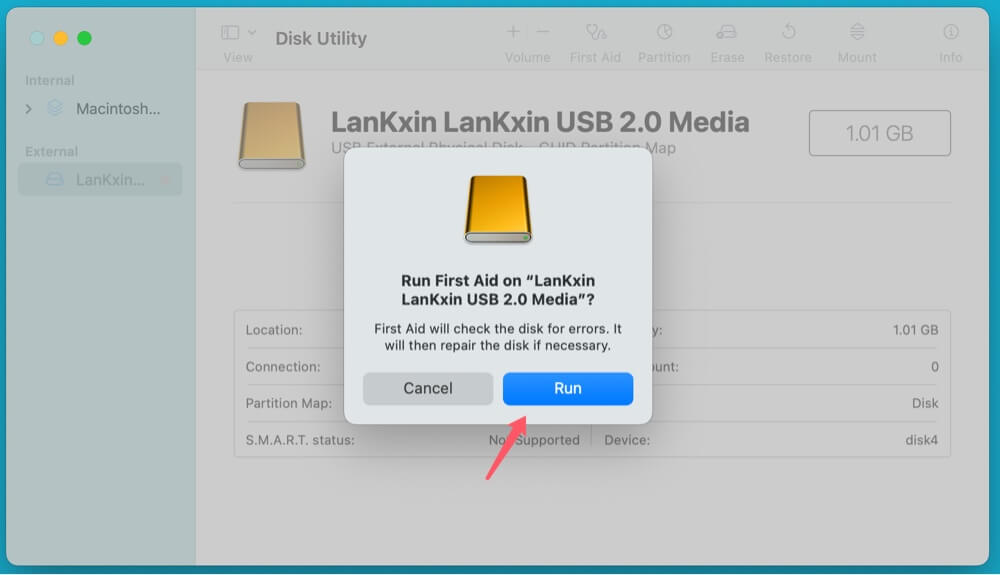
💡Note: These methods are effective for fixing minor USB corruption but may not restore permanently deleted files.
If built-in methods fail, third-party recovery tools can help retrieve deleted files. Donemax Data Recovery is one of the best USB flash drive data recovery programs. It supports to recover deleted, formatted and inaccessible files from HDDs, SSDs, USB flash drives, memory cards, etc.
It supports to recover deleted files from a USB flash drive on Windows and macOS and it also can repair damaged USB flash drive on your computer.
Step 1. Download and install Donemax Data Recovery on your computer, then connect the USB flash drive to the computer.
Step 2. Open Donemax Data Recovery, just select the USB flash drive to start data recovery.
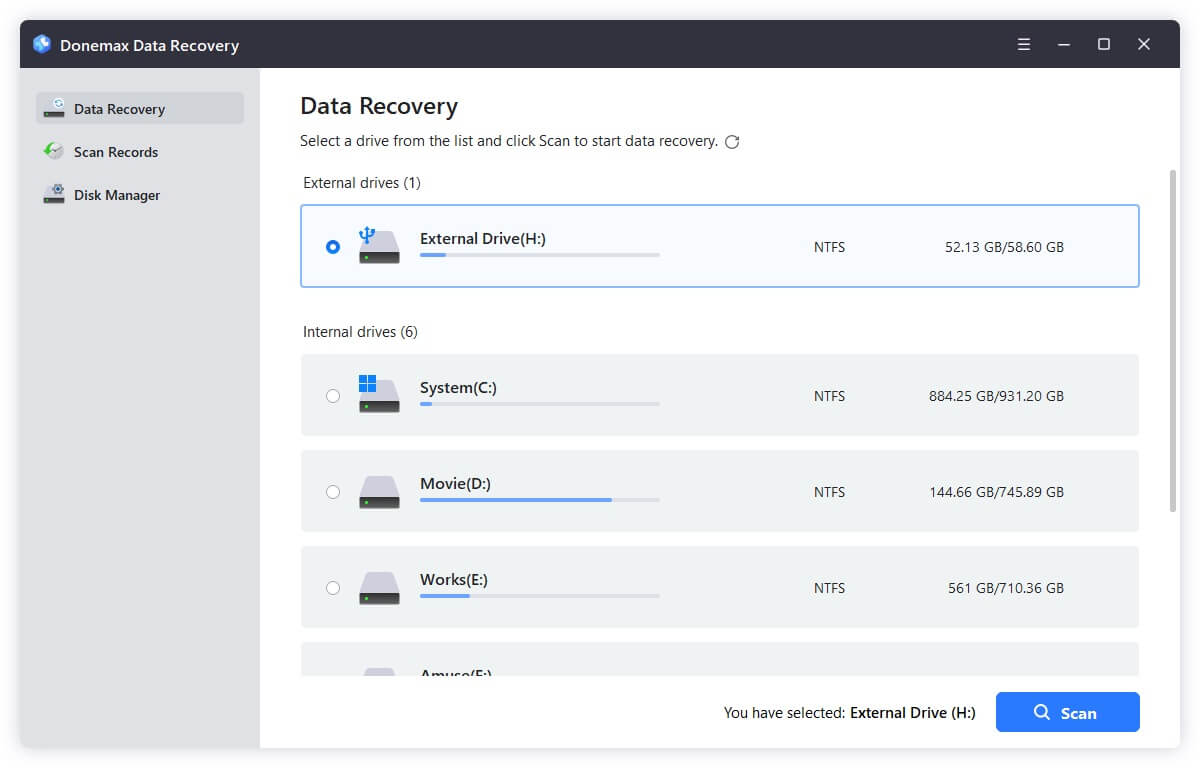
Step 3. Click on Scan button to deeply scan the USB flash drive and find all recoverable files including the deleted files.
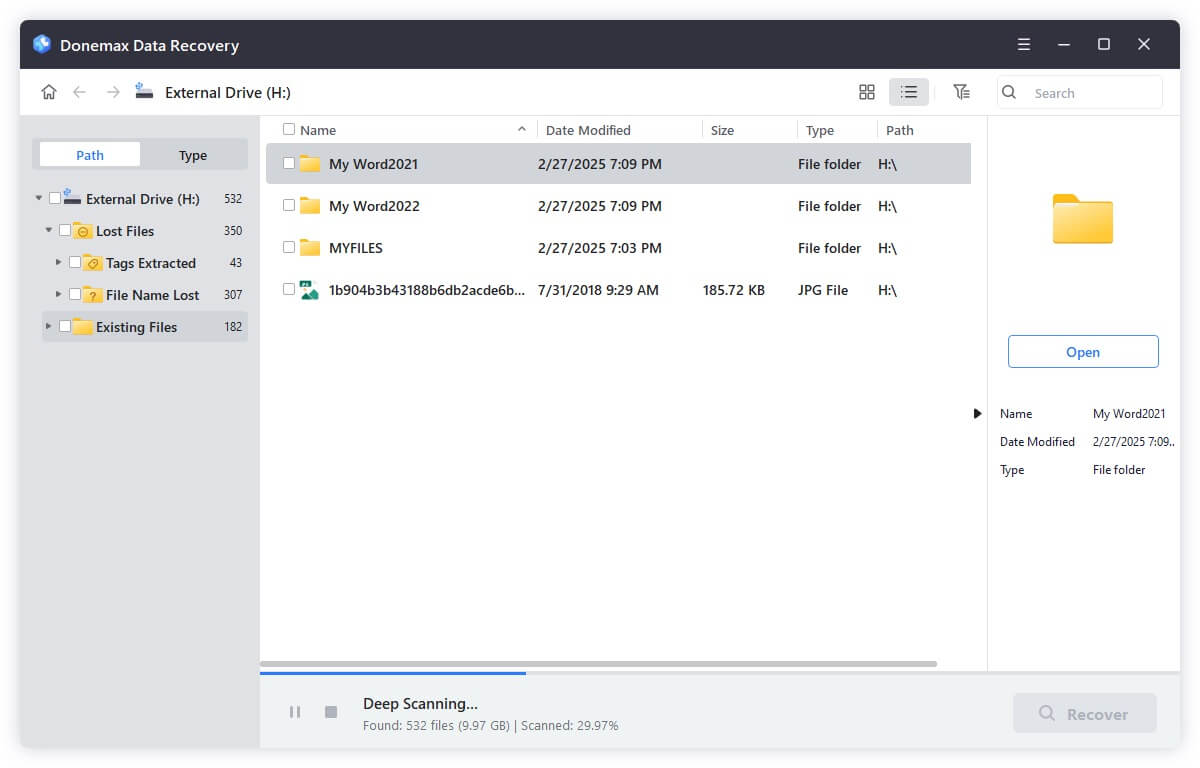
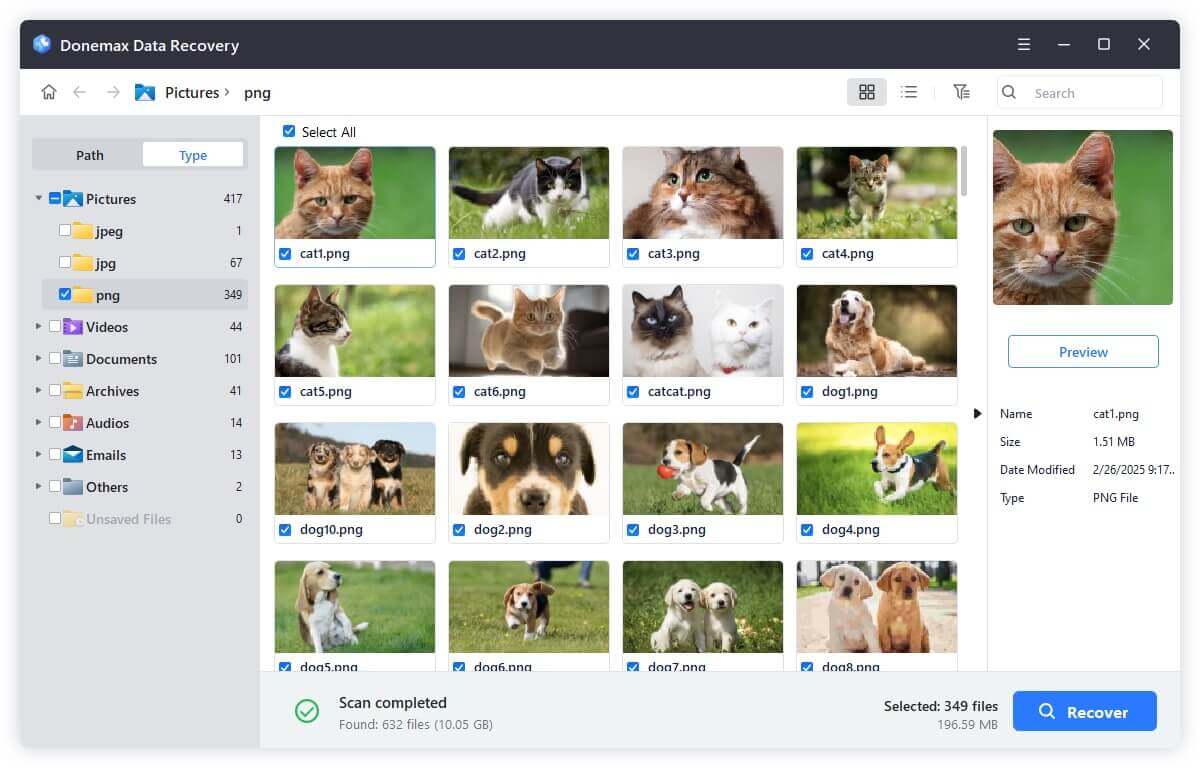
Step 4. Once the scan is completed, you can preview all found files. Then select the wanted files, click on Recover button to save them.
If the USB flash drive gets corrupted, just choose Disk Manager. Then select the USB flash drive, click on Repair button to repair it.
While software-based recovery solutions work in most cases, there are situations where they may not be enough. If your USB flash drive is physically damaged or unrecognized by your computer, expert data recovery services may be your best option. These specialized services use advanced techniques to recover lost data from damaged or failing storage devices.
When to Consider Professional Data Recovery Services:
If you experience any of the following issues, you may need expert help:
By considering professional data recovery services, you can improve your chances of retrieving important files, especially when DIY methods fail. However, it's crucial to act quickly and choose a reputable service to maximize your chances of success.
To avoid future data loss, follow these best practices:
▪️ Regular Backups
▪️ Use Reliable USB Flash Drives
▪️ Safely Eject the USB Drive
▪️ Scan for Malware Regularly
Recovering deleted files from a USB flash drive is possible with the right approach. Start with basic recovery options like checking the Recycle Bin and using built-in Windows tools. If that fails, use Command Prompt methods or try data recovery software like Donemax Data Recovery. For serious cases, professional data recovery services can help retrieve lost files.
To avoid future data loss, make regular backups, use high-quality USB drives, and follow best practices for safe usage. Acting quickly increases the chances of successful file recovery - so don't delay when you notice data loss.
Donemax Data Recovery
One of the best data recovery programs to recover deleted, formatted or lost data from PC, Mac, HDD, SSD, USB drive, SD card, camera, RAID, Sever or other storage devices.
Charles
Charles, who lives in Sydney, Australia, is an editor & writer of Donemax Team. He is good at writing articles related with Apple Mac computers, Windows operating systems, data recovery, data erasure, disk clone and data backup, etc. He loves reading and playing tennis in his spare time and is interested in testing new digital devices such as mobile phones, Macs, HDDs, SSDs, digital cameras, etc.
Gerhard Chou
In order to effectively solve the problems for our customers, every article and troubleshooting solution published on our website has been strictly tested and practiced. Our editors love researching and using computers and testing software, and are willing to help computer users with their problems