
Written byChristinaUpdated on May 22, 2026

PAGE CONTENT:
SanDisk USB drives are widely used for their reliability and ease of use. However, encountering an issue where the USB drive is not recognized can be frustrating, especially if it contains important data. This article provides a comprehensive guide to diagnosing and resolving the problem step by step.
Before fixing the unrecognized SanDisk USB drive, it's important to understand why your SanDisk USB drive might not be recognized:
When your SanDisk USB drive isn't recognized, the problem often lies in the system's software configuration or file system errors. Below are detailed steps to address these issues.
Method 1. Update SanDisk USB Drivers
Drivers are essential for communication between the operating system and hardware devices. Outdated or corrupt drivers can prevent the system from detecting your USB drive.
Step 1. Access Device Manager: Choose Device Manager from the menu by pressing Win + X.
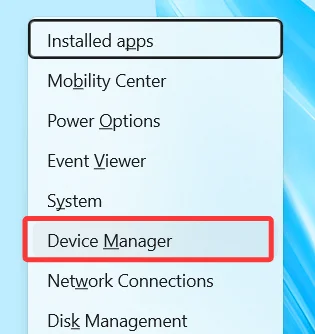
Step 2. Locate USB Controllers:
Step 3. Update Drivers:
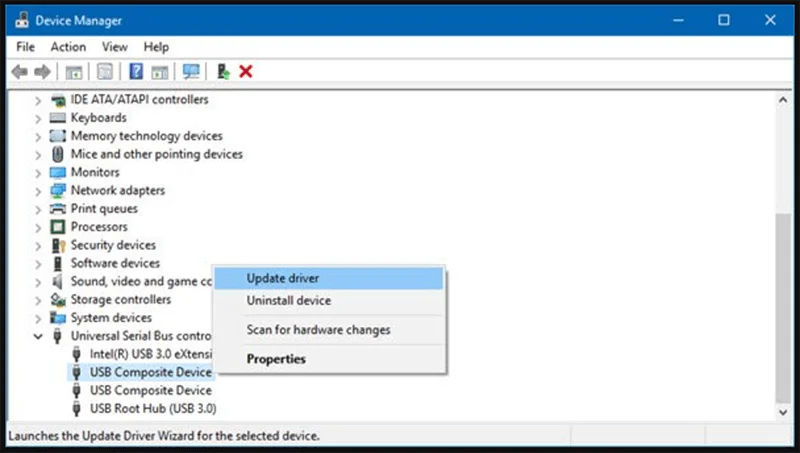
Alternative Method:
Updating drivers ensures compatibility and can fix USB recognition problems without requiring further steps.
Method 2. Scan for Hardware Changes
Sometimes, your system might fail to detect newly connected devices due to temporary glitches. Scanning for hardware changes forces Windows to recognize new hardware.
Step 1. Open Device Manager as explained above.
Step 2. Right-click on your computer's name (listed at the top).
Step 3. Select Scan for hardware changes from the dropdown menu.
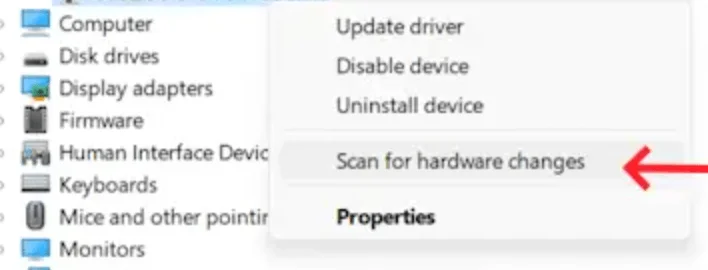
Step 4. Wait for the system to identify and initialize any connected USB devices.
This quick method often resolves issues caused by missed hardware detection during startup or device connection.
Meethod 3. Run Disk Management Tools
If your USB drive is physically connected but still not showing up, it might not have been assigned a drive letter, or it may appear as unallocated in the Disk Management tool.
Step 1. Choose Disk Management from the menu by pressing Win + X.
Step 2. Look for your USB drive in the list of storage devices.
Assign a Drive Letter:
Step 1. Give the USB disk a right-click.
Step 2. Choose Change Driver Letter and Paths...
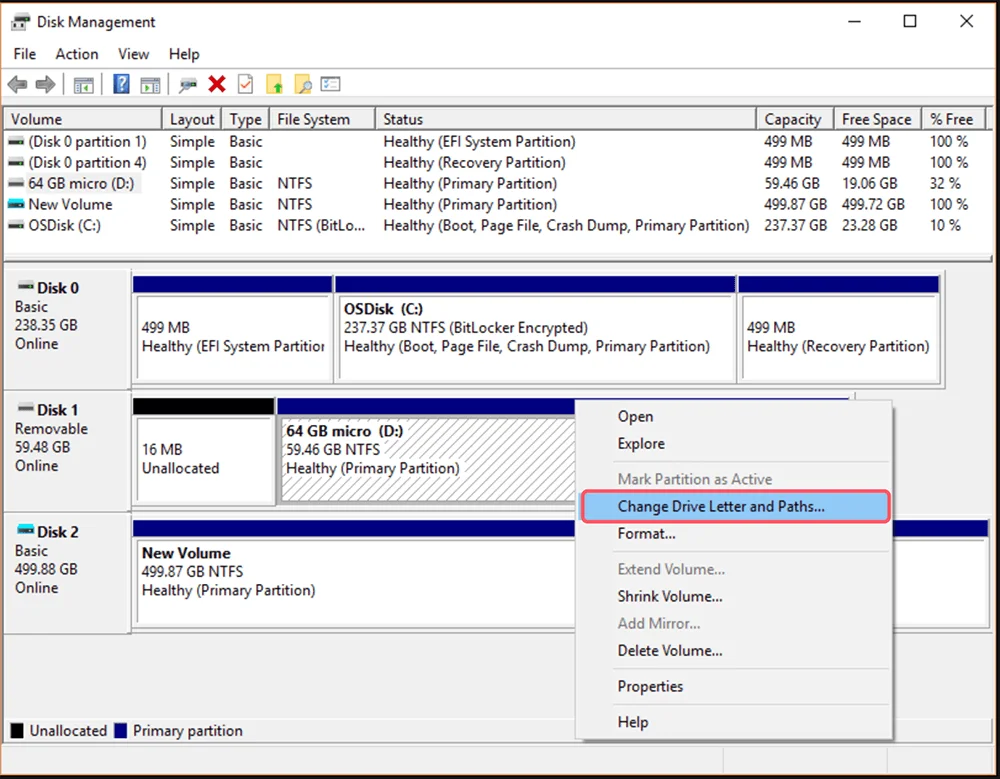
Step 3. Select a letter (such as E:), click Add, and then select OK.
Initialize or Format the Disk:
Step 1. Choose New Simple Volume from the menu when you right-click on the unallocated space.
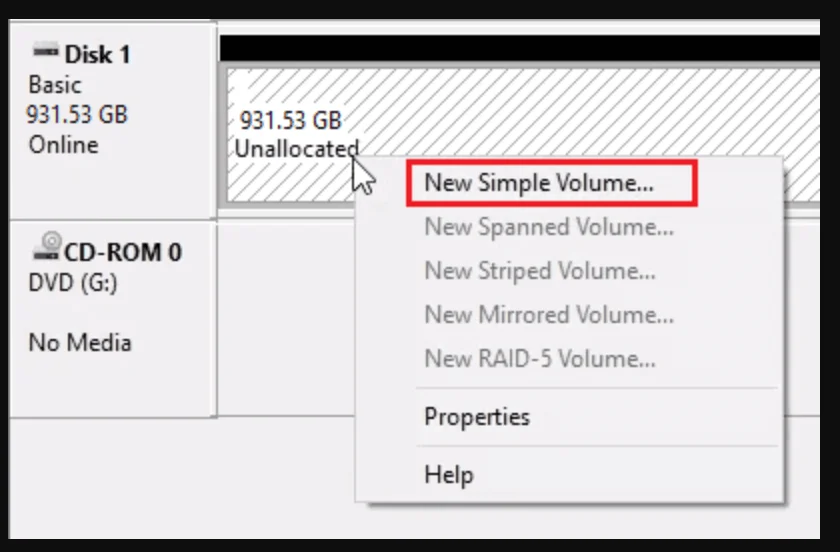
Step 2. To format the drive and designate a file system (such as NTFS or FAT32), adhere to the wizard.
This process can resolve cases where the system recognizes the drive but doesn’t allocate it properly for use.
Method 4. Check File System Integrity
File system corruption can occur due to improper ejection, power interruptions, or malware. The CHKDSK utility is a built-in Windows tool to identify and repair such issues.
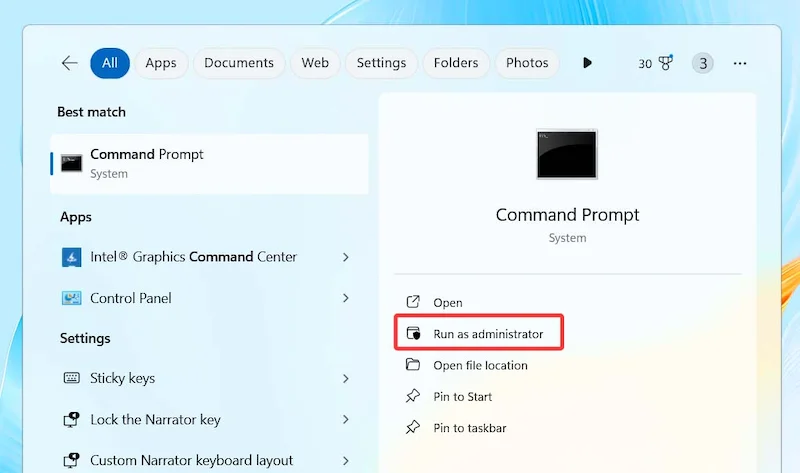
Step 1. Open Command Prompt as Administrator: Press Win + S, type cmd, and select Run as Administrator.
Step 2. Type the Command: chkdsk X: /f (replace X with the letter assigned to your USB drive).
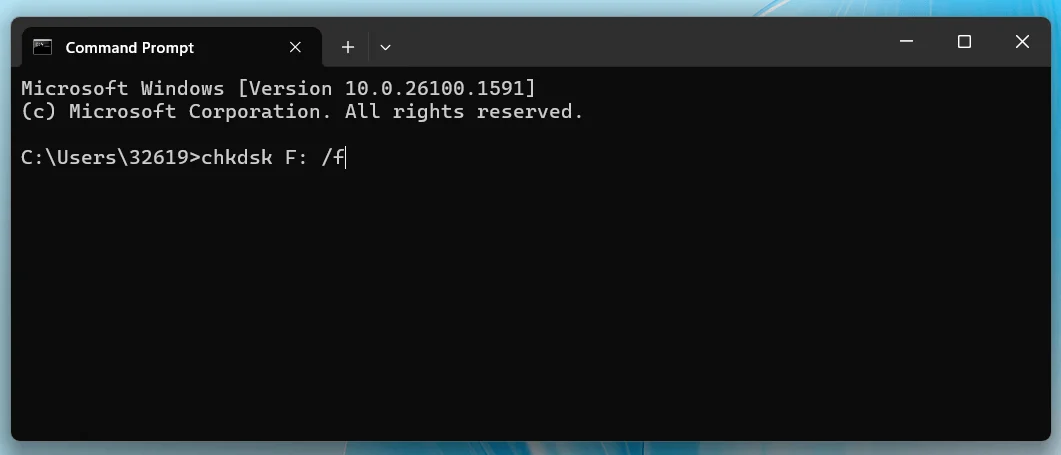
Step 3. Analyze the Output:
CHKDSK is effective for repairing minor to moderate file system issues without formatting the drive, preserving your data.
Method 5. Reinstall USB Controller Drivers
USB controller drivers manage all USB ports on your system. Corrupt drivers can prevent the system from detecting USB devices entirely.
Step 1. Open Device Manager.
Step 2. Make the section on Universal Serial Bus controllers larger.
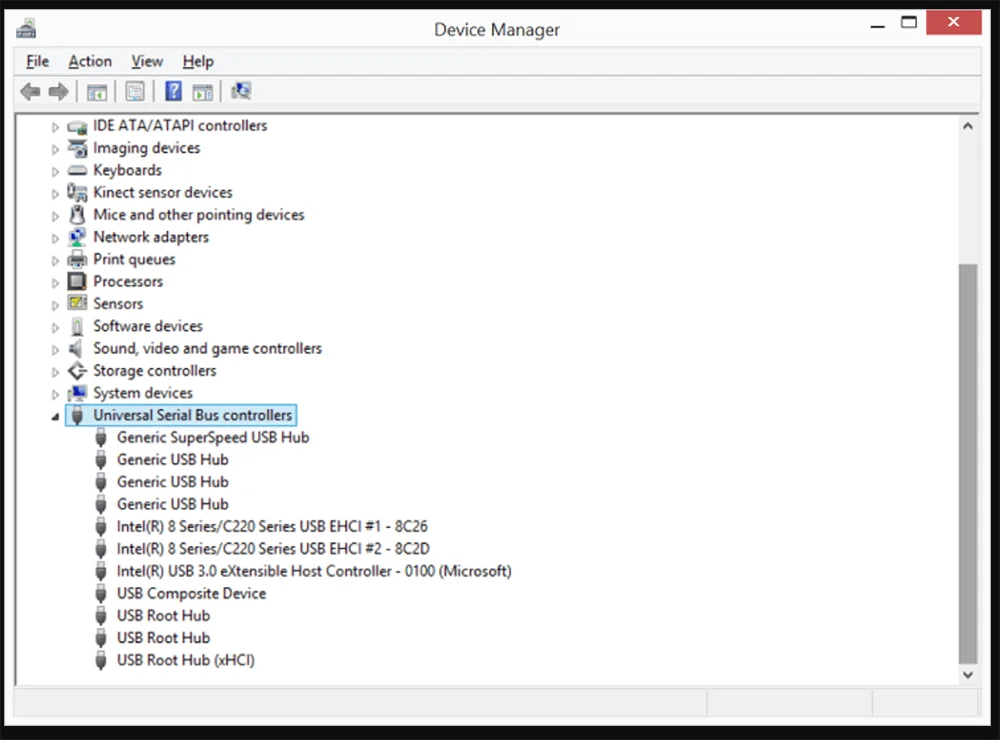
Step 3. Choose Uninstall device by performing a right-click on each item with the labels USB Root Hub or Host Controller.
Step 4. Give your computer a restart.
Step 5. At startup, Windows will restore the required drivers automatically.
If automatic reinstallation doesn't occur, download and install the drivers manually from your PC manufacturer's website.
Method 6. Disable USB Selective Suspend
USB Selective Suspend is a power management feature in Windows designed to conserve energy by suspending idle USB ports. However, it can sometimes interfere with device detection.
Step 1. Open Control Panel and navigate to Power Options.
Step 2. Click on Change plan settings next to your active power plan.
Step 3. Select Change advanced power settings.
Step 4. Expand the USB settings option.
Step 5. Under USB selective suspend setting, change the setting to Disabled for both On battery and Plugged in options.
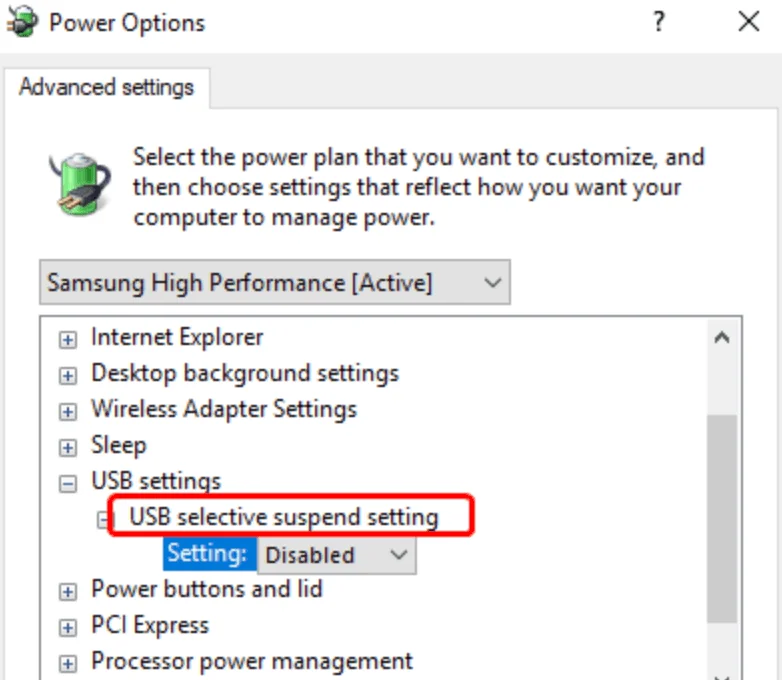
Step 6. Click Apply and restart your system.
Disabling this feature ensures that your USB ports remain active, eliminating potential interruptions in device recognition.
Method 7. Reformat the SanDisk USB Drive
Reformatting the drive can resolve severe file system errors but will erase all data.
Step 1. Open Disk Management.
Step 2. Right-click the SanDisk drive and select Format.
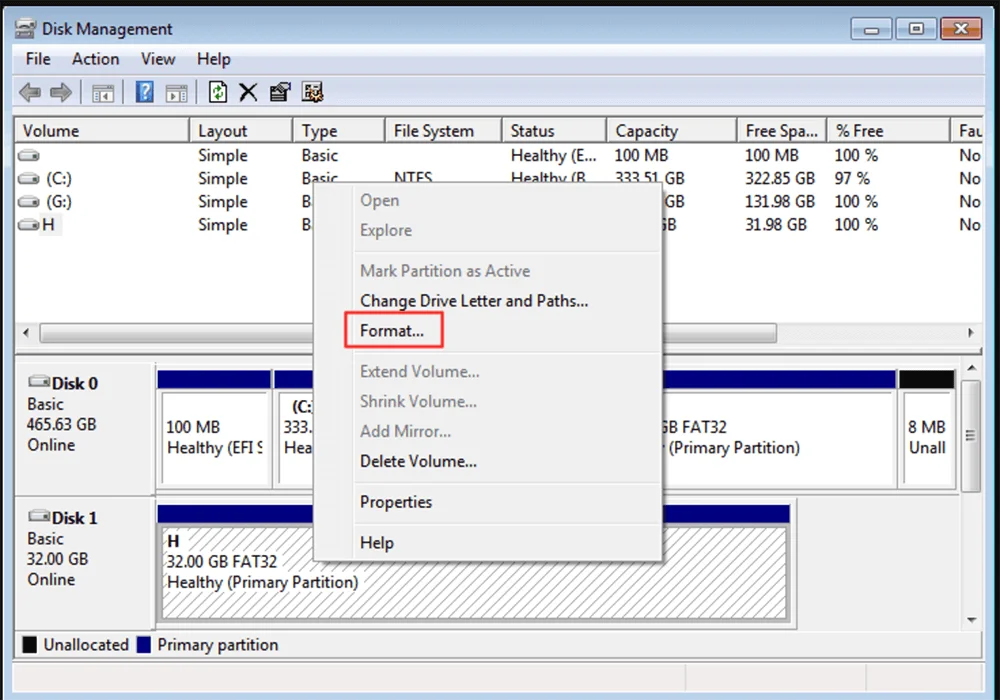
Step 3. Choose a file system (e.g., NTFS, FAT32, or exFAT).
Step 4. Click OK to proceed.
If none of the software fixes work, the issue may be hardware-related.
1. Replace USB Ports
Faulty USB ports can prevent devices from being detected. Consider testing the drive on a different USB port or using a powered USB hub.
2. Inspect the SanDisk Drive Hardware
If the data is important, use recovery software before formatting.
Step 1. Download and install the reliable SanDisk USB drive data recovery program - Donemax Data Recovery on your computer.
Step 2. Choose the SanDisk USB drive after you open Donemax Data Recovery.
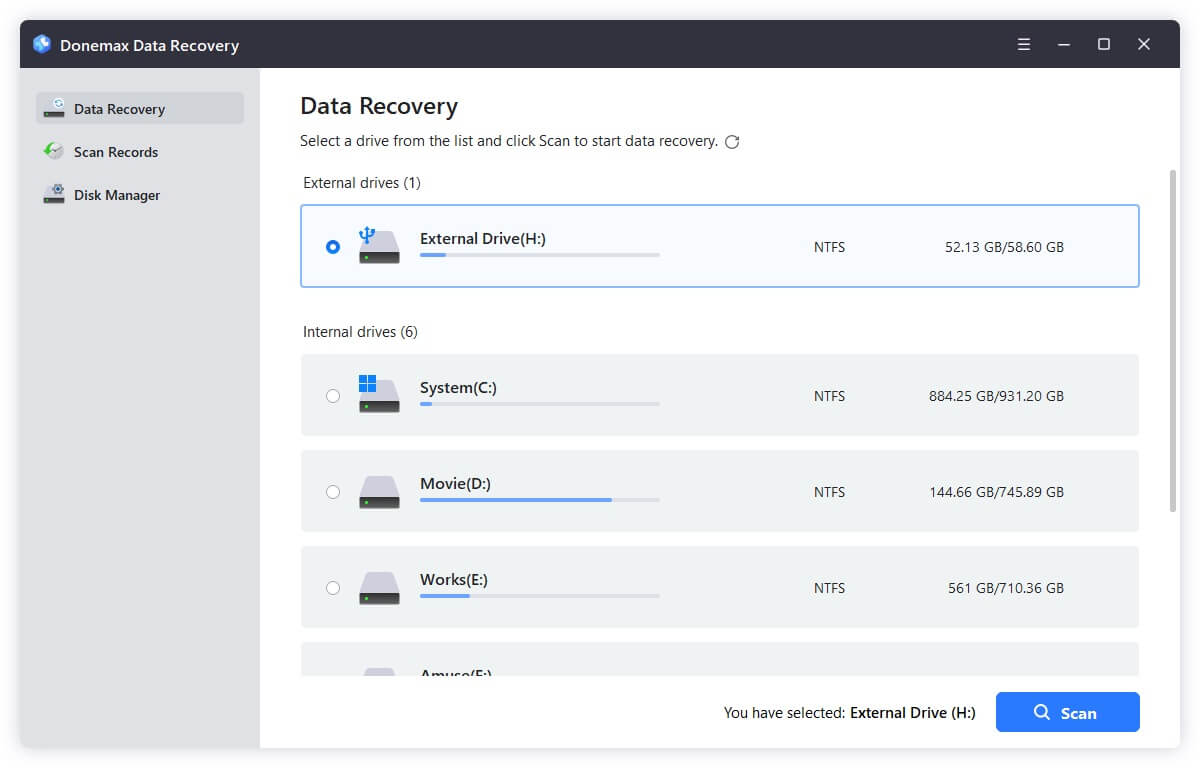
Step 3. Click on Scan button so that Donemax Data Recovery can scan the SanDisk USB drive and find the inaccessible files or lost files.
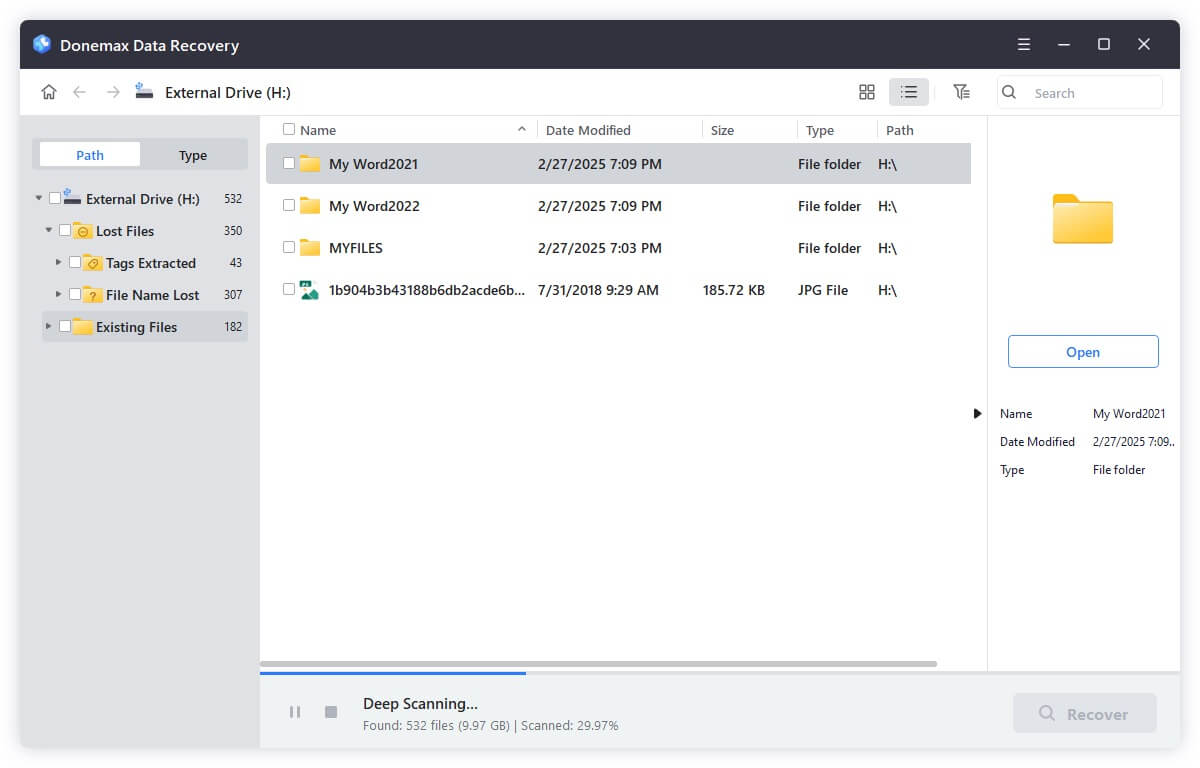
Step 4. Once the scan gets finished, you can preview the recoverable files. Then select the wanted files, click on Recover button.
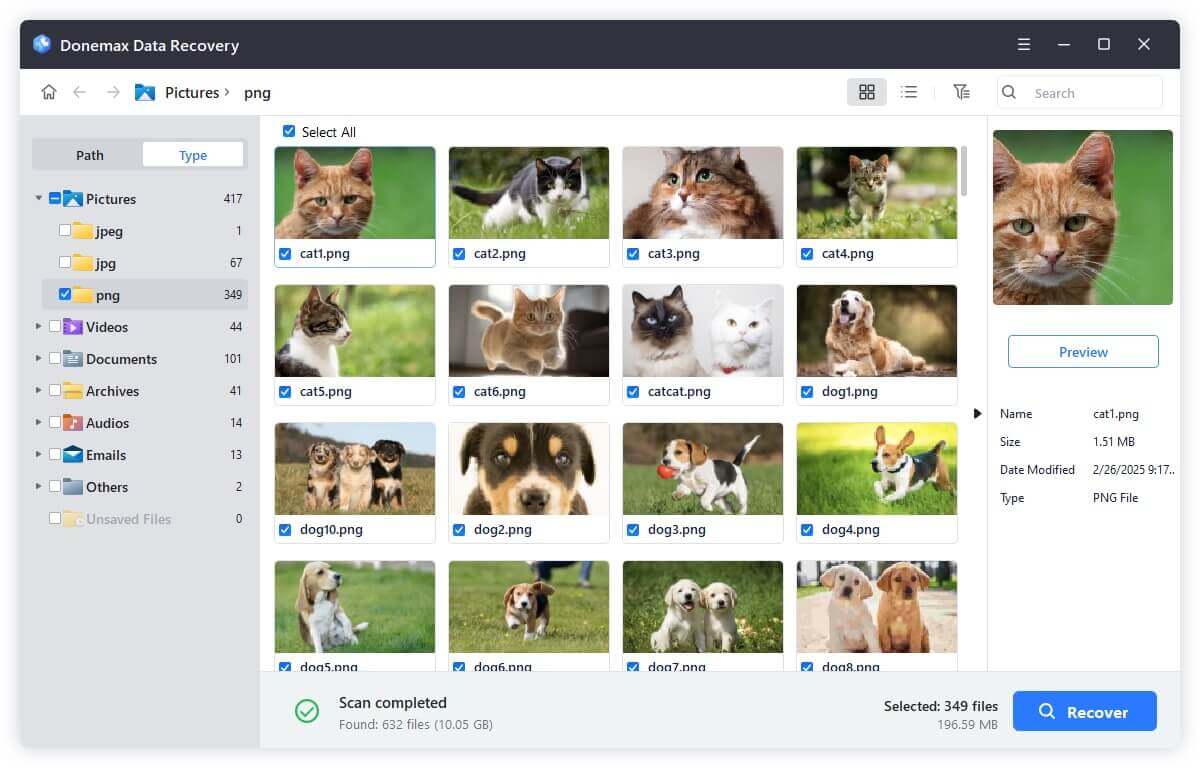
Donemax Data Recovery also can help you fix corrupted SanDisk USB drive.
To avoid similar issues in the future, follow these best practices:
SanDisk USB drives not being recognized is a common issue that can arise due to various factors, including software glitches, hardware damage, or driver problems. By systematically diagnosing and addressing the problem using the steps outlined in this guide, you can restore functionality to your drive and regain access to your data.
If the issue persists despite these efforts, consult a professional or reach out to SanDisk support for further assistance. To prevent such problems in the future, practice safe handling, regular updates, and proper ejection of your USB drives.
If you have lost data from your SanDisk USB drive, you can use data recovery program - such as Donemax Data Recovery to get the lost data back.
Donemax Data Recovery
Donemax Data Recovery is one of the best data recovery software. It is easy-to-use and can help in recovering deleted, formatted, inaccessible or lost data from HDD/SSD, external disk, USB drive, SD card, camera or other storage devices.
Christina
Christina is the senior editor of Donemax software who has worked in the company for 4+ years. She mainly writes the guides and solutions about data erasure, data transferring, data recovery and disk cloning to help users get the most out of their Windows and Mac. She likes to travel, enjoy country music and play games in her spare time.
Gerhard Chou
In order to effectively solve the problems for our customers, every article and troubleshooting solution published on our website has been strictly tested and practiced. Our editors love researching and using computers and testing software, and are willing to help computer users with their problems

