Written byStevenUpdated on Jul 03, 2026

Before we start: How to wipe an SSD permanently on macOS 27 Golden Gate? We'll look at the built-in options Apple gives you, why they might not be enough for true security, and how a professional tool like Donemax Data Eraser for Mac can get the job done completely.
PAGE CONTENT:
Are you planning to sell your old Mac, trade it in, or just want to clear out space? With the arrival of Apple's latest operating system, macOS 27 Golden Gate, many users are asking a very important question: Can I wipe SSD on macOS 27 Golden Gate safely and permanently?
The short answer is yes, you can. However, because macOS 27 Golden Gate runs exclusively on Apple Silicon chips and handles SSD storage differently than old Intel Macs, the process isn't as simple as it used to be. In fact, if you just use standard tools, your private data might still be recoverable.
Apple's macOS 27 Golden Gate is a milestone update. It marks the complete end of the Intel Mac era, running solely on Apple Silicon like the M1, M2, M3, M4, M5, and the brand-new A18 Pro-powered MacBooks. Along with performance improvements and a sleeker UI, this version brings tighter security and advanced file handling.
When it comes to Solid State Drives (SSDs), things are unique. Unlike old hard drives that store data on spinning platters, SSDs store data on flash memory chips. They use a built-in controller to distribute data evenly across the drive to prevent wear and tear. This is called wear leveling.
Because of wear leveling, when you delete a file or format a drive normally, the data isn't actually erased right away. The Mac simply marks that space as available. Until new data overwrites it, data recovery software can easily bring those hidden files back to life.
If you open up the native Disk Utility application in macOS 27 Golden Gate, you will notice something interesting. If you select your internal SSD and click 'Erase', the 'Security Options' slider is completely grayed out or missing. Why is that?
Apple intentionally disables secure erase options for SSDs in Disk Utility. Writing zeros or random data multiple times to an SSD using old methods can cause unnecessary wear on the flash memory, reducing the lifespan of your expensive drive. Plus, due to the drive's controller architecture, traditional overwriting cannot guarantee that every block of data is reached.
Apple's built-in alternative for modern Macs is called 'Erase All Content and Settings'. This feature uses a method known as cryptographic erasure. It destroys the encryption keys that protect your data, making the information unreadable instantly. While this is great for a quick reset when trading in your Mac to Apple, it might not satisfy users who require absolute data destruction or need to safely wipe external SSDs.
For those who handle sensitive personal records, financial data, or business information, cryptographic erasure leaves a tiny bit of worry. Furthermore, Erase All Content and Settings only works for the primary startup drive. What if you want to wipe an external SSD, a secondary volume, or permanently delete specific deleted files so they can never be recovered?
This is where standard macOS tools fall short. To ensure that your files are 100% gone and completely unrecoverable by any data recovery tool, you need a specialized solution designed specifically for modern Mac operating systems and flash storage.
If you want peace of mind, we highly recommend Donemax Data Eraser for Mac. This software is fully optimized for macOS 27 Golden Gate and is specifically engineered to safely handle SSD data erasure without damaging your hardware.
Donemax Data Eraser for Mac uses advanced algorithms that comply with international data security standards (such as DoD 5220.22-M and Peter Gutmann's algorithm). It bypasses the limitations of wear leveling to overwrite the designated storage space completely, making data recovery absolutely impossible.
Before you click that final erase button, keep these quick tips in mind to avoid any mistakes:
Wiping your storage device with Donemax Data Eraser for Mac takes only a few simple steps. Here is how you can do it safely:
Step 1: Launch the program from your Applications folder. Choose the Erase Hard Drive option from the main dashboard on the left-hand side. Select the specific SSD (internal or external) that you want to wipe from the list of available devices.
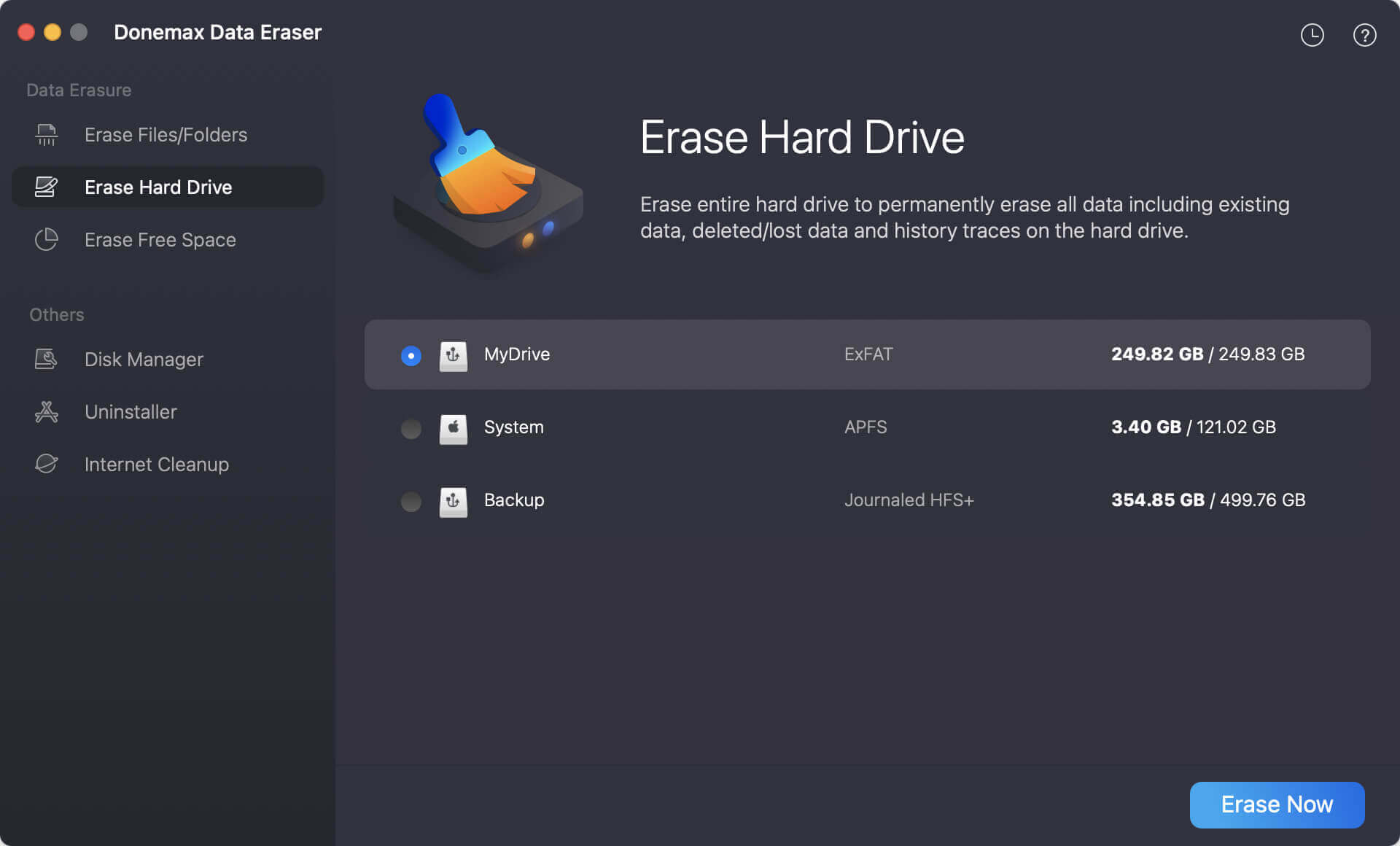
Step 2: Click the Erase Now button. The software will show the window where you can select a data erasure standard. Any standard can help you permanently wipe data from the SSD.
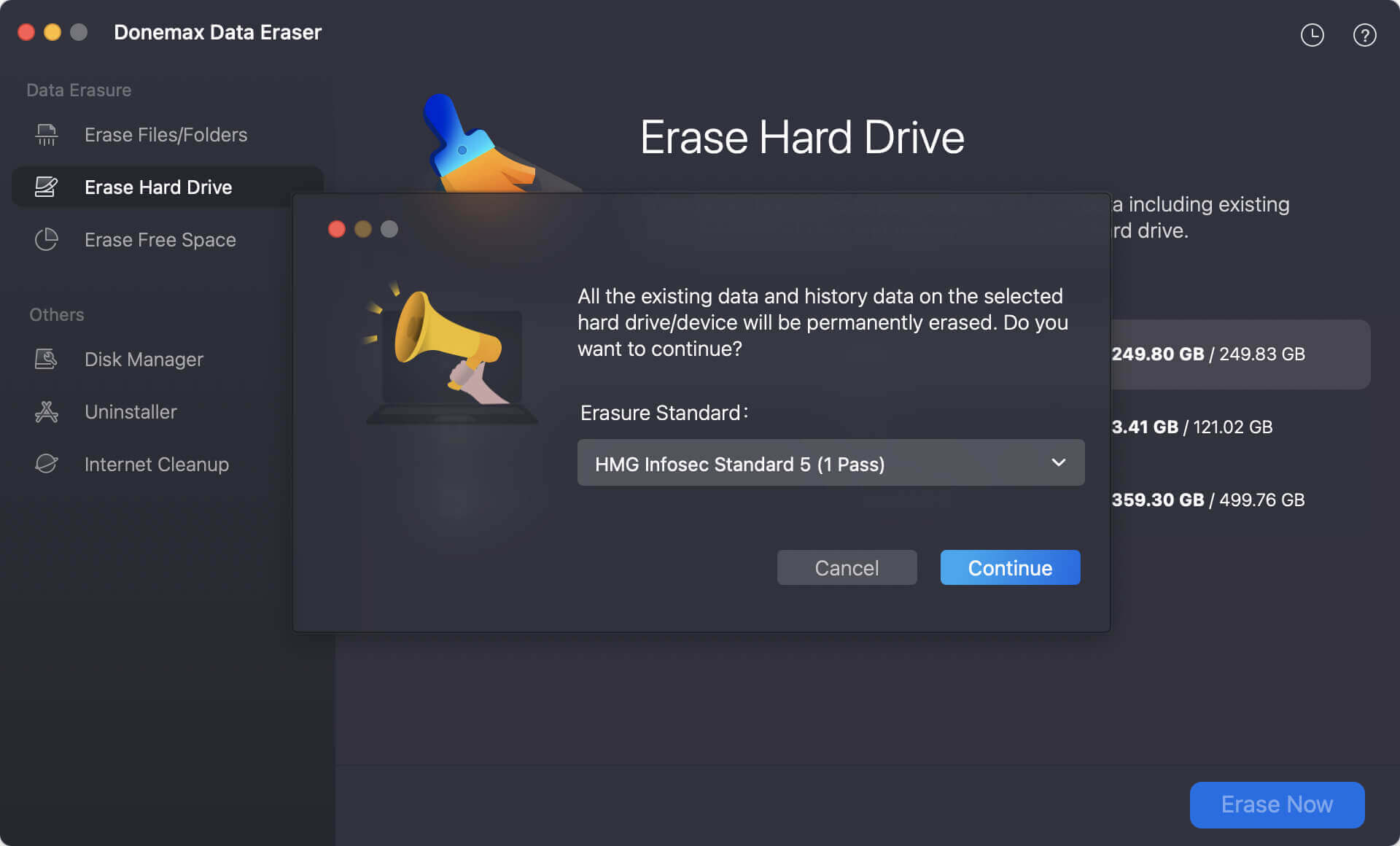
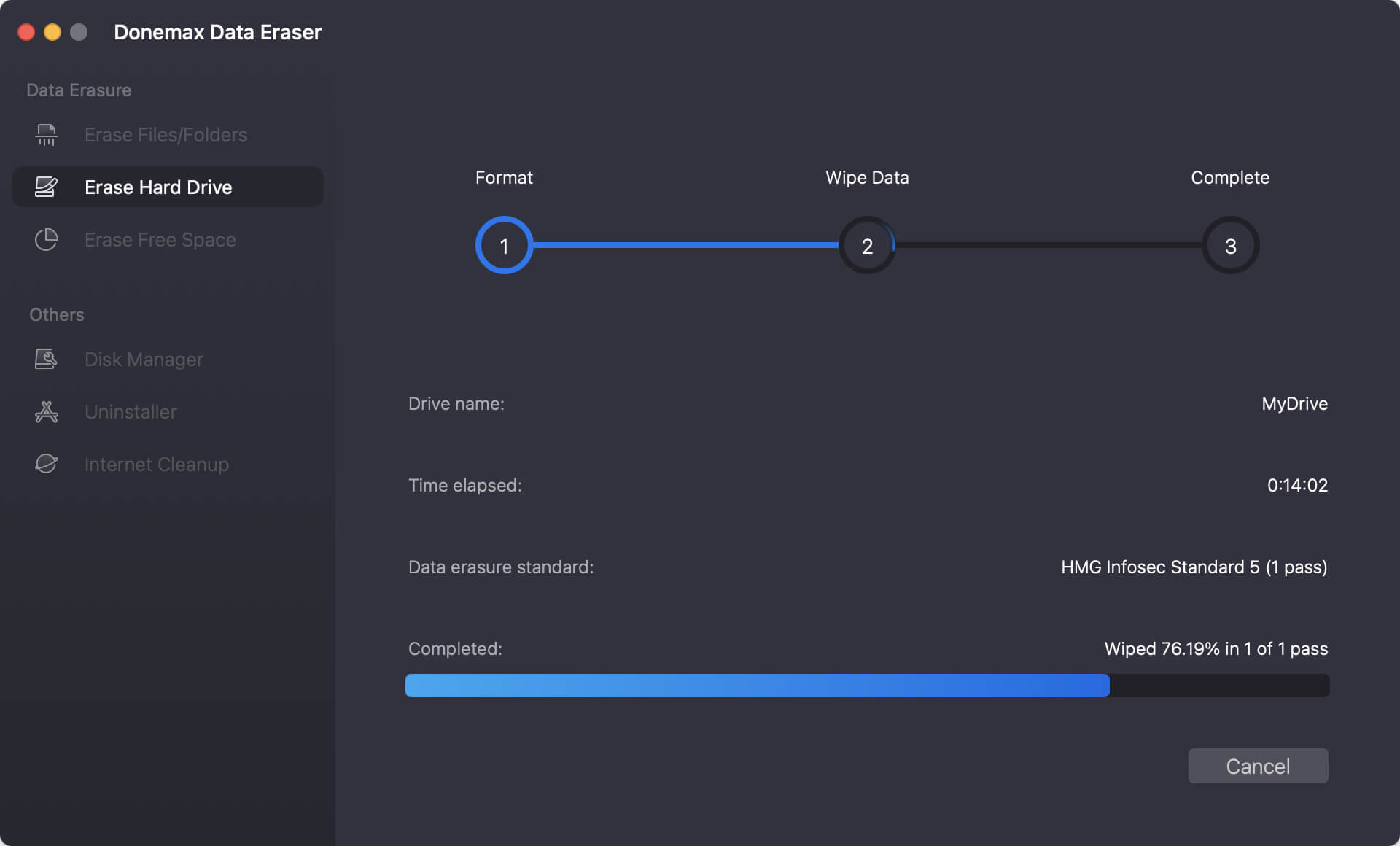
Step 3: At last, click Continue button. The software will securely overwrite all the data blocks on the drive using certified erasure methods. Wait for the process to finish. Once done, your SSD is completely clean, fresh, and safe to pass on to anyone else.
Protecting your digital privacy is more important than ever. When asking 'can I wipe SSD on macOS 27 Golden Gate?', the answer is a clear yes. While Apple's new operating system offers great built-in features like cryptographic erasure for a quick reset, it falls short when you need absolute data destruction for external storage or specific folders.
By choosing a trusted tool like Donemax Data Eraser for Mac, you take full control of your data. Its optimization for Apple Silicon and macOS 27 Golden Gate ensures a quick, simple, and 100% secure erasure process. Don't leave your private information to chance—wipe your SSD the right way before letting your device go.
Donemax Data Eraser for Mac
100% safe and powerful Mac data erasure program. It offers certified data erasure standards including U.S. Army AR380-19, DoD 5220.22-M ECE to securely and permanently erase data from Mac HDD/SSD and external storage devices, making data recovery impossible.
Steven
Steven has been a senior writer & editor of Donemax software since 2020. He's a super nerd and can't imagine the life without a computer. Over 6 years of experience of writing technical solutions and software tesing, he is passionate about providing solutions and tips for Windows and Mac users.
Gerhard Chou
In order to effectively solve the problems for our customers, every article and troubleshooting solution published on our website has been strictly tested and practiced. Our editors love researching and using computers and testing software, and are willing to help computer users with their problems