
Written byChristinaUpdated on May 25, 2026

Before we start: How to effectively recover deleted or lost data on M5 Pro MacBook Pro? Donemax Data Recovery for Mac can deeply scan the drive to help you get back the lost files with ease.
PAGE CONTENT:
The M5 Pro MacBook Pro is an absolute powerhouse. Featuring Apple's cutting-edge M5 Pro silicon architecture, high-bandwidth unified memory, and blistering-fast storage arrays, it is the ultimate daily workhorse for creative professionals, data analysts, and power users alike. But despite all its advanced computing power, it cannot protect you against a universal reality: accidental data loss.
It only takes a single split-second distraction to empty a crowded Trash bin, accidentally format an external drive, or suffer a sudden workspace partition loss due to an unoptimized application crash. If you need to perform a comprehensive M5 Pro MacBook Pro deep scan data recovery, don't panic. The underlying sectors on your drive likely still hold your data. In this comprehensive guide, we will outline the unique architecture of modern Mac storage systems and show you how to pull your lost files back with absolute confidence.
To successfully recover your files, it helps to know how deletion works on modern Apple notebooks. When you delete an asset on your M5 Pro MacBook Pro and clear out the system Trash bin, macOS does not instantly delete the data from the physical solid-state components. Doing that would require a massive burst of processing energy and slow down your workflow.
Instead, macOS takes a shortcut: it deletes the "index record" for that specific file and tells the system that the file's storage blocks are now empty and ready to accept new information. As long as your laptop does not write new data over those specific blocks, the original file remains fully intact. This is where specialized data recovery software comes into play—it sweeps the entire storage space, uncovers those unindexed blocks, and reconstructs your lost data perfectly.
Crucial Rule of Apple Silicon Data Loss
To bypass complex APFS directory splits and locate lost assets over high-speed interfaces, you need an optimization-aware tool. Donemax Data Recovery for Mac is a highly trusted, premium utility purpose-built to navigate modern Apple architectures, including the entry-level MacBook Neo and the high-performance M5 Pro/Max MacBook Pro series.
Ready to run a search and rescue your professional files? Connect an external storage drive or high-capacity USB-C thumb drive to your laptop to serve as your safe data destination, and follow these simple steps:
Step 1: Choose Your Target Storage Partition
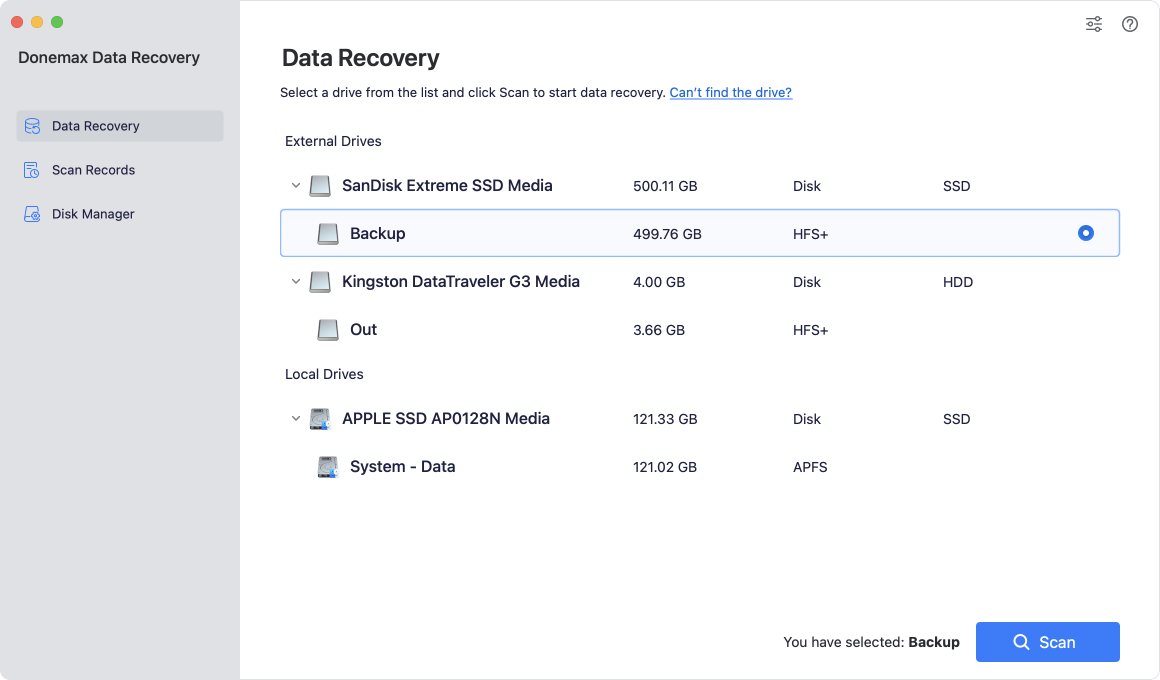
Run the software Donemax Data Recovery for Mac. The main interface will show a clear, clean list of all available internal volumes and attached external Thunderbolt devices. Highlight the drive where your files were originally stored—for internal storage, choose your main volume (typically labeled "Macintosh HD"). Click the blue Scan button in the lower-right corner.
Step 2: Let the Automatic Dual Scan Run
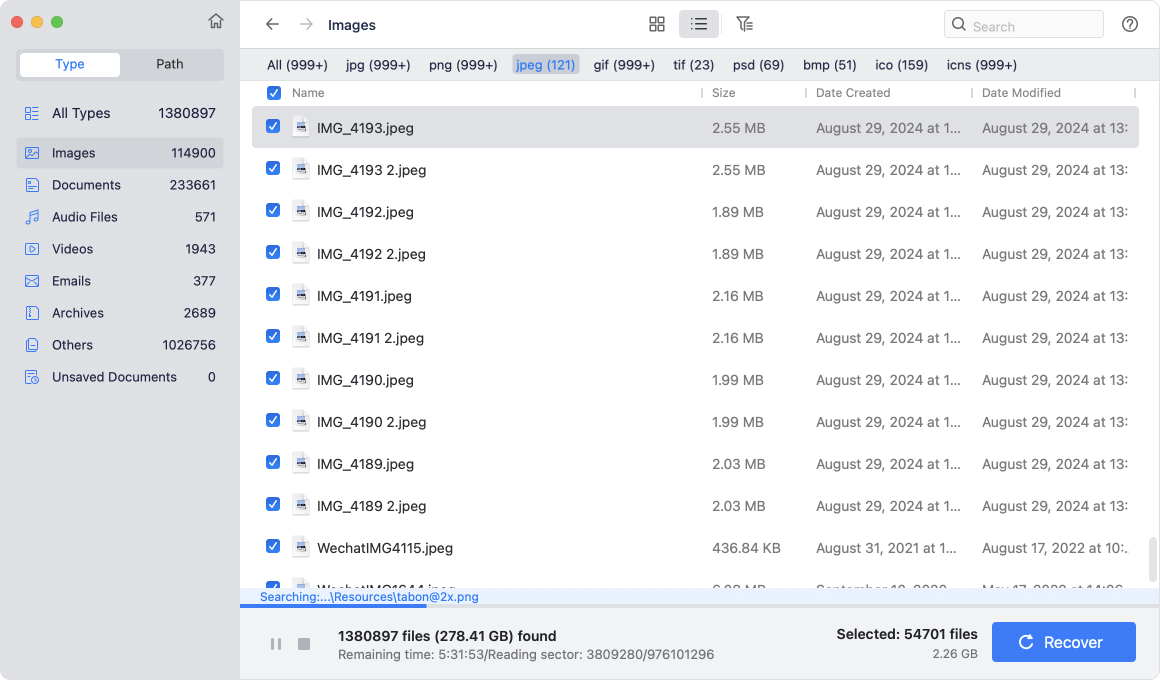
Relax while Donemax handles the technical heavy lifting. The program will immediately run a rapid quick scan, and then the software will run a deep scan automatically after the quick scan finishes. You can track the progress bar at the top of the window and see found files populating in real-time on your screen.
Step 3: Filter, Preview, and Select Your Files
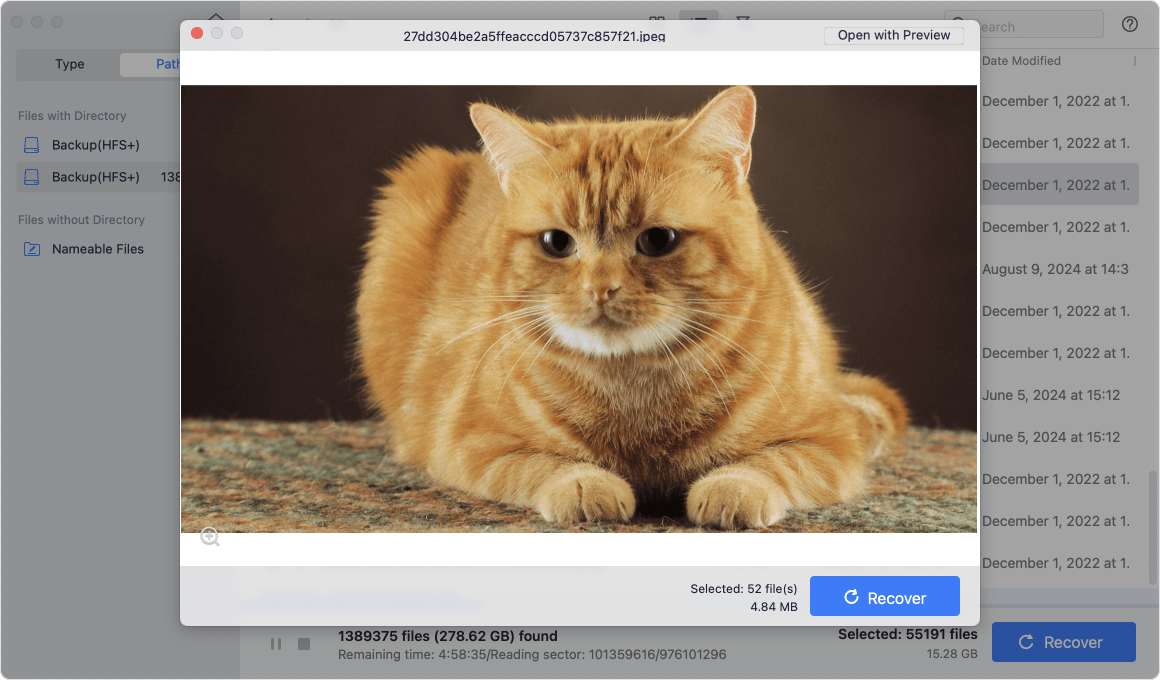
Once the deep search is complete, navigate through the sidebar categories (such as Photos, Videos, or Documents) or use the search bar to locate specific file names. Click on any file to open the live preview window. If a large video clip or multi-layered photo project previews perfectly, it is healthy and ready to be rescued.
Step 4: Recover Your Data to a Safe Secondary Location
Check the tick-boxes next to the files or folders you want to save. Click the prominent Recover button. When the folder selection prompt appears, choose your connected external hard drive or secondary storage unit. Never save the files back to the exact same internal drive partition where they were lost, as doing so can permanently overwrite other deleted files that are still waiting to be rescued!

Accidentally deleting critical files can be incredibly stressful, but with specialized modern tools on your side, data loss doesn't have to be permanent. Donemax Data Recovery for Mac gives power users the ideal combination of deep-scanning precision and automated simplicity, perfectly tuned to match the advanced performance of your M5 Pro MacBook Pro.
Don't let automatic background system processes risk your professional assets. Get your secure download of Donemax Data Recovery today, run a risk-free automated scan, and reclaim your important data with absolute peace of mind!
Donemax Data Recovery for Mac
Donemax Data Recovery for Mac is one of the best Mac data recovery software. It is easy-to-use and can help in recovering deleted, formatted, inaccessible or lost data from Mac HDD/SSD, external disk, USB drive, SD card, camera or other storage devices.
Christina
Christina is the senior editor of Donemax software who has worked in the company for 4+ years. She mainly writes the guides and solutions about data erasure, data transferring, data recovery and disk cloning to help users get the most out of their Windows and Mac. She likes to travel, enjoy country music and play games in her spare time.
Gerhard Chou
In order to effectively solve the problems for our customers, every article and troubleshooting solution published on our website has been strictly tested and practiced. Our editors love researching and using computers and testing software, and are willing to help computer users with their problems