
Written byStevenUpdated on Jul 23, 2026

Before we start: To recover external hard drive, SD card, or USB flash drive on macOS 27 Golden Gate, stop using the storage device immediately to prevent overwriting. Download Donemax Data Recovery for Mac, select your external drive, and click Scan. Once the deep scan completes, preview your lost photos, videos, or documents, select the target files, and save them safely to your Mac.
PAGE CONTENT:
Upgrading to macOS 27 Golden Gate brings incredible speed, new privacy safeguards, and refined user experience features to Apple computers. However, external storage devices remain vulnerable to unexpected data loss. Whether you use an external hard drive for Time Machine backups, an SD card for digital photography, or a USB flash drive to carry work files between systems, losing critical data can happen in an instant.
Did you accidentally click Erase in Disk Utility? Or did you pull out your USB thumb drive without clicking Eject first? Whatever caused your lost files, don't panic. The files are usually still present on the drive's physical storage sectors—they are simply marked as available space waiting to be overwritten.
In this guide, we will walk you through proven methods to recover external hard drive/SD card/USB flash drive on macOS 27 Golden Gate, highlighting the fastest and most reliable solution: Donemax Data Recovery for Mac.
Understanding how data loss occurs helps you select the best recovery method and prevent similar issues in the future. Here are the most common scenarios on macOS 27 Golden Gate:
Before you attempt any data recovery steps on macOS 27 Golden Gate, keep one vital rule in mind:
Stop using the affected external storage device immediately! Do not save new documents to the drive, do not capture new photos on the SD card, and do not format or repartition the disk. When files are deleted or formatted, macOS removes the directory pointer but leaves the raw data intact. Writing new data to the drive will overwrite these hidden raw files, making recovery impossible.
If you want the most reliable, straightforward solution to recover external hard drive, SD card, or USB flash drive on macOS 27 Golden Gate, Donemax Data Recovery for Mac is the premier choice.
Donemax Data Recovery for Mac is a powerful, user-friendly data recovery software designed specifically for macOS systems. It supports all popular file systems—including APFS, HFS+, NTFS, exFAT, and FAT32—and works seamlessly on Intel-based Macs, T2 security chips, and Apple Silicon Macs (M1, M2, M3, M4, M5). Whether your files were deleted, formatted, corrupted, or lost due to partition damage, Donemax scans deep into the storage sectors to retrieve them.
Step-by-Step Guide to Recover External Drives with Donemax Data Recovery:
Step 1: Connect your external hard drive, SD card, or USB flash drive to your Mac. Download and install Donemax Data Recovery for Mac. Launch the software from your Applications folder.
Step 2: On the main interface, Donemax will list all available storage locations. Select your connected external hard drive, SD card, or USB flash drive, then click the Scan button at the bottom right.
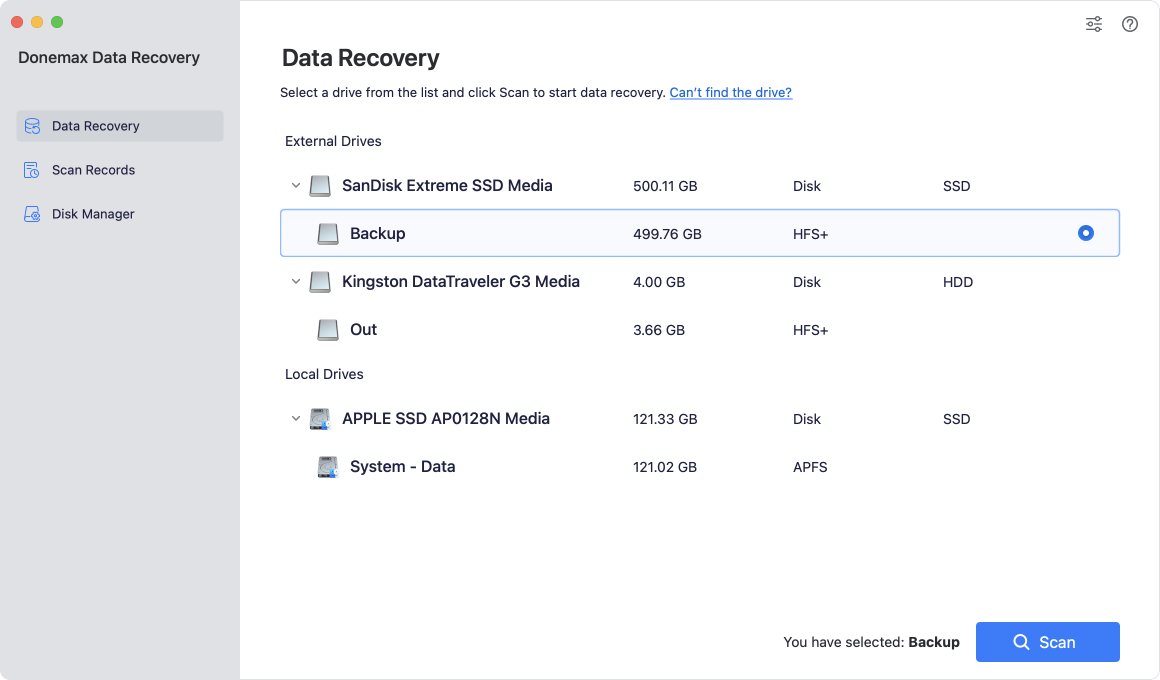
Step 3: Donemax will perform a deep scan of your drive to locate all lost, formatted, and existing files. You can pause or stop the scan anytime, preview documents, photos, or videos in real time, check the file details, and select the items you wish to restore. Finally, click the Recover button and select a safe destination on your Mac internal drive to store your recovered files.

Why Choose Donemax Data Recovery for Mac?
Donemax Data Recovery stands out among Mac recovery tools due to several user-centric features:
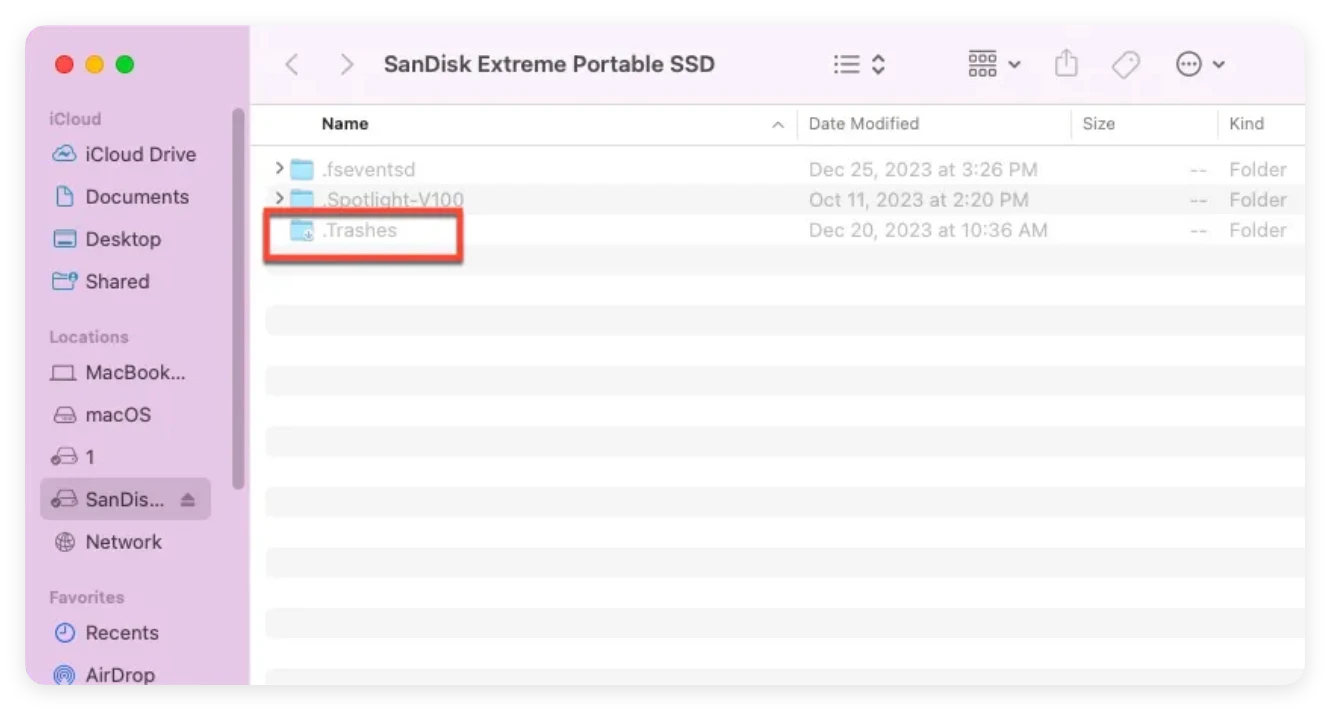
When you delete a file from an external hard drive or USB flash drive on macOS 27 Golden Gate, macOS does not always send it to the system desktop Trash. Instead, it moves the item to a hidden directory named '.Trashes' located directly on the external drive.
Step 1: Plug your external hard drive, SD card, or USB flash drive into your Mac.
Step 2: Open Finder and navigate to the root directory of your external drive.
Step 3: Press the keyboard shortcut Command + Shift + . (period). This toggle instantly reveals all hidden files and folders.
Step 4: Look for a folder named '.Trashes'. Open it to see if your lost files are stored inside.
Step 5: If you find your missing files, drag and drop them to a safe location on your Mac desktop.
If your external hard drive, SD card, or USB flash drive becomes unmountable, slow to open, or displays directory errors on macOS 27 Golden Gate, Apple's built-in Disk Utility tool can help fix directory corruption.
Step 1: Open Finder > Applications > Utilities, then launch Disk Utility (or search for Disk Utility using Spotlight via Command + Space).
Step 2: Click the View menu in the top toolbar and select Show All Devices.
Step 3: Select your connected external drive or volume from the left sidebar.
Step 4: Click the First Aid button at the top menu bar, then click Run.
Step 5: Wait for macOS 27 Golden Gate to scan and repair directory structure errors. Click Done once finished.
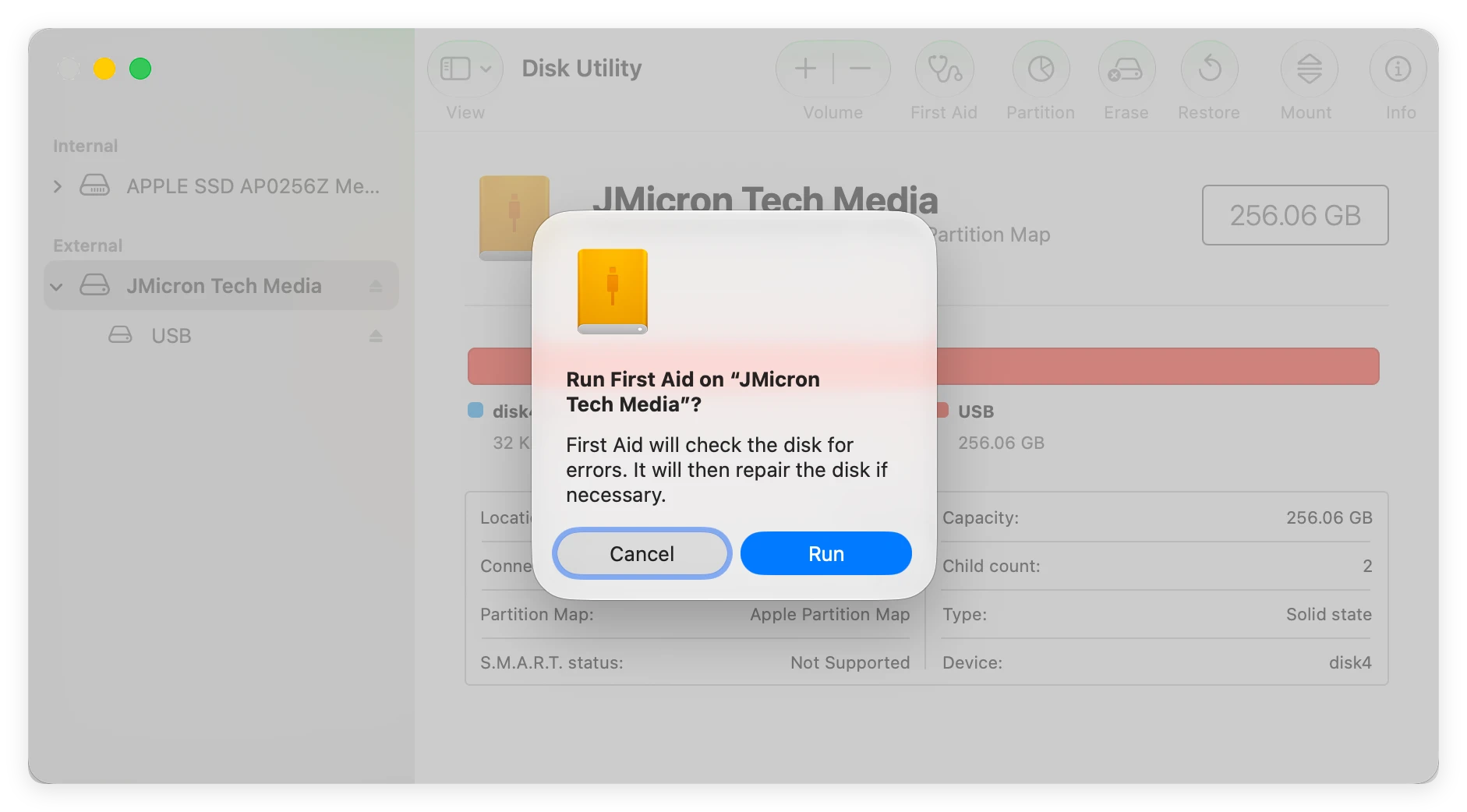
Note: While First Aid fixes file system structure errors, it does not unformat a drive or recover manually deleted files. For full file extraction, run Donemax Data Recovery.
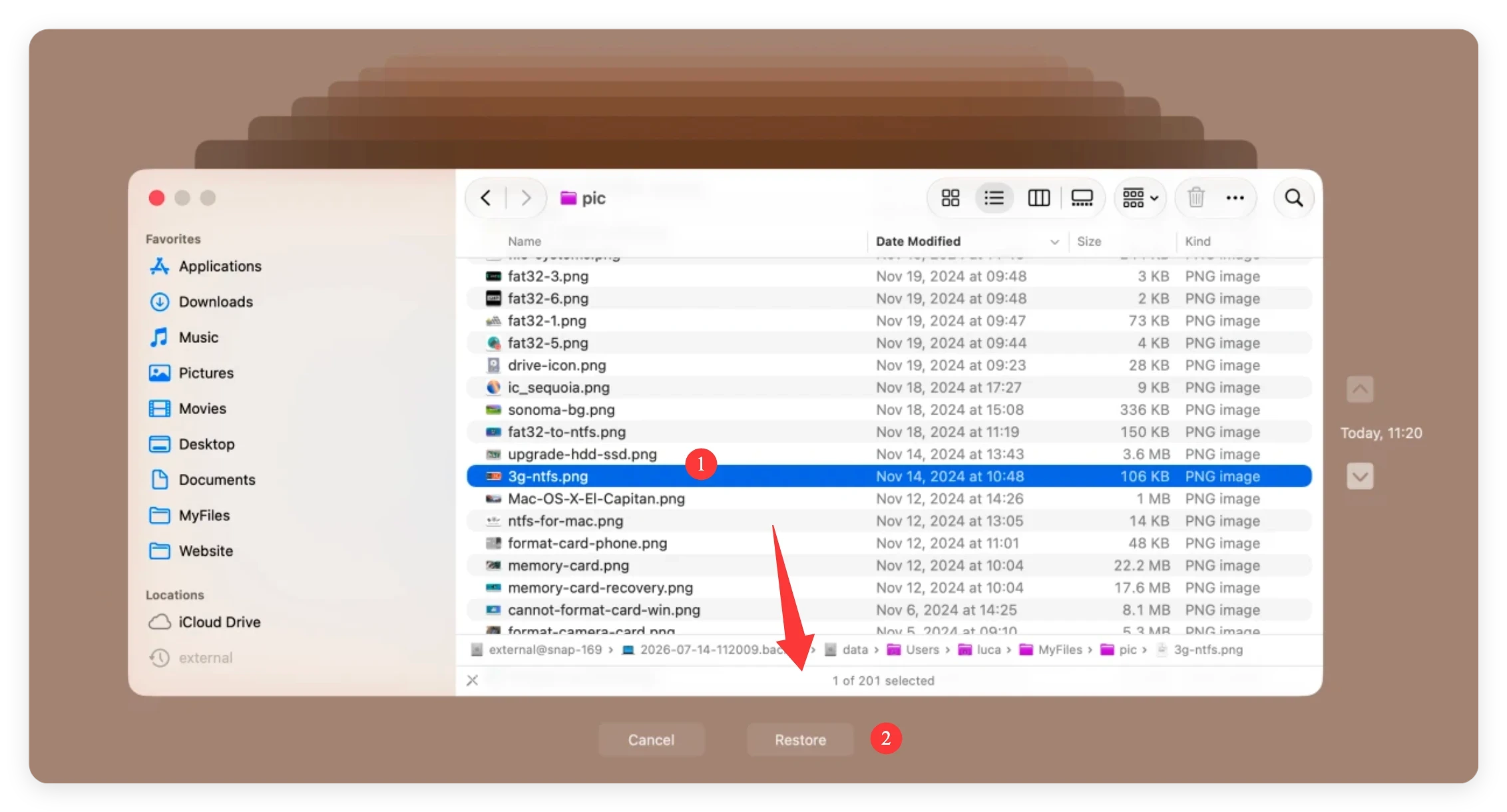
If you previously configured macOS Time Machine to back up your external storage drives or local folders on macOS 27 Golden Gate, you can easily pull back past snapshots of your lost files.
Step 1: Connect your Time Machine backup drive to your Mac.
Step 2: Open the folder where your lost files were originally located.
Step 3: Click the Time Machine icon in the menu bar and select Browse Time Machine Backups.
Step 4: Use the timeline arrows on the right side of the screen to navigate back to a date before the files were lost.
Step 5: Select the target files or folders and click the Restore button.
Sometimes an external hard drive or USB flash drive fails to show up on your desktop because macOS 27 Golden Gate failed to mount the file system automatically. You can attempt to force mount the drive using Terminal.
Step 1: Open Finder > Applications > Utilities > Terminal.
Step 2: Type diskutil list and press Enter to list all connected storage drives.
Step 3: Identify your external drive identifier (for example, '/dev/disk2s1').
Step 4: Type diskutil mount /dev/disk2s1 (replace with your actual disk identifier) and press Enter.
Step 5: If the drive mounts successfully, open Finder immediately and copy your important files to your internal SSD.
Data loss on external hard drives, SD cards, or USB flash drives on macOS 27 Golden Gate can feel overwhelming, but it doesn't have to be permanent. By acting quickly, avoiding saving new files to the affected storage device, and using the right recovery tools, you can easily get your valuable files back.
While checking hidden trash folders and running Disk Utility First Aid are great first troubleshooting steps, Donemax Data Recovery for Mac offers the highest recovery success rate for deleted, formatted, or corrupted external storage devices. Download Donemax Data Recovery for Mac today and recover your lost files safely in minutes!
Donemax Data Recovery for Mac
Donemax Data Recovery for Mac is one of the best Mac data recovery software. It is easy-to-use and can help in recovering deleted, formatted, inaccessible or lost data from Mac HDD/SSD, external disk, USB drive, SD card, camera or other storage devices.
Steven
Steven has been a senior writer & editor of Donemax software since 2020. He's a super nerd and can't imagine the life without a computer. Over 6 years of experience of writing technical solutions and software tesing, he is passionate about providing solutions and tips for Windows and Mac users.
Gerhard Chou
In order to effectively solve the problems for our customers, every article and troubleshooting solution published on our website has been strictly tested and practiced. Our editors love researching and using computers and testing software, and are willing to help computer users with their problems