
Written byCharlesUpdated on Jun 11, 2026

Before we start: If you are looking for the perfect solution tailored to Apple's latest hardware, you have found it. Donemax Disk Clone for Mac stands out as the absolute best clone software for M5 chip Mac users worldwide.
PAGE CONTENT:
What happens if your M5 Mac gets lost, damaged, or you suddenly need to upgrade your external storage? That is where disk cloning comes in. Unlike a regular file copy, disk cloning creates an exact, block-by-block replica of your drive. If your Mac ever runs into a serious problem, you can get right back to work in minutes with an identical copy of your system.
However, finding a tool that works flawlessly with Apple's advanced security system and the M5 architecture can be tough. That is exactly why we created this guide to help you find the absolute best clone software for M5 chip Mac: Donemax Disk Clone for Mac.
Apple's M-series chips, including the latest M5, use a specialized system layout that is completely different from old Intel-based Macs. They feature integrated Unified Memory, high-speed built-in SSD controllers, and advanced security layers like the Secure Enclave.
Because of these deep hardware integrations, traditional cloning tools built for older computers will simply fail on an M5 Mac. They cannot safely bypass or communicate with Apple's hardware-based security protocols. If you try to use outdated software, your copy will either fail halfway through or result in a drive that your M5 Mac won't even recognize.
To make a safe, reliable, and error-free copy of your data, you need a modern utility that is specifically optimized for Apple Silicon. Donemax Disk Clone for Mac has been fully engineered from the ground up to match the architecture of Apple's newest M5 processors perfectly.
When you look for the best clone software for M5 chip Mac, you need a tool that balances ultimate data safety, lightning-fast transfer speeds, and a clean interface that does not require a computer science degree to figure out. Donemax Disk Clone for Mac delivers on all three fronts perfectly.
It is a lightweight yet extremely powerful utility built specifically to handle macOS Sequoia and the unique storage demands of M5-powered devices. Whether you want to back up your internal SSD, upgrade to a larger external hard drive, or copy files between different storage media, Donemax makes it effortless.
1️⃣ 3 Powerful Cloning Modes
Donemax offers two simple modes to fit exactly what you need:
2️⃣ Full Apple Silicon Native Compatibility
Donemax Disk Clone for Mac runs natively on M1, M2, M3, M4, and the brand-new M5 chips. It doesn't rely on background translation tools like Rosetta 2 to get the job done. This native design ensures maximum efficiency, prevents your Mac from overheating, and utilizes the full reading and writing speeds of your M5 hardware.
3️⃣ Seamless External SSD Support
M5 Macs work incredibly fast with high-speed external Thunderbolt and USB4 SSDs. Donemax fully utilizes these high-bandwidth connections, letting you clone hundreds of gigabytes of data in just a few minutes without any random disconnections or bottlenecks.
4️⃣ Creating 100% Reliable Disk Images
Aside from direct disk-to-disk copying, Donemax allows you to compile your data into a safe DMG disk image. This is incredibly helpful for keeping historical, time-stamped backups stored on an archiving drive without overwriting your current storage space.
5️⃣ 100% Safe and Risk-Free Operation
The software uses a read-only data transfer model. This means it only reads your original data without modifying it, guaranteeing that your source drive remains entirely untouched and completely safe from accidental data loss or corruption.
You don't need to be an IT expert to use Donemax Disk Clone for Mac. The interface is clean, uncluttered, and walks you through the entire process naturally. Here is how simple it is:
Step 1: Plug your external hard drive or high-speed SSD into your M5 Mac using a reliable cable. Open Donemax Disk Clone for Mac, and select the OS Clone Mode.
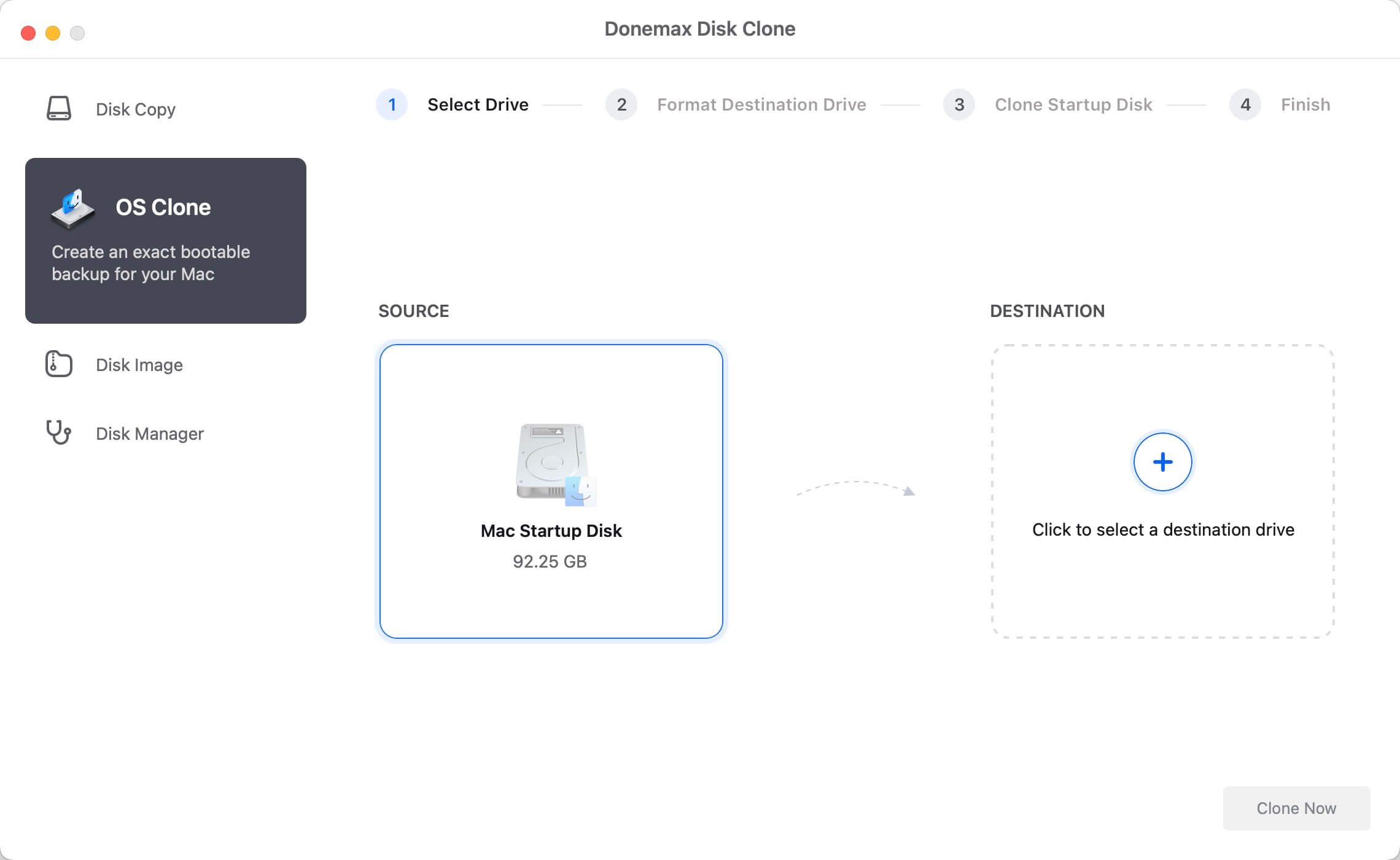
Step 2: Your Mac's internal SSD will be choose as the source disk automatically. Click on the target drive box and select your newly connected external storage drive. Make sure your external drive is empty, as the cloning process will overwrite the data on the destination disk to make an exact copy.
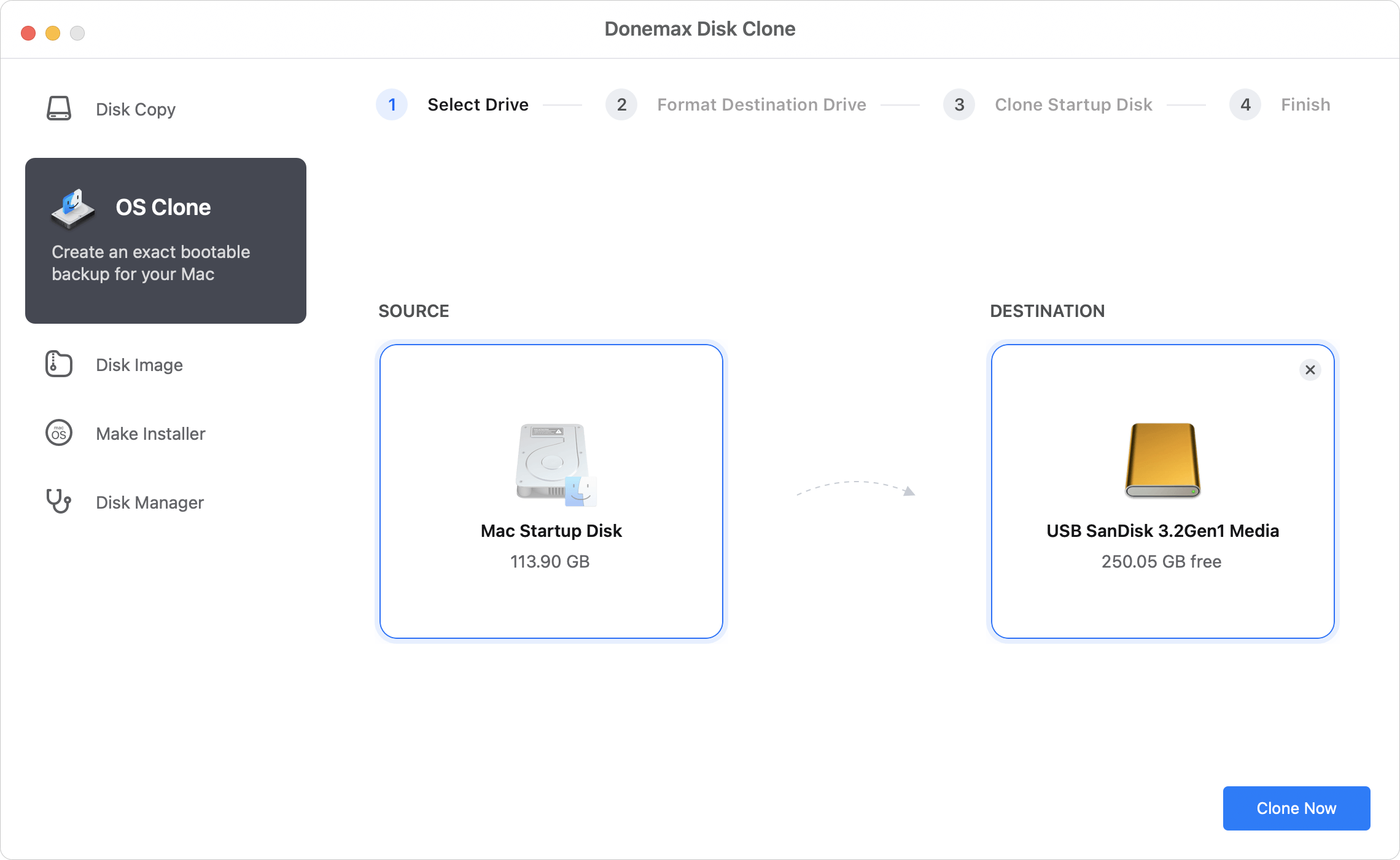
Step 3: Take a quick look at your selected source and destination drives. If everything looks correct, click the Clone Now button. Donemax will handle the rest, utilizing your M5 chip's power to clone your data swiftly. Once finished, you will have a perfect replica of your data ready to go!
You might be wondering: why should I use Donemax when my Mac already comes with built-in tools like Time Machine, or when there are older tools like Disk Utility around?
Let's break down why Donemax is often the better and more flexible choice for everyday users:
When do you actually need to use a dedicated clone tool? Here are a few everyday situations where having Donemax Disk Clone for Mac on your M5 Mac is a lifesaver:
Your brand-new M5 chip Mac is an incredible investment in technology, speed, and productivity. But a computer is only as reliable as its backup strategy. Don't wait for an unexpected accident, a spilled cup of coffee, or a system glitch to realize you should have backed up your data.
With its native M5 chip optimization, simple three-step cloning process, and rock-solid reliability, Donemax Disk Clone for Mac stands out clearly as the best clone software for M5 chip Mac. Download Donemax Disk Clone for Mac today, create an exact copy of your digital life, and enjoy total peace of mind knowing your data is always safe and accessible!
Donemax Disk Clone for Mac
An award-winning disk cloning program to help Mac users clone HDD/SSD/external device. It also can create full bootable clone backup for Macs.
Charles
Charles, who lives in Sydney, Australia, is an editor & writer of Donemax Team. He is good at writing articles related with Apple Mac computers, Windows operating systems, data recovery, data erasure, disk clone and data backup, etc. He loves reading and playing tennis in his spare time and is interested in testing new digital devices such as mobile phones, Macs, HDDs, SSDs, digital cameras, etc.
Gerhard Chou
In order to effectively solve the problems for our customers, every article and troubleshooting solution published on our website has been strictly tested and practiced. Our editors love researching and using computers and testing software, and are willing to help computer users with their problems

