
Written byChristinaUpdated on Jun 02, 2026

Before we start: How to make a full clone for M5 MacBook Pro to protect your data safe? Donemax Disk Clone for Mac can do the job and also make a bootable clone. It's useful to troubleshoot issues and restore system/data in case of Mac boot failure.
PAGE CONTENT:
Unpacking a brand-new M5 MacBook Pro is an incredible feeling. The speed, the screen, and the raw power of Apple's latest chip are unmatched. But whether you use your Mac for intense creative work, coding, or managing household files, one rule remains absolute: your data must be protected.
Many home users assume that standard tools like Time Machine or basic file copying are all they need. However, when it comes to migrating to a larger external drive, preparing for an operating system update, or setting up a true disaster recovery plan, nothing beats Mac disk cloning software.
In this comprehensive guide, we will break down the absolute best disk cloning software for M5 MacBook Pro models. We'll explore what other guides completely miss, how modern Apple Silicon changes the way cloning works, and walk you through the easiest way to copy your system safely.
Before choosing a tool, let's look at why disk cloning is so valuable for home users compared to regular cloud backups or Time Machine:
When looking for the best disk cloning software for M5 MacBook Pro, the ideal application needs to be incredibly safe, fully optimized for Apple Silicon, and simple enough for someone without an IT degree to use.
Donemax Disk Clone for Mac hits the sweet spot perfectly. It is a premium, user-friendly utility designed specifically to handle the modern APFS file system and the advanced architecture of M5 Macs. It offers absolute protection against data loss, requires zero complicated security overrides, and features an interface that guides you smoothly through the process.
Let's look at exactly how to create a complete clone of your M5 MacBook Pro using Donemax Disk Clone for Mac. Follow these clear, simple steps:
Step 1: Connect your destination external hard drive or SSD to your M5 MacBook Pro. For the best performance, use a high-speed NVMe SSD or a Thunderbolt 5 drive.
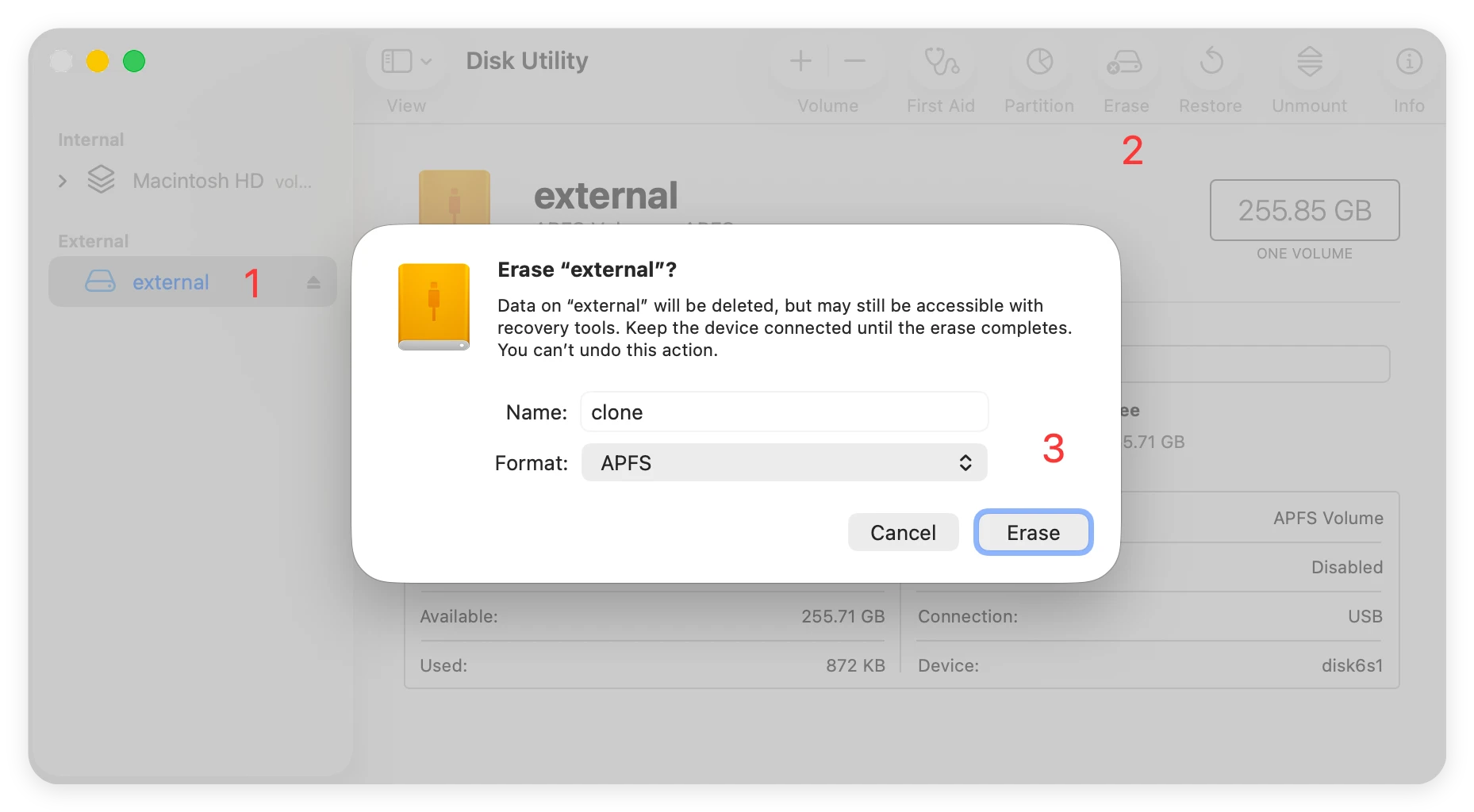
Open Apple's built-in Disk Utility (press Command + Space and type 'Disk Utility'). Select your external drive under the 'External' section, click Erase at the top, name it, and ensure the format is set to APFS. Click Erase, then click Done when it finishes. This provides a clean canvas for your clone.
Step 2: Open Donemax Disk Clone for Mac. On the main interface, you will see three simple choices. Click on the first tab labeled OS Clone. This mode is specifically built to securely duplicate your Mac system disk.
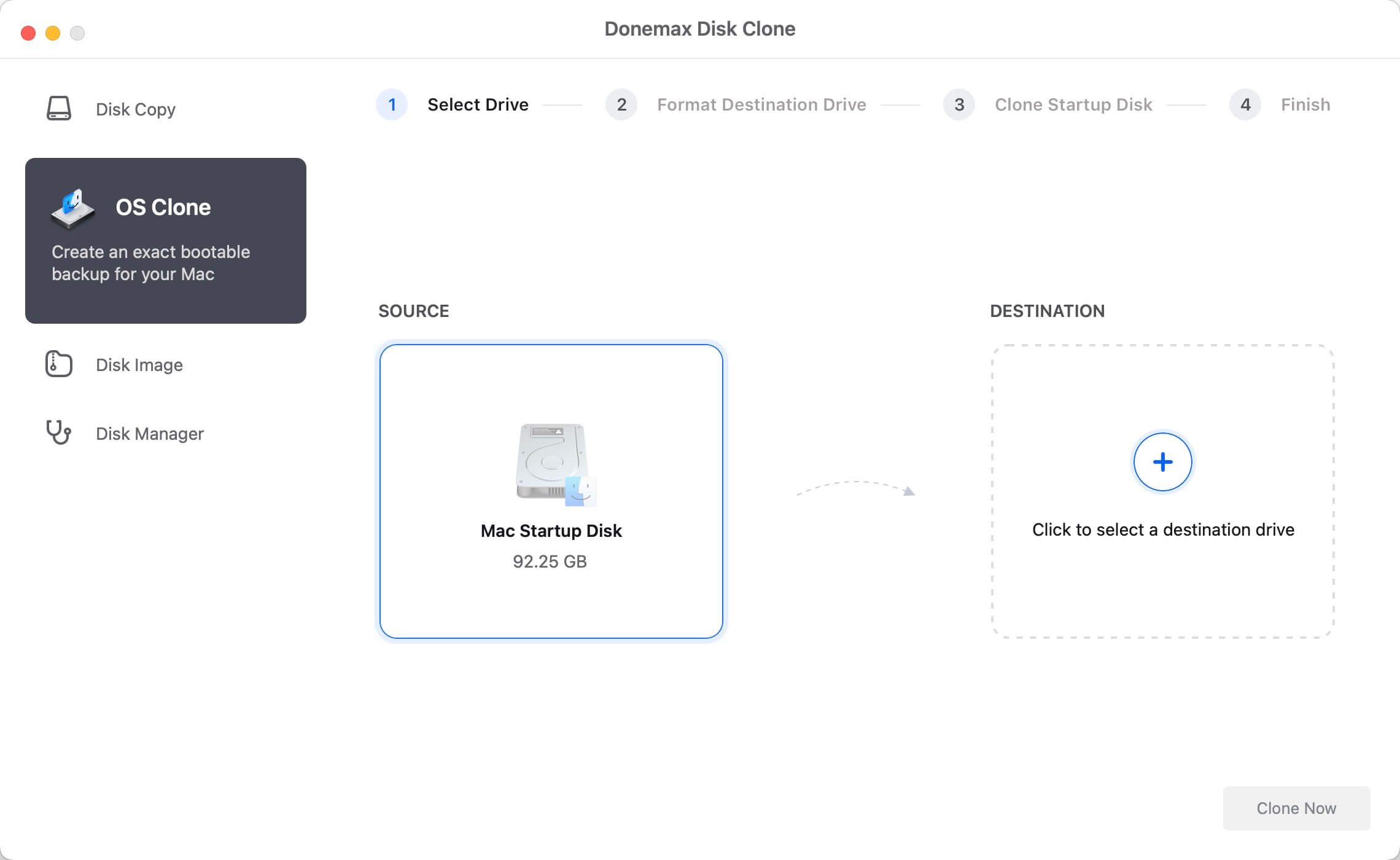
Step 3: Your internal Mac SSD will automatically be selected as the source. All you need to do is click on the destination section and select your newly formatted external drive from the list.
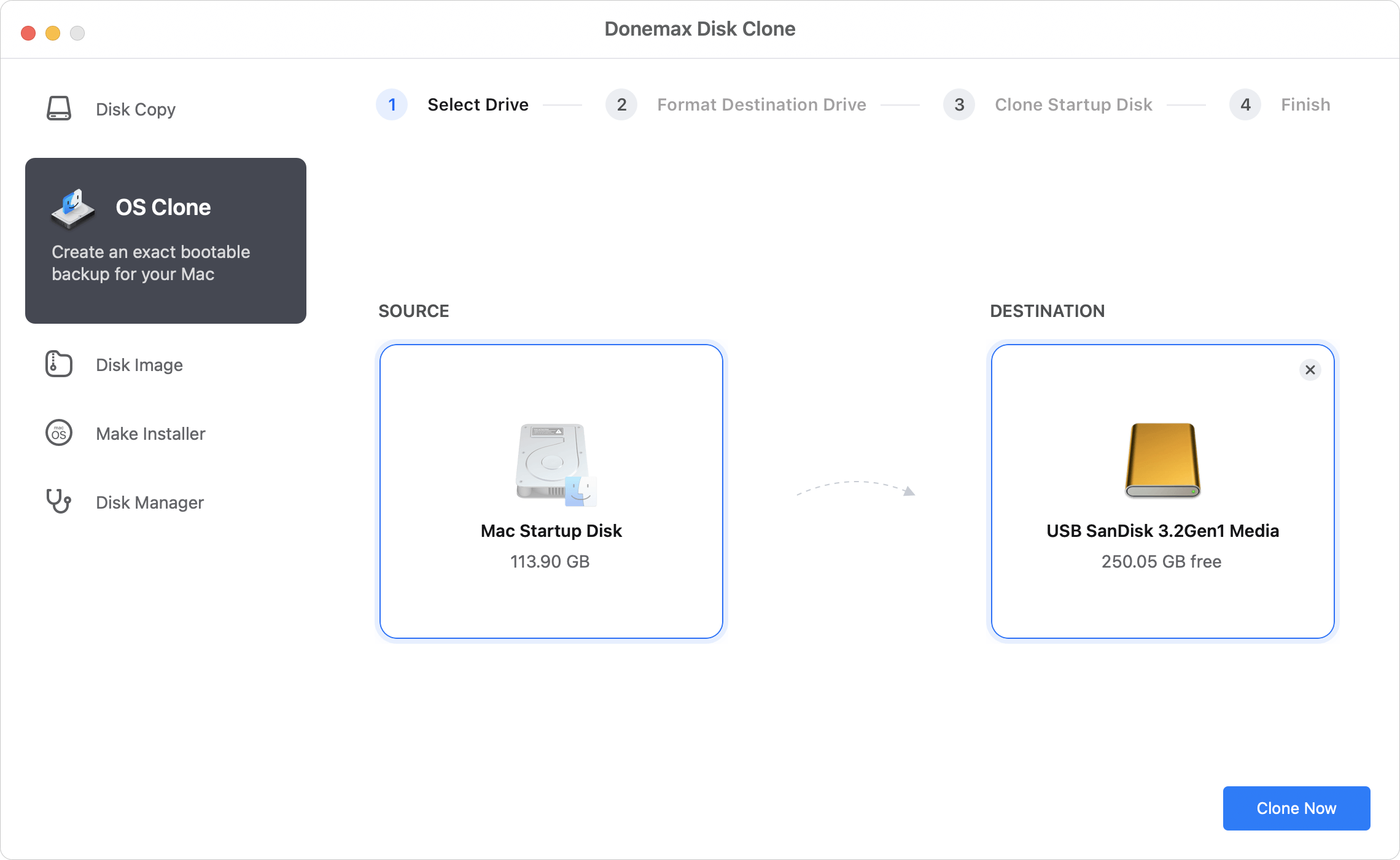
Step 4: Click the Clone Now button. A quick message will pop up reminding you that any existing contents on the destination drive will be wiped clean. Confirm that you want to proceed.
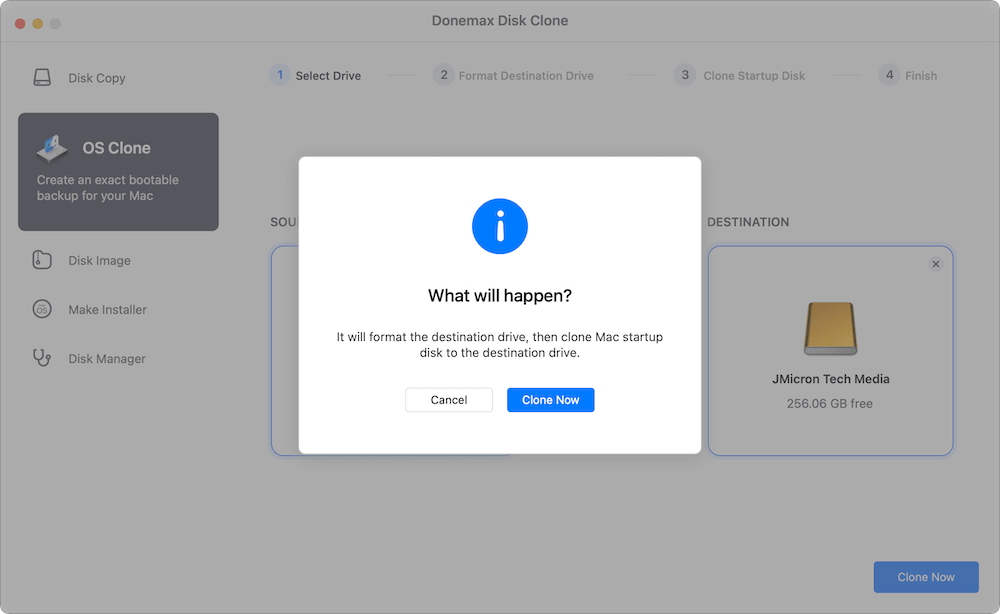
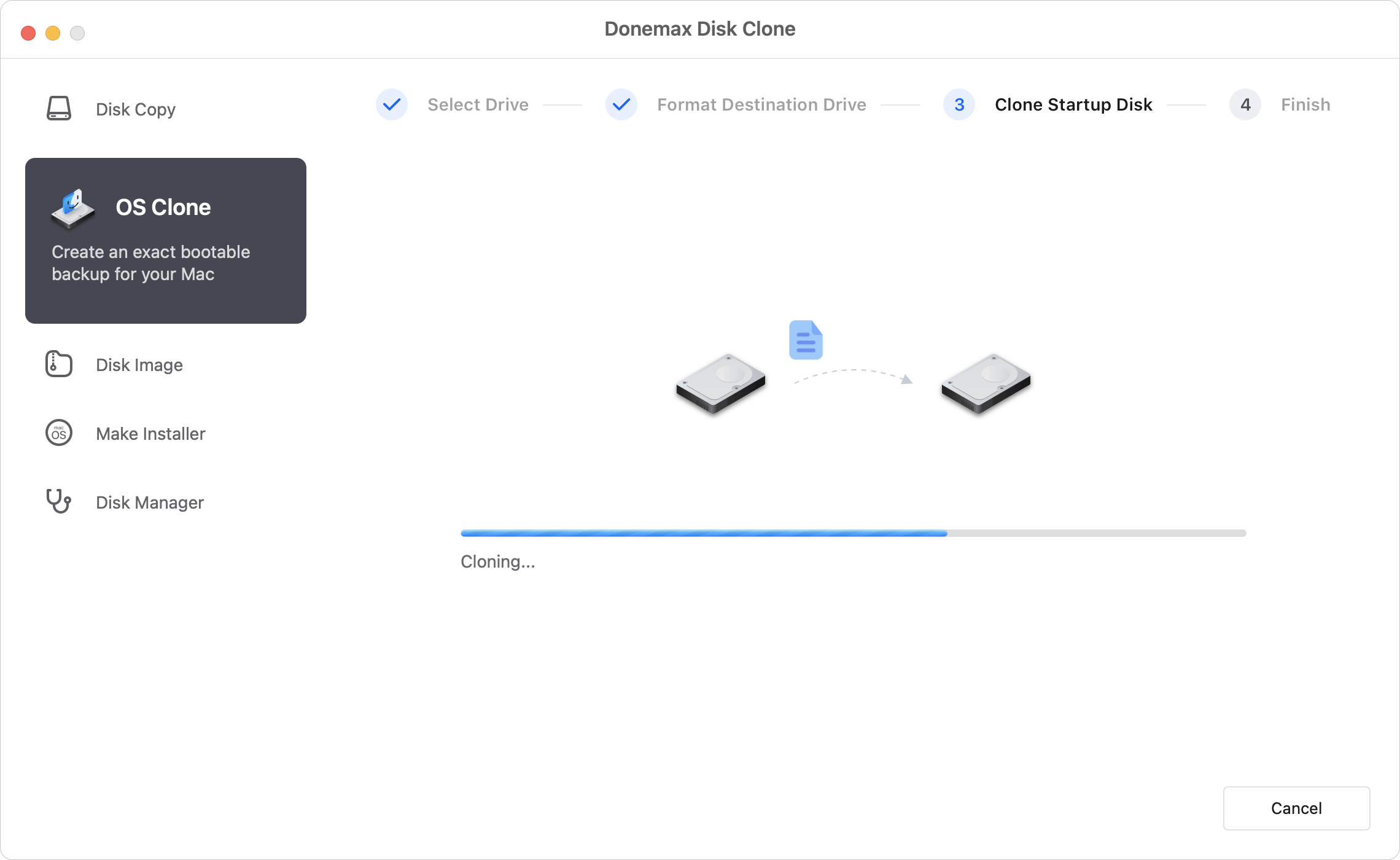
Step 5: Donemax will now begin the process, displaying a clear progress bar and showing the number of files copied. The time it takes depends on how much data you have. Thanks to M5 optimization, it moves lightning fast! Once finished, a success window will appear. You're done!
Finding the best disk cloning software for M5 MacBook Pro doesn't have to be a confusing journey filled with overwhelming tech jargon. While the underlying security of modern Apple Silicon has changed, tools like Donemax Disk Clone for Mac keep things simple, safe, and stress-free.
By choosing a modern app that understands APFS and M5 architecture, you protect your digital life against unexpected hardware issues, secure a clean backup before major updates, and gain total control over your data. Grab a fast external drive, download Donemax, and give yourself the peace of mind that comes with a perfect disk clone today!
Christina
Christina is the senior editor of Donemax software who has worked in the company for 4+ years. She mainly writes the guides and solutions about data erasure, data transferring, data recovery and disk cloning to help users get the most out of their Windows and Mac. She likes to travel, enjoy country music and play games in her spare time.
Gerhard Chou
In order to effectively solve the problems for our customers, every article and troubleshooting solution published on our website has been strictly tested and practiced. Our editors love researching and using computers and testing software, and are willing to help computer users with their problems