
Written byStevenUpdated on Aug 19, 2026

Before we start: Traditional Time Machine is great for files, but disk cloning is essential for rapid full-system disaster recovery. A bootable clone gives you an instant, exact duplicate of your system, macOS, applications, and settings. Donemax Disk Clone for Mac features an effortless 'OS Clone' mode designed for M5 MacBooks to create complete bootable backups in just a few clicks.
PAGE CONTENT:
The M5 Max Mac represents the pinnacle of Apple Silicon performance. Whether you use your M5 Mac for heavy video editing, software development, financial modeling, or daily work, your data is extremely valuable. While Apple's built-in Time Machine is excellent for restoring lost files, it does not create a true 1:1 bit-level duplicate of your internal drive.
This is where disk cloning software comes in. A full system clone creates an exact mirror copy of your M5 Max Mac's SSD, including macOS system files, user accounts, application configurations, personal data, and hidden settings. If your MacBook experiences liquid damage, system corruption, or hardware failure, a bootable external clone allows you to boot up another Mac or restore your system immediately without reinstalling macOS from scratch.
However, Apple Silicon chips bring unique security protocols, encrypted APFS volume groups, and Secure Enclave integration. Not every traditional cloning tool supports these advanced architectures. Selecting the right disk cloning tool optimized for Apple Silicon and macOS Sequoia / future macOS updates is crucial.
Many Mac users wonder if they still need disk cloning software if they already use Apple's Time Machine. Here is a quick comparison:
Time Machine: Saves historical versions of individual files and folders over time. Excellent for recovering a document you accidentally deleted yesterday. However, restoring a full system requires reinstalling macOS first.
Disk Cloning: Creates a 1:1 identical executable clone of your drive. If your primary system crashes, you can boot directly from the external drive immediately and keep working without downtime.
For optimal data security, we recommend using both: Time Machine for daily versioning and Donemax Disk Clone for instant full-system emergency backup.
When searching for the best disk cloning software for M5 Max Mac, you should keep several key evaluation standards in mind:
We tested and evaluated the leading Mac disk utilities on Apple Silicon hardware. Here is the comparison of the top 5 tools available today.
| Software Name | Apple Silicon Support | Ease of Use | Best For |
|---|---|---|---|
| Donemax Disk Clone Mac | Native M1-M5 Support | Very Easy (1-Click) | Fast Bootable OS Clone & Easy Interface |
| Carbon Copy Cloner (CCC) | Native Apple Silicon | Moderate | Advanced Power Users & Scheduling |
| SuperDuper! | Native Apple Silicon | Easy | Basic Scripted Backups & Incremental Copies |
| Acronis True Image | Supported | Complex | Backup, cloning and antivirus in one solution |
| ChronoSync | Supported | Moderate | File Syncing & Customized Rule Backups |
Donemax Disk Clone for Mac stands out as the overall best disk cloning software for M5 Max Mac users. It is explicitly engineered for Apple Silicon architecture, offering exceptional speed, rock-solid stability, and a clean user interface.
Its signature feature—'OS Clone' mode—allows users to clone the entire startup disk (including macOS, system settings, applications, and user files) to an external SSD with a single click. Whether you are creating a bootable backup drive or upgrading your external storage, Donemax simplifies the process without steep learning curves.
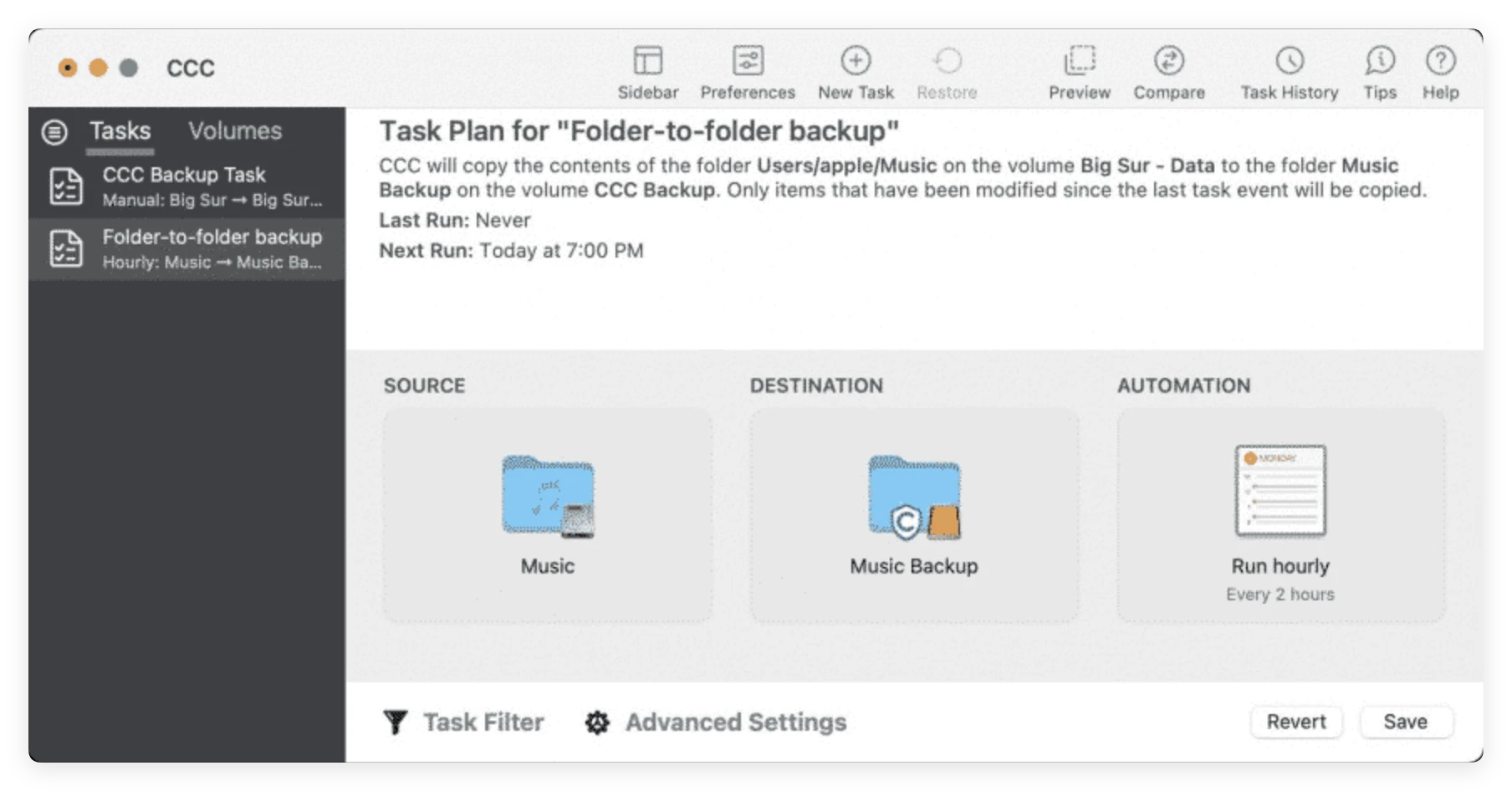
Carbon Copy Cloner is a well-known name in the Mac backup space. It offers deep customization, task scheduling, and detailed logging. While powerful, its interface contains many advanced configuration options that might feel overwhelming for average users who simply want a quick bootable backup.
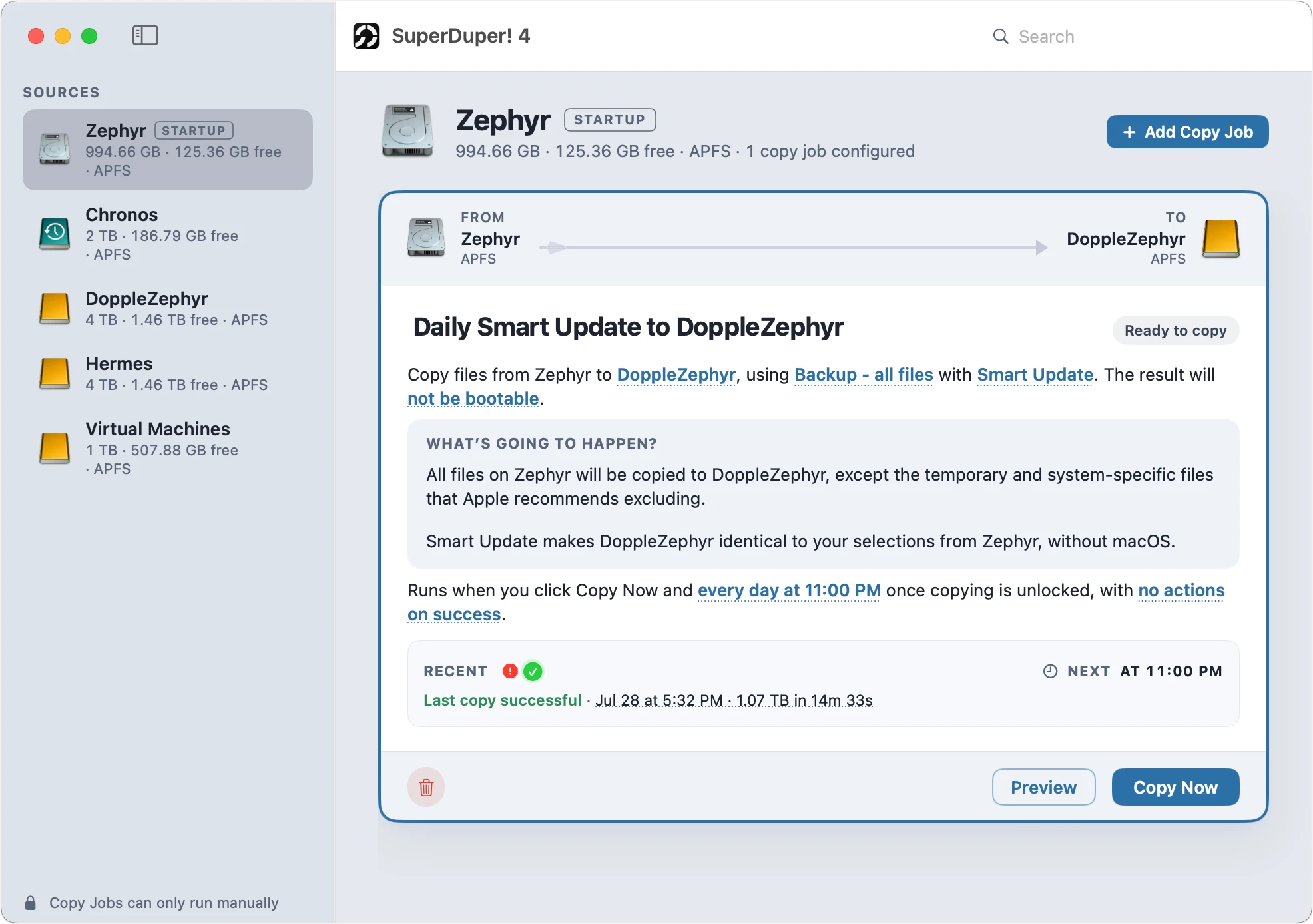
SuperDuper! is another popular cloning tool for Mac. It provides straightforward backup routines and supports incremental cloning. However, its interface feels slightly dated, and initial setup for Apple Silicon bootable volumes requires careful attention to system permissions.
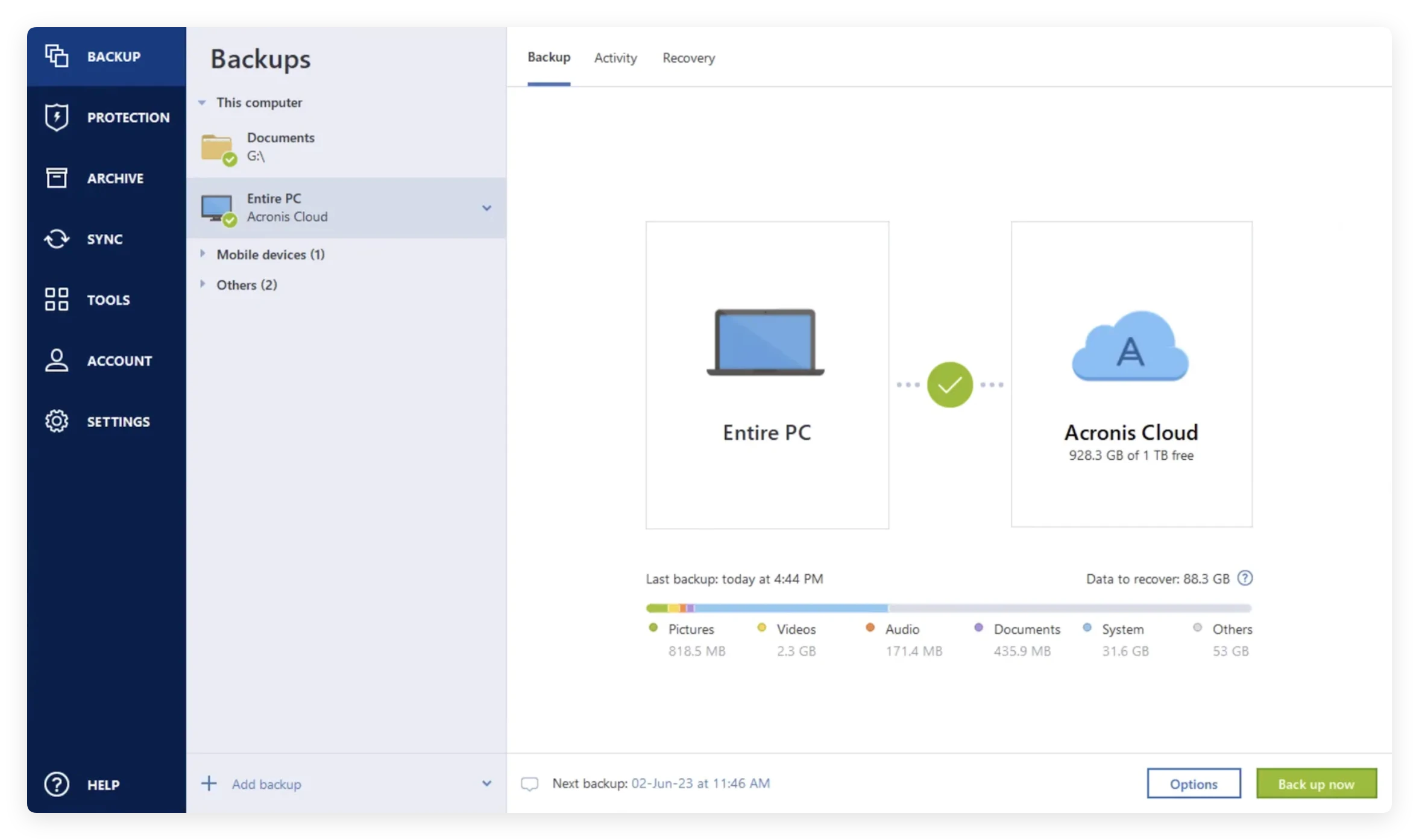
Acronis offers a comprehensive suite combining disk imaging with cloud backup and cybersecurity features. While feature-rich, it is heavier on system resources and comes with a subscription-based pricing model.
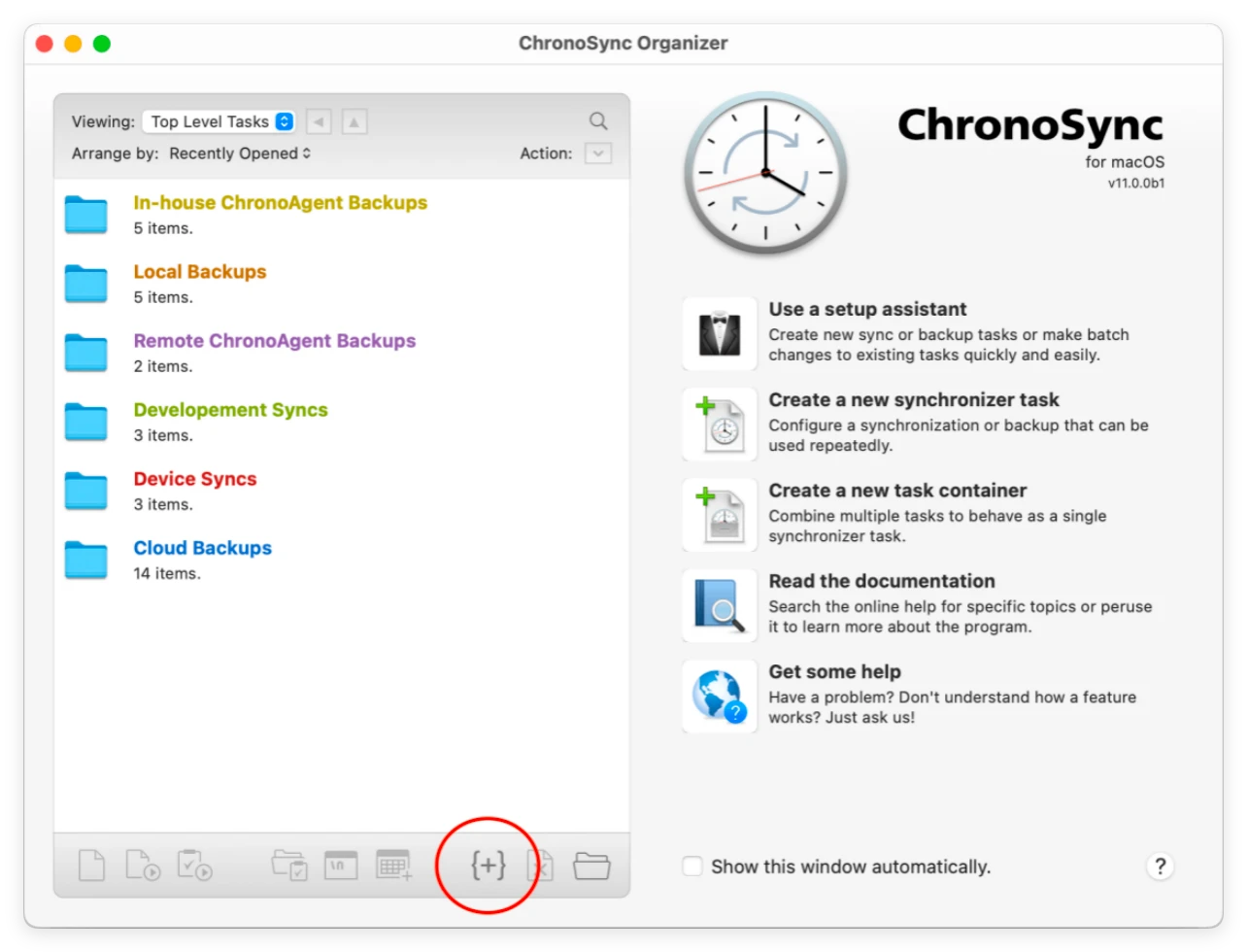
ChronoSync excels at file synchronization and folder-level backups across multiple drives or network locations. While it can perform bootable backups, its focus is broader, making it best suited for file-management power users.
Creating a complete bootable backup of your M5 Max Mac using Donemax Disk Clone is simple and straightforward. Follow these quick steps to safeguard your Mac.
Pre-requisites: Connect an external SSD (Thunderbolt or USB-C drive recommended) to your M5 Max Mac. Ensure the external SSD has equal or greater capacity than your Mac's internal storage.
Step 1: Download and Launch Donemax Disk Clone
Download Donemax Disk Clone for Mac. Install and open the application on your M5 Max Mac.
Step 2: Select OS Clone Mode
In the main interface, choose the OS Clone mode on the left panel. This mode is specifically optimized to copy your startup disk completely.
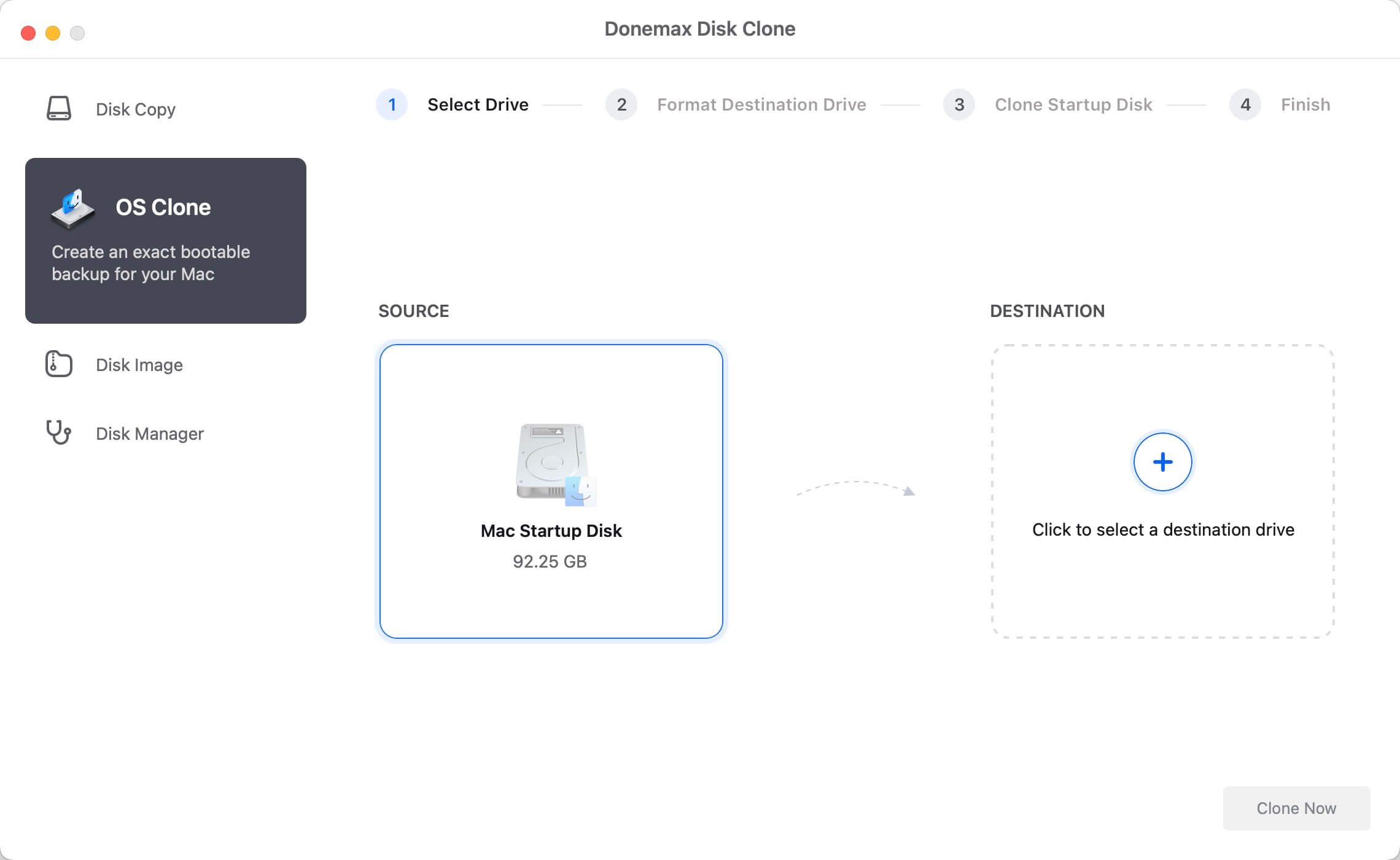
Step 3: Choose Destination External Drive
The software will automatically select your internal Mac drive as the source. Choose your connected external SSD as the destination target drive.
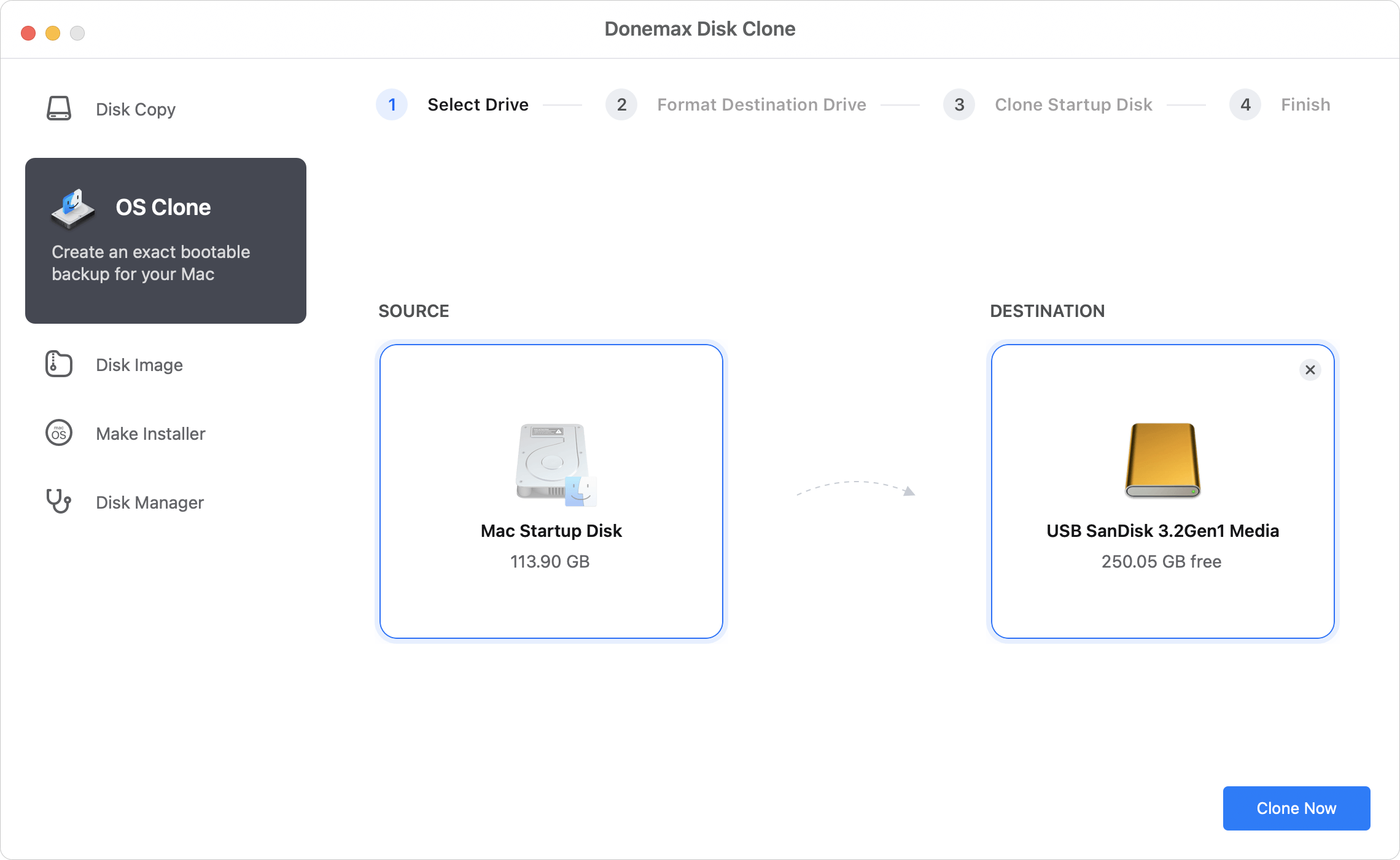
Step 4: Start Cloning
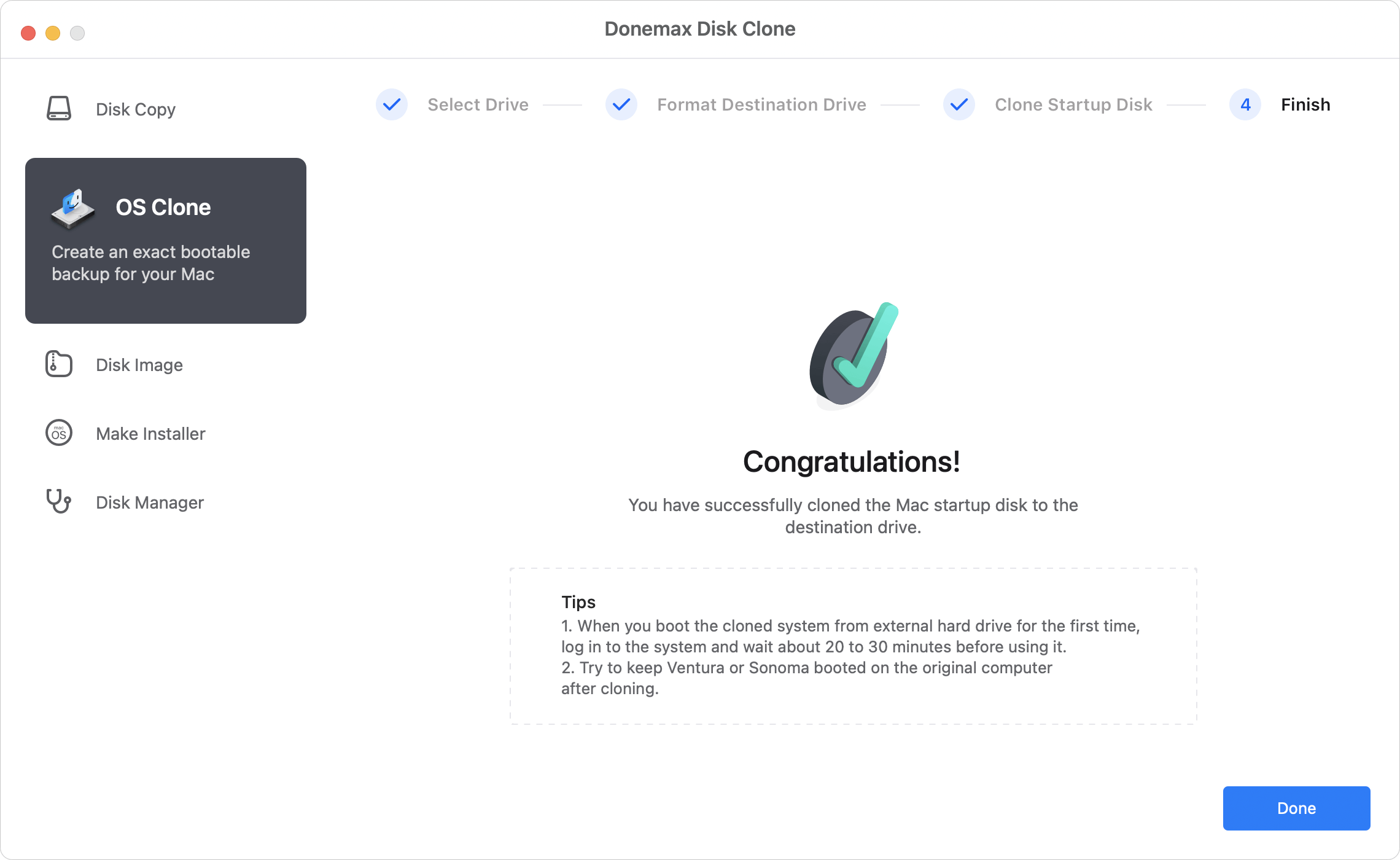
Click the Clone Now button. Donemax will format the target drive into the proper APFS format and copy all system files, data, and applications.
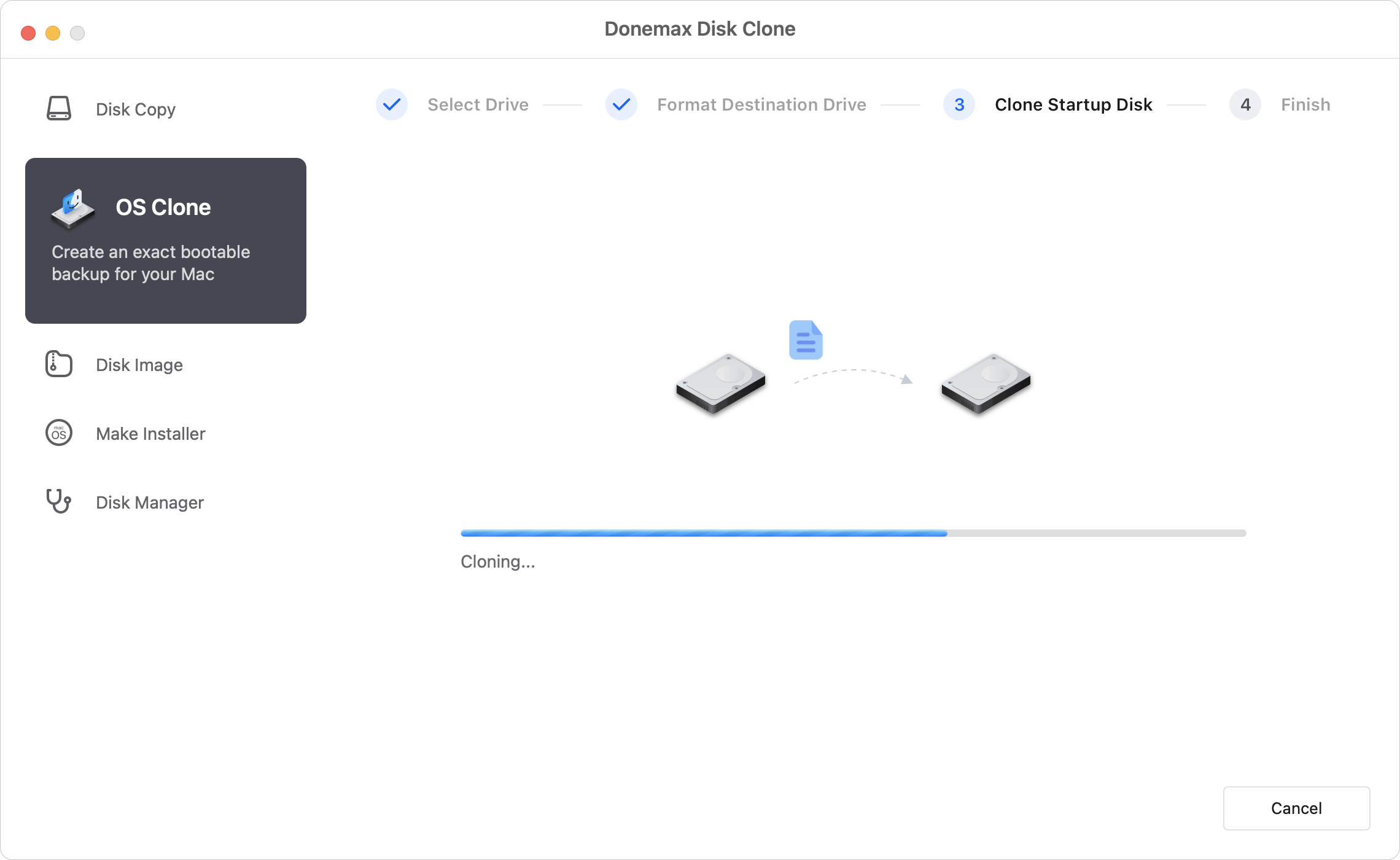
Step 5: Finish and Verify
Once completed, you will have an exact, bootable backup of your M5 Max Mac. Unplug the drive safely or keep it connected for periodic updates.
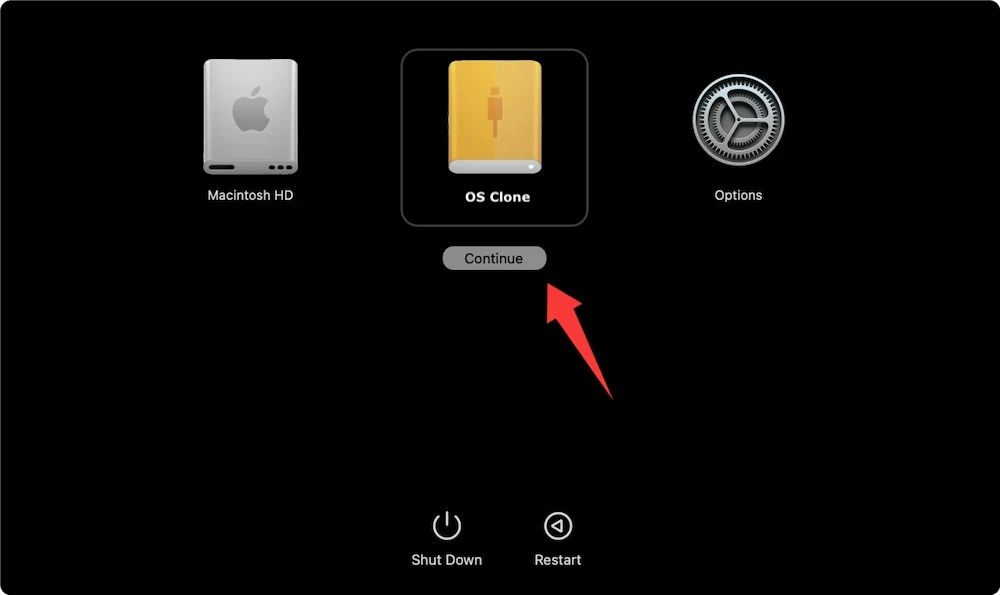
If your internal Mac drive suffers an issue, or if you need to run your environment on another Mac, booting from your Donemax clone is easy on Apple Silicon:
Protecting your M5 Max Mac with a reliable backup strategy is vital. While there are several cloning utilities on the market, Donemax Disk Clone Mac offers the best balance of speed, native Apple Silicon compatibility, and effortless operation.
With its dedicated 'OS Clone' mode, you don't need technical skills to create a secure, bootable duplicate of your Mac. Download Donemax Disk Clone today to safeguard your digital life with an instant recovery backup!
Donemax Disk Clone for Mac
An award-winning disk cloning program to help Mac users clone HDD/SSD/external device. It also can create full bootable clone backup for Macs.
Steven
Steven has been a senior writer & editor of Donemax software since 2020. He's a super nerd and can't imagine the life without a computer. Over 6 years of experience of writing technical solutions and software tesing, he is passionate about providing solutions and tips for Windows and Mac users.
Gerhard Chou
In order to effectively solve the problems for our customers, every article and troubleshooting solution published on our website has been strictly tested and practiced. Our editors love researching and using computers and testing software, and are willing to help computer users with their problems