
Written byStevenUpdated on Jun 24, 2026

Before we start: How to make a bootable clone for M5 chip Mac? Using Donemax Disk Clone for Mac. It can make a full clone along with system data, settings, installed apps, and all personal data. Also, it can ensure the cloned drive is bootable.
PAGE CONTENT:
If you just got your hands on a brand-new Mac powered by Apple’s latest and most powerful M5 chip, congratulations! You are running one of the fastest personal computers on the planet. But with great performance comes the ultimate rule of digital life: you need a rock-solid backup strategy.
When looking for backup tools, you might ask yourself a very specific question: Can Donemax Disk Clone create bootable clone for M5 chip Mac? If you want a quick, definitive, and reassuring answer, you have come to the right place.
The Direct Answer: Yes, Donemax Disk Clone for Mac fully supports Apple Silicon M5 chip Macs. Using its advanced 'OS Clone' mode, the software can securely clone your entire Mac startup disk, including the operating system, applications, configuration settings, and user data to an external SSD or HDD.
In the older days of Intel-based Macs, creating a bootable clone was incredibly straightforward. Third-party software could simply copy files bit-by-bit from one hard drive to another, and you could plug that drive into any Mac to boot directly from it.
However, when Apple introduced its custom Apple Silicon chips (starting from the revolutionary M1 up to today's cutting-edge M5 series), they completely rewrote the Mac's security and startup architecture.
Apple Silicon Macs utilize a hardware-integrated Secure Enclave, strict cryptographic verification, and a deeply unified memory architecture. For security reasons, a Mac with an M5 chip will not boot from an external drive unless that drive satisfies Apple's Secure Boot protocols.
This means traditional, old-school cloning software will fail completely on modern Apple devices. You need a specialized tool that actively speaks Apple's language and works harmoniously with macOS's built-in system verification systems. That is exactly where Donemax Disk Clone shines.
Donemax Disk Clone for Mac has been meticulously optimized for the latest hardware advancements, including Apple's modern M5, M4, M3, M2, and M1 processors. It does not just copy files blindly; it respects the multi-volume structure of modern APFS (Apple File System) layouts.
When you trigger a system clone on an Apple Silicon device, macOS splits your storage into distinct volumes—one for your protected system data and another for your personal files. Donemax utilizes native architecture hooks to properly duplicate these elements.
As a result, the external drive generated by Donemax Disk Clone serves as a complete, exact mirror of your system, prepared to act as a reliable emergency startup drive or a full system migration backup.
Donemax Disk Clone is famous for its simple, beginner-friendly interface. You don't need to know any complicated Terminal commands or have a degree in computer science to make a bootable backup. Just follow these easy steps:
Step 1: Get the Right External Storage Unit: Before starting, ensure you have an external SSD or HDD with enough storage space. Ideally, the external drive should be at least as large as your M5 Mac's internal storage disk to ensure all data fits perfectly. A high-speed external SSD is highly recommended for faster cloning and smooth system boot speeds. Plug your external drive into one of your M5 Mac's high-speed Thunderbolt or USB4 ports.
Step 2: Choose the Cloning Mode: Download and install the latest version of Donemax Disk Clone for Mac. Launch the app from your Launchpad. You will see three simple options on the main screen: Disk Copy, OS Clone, and Disk Image. To create a bootable backup, click on the OS Clone mode.
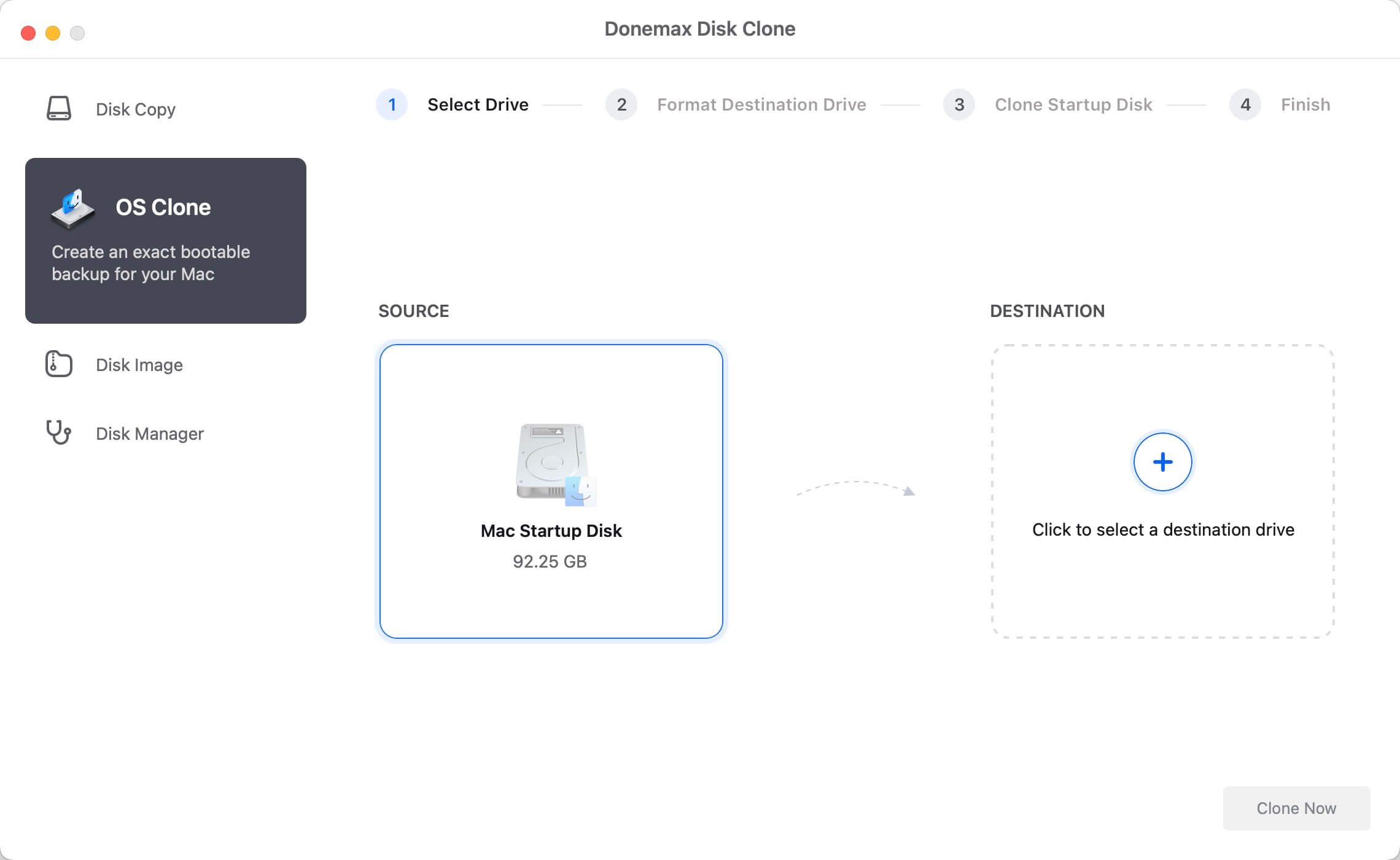
Step 3: Select the Target Destination: The software automatically detects your built-in M5 Mac startup drive as the source. All you need to do is click on the destination area and select your external drive.
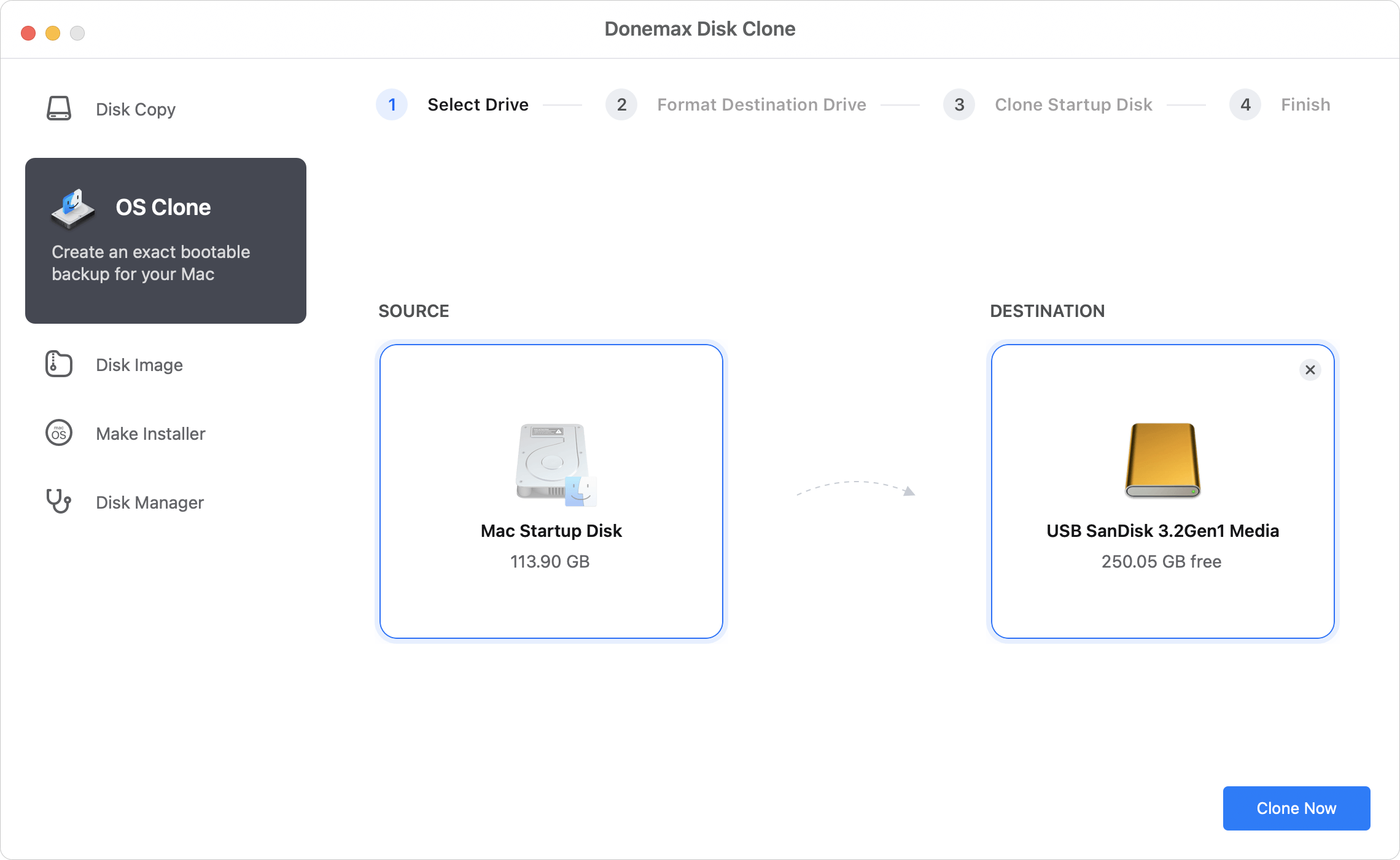
Step 4. Start Cloning: Once done, click the Clone Now button. Sit back, relax, and let Donemax handle the rest securely.
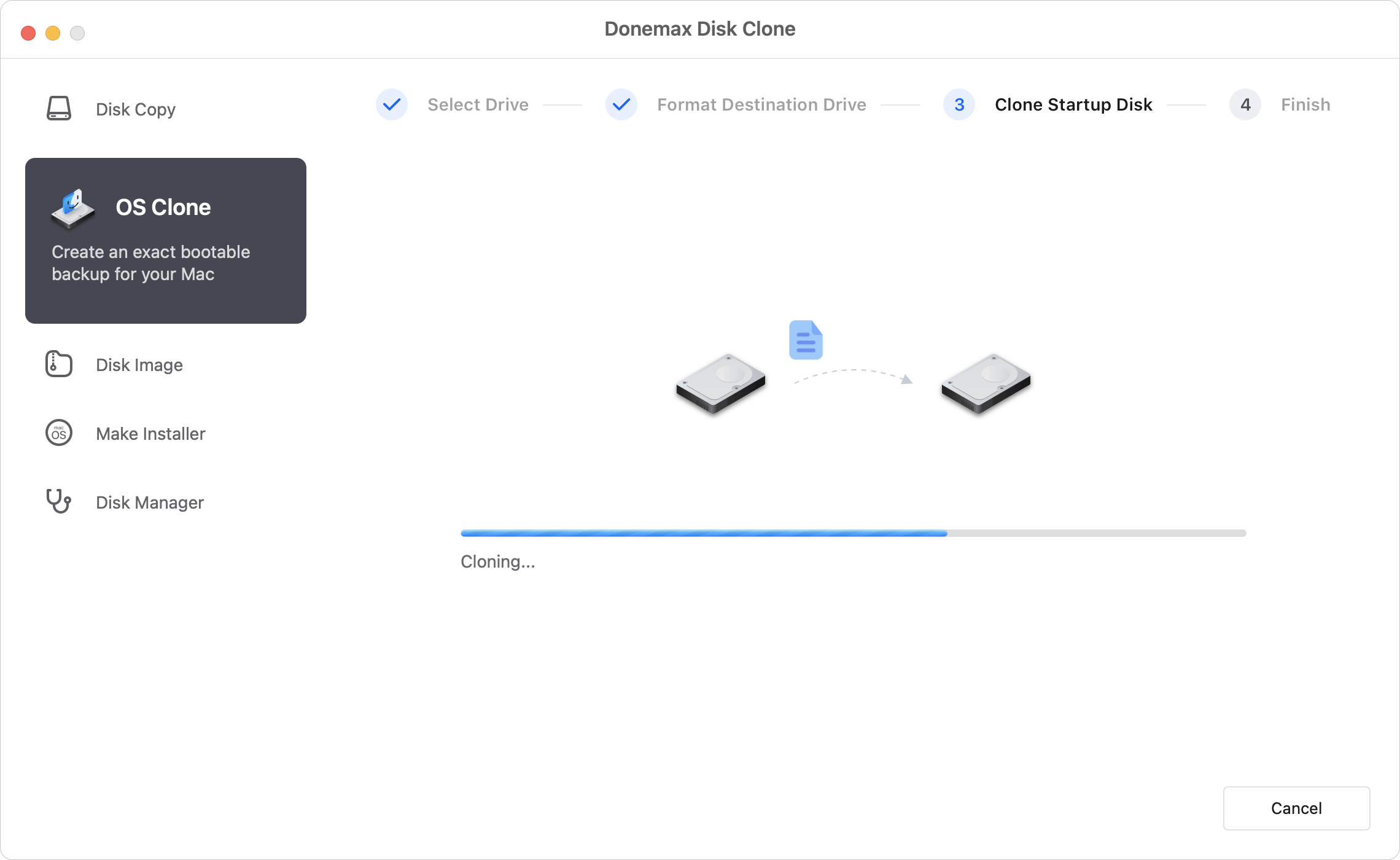
Once Donemax shows that the cloning process is completed successfully, it is highly recommended to test your drive. This gives you complete peace of mind knowing that your emergency fallback system is working properly.
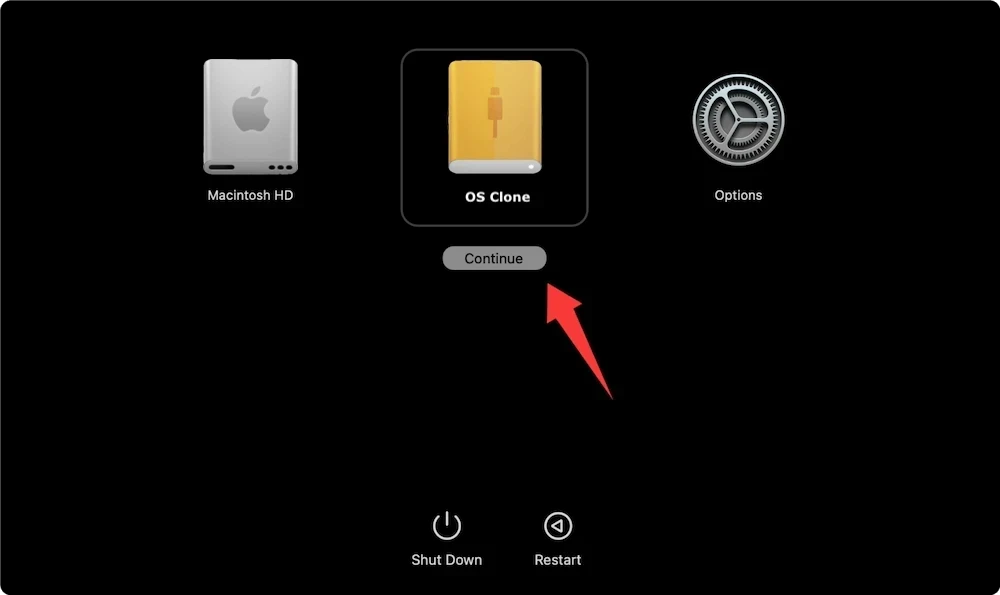
To test it, shut down your M5 chip Mac completely. Press and hold down the physical Power button on your Mac. Do not let go until you see the 'Loading startup options' text appear on your screen.
A screen will show up displaying your internal Mac drive alongside your newly cloned external backup drive. Click on the external drive icon, click Continue, and enter your system password if requested. Your Mac will now boot smoothly right off your external drive!
While standard file-based cloud backups and Apple's built-in Time Machine are fantastic tools, a bootable clone created by Donemax Disk Clone offers several unique advantages that every professional user needs:
When it comes to answering the question: Can Donemax Disk Clone create bootable clone for M5 chip Mac, the answer is a resounding yes. Thanks to its smart engineering, modern APFS volume matching, and simple one-click 'OS Clone' functionality, Donemax Disk Clone makes complex tech tasks effortless.
Don't wait for a data disaster or a failed system update to think about backups. Download Donemax Disk Clone for Mac today, set up your external bootable mirror, and experience absolute peace of mind on your M5 Mac.
Donemax Disk Clone for Mac
An award-winning disk cloning program to help Mac users clone HDD/SSD/external device. It also can create full bootable clone backup for Macs.
Steven
Steven has been a senior writer & editor of Donemax software since 2020. He's a super nerd and can't imagine the life without a computer. Over 6 years of experience of writing technical solutions and software tesing, he is passionate about providing solutions and tips for Windows and Mac users.
Gerhard Chou
In order to effectively solve the problems for our customers, every article and troubleshooting solution published on our website has been strictly tested and practiced. Our editors love researching and using computers and testing software, and are willing to help computer users with their problems

