
Written byChristinaUpdated on Jun 03, 2026

Before we start: By creating an exact, 1:1 copy of your old Mac's hard drive onto an external drive, you create an unbeatable backup and a straightforward bridge to your next-generation computer. Donemax Disk Clone for Mac is the most reliable cloning software for Mac. By using the software, it's easy to create a bootable and full clone backup for your Mac.
PAGE CONTENT:
Getting a brand-new Mac with the lightning-fast M5 chip is incredibly exciting. But before you can enjoy your new machine, there is one big task ahead: moving your life over from your old computer.
Many people turn to cloud backups or basic file sharing, but these options can take hours or even days to complete over a Wi-Fi connection. If you want the absolute safest, fastest, and most seamless transition, the best strategy is to migrate data from old Mac to M5 Mac via disk clone.
In this friendly, step-by-step guide, we will walk you through exactly how to make this move. We will explore the most reliable ways to migrate your files, show you how to build a fully functional, bootable clone using Donemax Disk Clone for Mac, and explain how to use that cloned drive directly on your shiny new M5 Mac.
There are several reliable paths to get your data over to the new M5 architecture. Depending on your technical comfort level and what tools you have available, you can choose the option that feels easiest for you.
Apple built a native tool called Migration Assistant into every macOS system. This tool is designed to read data from an old Mac, a Time Machine backup, or an external cloned hard drive and transfer it directly onto a new machine. When you use a disk clone with Migration Assistant, the process is incredibly fast because a wired external SSD can transfer data at massive speeds compared to local Wi-Fi.
Step 1: Open Migration Assistant on your new Mac. You can find it by going to Applications > Utilities, or by searching for it using Spotlight (Command + Space). Click Continue. When asked how you want to transfer your information, select: "From a Mac, Time Machine backup, or startup disk". Click Continue.
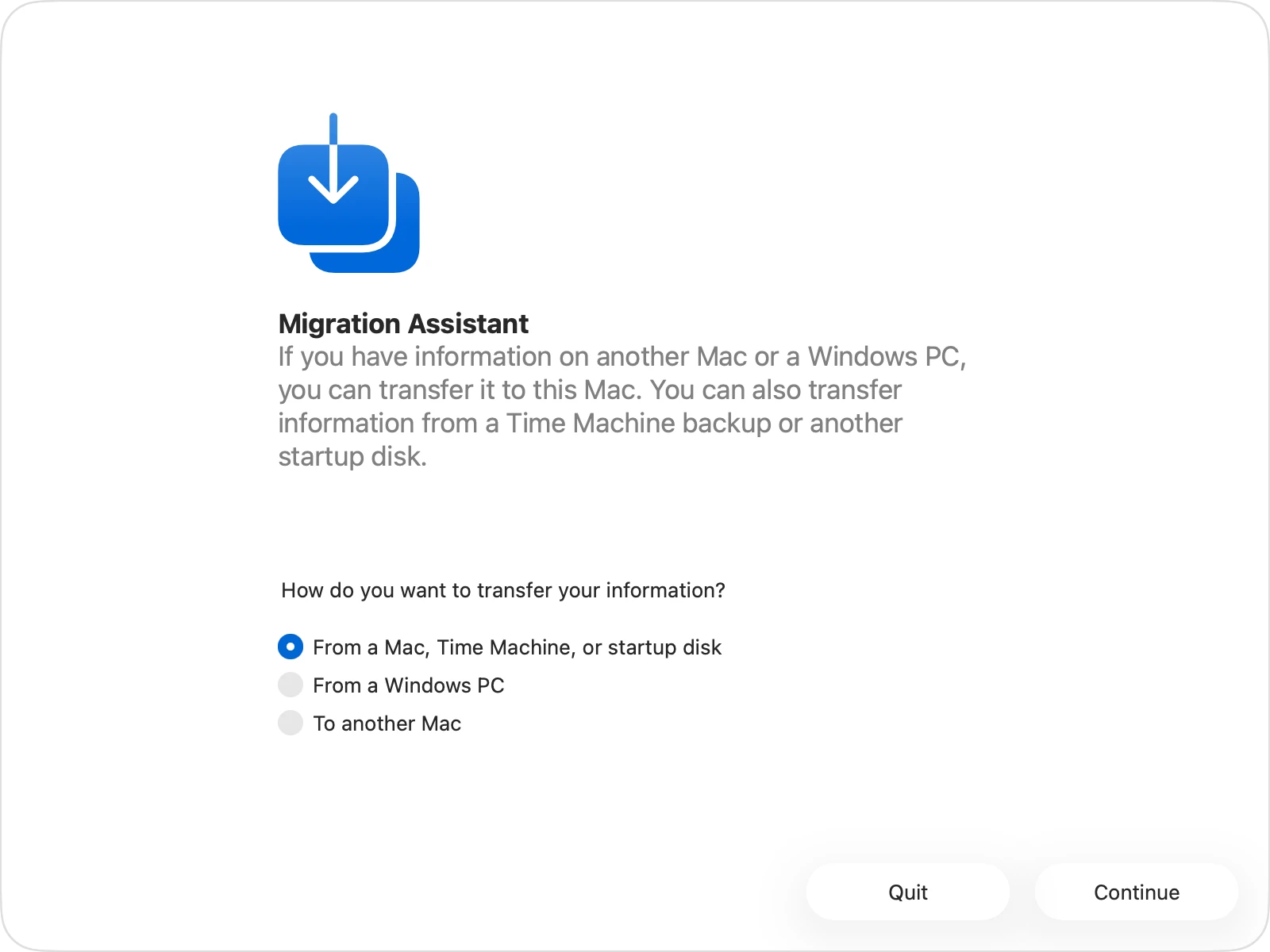
Step 2: Open Migration Assistant on your old Mac. Click Continue. When asked how you want to transfer your information, select: "To another Mac". Click Continue.
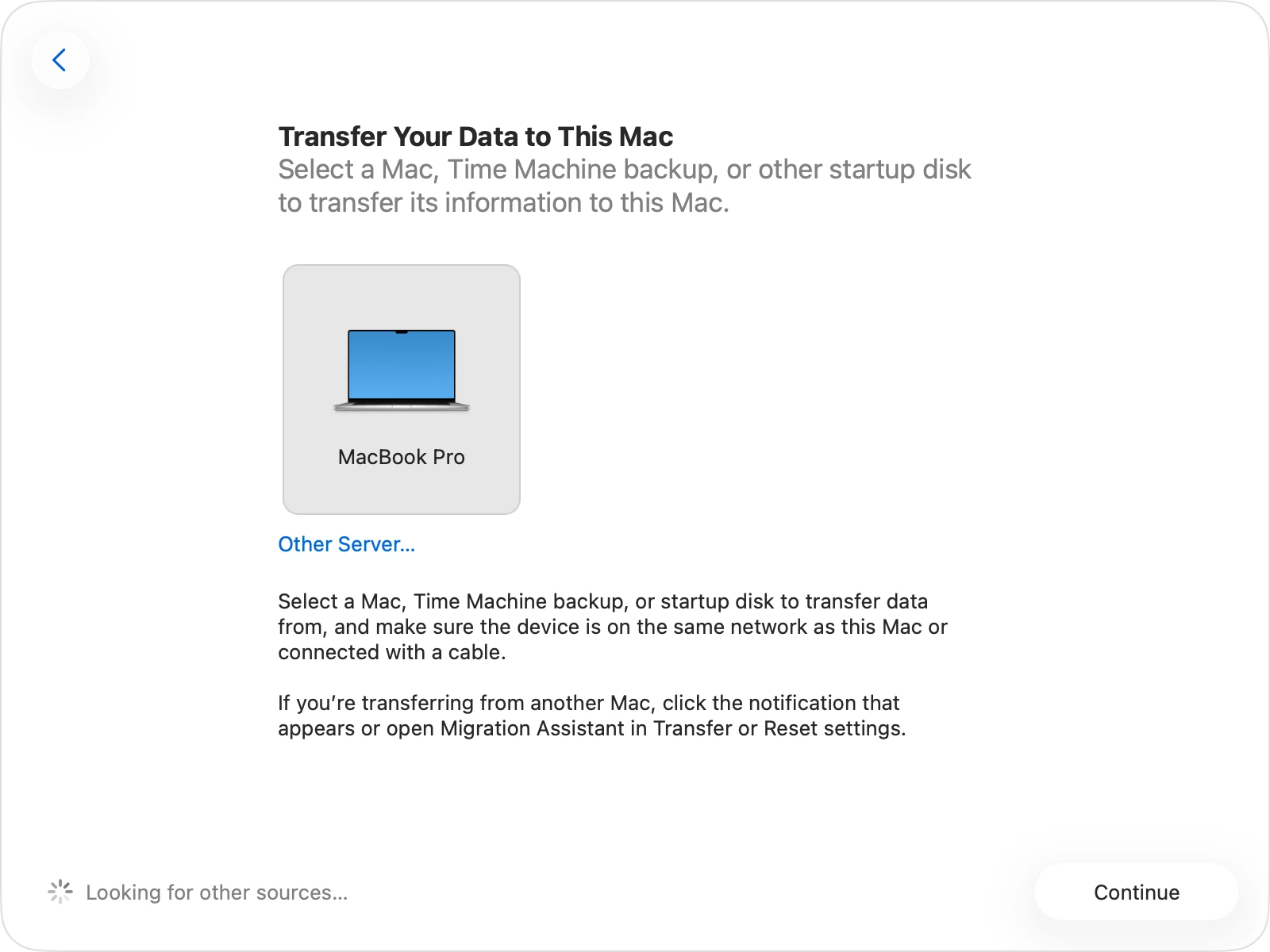
Step 3: On your new Mac, select the icon representing your old Mac. Click Continue. A security code (a string of numbers) will appear on one or both screens. Verify that the numbers match exactly on both Macs. Click Continue on your old Mac.
Step 4: Your new Mac will spin for a minute or two while it calculates how much data is on your old Mac. Once it's ready, you will see a list of checkboxes. You can choose to transfer:
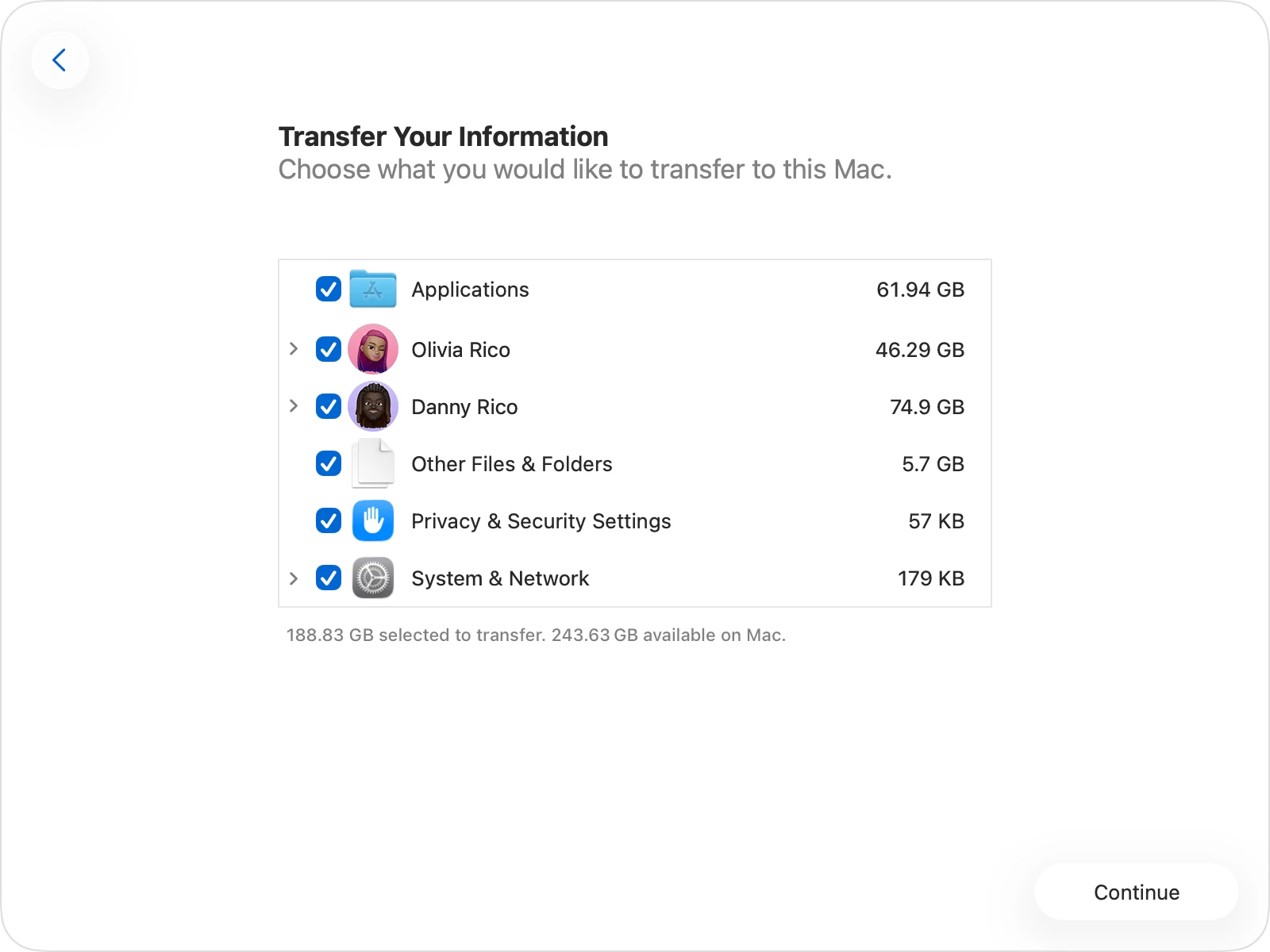
💡 Tip: If your old Mac has a different username than what you already set up on your new Mac, Migration Assistant will ask if you want to rename the old account or replace the current one.
Step 5: Click Continue on your new Mac to begin the migration. Leave both computers alone. Large transfers can take anywhere from 30 minutes to several hours depending on how much data you have and whether you are using Wi-Fi or a cable.
Once the progress bar fills up, a completion message will appear. Log into your new Mac, and you'll find everything exactly where you left it!
If you do not want to bring over old system junk, temporary cache files, or outdated apps, you can migrate manually.
For the ultimate power user experience, you can create a full, bootable clone of your old Mac using specialized software like Donemax Disk Clone for Mac. Once completed, you can plug this drive into your new M5 Mac, boot directly into your old environment, and access your entire operating system exactly as it was on your old computer. This is an amazing option if you need to run specific old configurations without cluttering your new internal drive.
Important Note: Apple silicon chips (like M1, M2, M3, M4, and the new M5 series) use a unique startup security architecture. To boot your old system on an M5 Mac, your old Mac must have been running an operating system fully compatible with Apple silicon, and you will need to grant permission in your new Mac's Startup Security Utility.
Why Choose a Disk Clone for Your New M5 Mac?
When setting up a new Apple silicon computer, you might wonder why disk cloning stands out among so many options. Cloning goes a step beyond typical copy-and-paste methods. Instead of just copying files, a disk clone replicates everything—hidden system files, user account settings, preferences, app data, and your unique file structure.
Here is why cloning is the ultimate choice for your M5 upgrade:
The Best Method: Make a Full and Bootable Clone with Donemax Disk Clone for Mac
To easily migrate data from old Mac to M5 Mac via disk clone, you need a software tool that is both highly secure and incredibly simple to operate. Donemax Disk Clone for Mac is specifically optimized for both Intel-based and Apple silicon Macs. It features a clean, user-friendly interface that lets home users create flawless 1:1 drive copies with just a few clicks.
Follow these simple steps on your old Mac to create your full, secure clone before moving over to your new M5 machine.
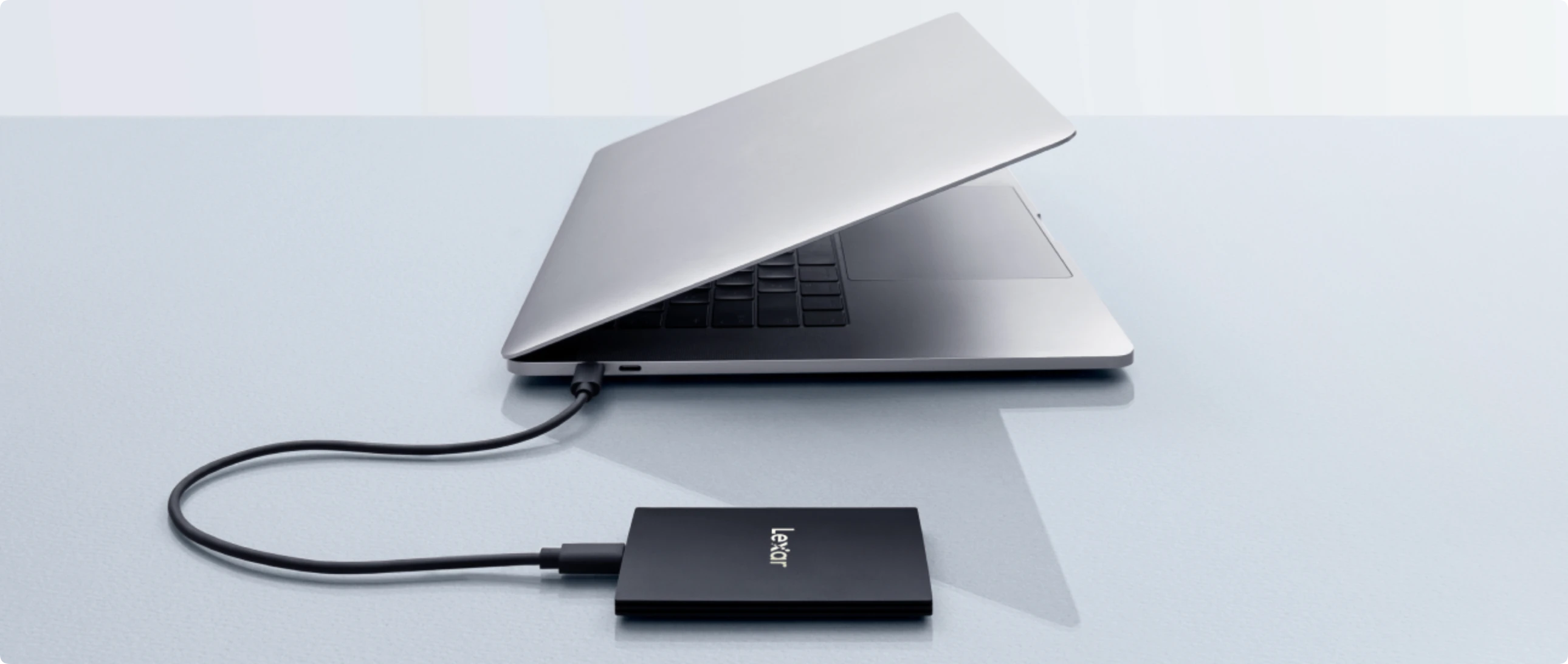
Step 1: Find a reliable external hard drive or high-speed external SSD that has equal or greater storage capacity than the internal drive of your old Mac. Plug it into your old Mac using a reliable cable. Keep in mind that cloning will erase everything currently on this external drive, so ensure there are no important files left on it.
Step 2: Download Donemax Disk Clone for Mac. Install it by dragging the icon to your Applications folder, then launch the software. You will see a simple main window with a few straightforward options.
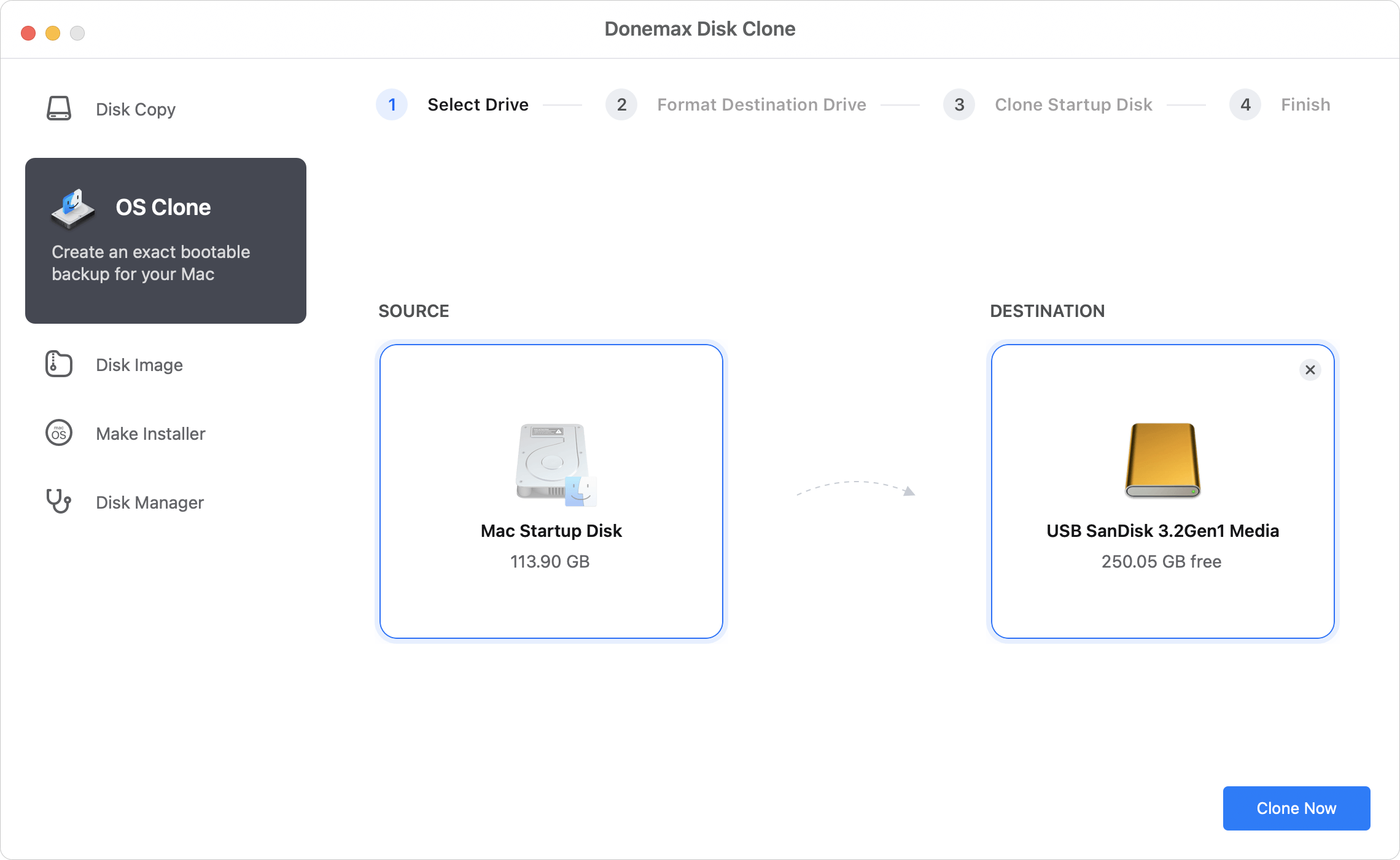
Step 3: From the main menu sidebar, click on the OS Clone option. This tool is designed to duplicate your entire macOS system drive perfectly. In the 'Source' field, the internal hard drive of your old Mac (usually called Macintosh HD) will be selected automatically. In the 'Destination' field, you need to manually select the connected external drive.
Step 4: Execute the Clone Operation
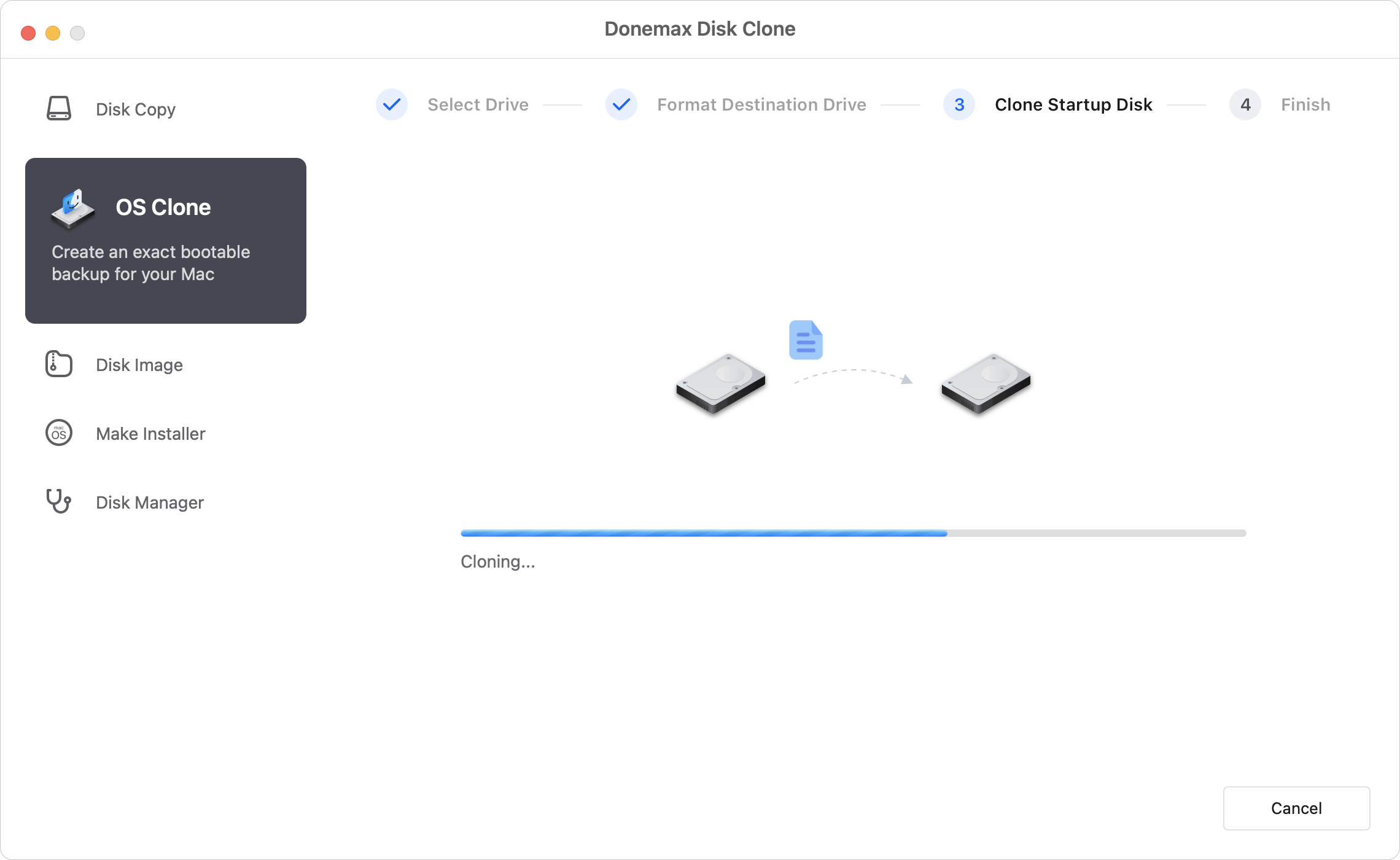
Double-check that you have chosen the correct source and destination drives. Once you are certain, click the Clone Now button at the bottom right. Donemax Disk Clone for Mac will begin transferring all your data safely. Make sure to leave your Mac alone and keep it plugged into power until the process reports a complete success.
How to Boot and Use the Cloned Drive on Your M5 Mac
Now that Donemax Disk Clone for Mac has finished creating a perfect mirror of your old computer, it is time to move over to your new M5 system. If you want to use the cloned drive as a bootable environment on your new M5 Mac, follow this simple procedure:
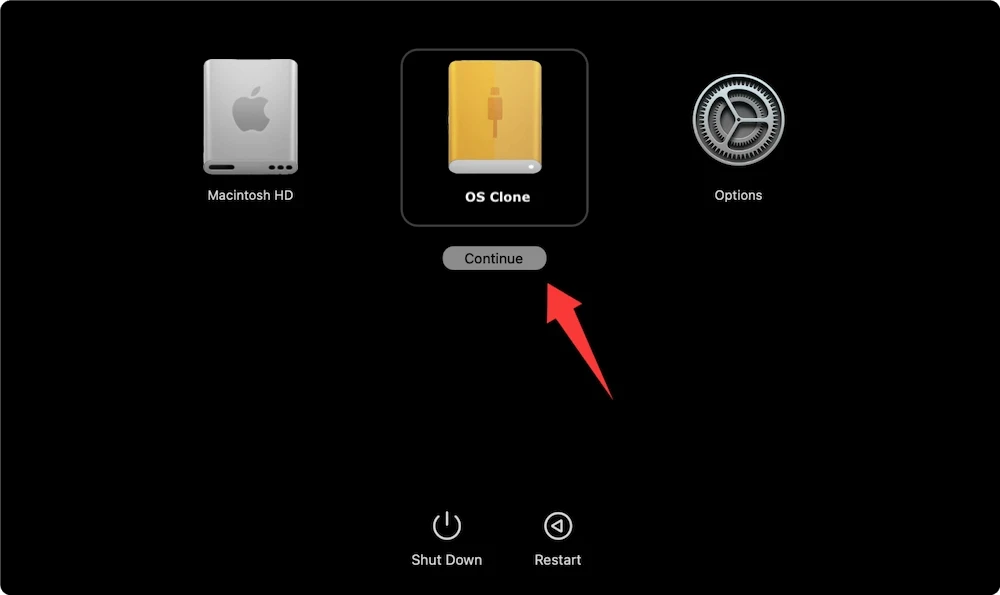
Your M5 Mac will now boot using the operating system, file layout, and applications preserved on the cloned drive. You can work out of this environment freely, test old software, or use it as a data repository to slowly move files to your internal drive over time.
Upgrading to a next-generation M5 Mac is a huge step forward for your daily productivity and entertainment. You do not have to let the fear of data loss or complicated transfers slow you down. Choosing to migrate data from old Mac to M5 Mac via disk clone gives you a fast, secure, and stress-free path forward.
With a powerful and intuitive tool like Donemax Disk Clone for Mac, creating an exact replica of your old digital life takes only a few simple steps. Whether you intend to boot your old environment directly or use the drive to supercharge Apple's Migration Assistant, you can move forward with absolute peace of mind. Download Donemax Disk Clone for Mac today and make your transition to your new M5 Mac smoother than ever before!
Donemax Disk Clone for Mac
An award-winning disk cloning program to help Mac users clone HDD/SSD/external device. It also can create full bootable clone backup for Macs.
Christina
Christina is the senior editor of Donemax software who has worked in the company for 4+ years. She mainly writes the guides and solutions about data erasure, data transferring, data recovery and disk cloning to help users get the most out of their Windows and Mac. She likes to travel, enjoy country music and play games in her spare time.
Gerhard Chou
In order to effectively solve the problems for our customers, every article and troubleshooting solution published on our website has been strictly tested and practiced. Our editors love researching and using computers and testing software, and are willing to help computer users with their problems

