
Written byStevenUpdated on Sep 30, 2026

Before we start: To keep the MacBook Neo or other Macs working faster with the best performance, it's essential to clear the junk data frequently. Donemax DMcleaner for Mac is an effective and easy cleanup tool for Mac. You can quickly clear junk data and speed up your Mac within a few clicks.
PAGE CONTENT:
The fanless MacBook Neo is an absolute marvel of modern engineering. By removing mechanical cooling fans, Apple created a laptop that is whisper-quiet, incredibly thin, and exceptionally power-efficient. Whether you are typing up documents in a quiet library or editing photos on the go, the silent experience is unmatched.
When you push your MacBook Neo laptop with heavy multitasking, high-resolution video streaming, or intensive background processes, internal temperatures rise quickly. To protect delicate hardware, macOS triggers thermal throttling—automatically slowing down the CPU and GPU to cool off. The result? Sudden lag, spinning beach balls, and frustrating slowdowns.

If you want to maintain peak speed without overheating, you need the right strategy. In this complete guide, we will explore practical, effective solutions to optimize fanless MacBook Neo performance and keep your Mac running smoothly every day.
To effectively boost your laptop's speed, it helps to understand why fanless laptops slow down in the first place.
How Passive Cooling Works
Fanless laptops use passive heat sinks and thermal pads. Internal heat generated by the processor flows directly into the aluminum body. The metal enclosure acts as a giant radiator, transferring heat to the surrounding environment.
What Causes Thermal Throttling?
Silicon chips generate heat under load. If internal temperatures reach safe limits (often around 90°C to 100°C), the system clock speed drops instantly. This intentional slowdown prevents permanent hardware damage, but it manifests as sudden system lag.
The Dual Bottleneck: Heat + Junk Files
Thermal limits are only half the battle. When system storage fills up or background applications hoard memory, processor demand stays artificially high. High CPU load creates continuous heat, which triggers thermal throttling sooner. Clearing system clutter directly lowers processor demands, keeping temperatures down.
Physical heat management is your first line of defense for a fanless laptop.
A cluttered hard drive forces macOS to struggle with virtual memory management, generating unnecessary heat and slowing down performance. Cleaning your storage regularly is essential.
While you can delete files manually, system caches, language leftovers, and hidden log files hide deep inside system directories. Using an automated tool like Donemax DMcleaner for Mac streamlines this entire process safely.
Key Features of Donemax DMcleaner for Mac
Step-by-Step Guide to Boost Performance
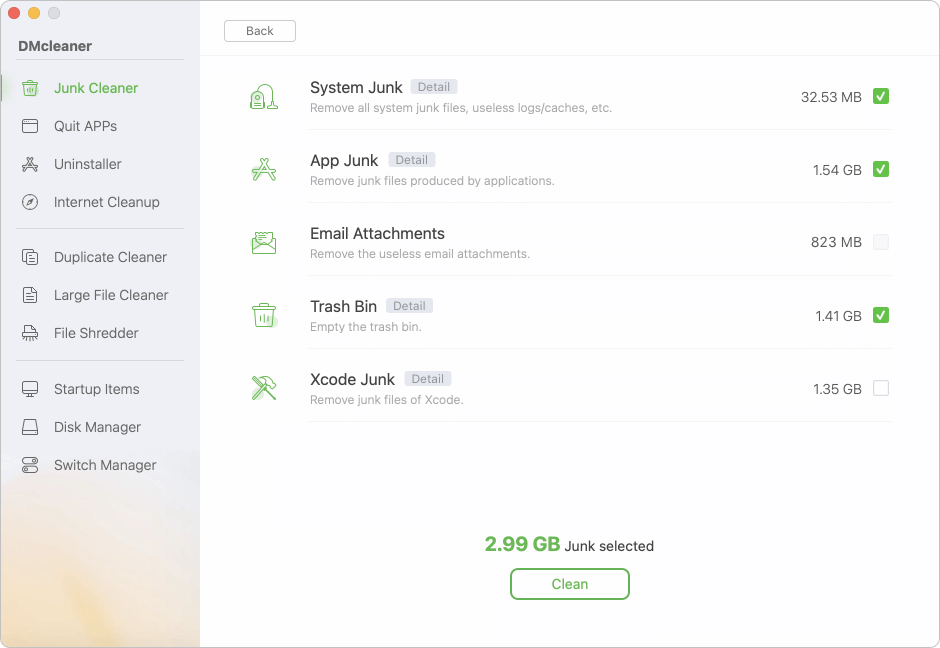
There are also some other useful features which can help you clear junk data and optimize MacBook Neo performance. For example, you can switch to 'Startup Items' and disable unnecessary applications from launching automatically at login. Uninstaller can help you completely remove unwanted apps without leftovers. The software can also help you find and remove duplicated files or large files.
💡 Tip: Keeping at least 15% to 20% of your SSD free ensures macOS has enough swap space for RAM management, drastically reducing system strain.
Background processes are silent performance killers. Apps running behind the scenes consume processor cycles, keeping heat levels high even when you think your Mac is idle.
Use Activity Monitor to Spot High-CPU Apps
Press Command + Space, type 'Activity Monitor', and press Enter. Sort processes by '% CPU'. If you spot an app consuming 50% or more CPU unexpectedly, select it and click the 'X' button to force quit.
Disable Unnecessary Login Items
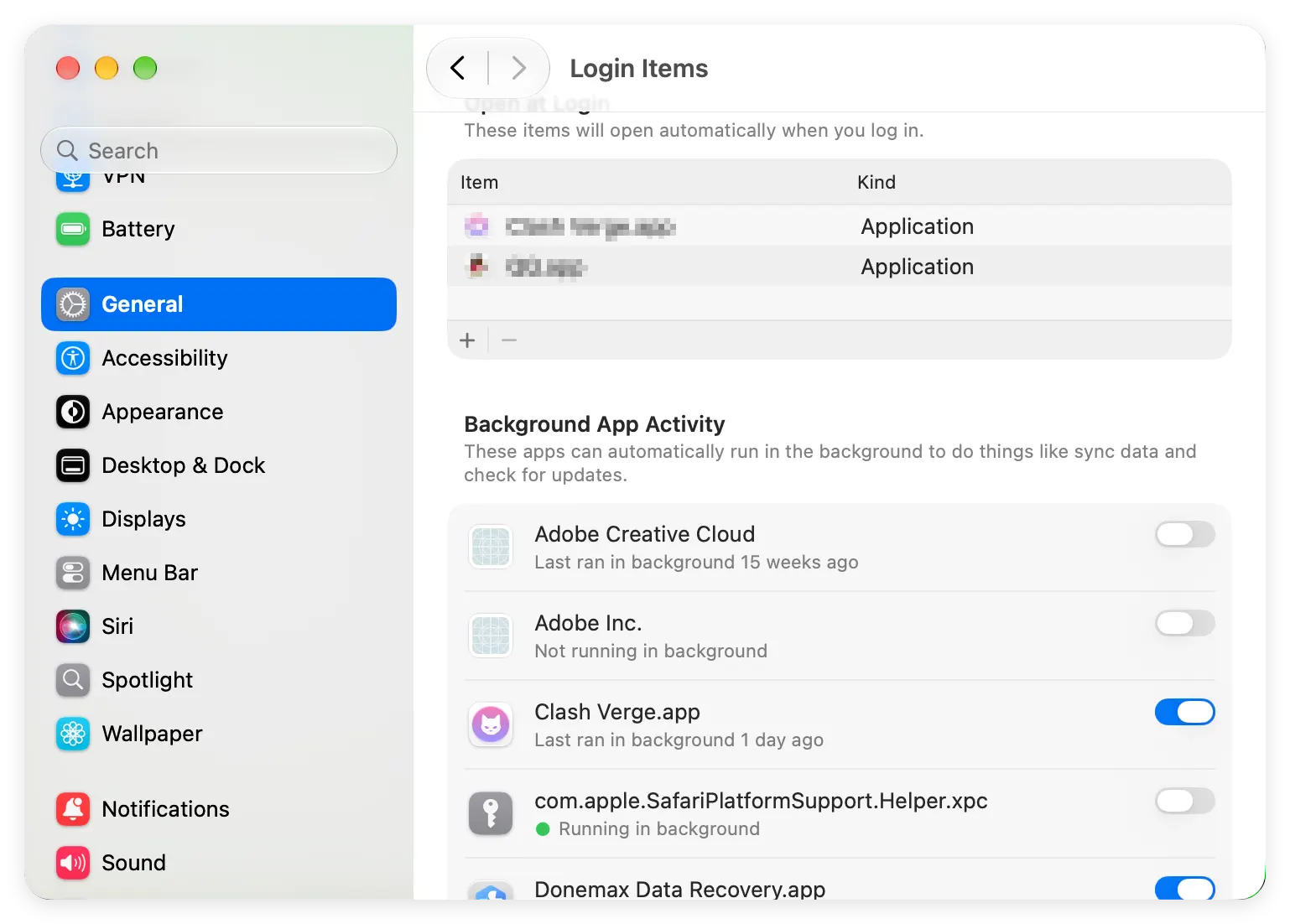
Navigate to System Settings > General > Login Items & Extensions. Review the list of apps allowed to open at startup. Turn off helper tools and updaters that you do not use every day.
Web browsers are often the single biggest consumer of memory and CPU power on modern laptops.
Adjusting a few built-in macOS settings can free up processing overhead instantly.
Reduce Visual Effects
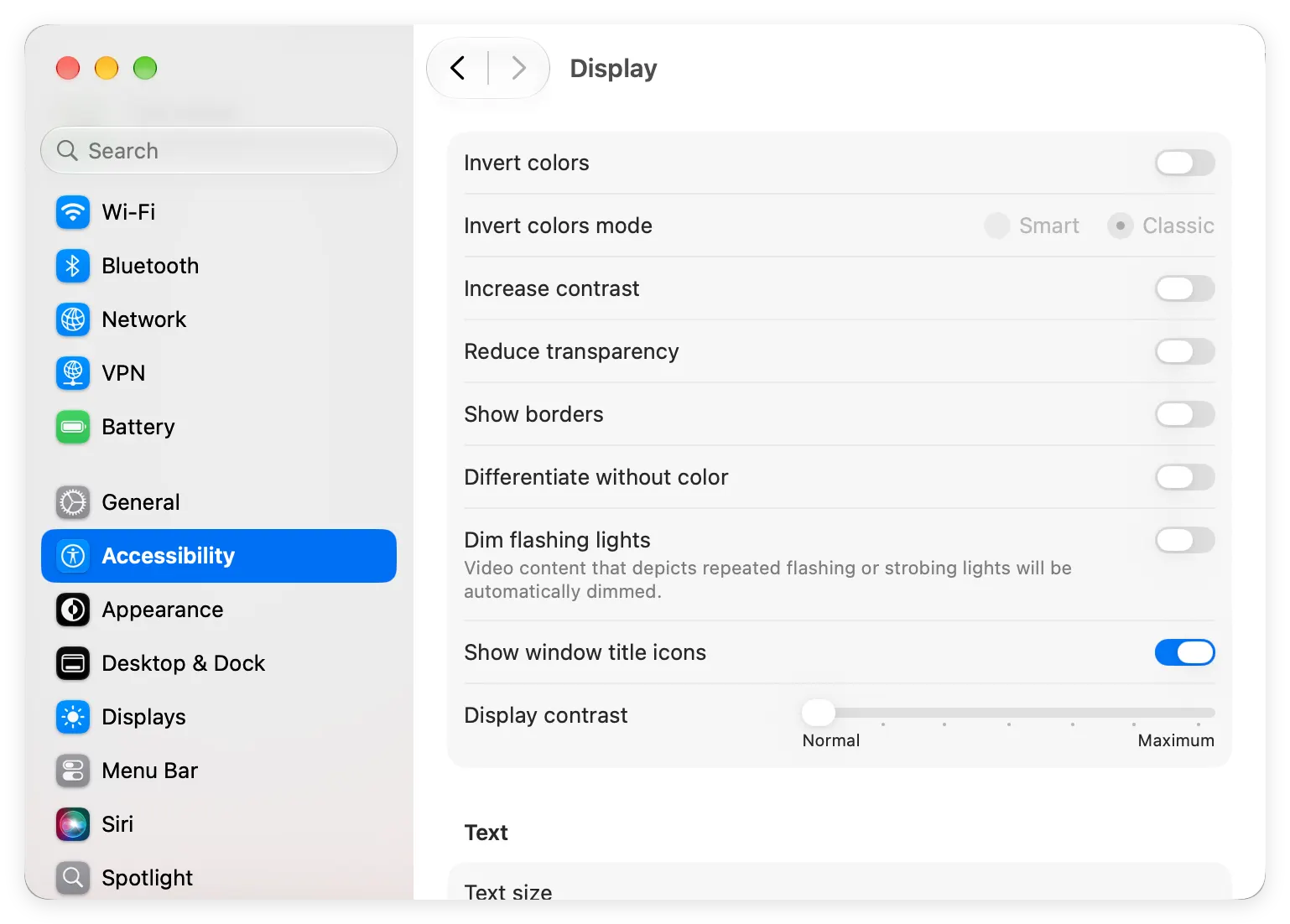
Go to System Settings > Accessibility > Display. Turn on 'Reduce motion' and 'Reduce transparency'. Lowering graphics rendering demand reduces GPU warmth.
Enable Low Power Mode during Heavy Workloads
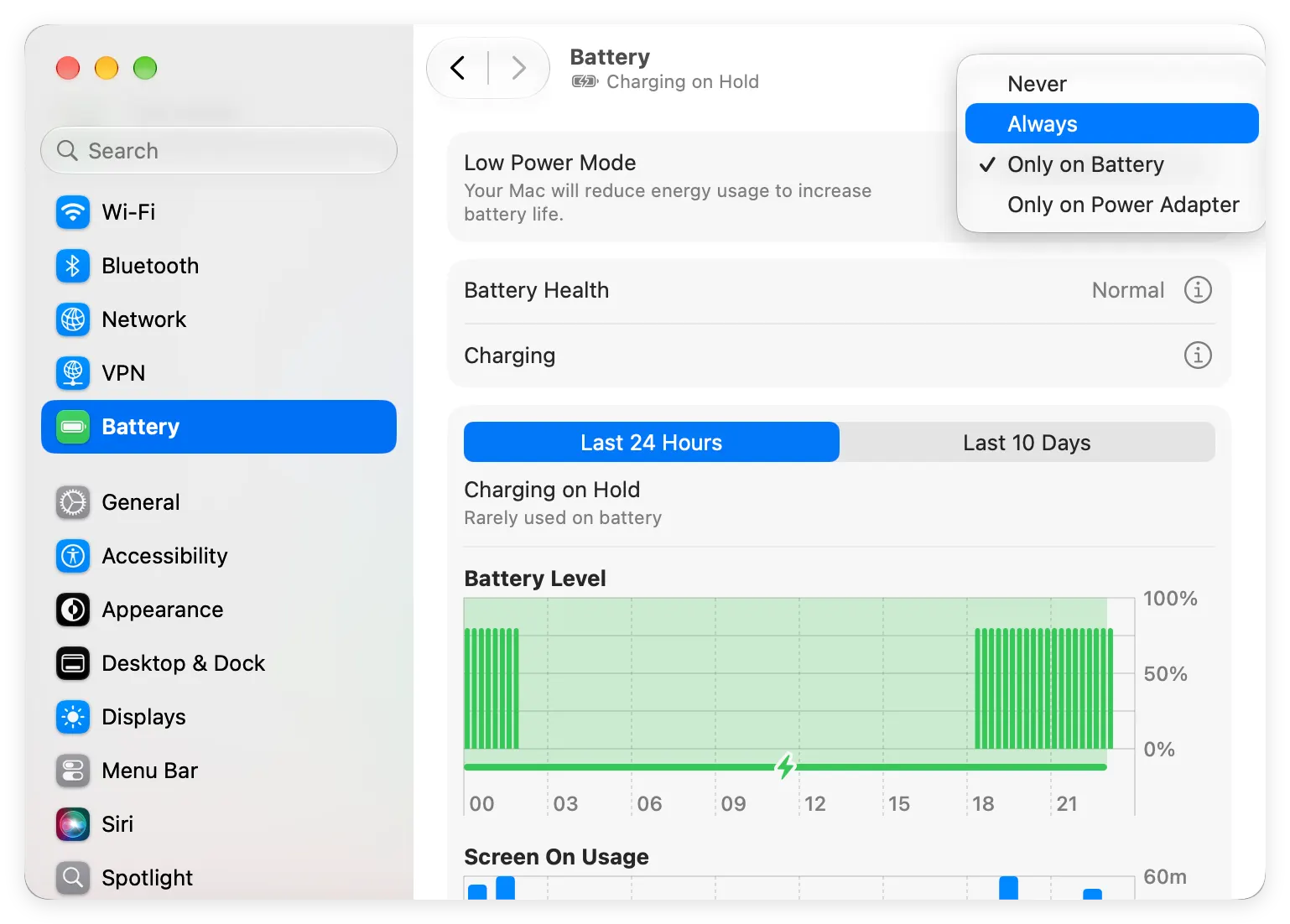
Go to System Settings > Battery and enable 'Low Power Mode'. While this slightly caps peak processor speed, it dramatically drops operating temperatures. By preventing thermal spikes, your Mac maintains stable, predictable performance without severe thermal throttling dips.
Keep macOS Updated
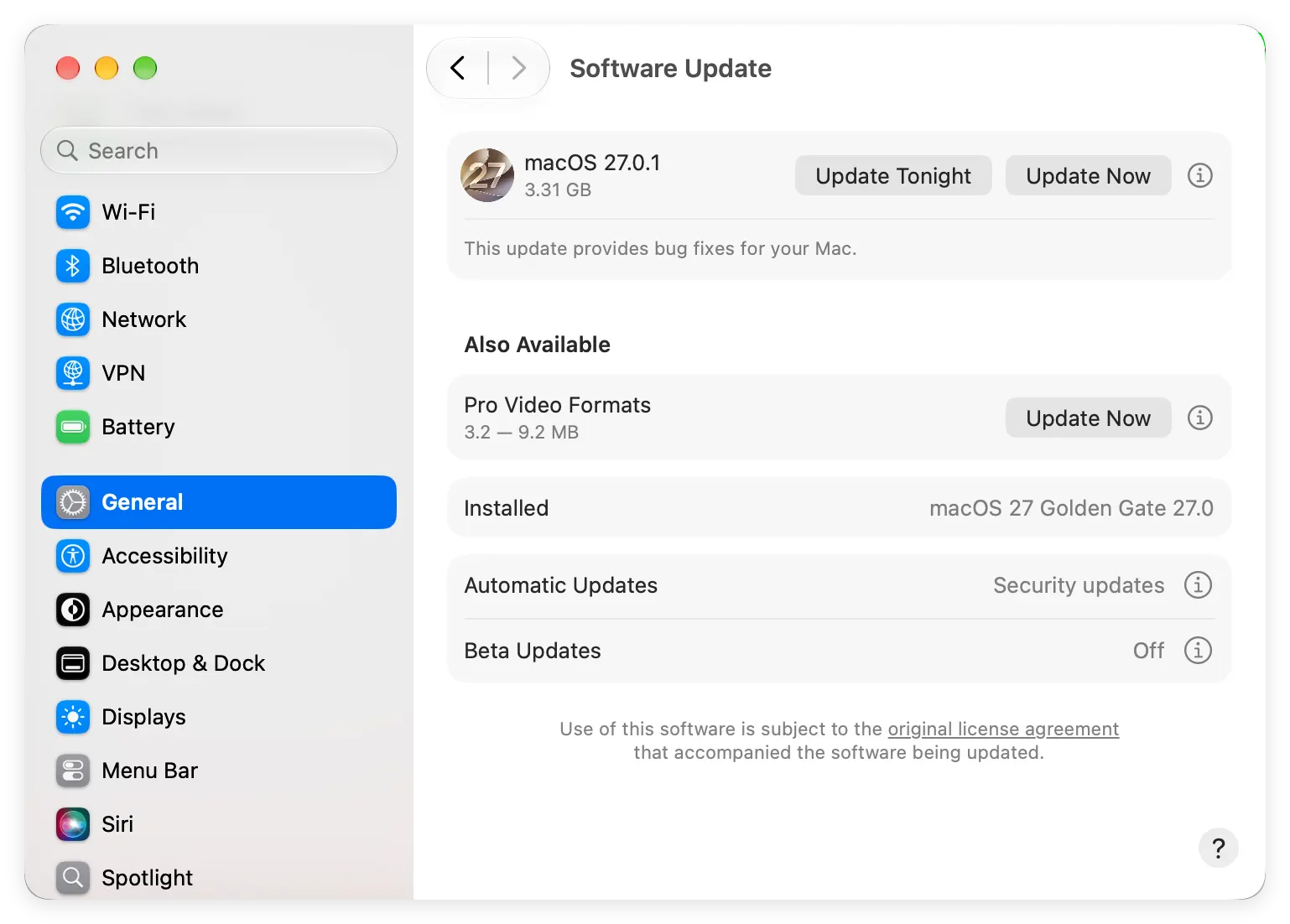
Apple continuously refines thermal management algorithms and metal graphics drivers. Check System Settings > General > Software Update to ensure you run the latest release.
Managing your workflow intelligently prevents heat build-up before it starts.
The fanless MacBook Neo provides a quiet, portable, and enjoyable computing experience. While passive cooling requires minding thermal limits, optimizing performance is straightforward when you combine proper setup habits with clean software management.
By elevating your device, managing background apps, and running periodic cleanups with Donemax DMcleaner for Mac, you can prevent thermal throttling and enjoy blazing-fast performance every single day.
Donemax DMcleaner for Mac
Donemax DMcleaner for Mac is an award-winning Mac cleanup & maintenance tool. It offers over 10 tools to help Mac users clean junk data. It helps speed up a slow Mac. Additionally, it includes a smart switch manager and disk manager for Mac.
Steven
Steven has been a senior writer & editor of Donemax software since 2020. He's a super nerd and can't imagine the life without a computer. Over 6 years of experience of writing technical solutions and software tesing, he is passionate about providing solutions and tips for Windows and Mac users.
Gerhard Chou
In order to effectively solve the problems for our customers, every article and troubleshooting solution published on our website has been strictly tested and practiced. Our editors love researching and using computers and testing software, and are willing to help computer users with their problems