Written byMariaUpdated on Sep 29, 2026

Before we start: To resolve installation hangs, battery drain, overheating, connectivity drops, and app crashes on macOS 27 Golden Gate, start with essential maintenance steps such as resetting system caches, rebuilding the Spotlight index, updating incompatible apps, and cleaning system junk; if you experience lost files or unreadable partitions during or after the upgrade, use Donemax Data Recovery for Mac to safely scan and retrieve your data.
PAGE CONTENT:
Apple's release of macOS 27 Golden Gate brings exciting updates, refined interface enhancements, and deeper integration across Mac hardware. Whether you upgraded your MacBook Pro, MacBook Air, Mac mini, or iMac, this release promises a faster and smoother computing experience.
However, as with every major macOS upgrade, many Mac users encounter unexpected glitches. From rapid battery drain and sluggish performance to Wi-Fi drops, app crashes, and accidental data loss during installation, these issues can interrupt your workflow.

If you are experiencing system hiccups after upgrading, don't worry. Most of these bugs are easy to solve with simple steps. In this guide, we will show you how to fix common macOS 27 Golden Gate issues step-by-step.
Based on reports from Apple support communities and tech forums, here are the most frequent problems reported after updating to macOS 27 Golden Gate:
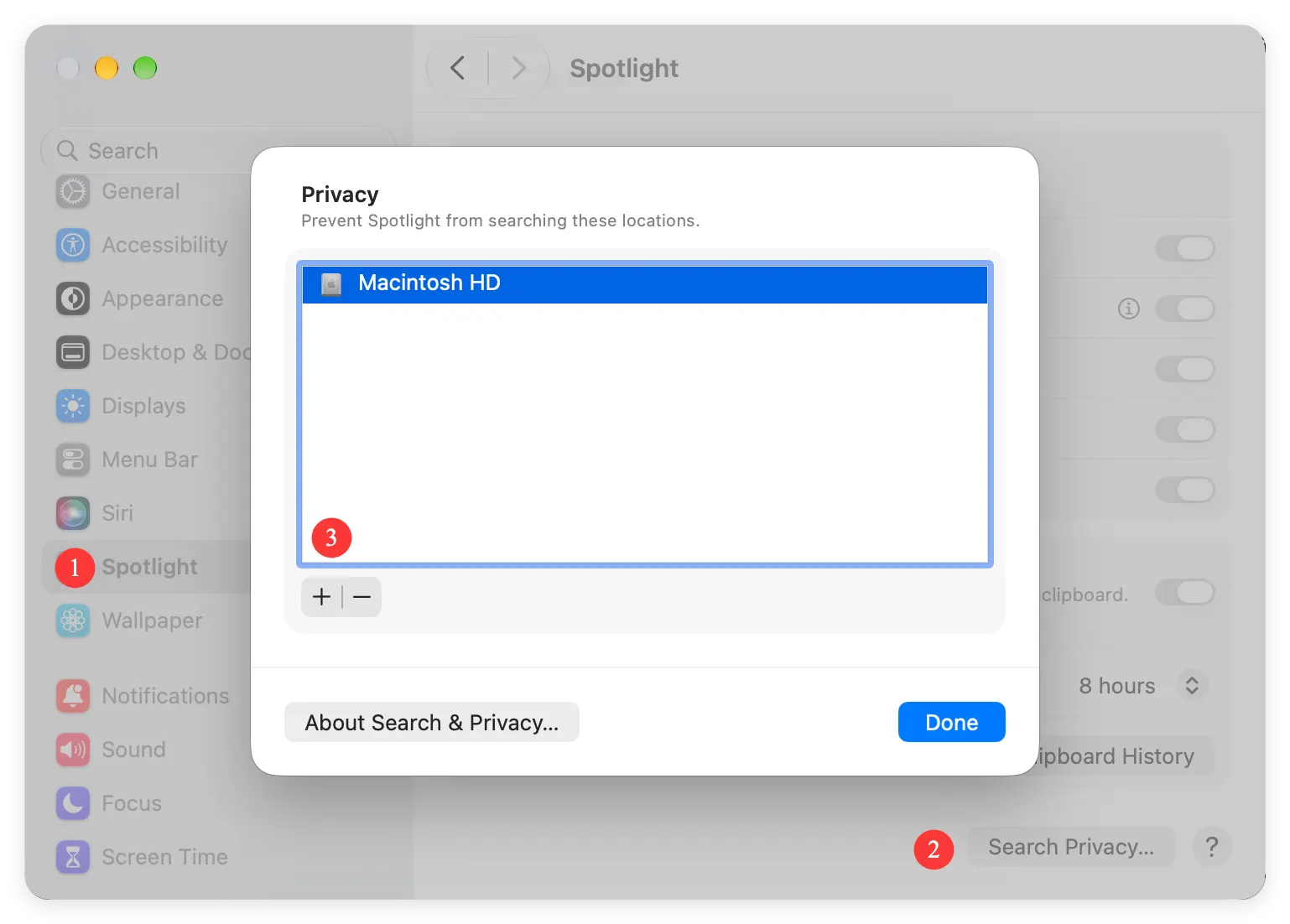
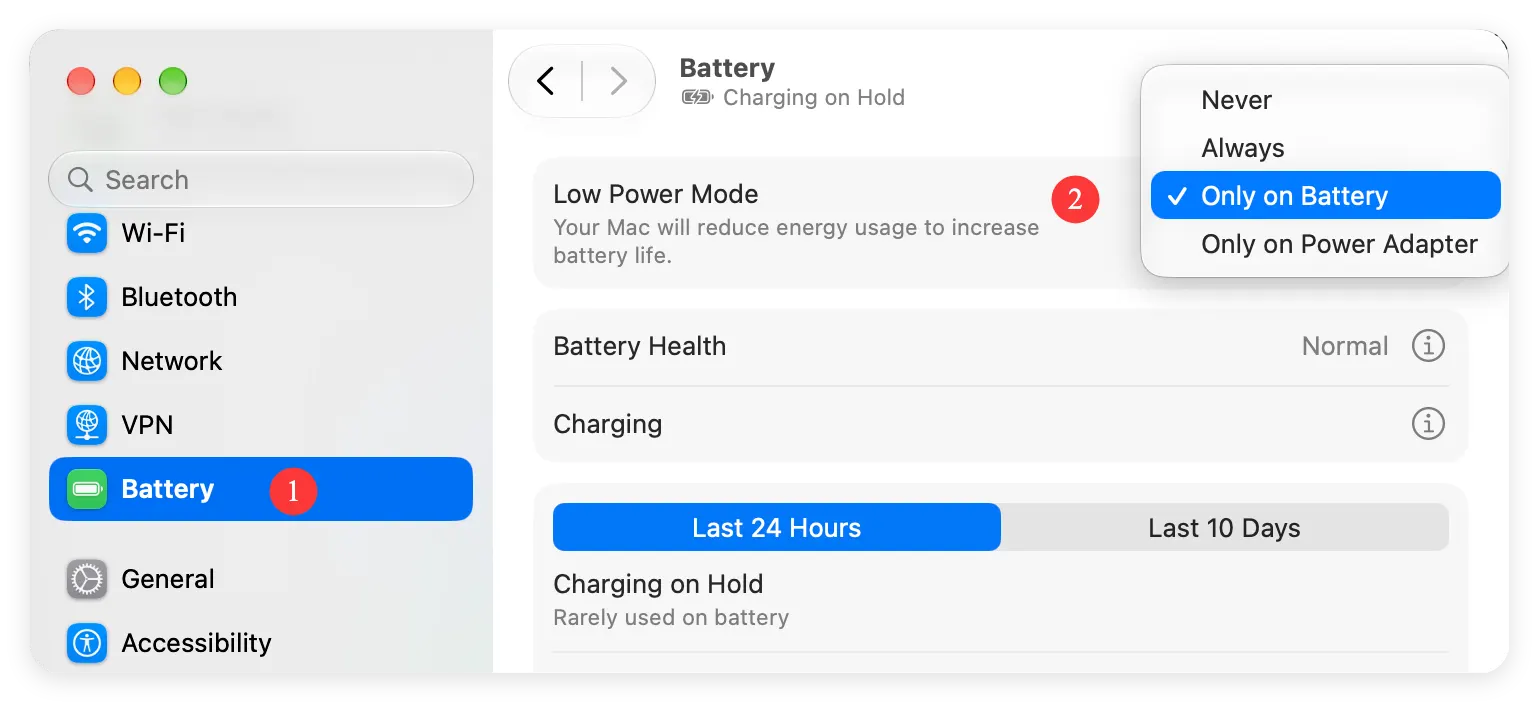
After installing macOS 27 Golden Gate, background indexing processes like Spotlight, photo recognition, and iCloud synchronization automatically run to organize your drive. This process uses heavy CPU resources and drains your battery quickly for the first 24 to 48 hours.
To resolve battery drain and overheating:
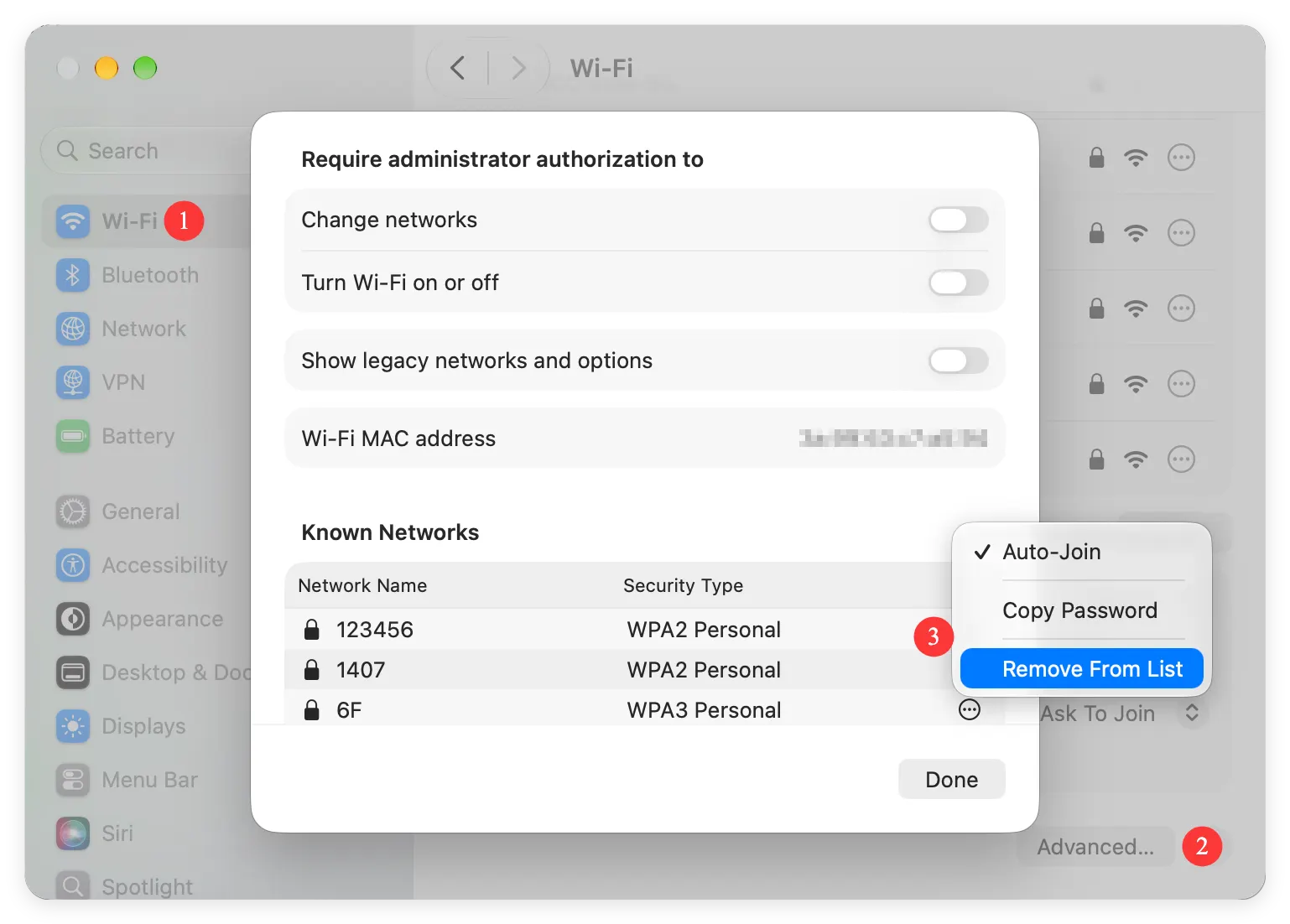
If your network connection keeps dropping on macOS 27 Golden Gate, corrupt network configuration files or cached preferences are usually the culprit.
Follow these quick solutions:
If your Mac feels sluggish after upgrading to macOS 27 Golden Gate, outdated system caches or software incompatibilities are likely responsible.
Here is how to speed up your Mac:
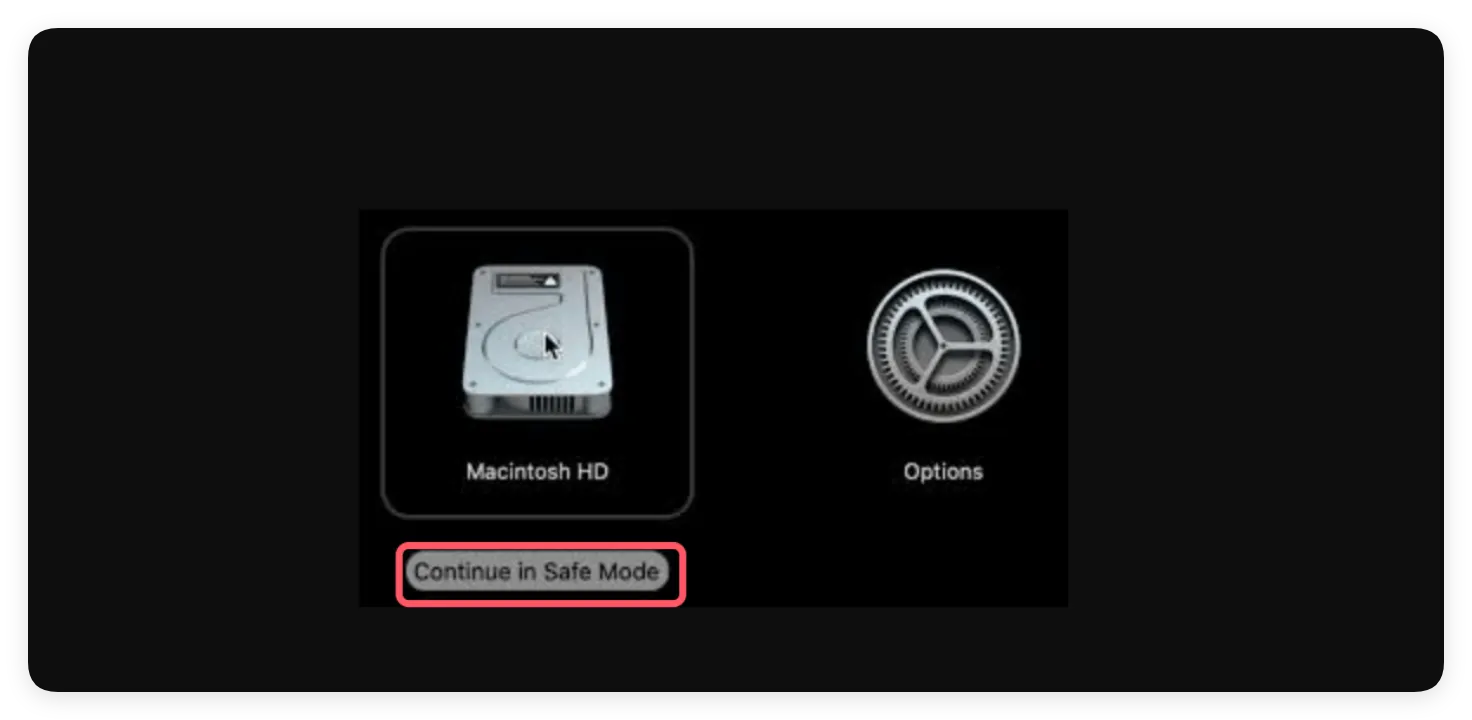
Free Up Disk Space on macOS 27 Golden Gate
Clean up junk data on macOS 27 manually or with Donemax DMcleaner for Mac to boost performance instantly.
One of the most distressing issues during a major macOS update is finding that personal files, photos, or desktop folders are missing, or that an external drive turned raw/unreadable.
If you discover missing files after installing macOS 27 Golden Gate, do not panic and avoid saving new files to your Mac drive. Use Donemax Data Recovery for Mac to safely scan and retrieve your lost data.
Why Donemax Data Recovery for Mac Is the Best Solution:
3 Easy Steps to Recover Data with Donemax Data Recovery for Mac:
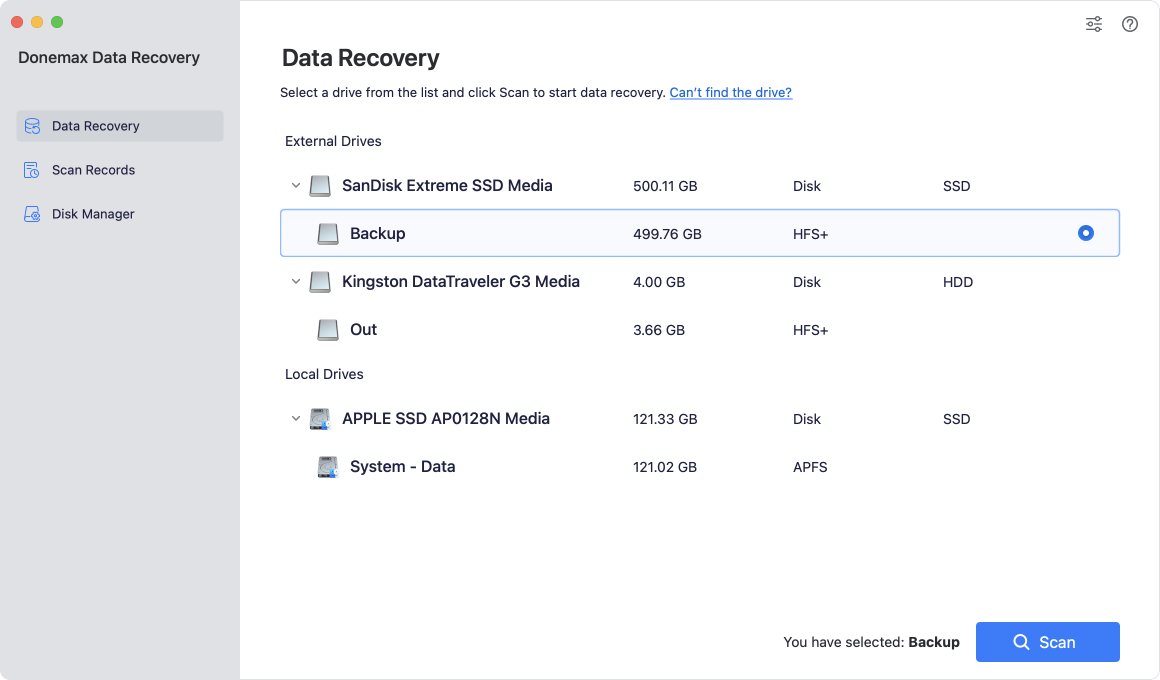
Step 1: Download and install Donemax Data Recovery for Mac on your Mac computer and open the program.
Step 2: Select the drive or volume (e.g., Macintosh HD or connected external drive) where your files were stored, and click 'Scan'.
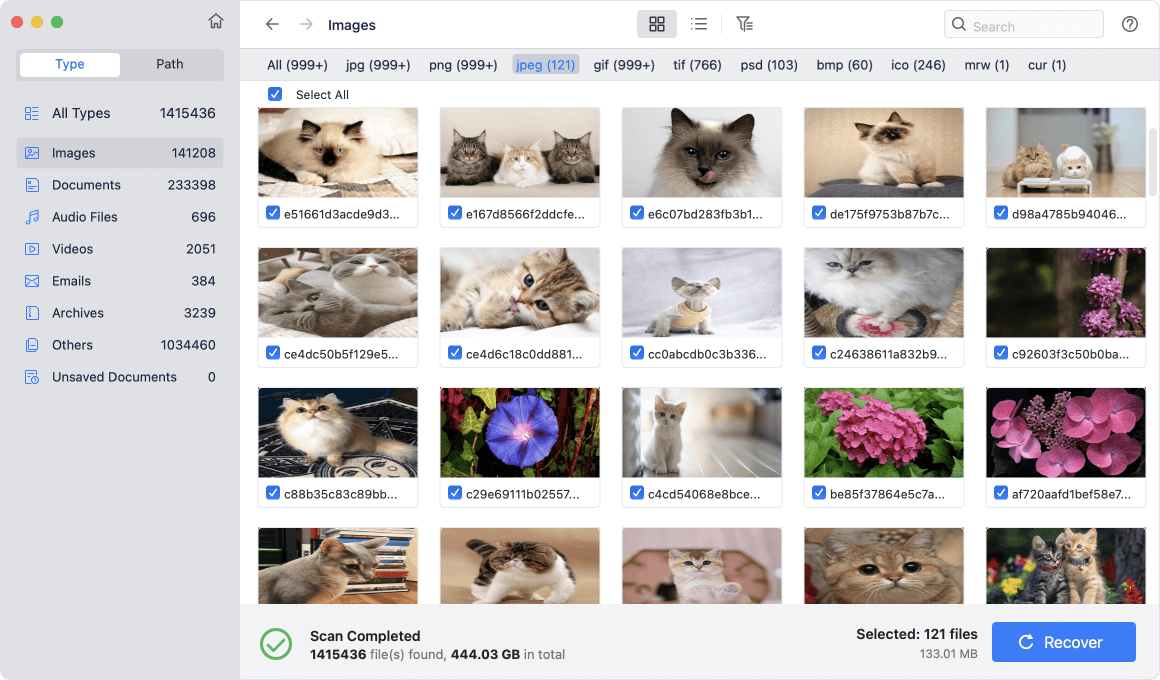
Step 3: Preview the discovered files, tick the items you want to restore, and click 'Recover' to save them to a safe backup location.
To keep your Mac running smoothly and avoid future glitches after updating to macOS 27 Golden Gate, keep these best practices in mind:
Upgrading to macOS 27 Golden Gate brings awesome new features and capabilities to your Mac. While early software bugs, battery drain, and connectivity issues can happen, following the troubleshooting techniques in this guide will quickly restore your Mac's speed and stability.
If you experience file loss or partition corruption during or after the update process, rely on Donemax Data Recovery for Mac to retrieve your valuable files safely and effortlessly. Keep your Mac optimized, back up your data, and enjoy macOS 27 Golden Gate!
Donemax Data Recovery for Mac
Donemax Data Recovery for Mac is one of the best Mac data recovery software. It is easy-to-use and can help in recovering deleted, formatted, inaccessible or lost data from Mac HDD/SSD, external disk, USB drive, SD card, camera or other storage devices.
Maria
Maria is one of the senior writers & editors of Donemax who lives and works in Sydney, Australia. She loves PC, Mac and Internet Technology. She has 6 years of writing articles about data recovery on PC/Mac, disk cloning solution, data eraser and computer OS optimization, etc. She is also interested in testing various software and digital products.
Gerhard Chou
In order to effectively solve the problems for our customers, every article and troubleshooting solution published on our website has been strictly tested and practiced. Our editors love researching and using computers and testing software, and are willing to help computer users with their problems