Written byStevenUpdated on Jun 23, 2026

Before we start: When you use NTFS drive on macOS 27 Golden Gate, you will find it's read-only. You can open and copy files from it to your Mac, but you cannot add, change, or delete anything on the drive. It can be incredibly frustrating, especially if you rely on that drive for your daily work. Donemax NTFS for Mac and solve it easily and make the NTFS drive writable on macOS 27 within a few clicks.
PAGE CONTENT:
Upgrading your Mac to the brand-new macOS 27 Golden Gate brings an incredible, super-smooth user experience. With its redesigned Liquid Glass interface, intelligent Siri AI, and blazing-fast Apple silicon optimizations, it represents a massive leap forward for Apple desktop computing. However, major system upgrades can sometimes introduce unexpected bumps along the road. One common headache that many users face after updating is finding that their reliable external hard drive or SSD has suddenly become read-only.
Don't panic! This is a very common issue on Apple's latest operating system, and your precious data is completely safe. In this comprehensive guide, we will break down exactly why your external hard drive is read-only on macOS 27 Golden Gate and walk you through 4 easy, step-by-step methods to fix it and restore full read-and-write permissions.
Before jumping into the quick fixes, it helps to understand why your Mac is restricting write permissions. When macOS 27 Golden Gate encounters an external storage device, it analyzes the drive's file structure and internal properties. There are four primary culprits behind the 'you can only read' status:
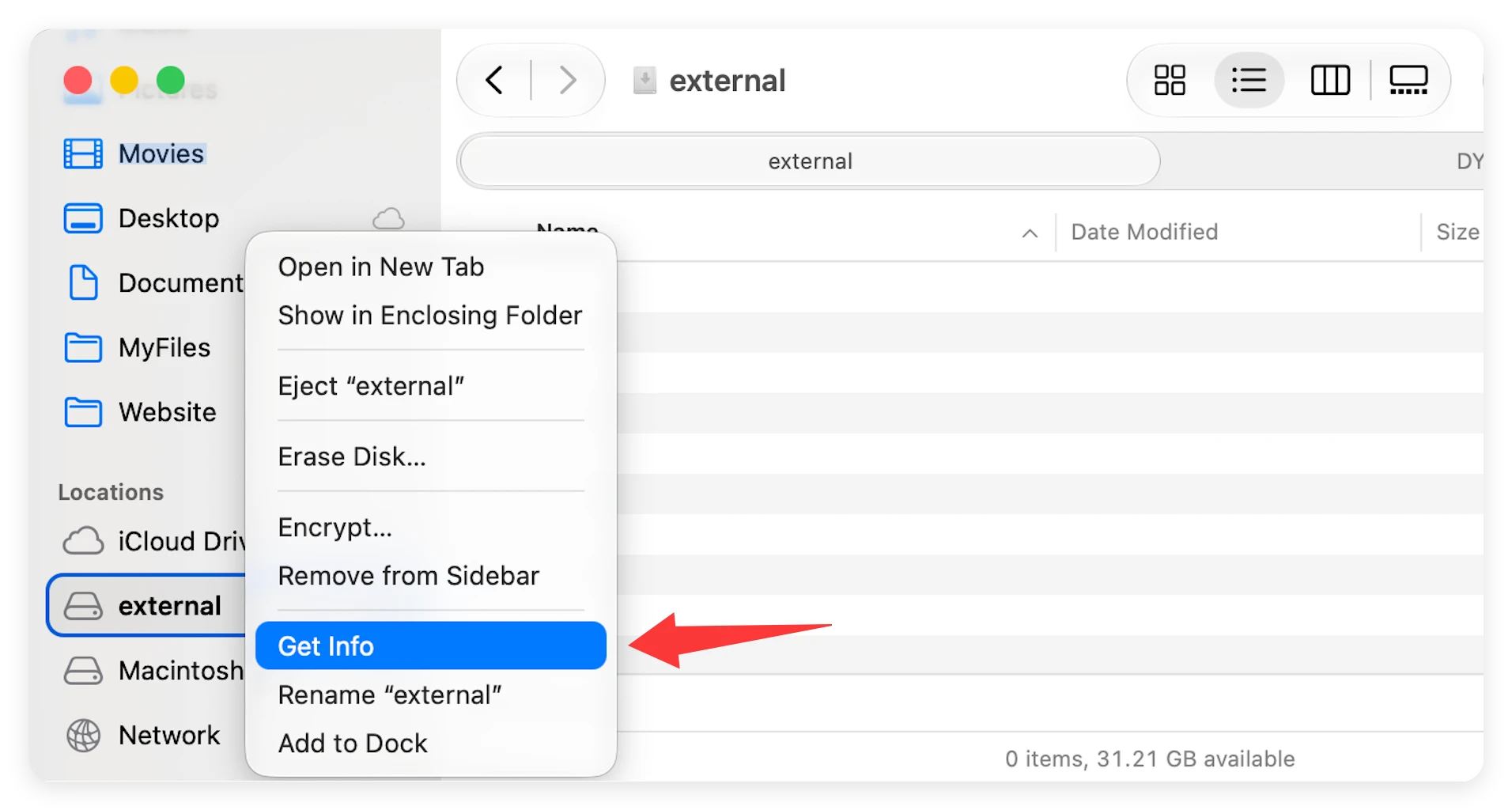
💡 Quick Tip: To verify your drive's format type, right-click the drive icon on your desktop or inside Finder, and choose 'Get Info'. Look under the 'General' section to find the 'Format' label.
Depending on what is causing your storage drive to lock up, choose one of the following official tested solutions to regain full write capabilities.
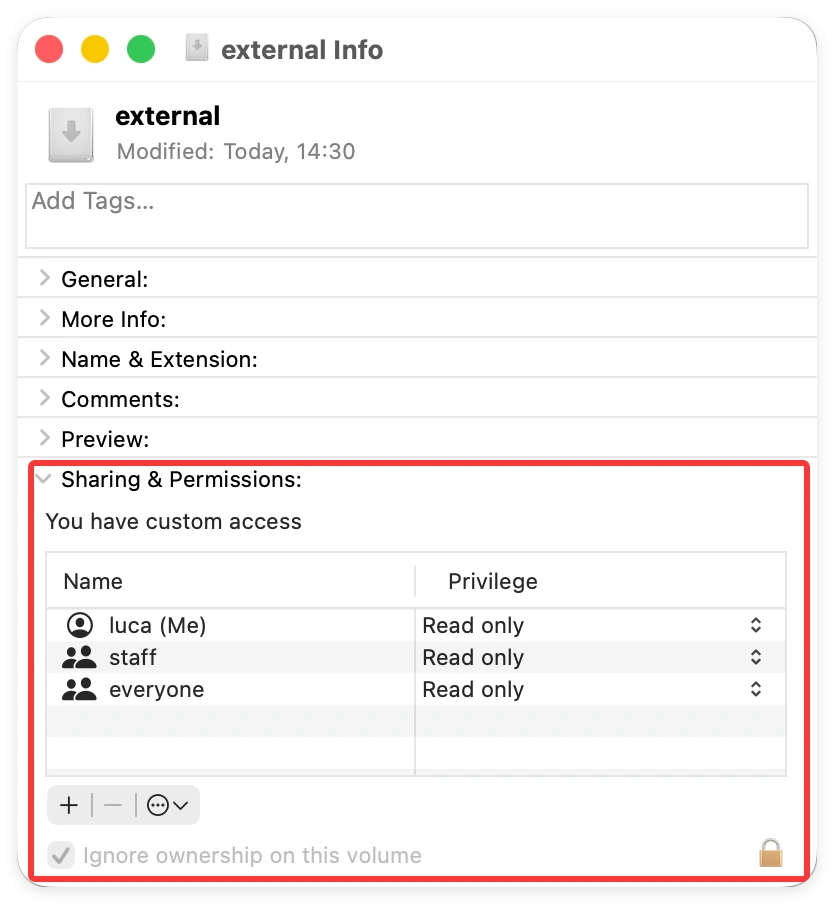
If your external hard drive is formatted in a native Apple layout (like APFS or Mac OS Extended) or a universal layout (like exFAT), but you still can't save files, the culprit is a basic permissions mismatch. You can easily modify your account access privileges through the system setup interface.
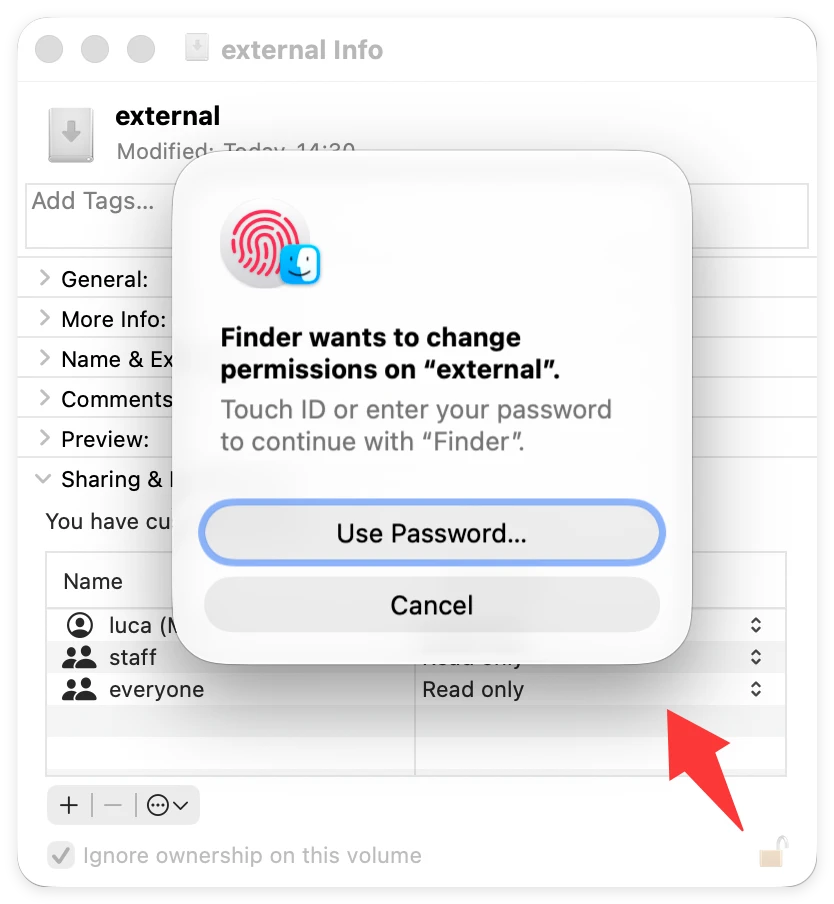
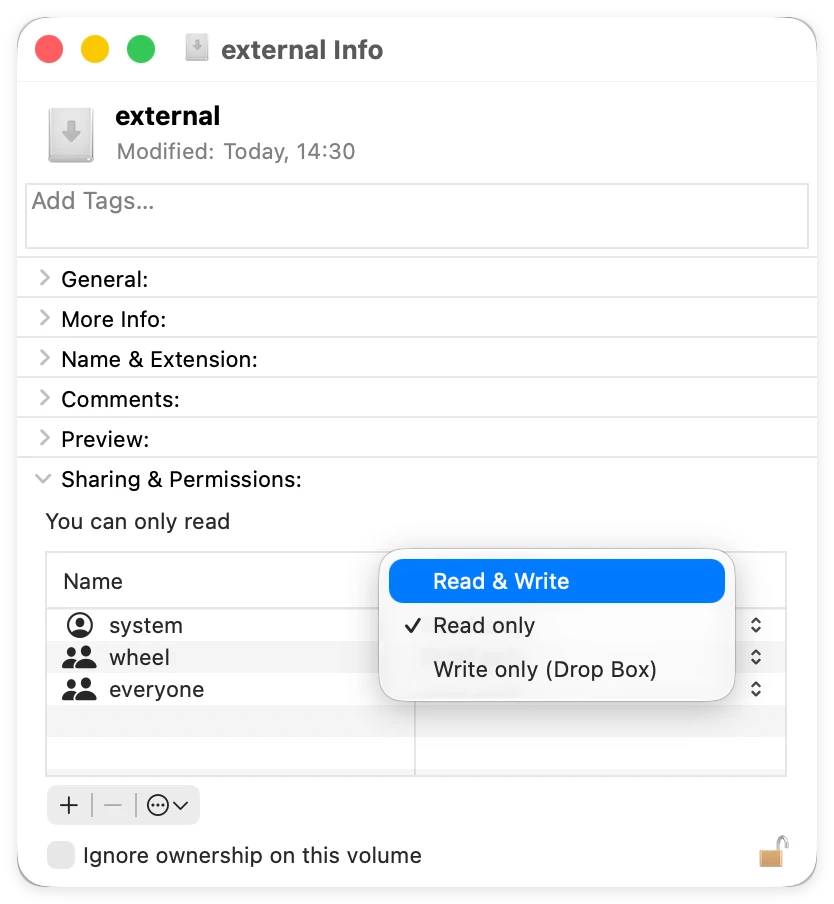
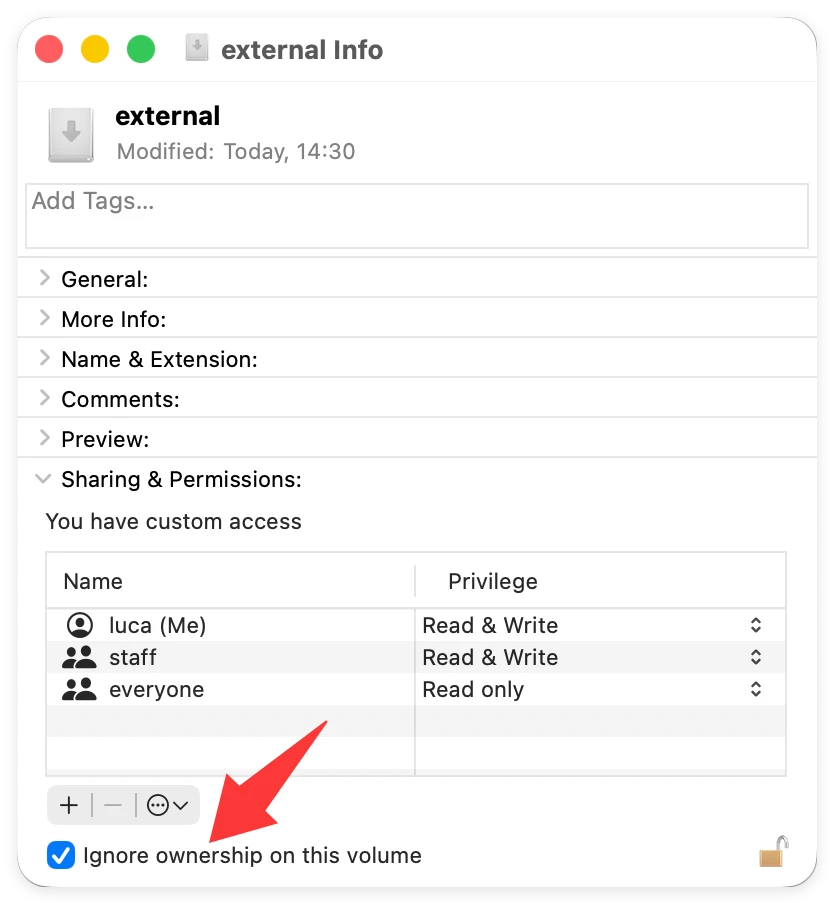
Did your 'Get Info' check reveal that your external hard drive is formatted as a Windows NT File System (NTFS) drive? If so, editing native Mac settings won't solve the problem. Because macOS 27 Golden Gate does not contain default code to write files onto NTFS systems, you need a smart helper app to bridge the gap.
Many guides suggest reformatting the drive to solve this, but formatting completely wipes away all your files! The ultimate data-safe alternative is to use Donemax NTFS for Mac. This professional utility runs flawlessly alongside macOS 27 Golden Gate's Apple silicon architecture, granting you instant, lightning-fast read-and-write permissions on all NTFS external disks without touching or endangering your existing files.
Why choose Donemax NTFS for Mac for your storage workflow?
Follow these simple steps to make your NTFS external hard drive writable:
Step 1. Download, install, and open Donemax NTFS for Mac on your computer. Plug your read-only NTFS external hard drive into an available USB or Thunderbolt port.
Step 2. Donemax NTFS for Mac will instantly recognize the connected drive. Select your hard drive from the left sidebar menu.
Step 3. Click the Enable Writable button on the top toolbar. Donemax will immediately configure the system layout to allow full write support.
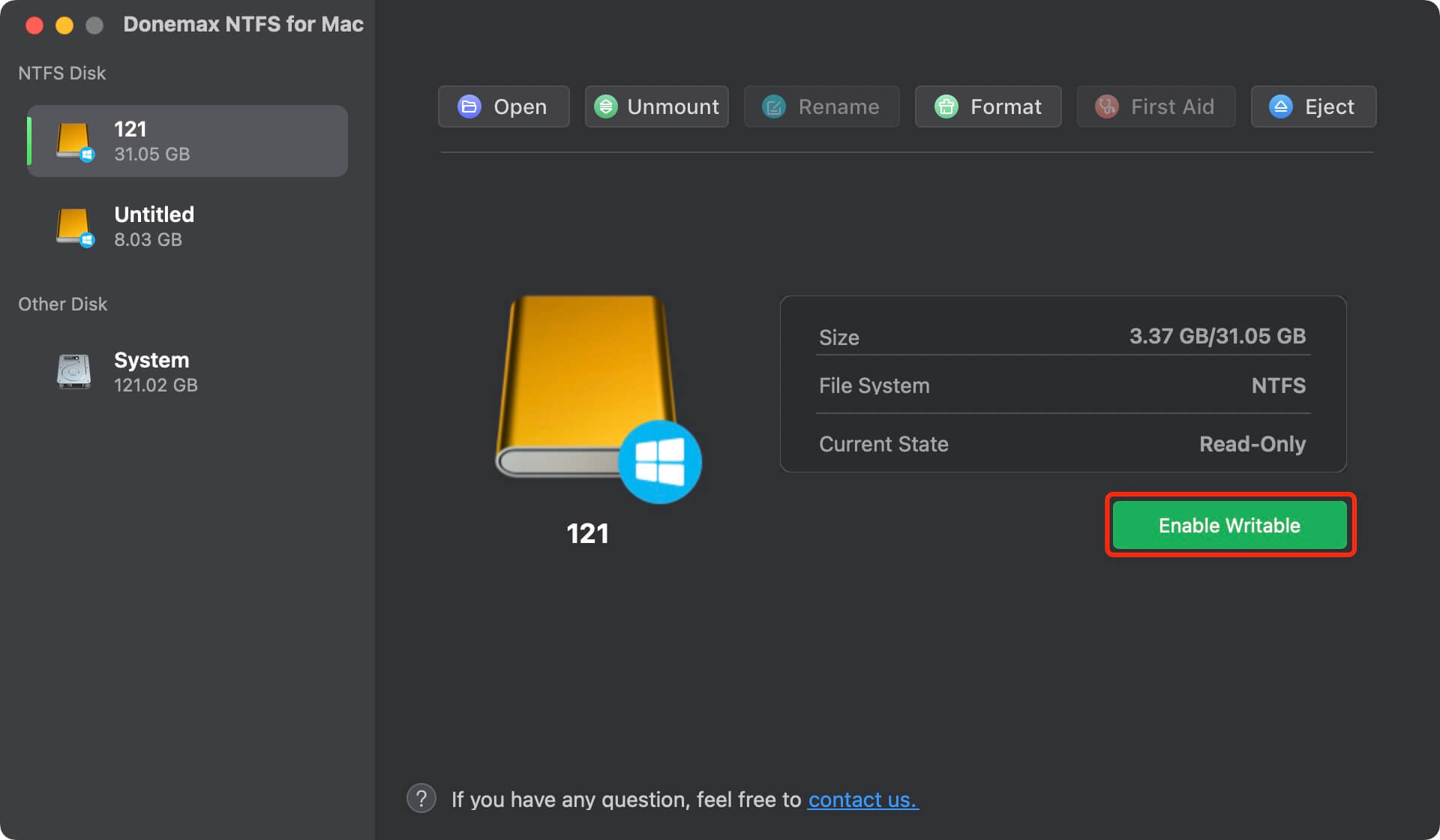
That is it! You can now open Finder, drag new files onto the NTFS drive, rename folders, and edit files seamlessly.
If your drive's permission screen displays that you already have 'Read & Write' privileges, but the system still blocks you from modifying data, your drive's directory structure may have minor system corruption. This often triggers a safety lockdown where macOS protects your drive from worsening structural damage. You can easily fix this using Apple's built-in repair tool called First Aid.
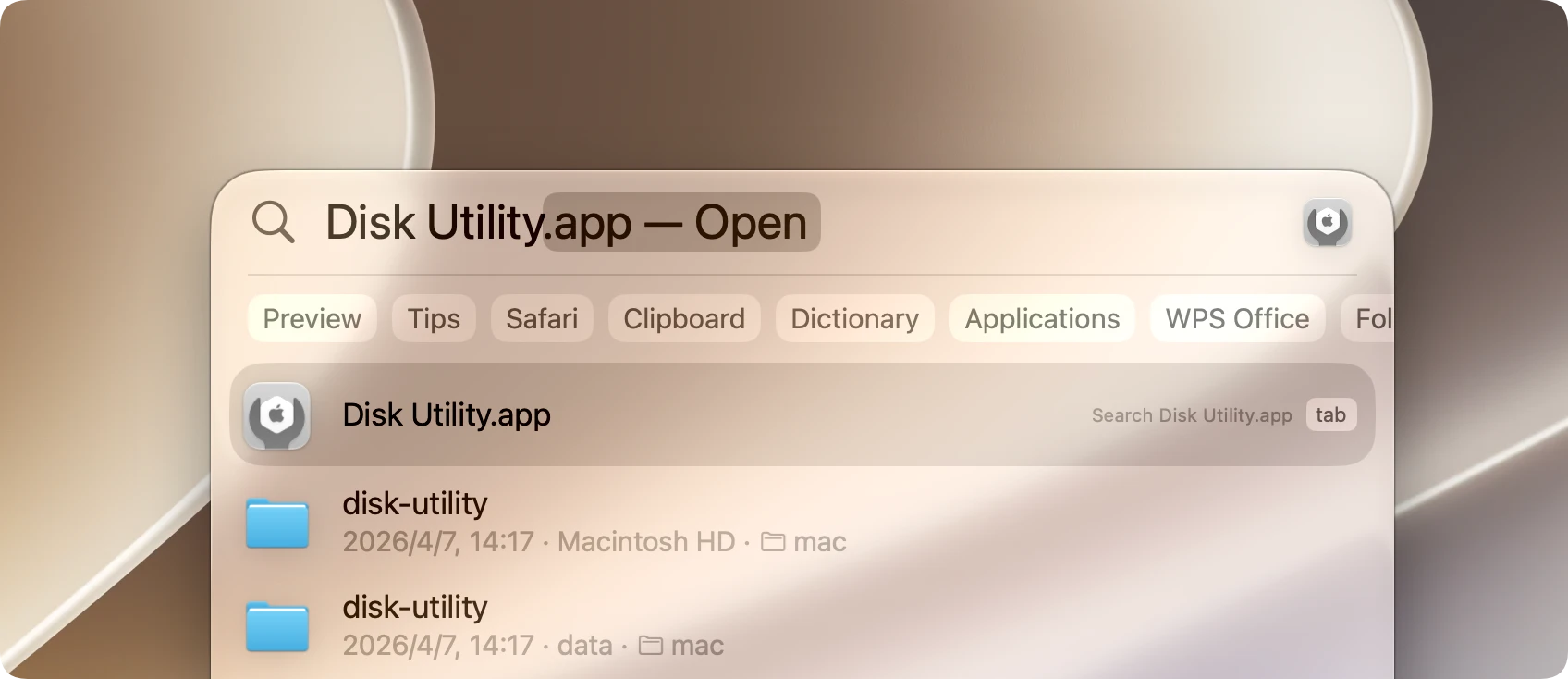
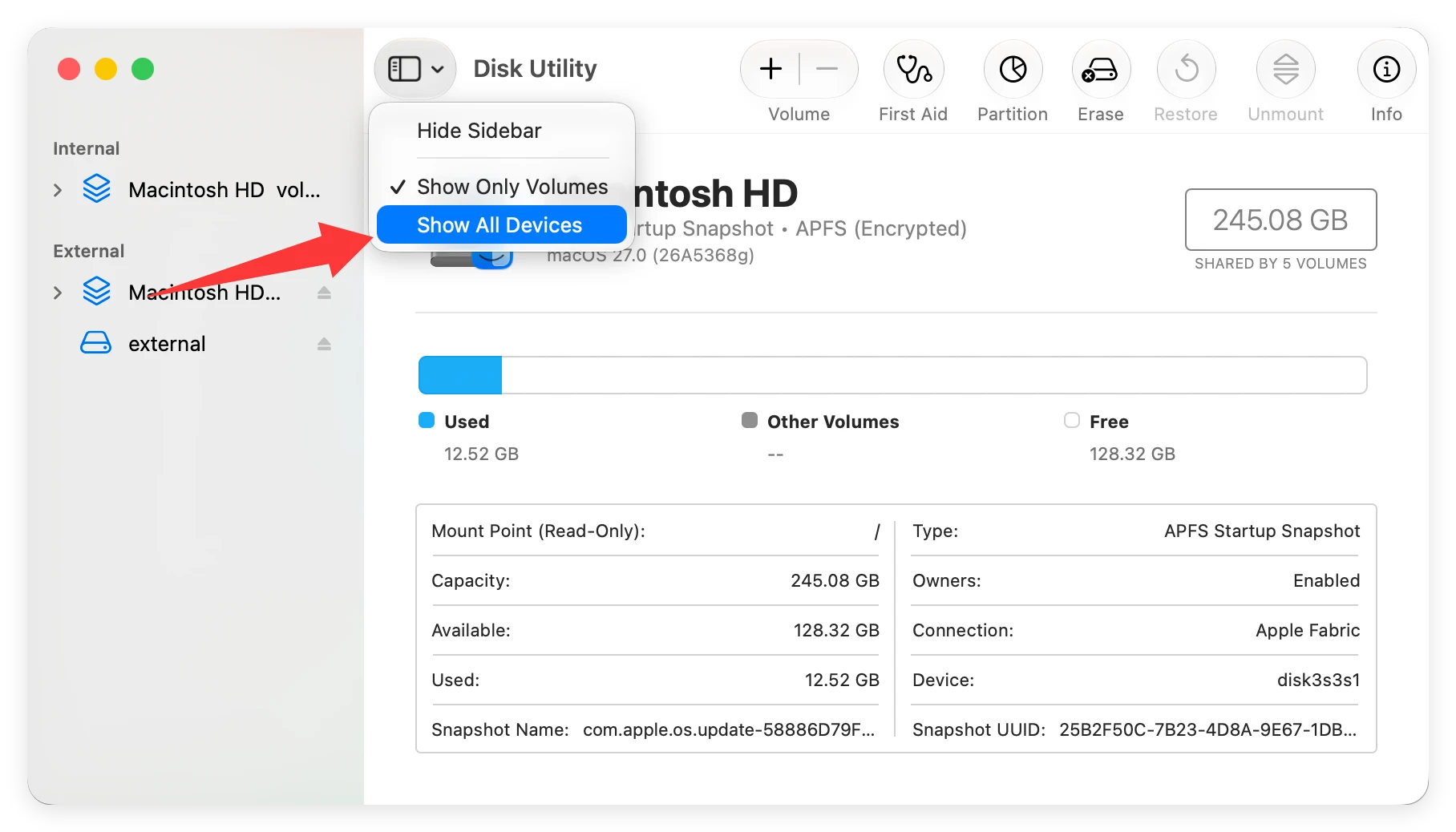
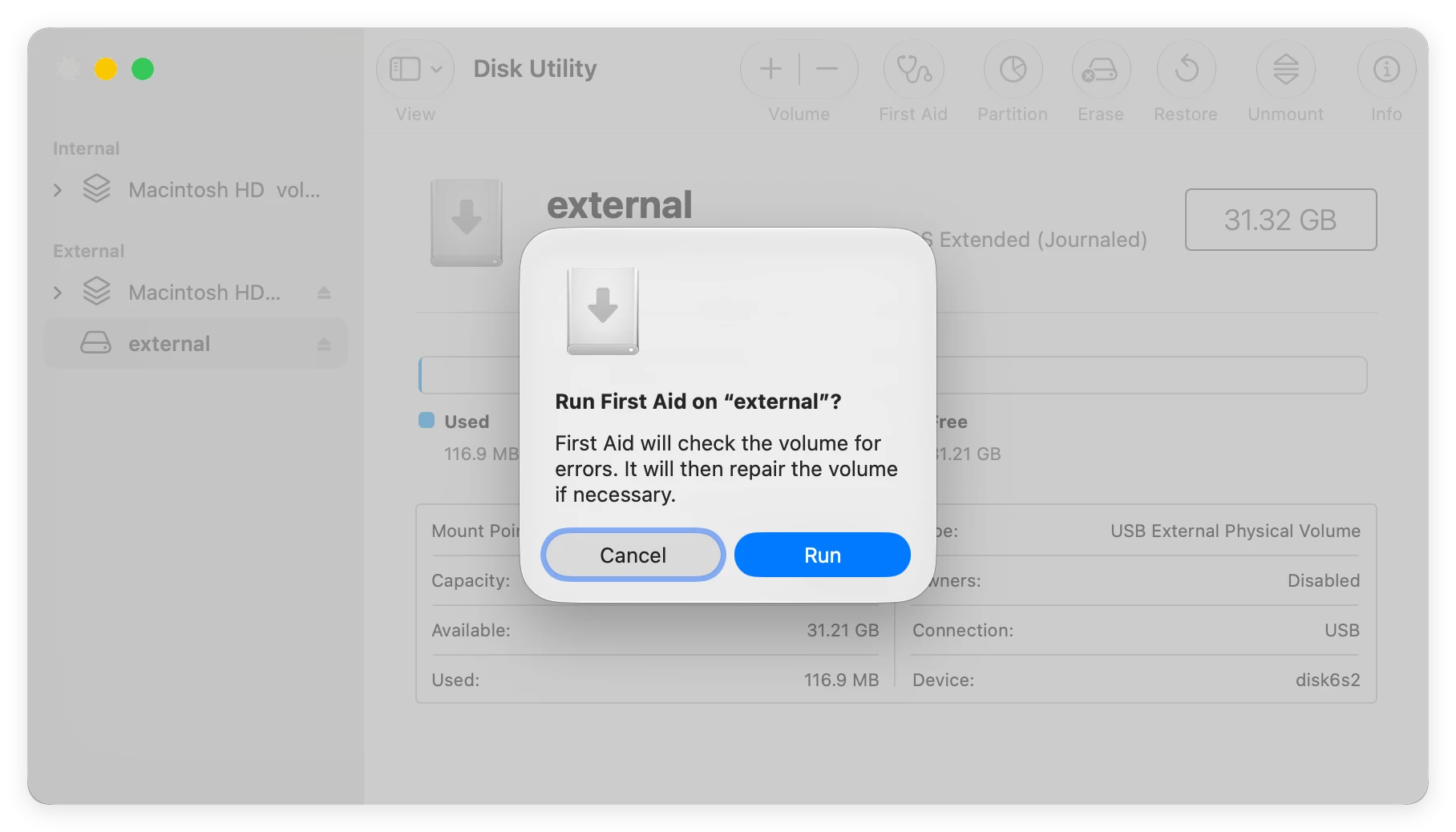
The system will automatically run a deep diagnostic scan, search for sector errors, and patch underlying formatting flaws. Once the task finishes successfully, check if your drive is writable again.
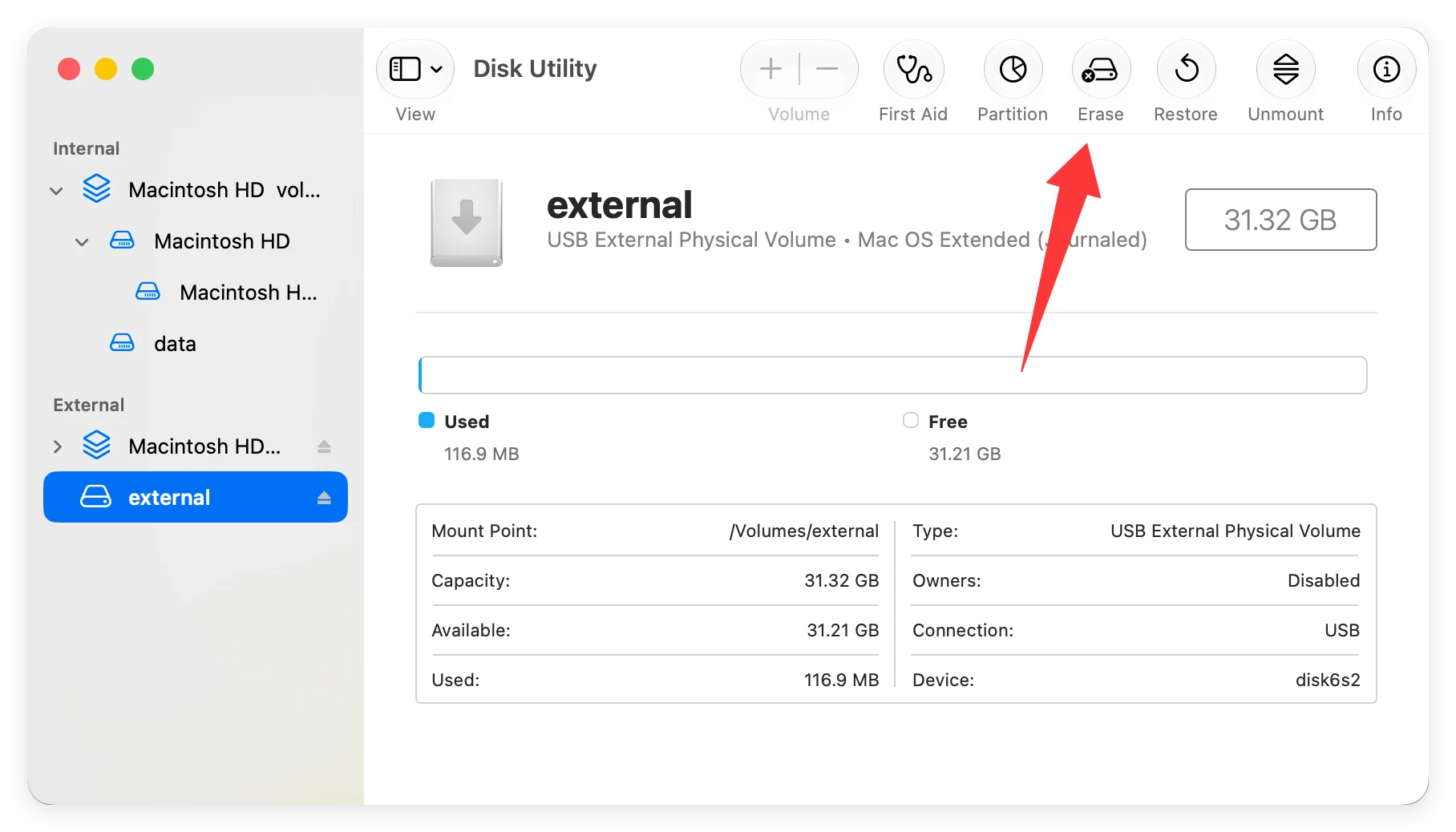
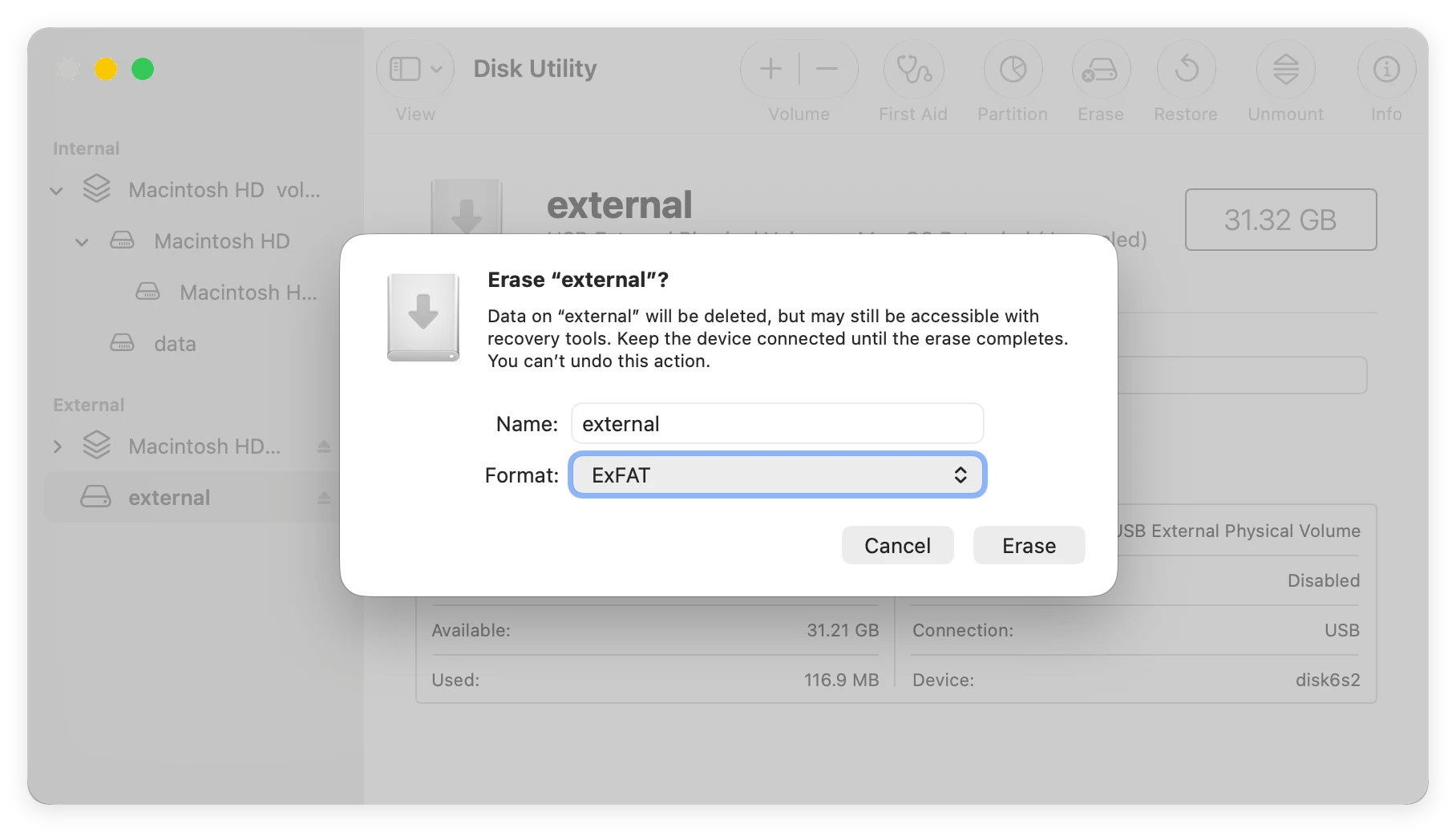
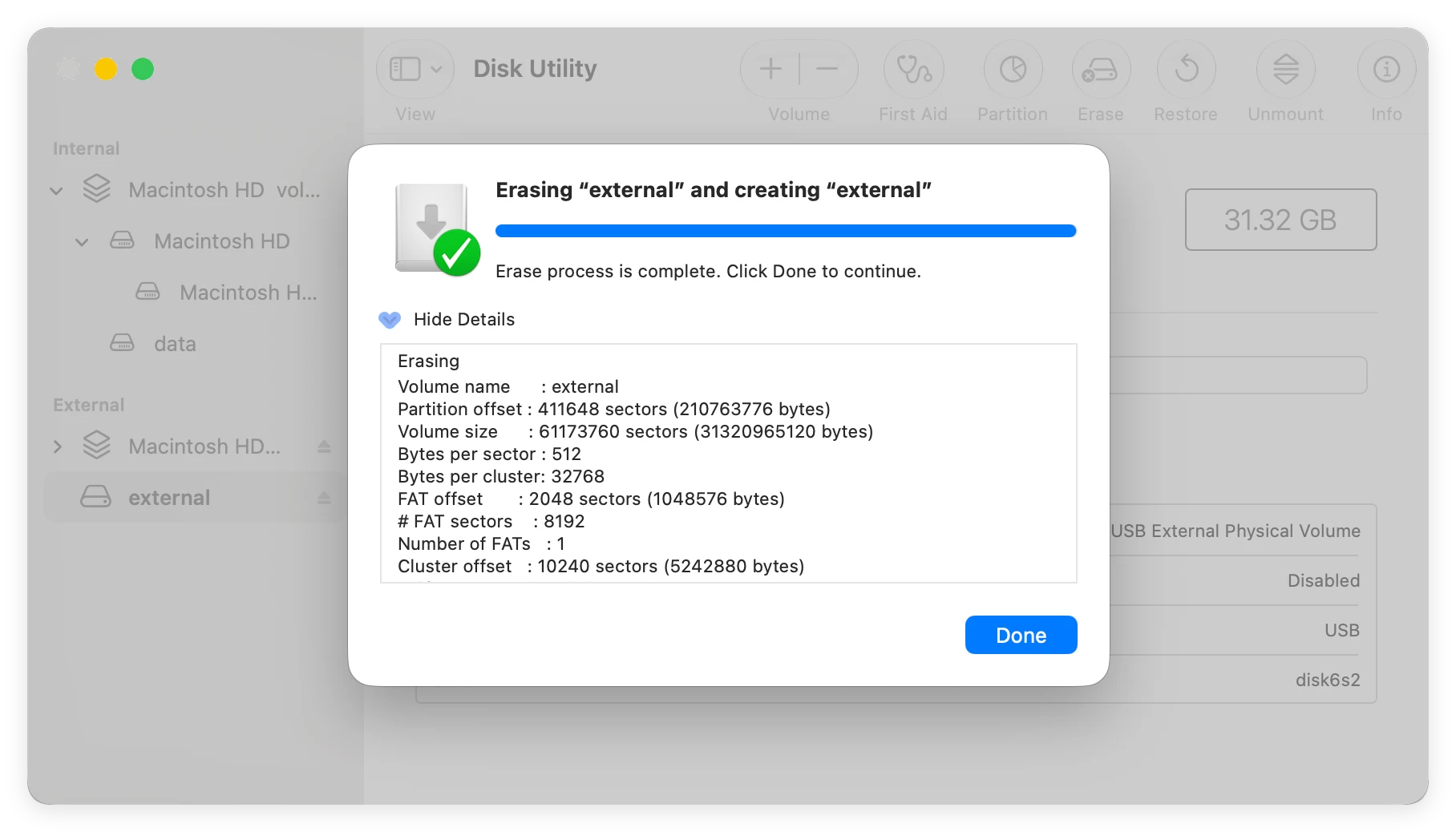
If your external hard drive is empty, or if you have already safely copied and backed up all its contents to another storage location, you can choose to completely erase and reformat the drive. Reformatting changes the drive's file system layout into a format that macOS 27 Golden Gate fully reads and writes to naturally.
⚠️ WARNING: Reformatting a storage drive will permanently delete all existing files currently saved on it. Always double-check that you have a secure backup copy before proceeding with this method.
Encountering a read-only external hard drive on macOS 27 Golden Gate is a common but easily solvable issue. If the trouble is caused by system permission errors, adjusting the 'Get Info' options or running First Aid will usually patch things up instantly. For those using Windows-formatted NTFS drives, you don't have to go through the painful process of formatting your drive and wiping out data. Simply download Donemax NTFS for Mac to bypass file format restrictions safely, keeping your workflows completely smooth and uninterrupted on Apple's latest operating system.
Steven
Steven has been a senior writer & editor of Donemax software since 2020. He's a super nerd and can't imagine the life without a computer. Over 6 years of experience of writing technical solutions and software tesing, he is passionate about providing solutions and tips for Windows and Mac users.
Gerhard Chou
In order to effectively solve the problems for our customers, every article and troubleshooting solution published on our website has been strictly tested and practiced. Our editors love researching and using computers and testing software, and are willing to help computer users with their problems