Written byChristinaUpdated on Aug 06, 2026

Before we start: To enable NTFS write support on A18 Pro Mac (MacBook Neo), the fastest and safest solution is using dedicated software like Donemax NTFS for Mac. macOS natively supports reading NTFS external drives but restricts writing to prevent drive corruption. Donemax NTFS for Mac grants 100% full read-write permissions with a single click, providing native transfer speeds without reformatting your drive.
PAGE CONTENT:
Have you recently upgraded to the stunning new MacBook Neo powered by the powerful Apple Silicon A18 Pro chip? If you plugged in an external hard drive, USB flash drive, or SSD formatted in Windows NTFS, you probably noticed a frustrating issue. You can open and view your files without any problem, but you cannot copy, edit, delete, or save new files onto the drive.
This happens because macOS treats Windows NTFS drives as read-only out of the box. If you want to use cross-platform drives between Windows PCs and your new A18 Pro Mac, unlocking write capability is essential.
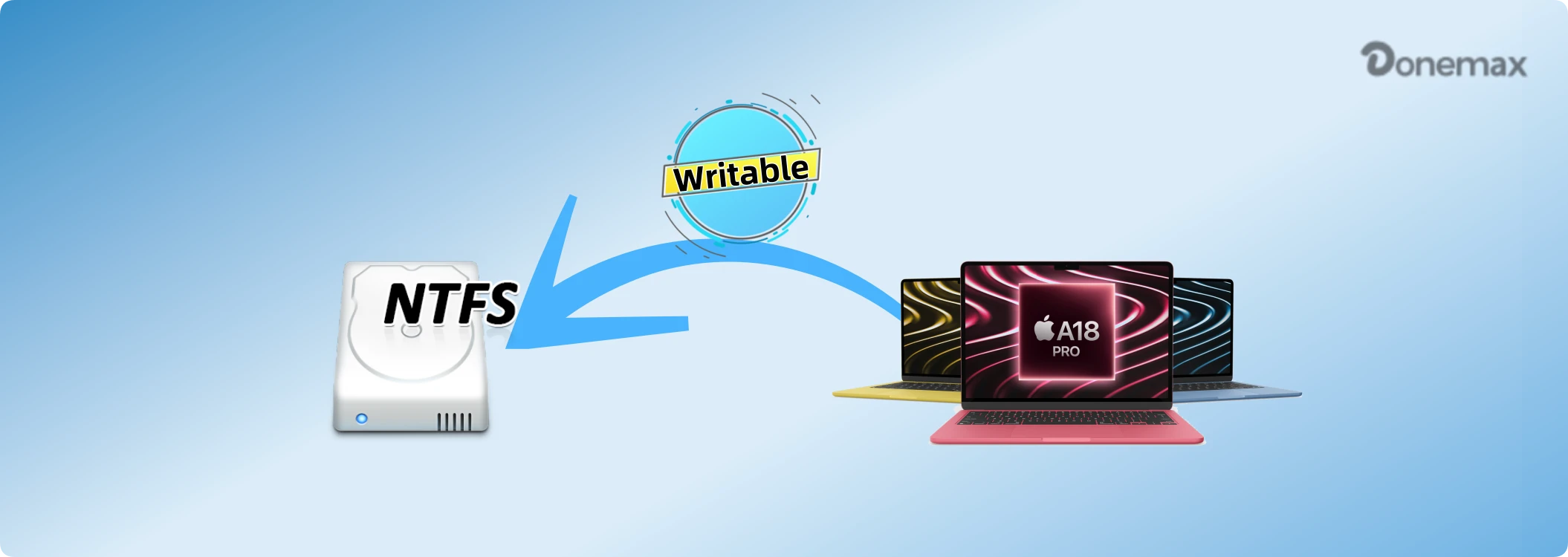
In this comprehensive guide, we will explain why macOS limits NTFS access, explore the best methods to enable NTFS write support on A18 Pro Mac, and demonstrate why Donemax NTFS for Mac is the easiest 1-click tool to solve this problem permanently.
To understand why your MacBook Neo cannot edit files on an NTFS drive, it helps to look at how file systems work across different operating systems.
When you connect an NTFS drive to your A18 Pro Mac, macOS automatically mounts it in Read-Only mode. Apple deliberately disables native write support because the underlying proprietary code of Microsoft's NTFS system could lead to file corruption if forced natively by macOS drivers.
Furthermore, with the introduction of the A18 Pro chip and modern macOS security updates, traditional terminal workarounds and older kernel-extension drivers no longer function or carry severe stability risks. Therefore, a safe driver solution is required.
If you want full read and write capability on your external drives without formatting or losing any files, the best solution is Donemax NTFS for Mac.
Donemax NTFS for Mac is a professional, lightweight utility engineered specifically for macOS and Apple Silicon architecture (including M1, M2, M3, M4, M5 and A18 Pro chips). It breaks down the barrier between Windows and Mac formats in seconds.
Why Choose Donemax NTFS for Mac?
Step-by-Step Guide to Using Donemax NTFS for Mac
Getting full control over your NTFS drives on MacBook Neo takes less than a minute. Follow these simple steps:
Step 1: Download the installation package directly. Double-click the file and follow the standard installation wizard to set up the tool on your MacBook Neo.
Step 2: Plug your NTFS external hard drive, SSD, or USB thumb drive into the USB-C or Thunderbolt port of your MacBook Neo. Open Donemax NTFS for Mac from your Launchpad or Applications folder. You will see your connected NTFS drive listed on the left sidebar. Select your drive and click the 'Enable Writable' button.
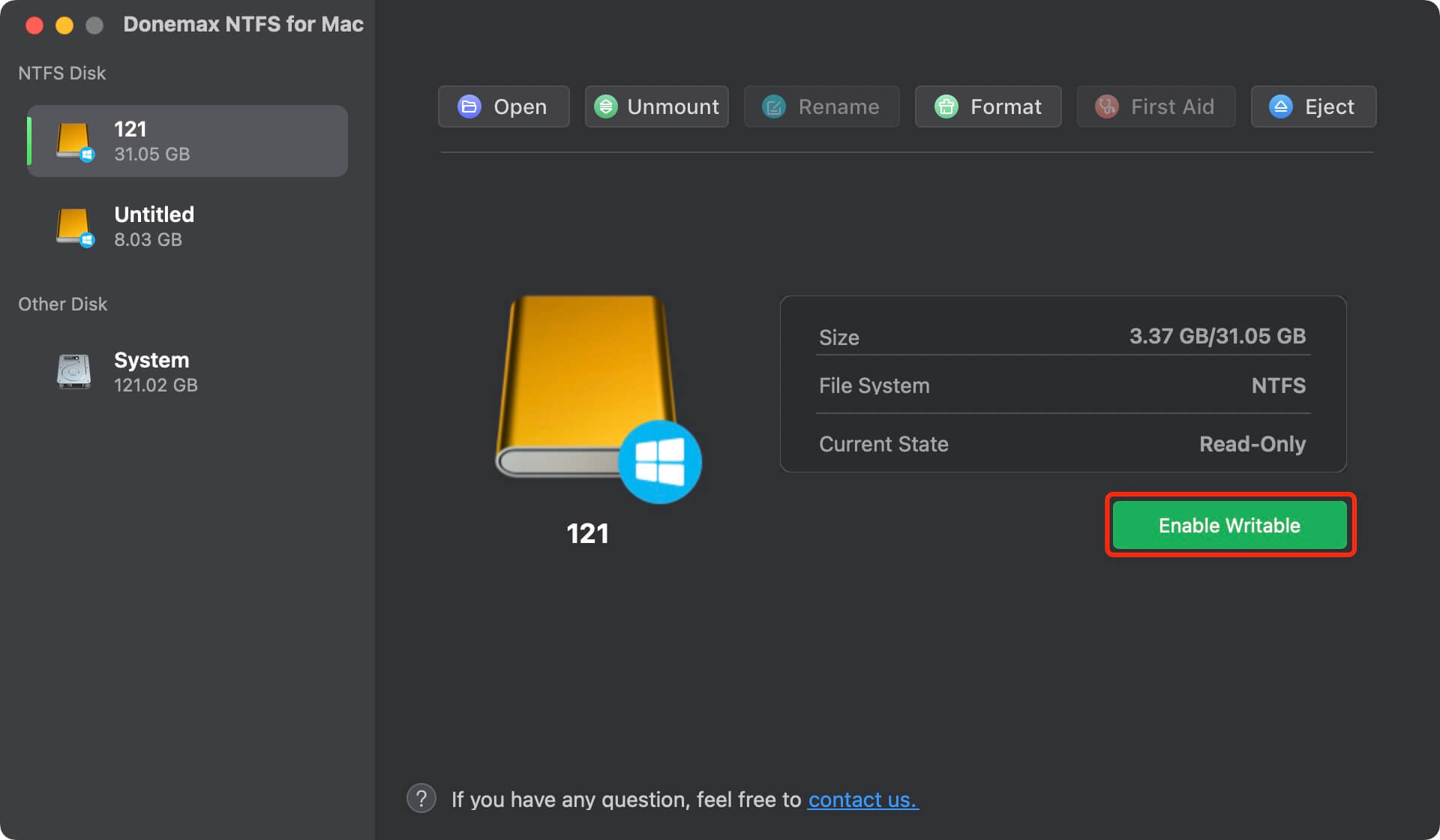
Once enabled, your NTFS drive status changes to 'Writable'. You can now open Finder, create new folders, drag and drop files, edit documents, and delete unwanted data freely just like an APFS drive!
Donemax NTFS for Mac is more than just an NTFS mount driver. It provides a complete suite of disk tools designed to make external storage management effortless on your MacBook Neo:
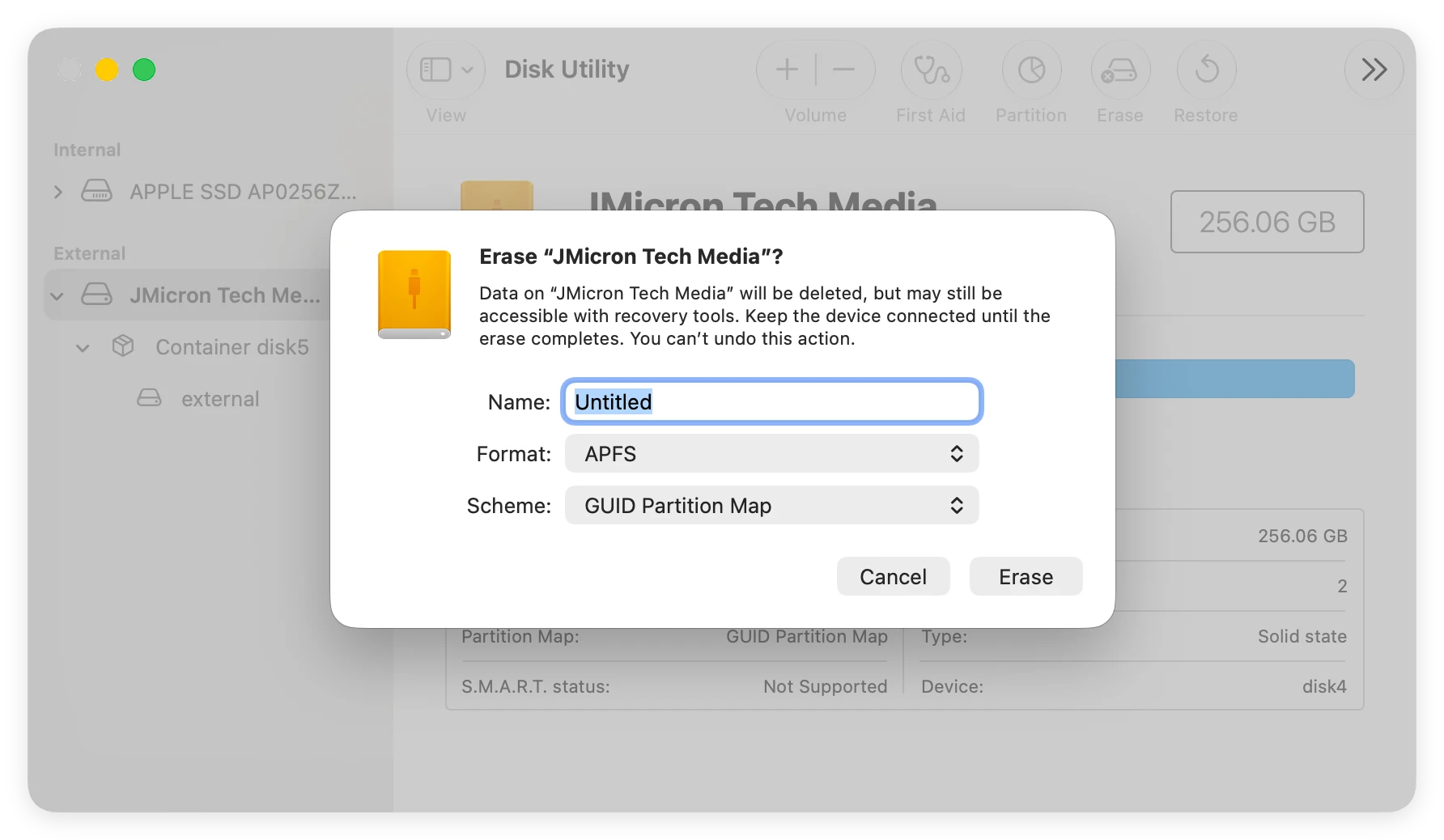
Another way to get write access on your MacBook Neo is to reformat the external drive into a file system that macOS natively supports for writing.
However, please note: Formatting WILL permanently erase all existing files on the drive! Always back up your important files to another storage device before proceeding.
Which File System Should You Select?
Steps to Reformat Using Disk Utility on A18 Pro Mac:
If you search online, you might find older tutorials recommending Terminal command lines (like editing `/etc/fstab`) or open-source tools like FUSE or Mounty to force NTFS write access on Mac.
We strongly recommend avoiding these manual terminal tweaks on A18 Pro Mac for several key reasons:
For reliable everyday file editing, using a dedicated driver like Donemax NTFS for Mac is far safer and much faster.
To help you choose the best approach for your workflow, here is a quick overview comparing the top methods:
| Feature / Method | Donemax NTFS for Mac | Reformat to ExFAT | Reformat to APFS | Terminal / Free Drivers |
|---|---|---|---|---|
| Ease of Use | Very Easy (1-Click) | Moderate | Moderate | Complex / Technical |
| Data Safety | 100% Safe (No Data Loss) | Erases All Data | Erases All Data | High Corruption Risk |
| Cross-Platform | Yes (NTFS on Win & Mac) | Yes (ExFAT) | No (Mac Only) | Limited / Unstable |
| A18 Pro Optimized | Fully Compatible | Native | Native | Incompatible / Glitchy |
Connecting an NTFS external drive to your new A18 Pro Mac (MacBook Neo) doesn't have to limit your productivity. While macOS restricts writing to Windows-formatted drives by default, enabling full read-write access is easy when you have the right tool.
While reformatting your drive is an option, it requires backing up and erasing all your files. Terminal hacks, on the other hand, are overly complex and dangerous for your data.
For a smooth, safe, and fast solution, Donemax NTFS for Mac is the ultimate choice. With 1-click mounting, native transfer speeds, and full compatibility with Apple Silicon A18 Pro, you can edit, transfer, and manage your NTFS files effortlessly.
Download Donemax NTFS for Mac today and unlock full write support on your MacBook Neo in seconds!
Christina
Christina is the senior editor of Donemax software who has worked in the company for 4+ years. She mainly writes the guides and solutions about data erasure, data transferring, data recovery and disk cloning to help users get the most out of their Windows and Mac. She likes to travel, enjoy country music and play games in her spare time.
Gerhard Chou
In order to effectively solve the problems for our customers, every article and troubleshooting solution published on our website has been strictly tested and practiced. Our editors love researching and using computers and testing software, and are willing to help computer users with their problems