Written byStevenUpdated on Nov 05, 2026

Before we start: To capture online 4K videos, record online meetings/classes, or other resources, a reliable screen recorder software is necessary. Donemax Recorder for Mac is such a tool that can capture high quality video and also audio effectively.
PAGE CONTENT:
High-resolution displays like Apple's 4K and 5K Retina panels require specialized recording tools capable of handling heavy pixel density without dropping frame rates or overheating system hardware. Standard built-in utilities like QuickTime Player or macOS Screenshot Toolbar often struggle with native 4K 60FPS recording and lack integrated system audio capture capabilities.

To record crisp, lag-free Ultra-HD videos on macOS, users need a dedicated 4K screen recorder Mac software optimized for Apple Silicon and Metal GPU hardware acceleration. This guide evaluates top Mac screen recorders, delves into Retina display scaling mechanics, and demonstrates how Donemax Recorder for Mac delivers seamless 4K video recording, high-fidelity internal audio capture, and AI-powered auto-editing capabilities.
Mac displays are renowned for their incredible pixel density, vivid color accuracy, and razor-sharp clarity. Whether you are creating professional software tutorials, recording 4K gaming highlights, streaming online webinars, or archiving high-definition video calls, capturing your screen at native 4K resolution (3840 x 2160 pixels) ensures your content retains every detail.
However, recording at Ultra-HD resolution is a resource-intensive process. A single minute of uncompressed 4K video at 60 FPS processes millions of pixels per second. Standard built-in Mac utilities frequently cause noticeable frame drops, fan noise, CPU throttling, or blurred scaling when forced to process high-bitrate Ultra-HD content.
Furthermore, macOS restricts built-in apps from recording internal system audio directly due to system privacy frameworks. A true 4K screen recorder Mac solution must overcome hardware scaling hurdles and capture system audio natively while maintaining 60 FPS fluidity.
Before picking a 4K recording utility, it is vital to understand how macOS handles high-DPI Retina resolution scaling and GPU encoding.
1. Real 4K UHD vs. Retina Scaling Density
Apple Retina displays use pixel doubling to make text and graphics look crisp. For instance, a 4K monitor set to 'Looks like 1920x1080' actually renders the macOS desktop interface at 3840 x 2160 resolution internally. Generic screen recording software often gets confused by this scaling, downsampling the final output video to 1080p and losing native 4K sharpness. A dedicated 4K screen recorder Mac tool reads the underlying framebuffer directly to output true Ultra-HD media files.
2. Metal Architecture and Apple Silicon GPU Acceleration
Apple Silicon chips include hardware-accelerated VideoToolbox encoders designed to process ProRes and H.264/HEVC 4K video streams without burdening CPU cores. Premium 4K screen recorders tap into Apple's Metal API and VideoToolbox frameworks to encode 4K 60FPS video in real time with minimal CPU load and battery consumption.
Donemax Recorder for Mac is engineered specifically to deliver native, high-frame-rate 4K screen recording across macOS Golden Gate, Tahoe, Sequoia, and earlier versions. Built with full native support for Apple Silicon and Intel Mac architectures, it provides high-resolution capture with zero frame stutters.
Key Technical Capabilities:
Follow these simple steps to record your Mac display in stunning 4K Ultra-HD resolution:
Step 1: Download and Launch Donemax Recorder. Download and install Donemax Recorder for Mac and install it on your Mac computer. Open the application to bring up the intuitive launcher bar.
Step 2: Configure Audio and Camera Sources First. On the launcher bar, select your Webcam option (or 'Don't record Camera'), configure your Microphone input, and select System Sound to capture internal Mac audio.
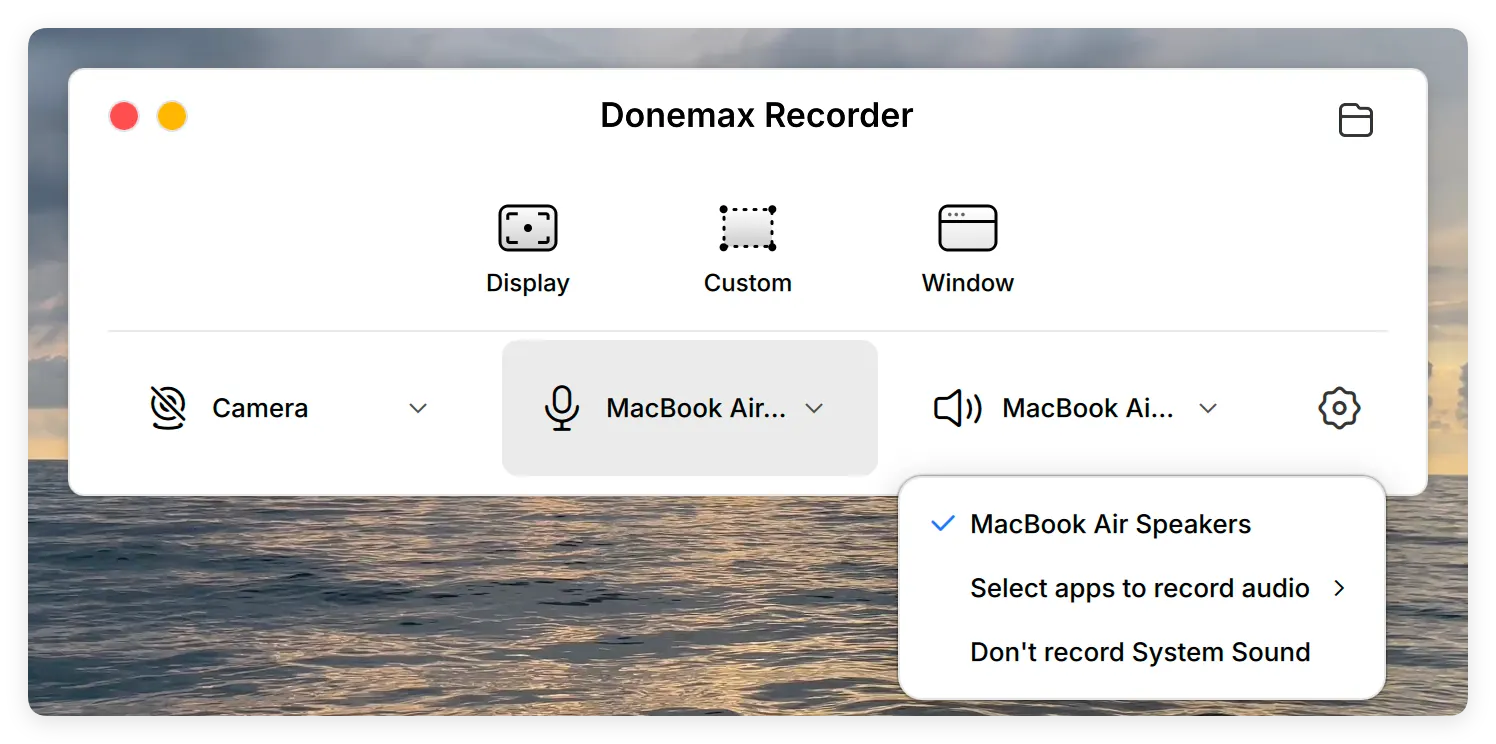
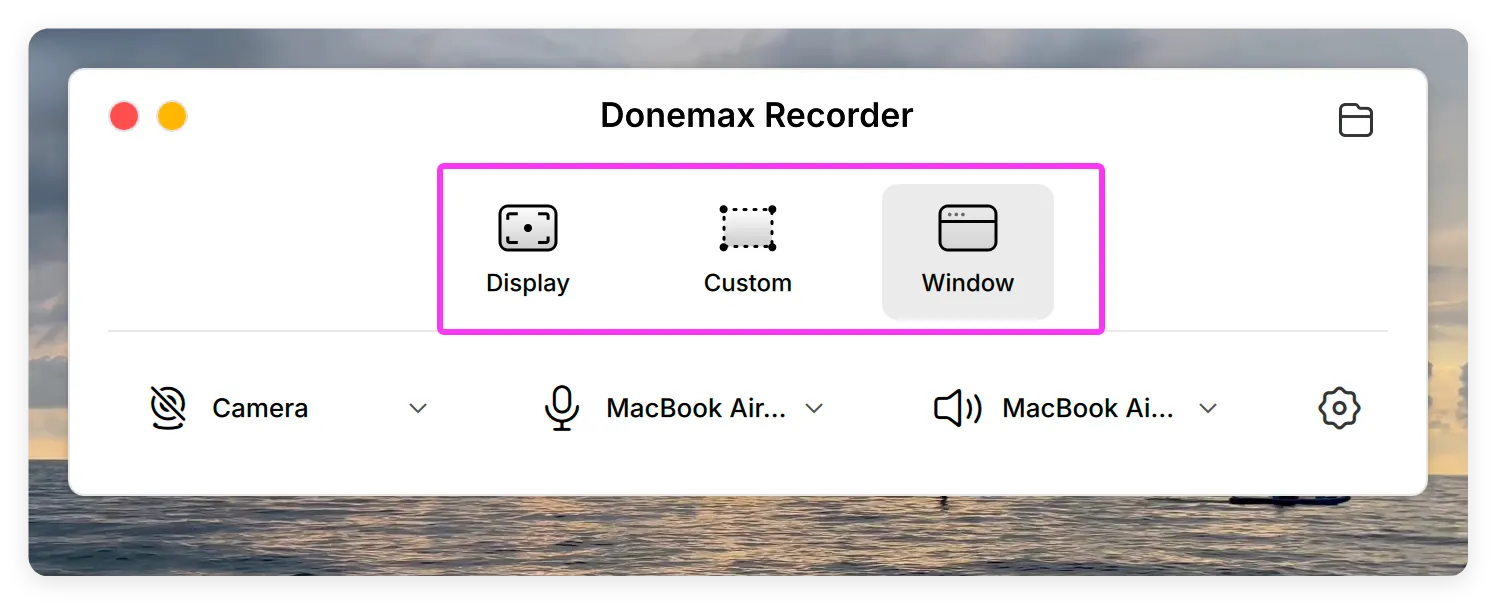
Step 3: Select 4K Recording Area (Triggers Recording). Click your desired recording mode on the launcher bar — choose 'Display' to record your full 4K screen, 'Custom' to drag a specific 4K region, or 'Window' to isolate a single application interface.
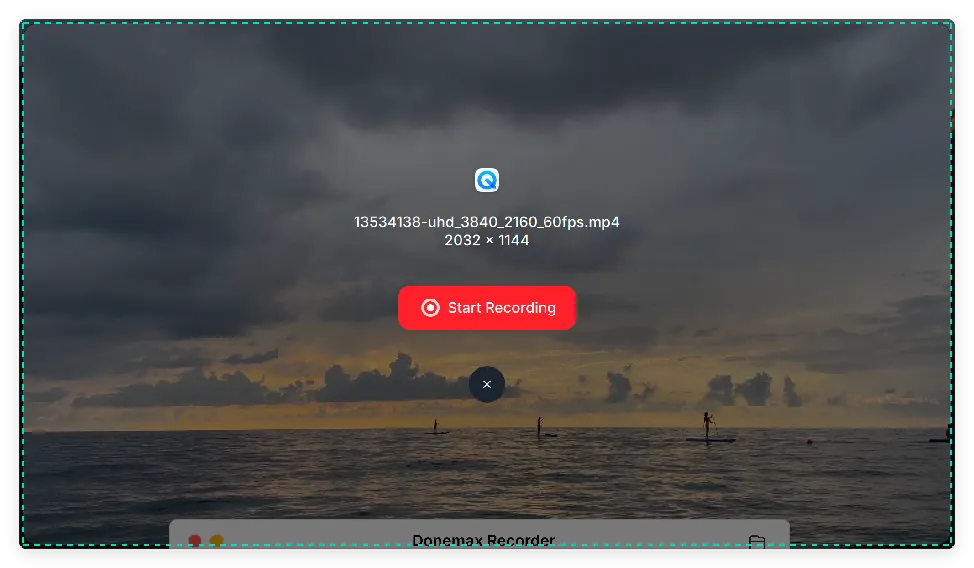
Step 4: Automatic Countdown & 4K Capture. Selecting the recording area triggers the capture workflow immediately. Click 'Start Recording' and after a 3-second countdown, Donemax Recorder captures your 4K display silently in the background while a floating bar lets you pause or stop.
Step 5: Review and Export 4K MP4. Click the Stop button when finished. The built-in Donemax Editor opens with auto-generated zooms and AI captions ready. Review your Ultra-HD video and click Export to save your finished 4K MP4 video file.
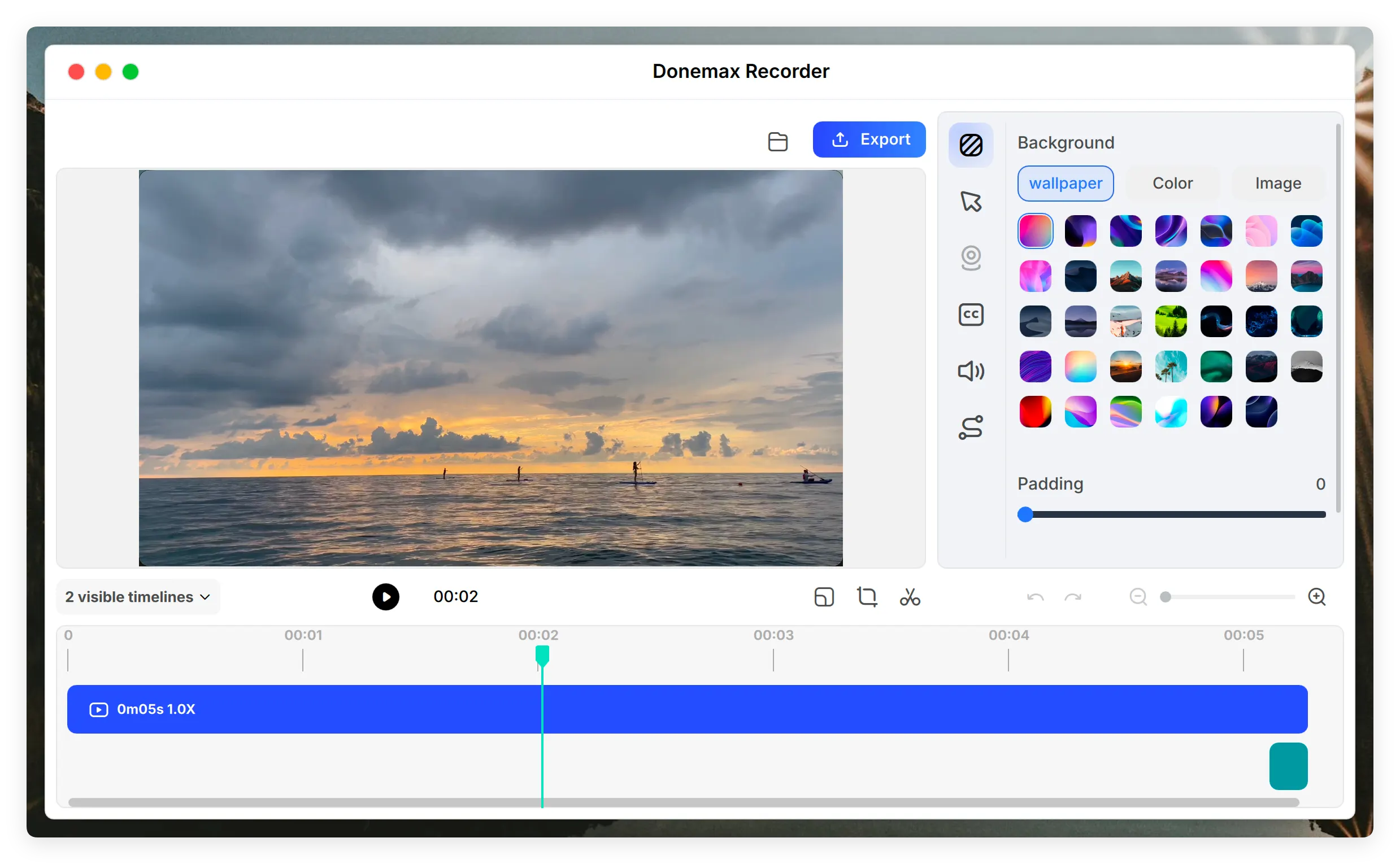
💡 Pro Tip for Maximum 4K Clarity: Ensure your Mac display resolution settings in System Settings > Displays are set to maximum quality. Donemax Recorder automatically detects and records at native screen resolution up to 4K Ultra-HD at 60 FPS.
Capturing your Mac display in native 4K Ultra-HD resolution makes a world of difference for tutorials, gaming clips, and presentation archives. Built-in tools like QuickTime leave users stranded with frame rate caps and missing system audio.
With Donemax Recorder for Mac, you get a powerful, lag-free 4K screen recorder Mac utility complete with internal audio capture, 60 FPS support, AI auto-zoom, and instant MP4 export. Download Donemax Recorder for Mac today and start recording your Mac screen in full Ultra-HD clarity!
Donemax Recorder for Mac
Donemax Recorder is an auto-zoom Mac screen recorder that automatically magnifies clicks and applies smooth cursor effects for effortless tutorial and demo creation.
Steven
Steven has been a senior writer & editor of Donemax software since 2020. He's a super nerd and can't imagine the life without a computer. Over 6 years of experience of writing technical solutions and software tesing, he is passionate about providing solutions and tips for Windows and Mac users.
Gerhard Chou
In order to effectively solve the problems for our customers, every article and troubleshooting solution published on our website has been strictly tested and practiced. Our editors love researching and using computers and testing software, and are willing to help computer users with their problems