Written byStevenUpdated on Nov 10, 2026

Before we start: To record HD videos for games, online guides, or meetings on PC, you can use Donemax Recorder. The software can easily record the videos with high quality and no watermarks. Also, the software can help you edit the captured screen recording videos.
PAGE CONTENT:
Capturing high-definition gameplay clips, esports highlights, and walkthrough tutorials on a Windows PC often comes with a frustrating catch: intrusive software watermarks placed over your exported video. Many free recording utilities ruin great gameplay footage by branding the center or corner of your clip unless you purchase an expensive license.
To record crisp, clean gameplay videos without ugly logos or time limits, gamers need a dedicated game video recorder for PC without watermark. This guide breaks down the core technical demands of 60 FPS gameplay capture, compares leading free and premium tools on Windows 10 and 11, and demonstrates how Donemax Recorder delivers smooth 4K/1080p game video capture, simultaneous game audio and mic recording, and automated AI editing tools.
Gaming content creation has exploded into a global industry. Whether you are uploading boss fights to YouTube, creating fast-paced TikTok clips, streaming walkthroughs, or archiving match highlights with your friends, your gameplay footage represents your skills and creativity.
Nothing ruins a clutch victory or a cinematic gaming moment faster than a massive watermark stamped across the middle of your screen. Beyond visual distraction, watermarked videos look unprofessional and are frequently rejected by gaming platforms or video monetization programs.
Fortunately, you do not have to settle for watermarked captures. Finding a reliable game video recorder for PC without watermark lets you save high-frame-rate videos with original visual fidelity, giving you full ownership of your gaming content.
Before picking a game recorder, it helps to know what technical specifications separate smooth gameplay capture from laggy, low-quality video.
1. Zero Watermark Branding & No Time Limits
A true gamer-focused recorder exports clean MP4 videos without forcing brand logos, web URLs, or forced promotional overlays onto your footage. It should also allow full match recording without cutting off after 5 or 10 minutes.
2. High Frame Rate (60 FPS / 120 FPS) & Hardware Acceleration
Modern action games, shooters, and racing simulators run at fast refresh rates. Recording at 30 FPS can make fast gameplay look choppy. A quality recorder supports 60 FPS or higher while leveraging hardware acceleration (NVIDIA NVENC, AMD AMF, or Intel QuickSync) to offload encoding from your CPU, preventing game lag or FPS drops.
3. Crisp Dual-Channel Audio Capture
Great gaming clips require balanced sound. Your software must record internal game audio (explosions, footsteps, soundtracks) while capturing your microphone commentary on a separate or synchronized channel without background static.
Evaluate how leading Windows game recorders compare across watermark policies, FPS performance, audio capabilities, and setup complexity:
| Software Solution | Watermark Policy | Max FPS & Quality | Internal Audio + Mic | Setup Complexity |
|---|---|---|---|---|
| Xbox Game Bar | No Watermark | 60 FPS (1080p) | Basic System Audio | Very Easy (Built-in) |
| OBS Studio | No Watermark | 60+ FPS (4K UHD) | Advanced Multi-Track | High (Complex setup) |
| Common Free Trial Software | Has Watermark | 30/60 FPS (720p/1080p) | Limited Audio | Easy |
| Donemax Recorder | No Watermark | 60 FPS (Native 1080p/4K) | Yes (System + Mic) | Very Easy (1-Click Capture) |
Donemax Recorder for PC is engineered to give gamers a hassle-free, high-performance recording experience on Windows 10 and 11 (64-bit). Built to capture fast gameplay without impacting in-game frame rates, it delivers clean, unbranded video files ready for sharing.
Follow these simple operational steps to record clean, high-frame-rate gameplay on your PC:
Step 1: Launch Donemax Recorder. Download and install Donemax Recorder on your Windows PC. Launch the program to display the floating launcher bar.
Step 2: Configure Camera and Audio Sources First. On the launcher bar, choose your USB webcam (or 'Don't record Camera') for facecam capture, select your Microphone device, and pick your System Sound output to record game audio.
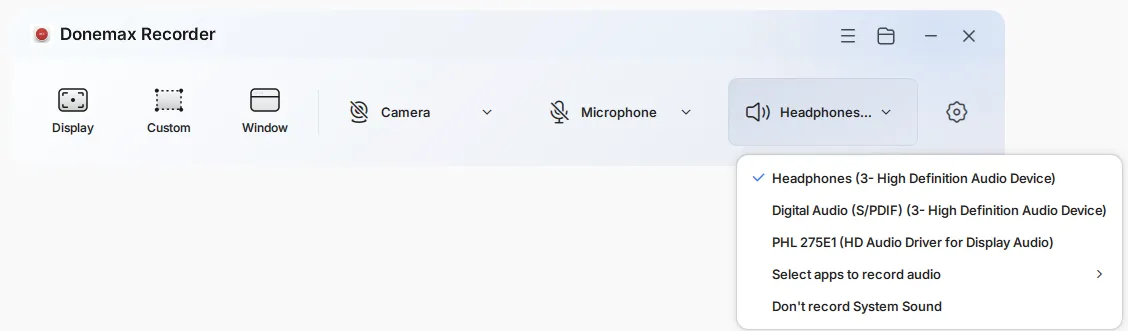
Step 3: Select Game Recording Mode (Triggers Recording). Launch your game on PC. On the Donemax launcher bar, select your capture mode — choose Display (full screen), Custom (drag region), or Window mode targeting your game executable.

Step 4: Automatic Countdown & Smooth Capture. Selecting your capture area triggers the recording workflow immediately. After a 3-second countdown, Donemax Recorder captures your gameplay quietly in the background while a small floating bar lets you pause or stop.
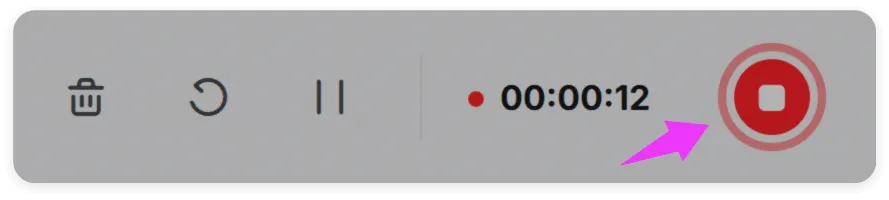
Step 5: Review and Export Clean MP4. Click the Stop button when your gaming session finishes. The built-in Donemax Editor opens with auto-generated zooms and AI captions ready. Review your clean video and click Export to save your watermark-free MP4 file.
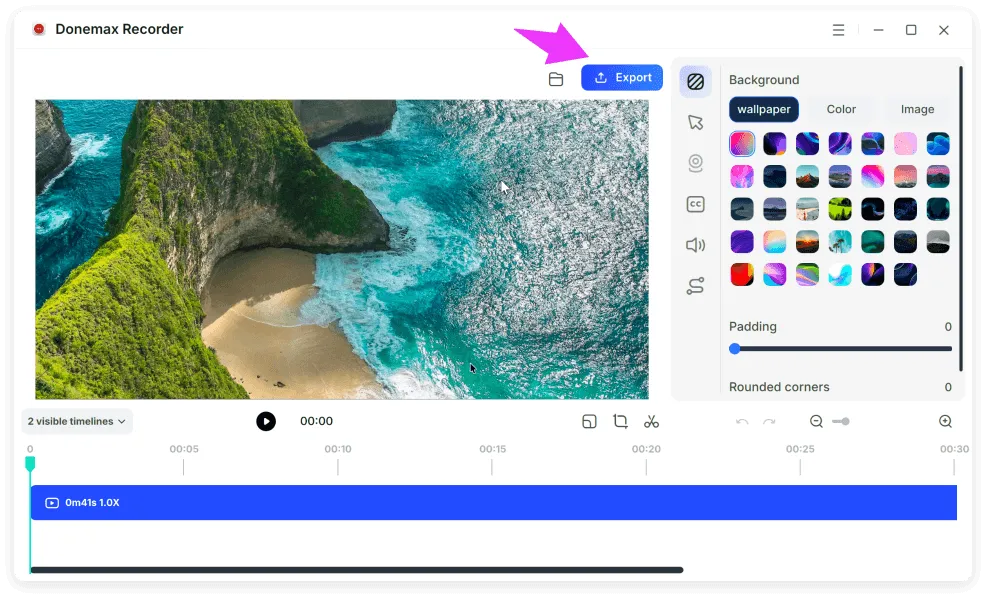
💡 Tip: Because selecting your capture mode immediately triggers screen recording after setting your camera and audio devices, make sure your game is open and active before clicking your mode. Donemax Recorder exports clean MP4 videos at original display resolution and up to 60 FPS.
Capturing your best gaming moments should be exciting, not ruined by ugly watermarks or laggy frame rates. Choosing a dedicated game video recorder for PC without watermark guarantees that your skills take center stage.
With Donemax Recorder for PC, you get a powerful, lag-free recording solution complete with 60 FPS 1080p/4K capture, simultaneous audio recording, facecam support, and clean MP4 exports. Download Donemax Recorder today and start recording your PC gameplay without watermarks!
Donemax Recorder for Windows
Donemax Recorder is an auto-zoom Windows screen recorder that automatically magnifies clicks and applies smooth cursor effects for effortless tutorial and demo creation.
Steven
Steven has been a senior writer & editor of Donemax software since 2020. He's a super nerd and can't imagine the life without a computer. Over 6 years of experience of writing technical solutions and software tesing, he is passionate about providing solutions and tips for Windows and Mac users.
Gerhard Chou
In order to effectively solve the problems for our customers, every article and troubleshooting solution published on our website has been strictly tested and practiced. Our editors love researching and using computers and testing software, and are willing to help computer users with their problems