Written byMariaUpdated on Nov 06, 2026

Before we start: To capture HD videos on PC, Donemax Recorder is highly suggested. It enables lag-free, high-definition (1080p/4K) screen recording on Windows 10 and 11 through dual audio capture, AI auto-zoom, and simple MP4 export.
PAGE CONTENT:
High-definition screen capture has become an essential requirement for modern computer users. Whether you are creating software tutorials, streaming online webinars, recording gameplay, or saving virtual meetings, achieving crisp 1080p or 4K video quality without audio desynchronization or system lag requires dedicated software.
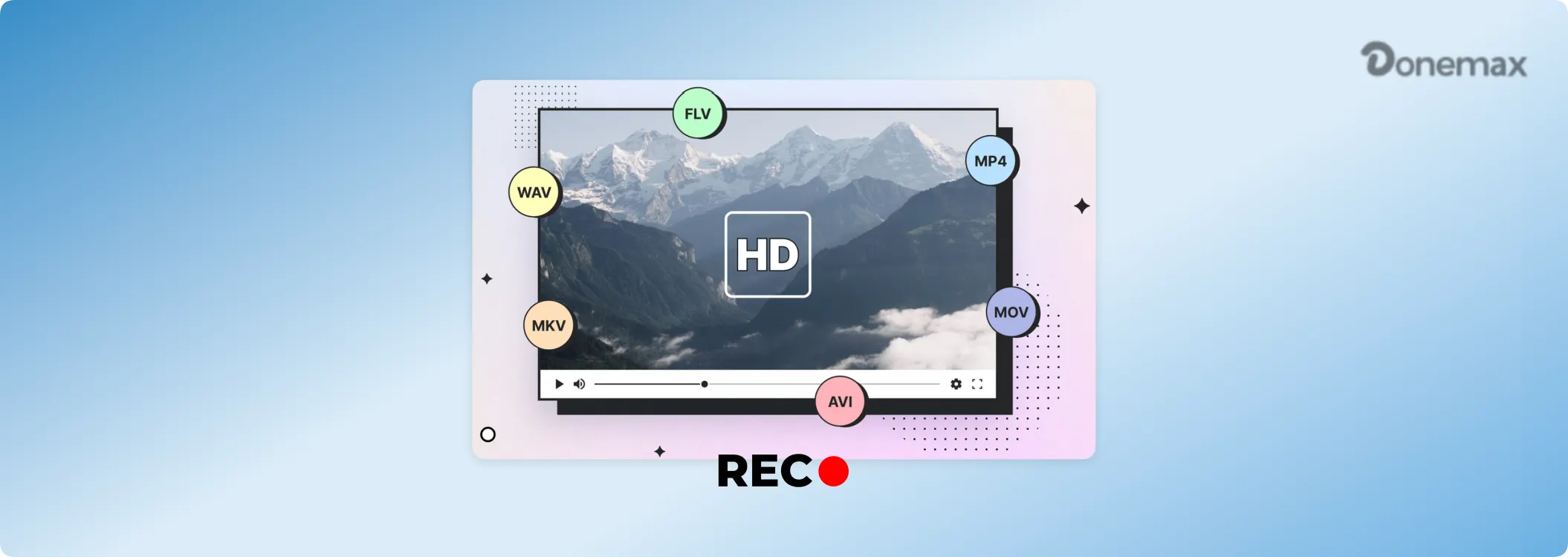
Built-in utilities like Windows Xbox Game Bar often fall short for professional needs due to single-window limitations and a lack of integrated AI auto-editing capabilities. This guide explores the core technical requirements of an effective HD screen recorder for PC, evaluates leading solutions, and demonstrates how Donemax Recorder delivers smooth 60 FPS HD capture, simultaneous audio recording, and automated video editing on Windows 10 and 11.
Screen recording is no longer limited to tech enthusiasts or professional video editors. Millions of remote workers, educators, content creators, and gamers rely on screen capture daily to communicate complex ideas, document workflows, and store important video interactions.
However, not all screen capture tools produce acceptable visual quality. Basic software frequently introduces annoying video artifacts, fuzzy text scaling, dropped frames, or out-of-sync audio tracks. When recording a high-resolution display, poor encoding can render text unreadable and ruin an otherwise great presentation.
To capture video that looks as sharp as your physical monitor display, choosing a dedicated HD screen recorder for PC is critical. A proper utility leverages hardware acceleration, preserves native display resolutions, and gives you total control over audio inputs.
To pick the best recording tool for your PC setup, it helps to understand the three core technical components that dictate visual quality.
High Definition (HD) standard generally refers to 1920x1080 pixels (Full HD), while 4K Ultra-HD reaches 3840x2160 pixels. High-DPI screens demand recording utilities that read the display framebuffer directly. Inferior recorders downsample display scaling, resulting in blurry text and muted colors.
Frame rate determines how smooth motion appears in recorded video. Standard video plays at 30 FPS, but fast-moving tutorials, video games, and animation benefit significantly from 60 FPS. A high-performance screen recorder maintains 60 FPS without overloading your PC's CPU or graphics card.
Real-time HD encoding requires intensive computational power. Modern PC software taps into GPU hardware acceleration (such as NVENC, QuickSync, or DirectX graphics pipelines) to offload video encoding from the CPU. This hardware integration keeps your computer running fast while ensuring desktop video and microphone audio remain perfectly synced.
Compare how different Windows recording options stack up across resolution, audio flexibility, frame rates, and editing features:
| Recording Solution | Max Resolution | 60 FPS Support | System + Mic Audio | Auto Edit & AI Features |
|---|---|---|---|---|
| Xbox Game Bar | 1080p Scaled | Yes (30/60 FPS) | Basic System Audio | None |
| OBS Studio | Native 4K UHD | Yes (60 FPS) | Advanced Multi-Track | Manual Scene Setup |
| Basic Online Recorders | 720p / 1080p | No (30 FPS Max) | Microphone Only | None |
| Donemax Recorder for PC | Native 1080p / 4K | Yes (60 FPS Smooth) | Yes (Native System + Mic) | Yes (AI Auto Zoom & Captions) |
Donemax Recorder for PC is engineered specifically to deliver crisp HD screen capture across Windows 10 and 11 (64-bit). Designed for ease of use without sacrificing power, it provides high-resolution recording with minimal system resource consumption.
Follow these clear steps to record high-definition video on your PC:
Step 1: Launch Donemax Recorder. Download and install Donemax Recorder on your PC. Open the app to display the launcher bar.
Step 2: Configure Camera and Audio Sources First. On the right side of the launcher bar, configure your USB webcam (or choose 'Don't record Camera'), select your Microphone device, and pick your System Sound output.
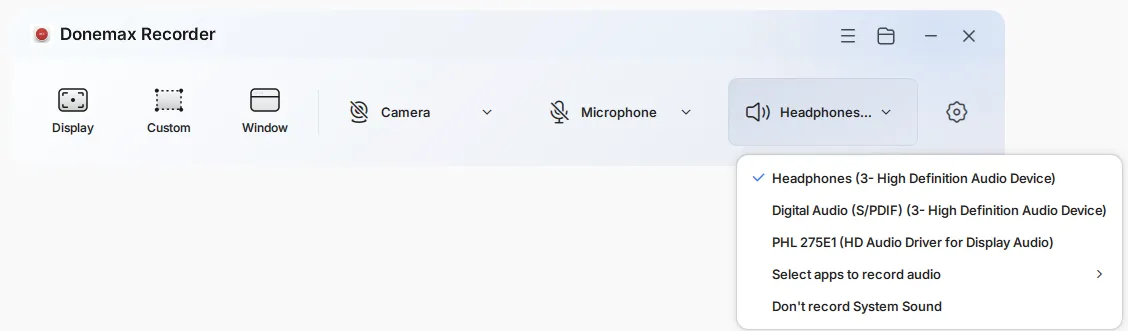
Step 3: Select Capture Mode (Triggers Recording). Open the application or screen content you want to record. On the Donemax launcher bar, click your desired capture mode ― Display (full screen), Custom (drag region), or Window mode targeting a specific application.

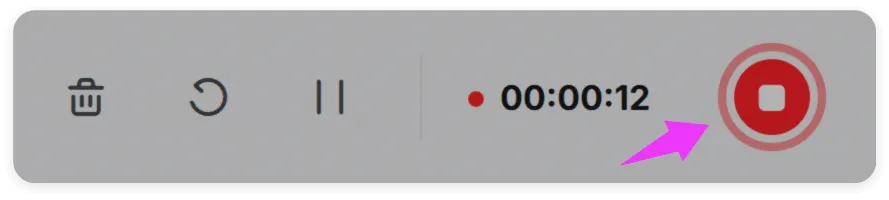
Step 4: Automatic Countdown & HD Recording. Selecting your capture area initiates screen recording immediately. After a 3-second countdown, Donemax Recorder captures your screen quietly in the background while a floating control bar lets you pause or stop. Click the Stop button when finished.
Step 5: Review and Export MP4. The built-in Donemax Editor opens with auto-generated zooms and AI captions ready. Review your video and click Export to save your finished MP4 file.
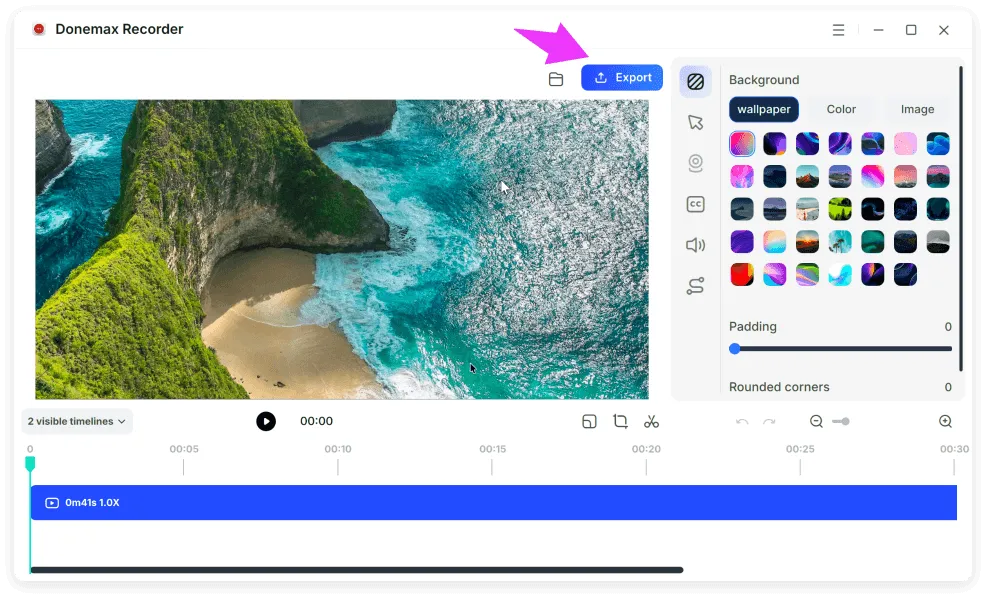
💡 Pro Tip for Smooth Recording: Because selecting your capture mode immediately triggers screen recording after setting your camera and audio devices, make sure your software windows are arranged before clicking your mode. Donemax Recorder exports clean MP4 videos at original display resolution and up to 60 FPS.
Recording your PC screen in high definition is crucial for producing clear, professional content. Basic built-in tools leave users constrained by limited audio controls and lack essential editing capabilities.
With Donemax Recorder for PC, you get an intuitive, lag-free HD screen recorder for PC equipped with simultaneous audio capture, 60 FPS smooth video, AI auto-zoom, and fast MP4 export. Download Donemax Recorder for PC today and start capturing your desktop in full high-definition clarity!
Donemax Recorder for Windows
Donemax Recorder is an auto-zoom Windows screen recorder that automatically magnifies clicks and applies smooth cursor effects for effortless tutorial and demo creation.
Maria
Maria is one of the senior writers & editors of Donemax who lives and works in Sydney, Australia. She loves PC, Mac and Internet Technology. She has 6 years of writing articles about data recovery on PC/Mac, disk cloning solution, data eraser and computer OS optimization, etc. She is also interested in testing various software and digital products.
Gerhard Chou
In order to effectively solve the problems for our customers, every article and troubleshooting solution published on our website has been strictly tested and practiced. Our editors love researching and using computers and testing software, and are willing to help computer users with their problems