Written byCharlesUpdated on Nov 19, 2026

Before we start: The right recorder depends on what you want to do with your footage. A quick clip for a friend needs fewer features than a long gameplay session with commentary, webcam footage, or streaming-quality audio. Donemax Recorder for Mac is the best choice for game recording on Mac.
PAGE CONTENT:
A gaming screen recorder for MacBook Pro should capture clear gameplay, sync game audio and your voice, and avoid slowing the game. For most players, the best setup is a recorder that supports your macOS version, offers adjustable recording quality, and lets you test performance before a long session. Choose based on the games you play and how you plan to share your recordings.
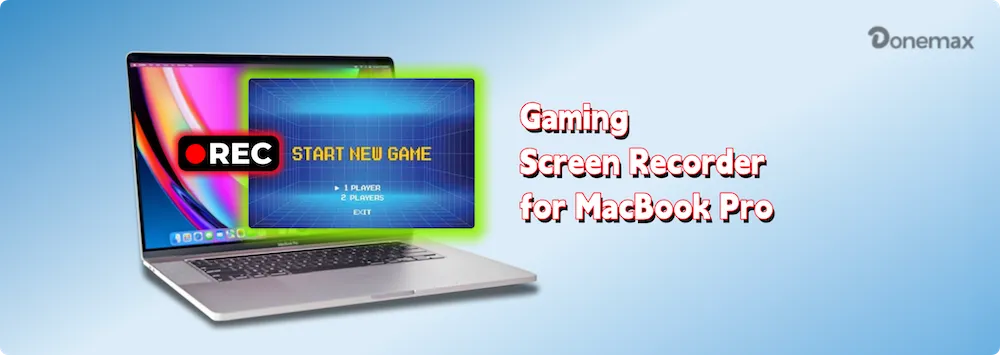
MacBook Pro users can choose between built-in macOS tools, dedicated recording apps, and streaming software. Each approach works well for a different kind of recording.
A dedicated recorder is often a practical choice when you want straightforward controls and recording settings in one place. OBS Studio is worth considering when you need to arrange multiple sources or manage a more involved recording setup. For a short, basic capture, macOS's built-in tools may be enough.
A recorder that works smoothly for one game may not be ideal for another. Game intensity, display resolution, recording length, and background applications all affect performance.
The exact controls depend on your recorder, but the general preparation steps are similar. A short setup check helps you avoid common recording problems.
Step 1. Update and restart if needed. Install operating-system or app updates in advance rather than during a planned recording session.
Step 2. Open the game and recorder. Close apps you do not need, especially resource-heavy downloads or background tasks. Download and install Donemax Recorder for Mac.
Step 3. Select audio sources. Enable game audio and, if needed, the microphone. Check macOS privacy permissions if the recorder cannot access the screen or microphone.
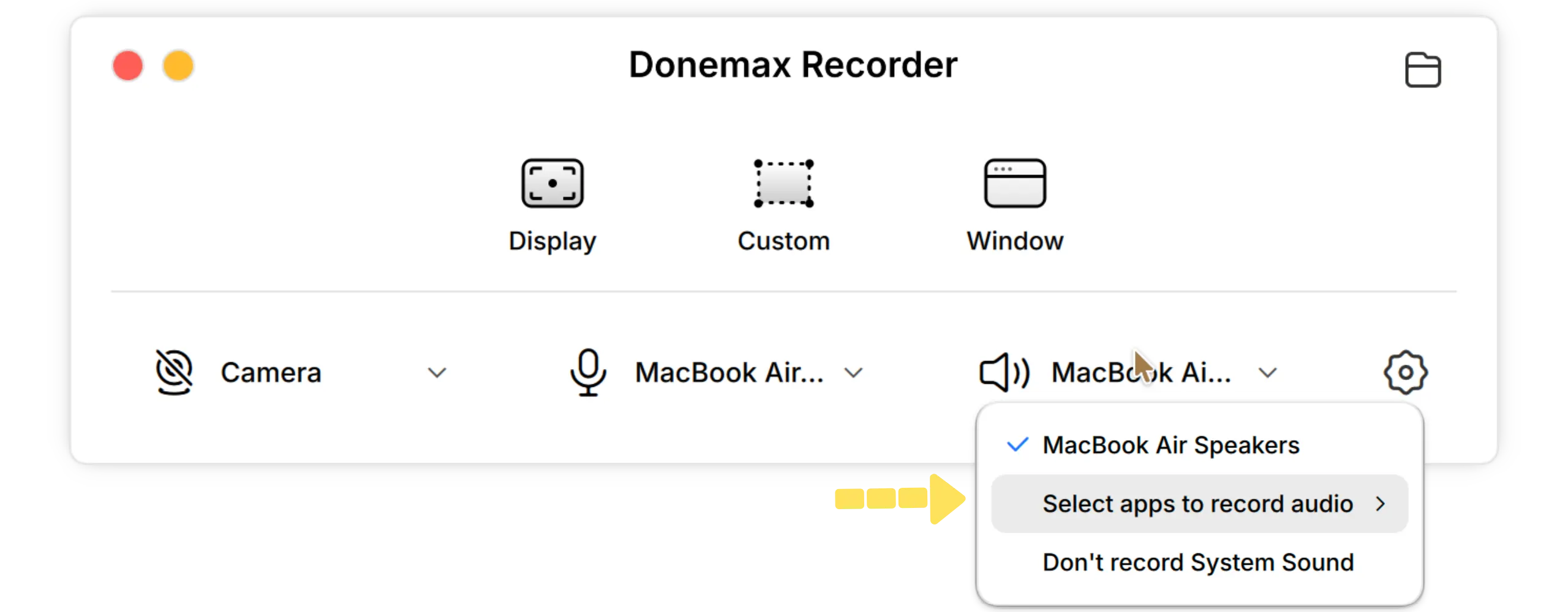
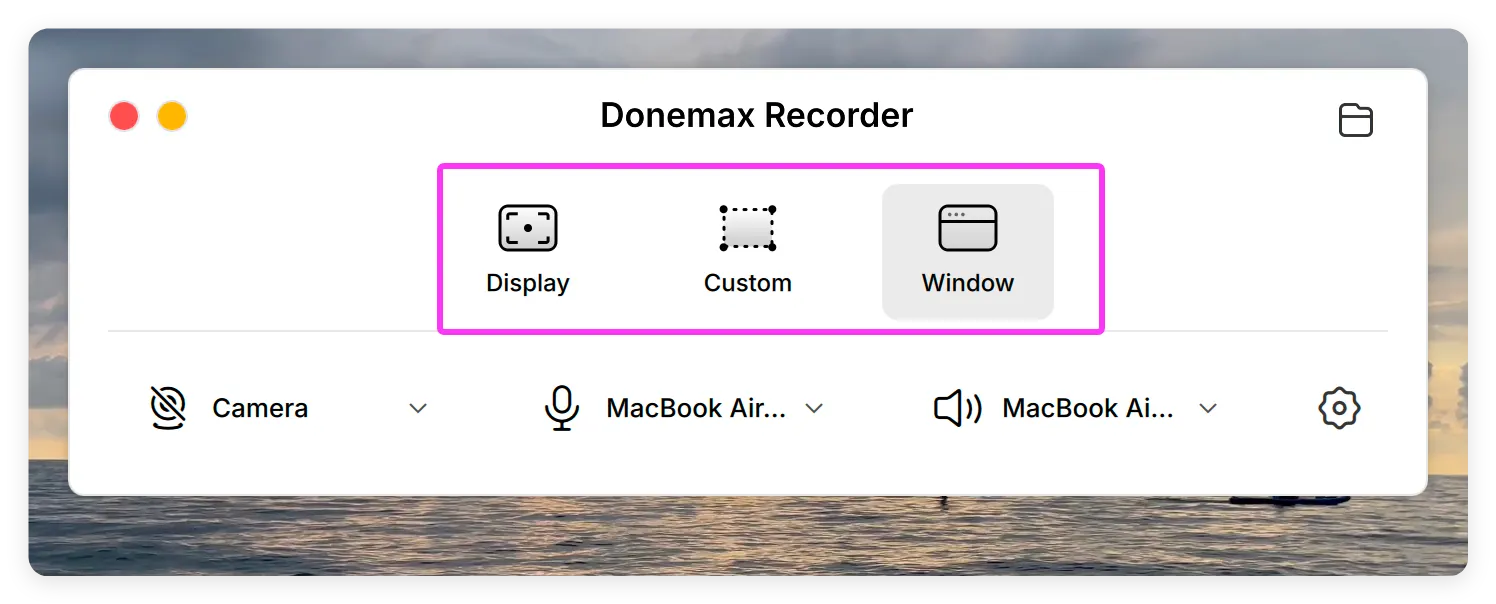
Step 4. Choose the capture area. Select the game window, a specific display, or the full screen, depending on what your recorder supports and what you want viewers to see.
Step 5. Make a short test recording. Play for a minute or two, then inspect the result for smooth motion, clear sound, and correct framing.
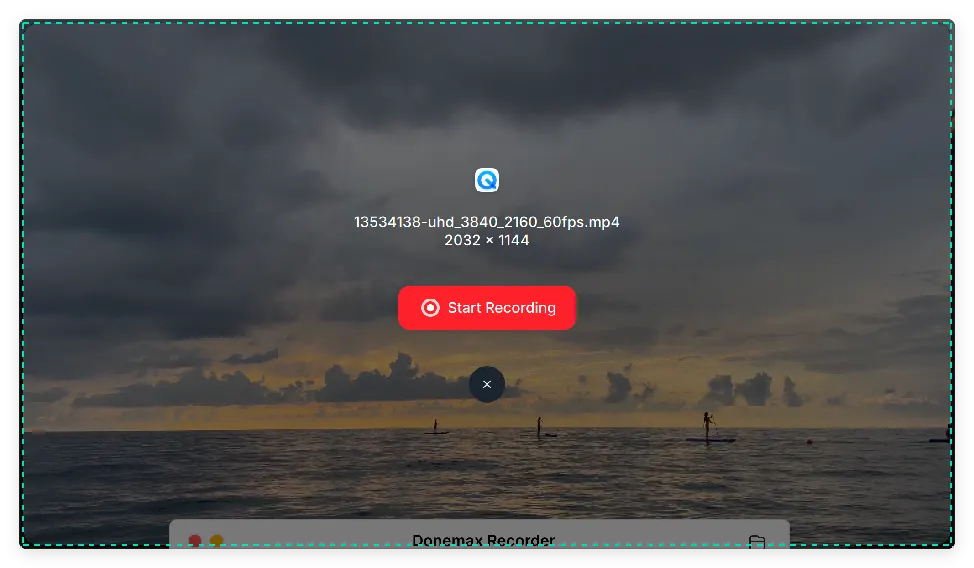
Step 6. Start the full recording. Confirm the recording indicator or timer before beginning a long match or gameplay session.
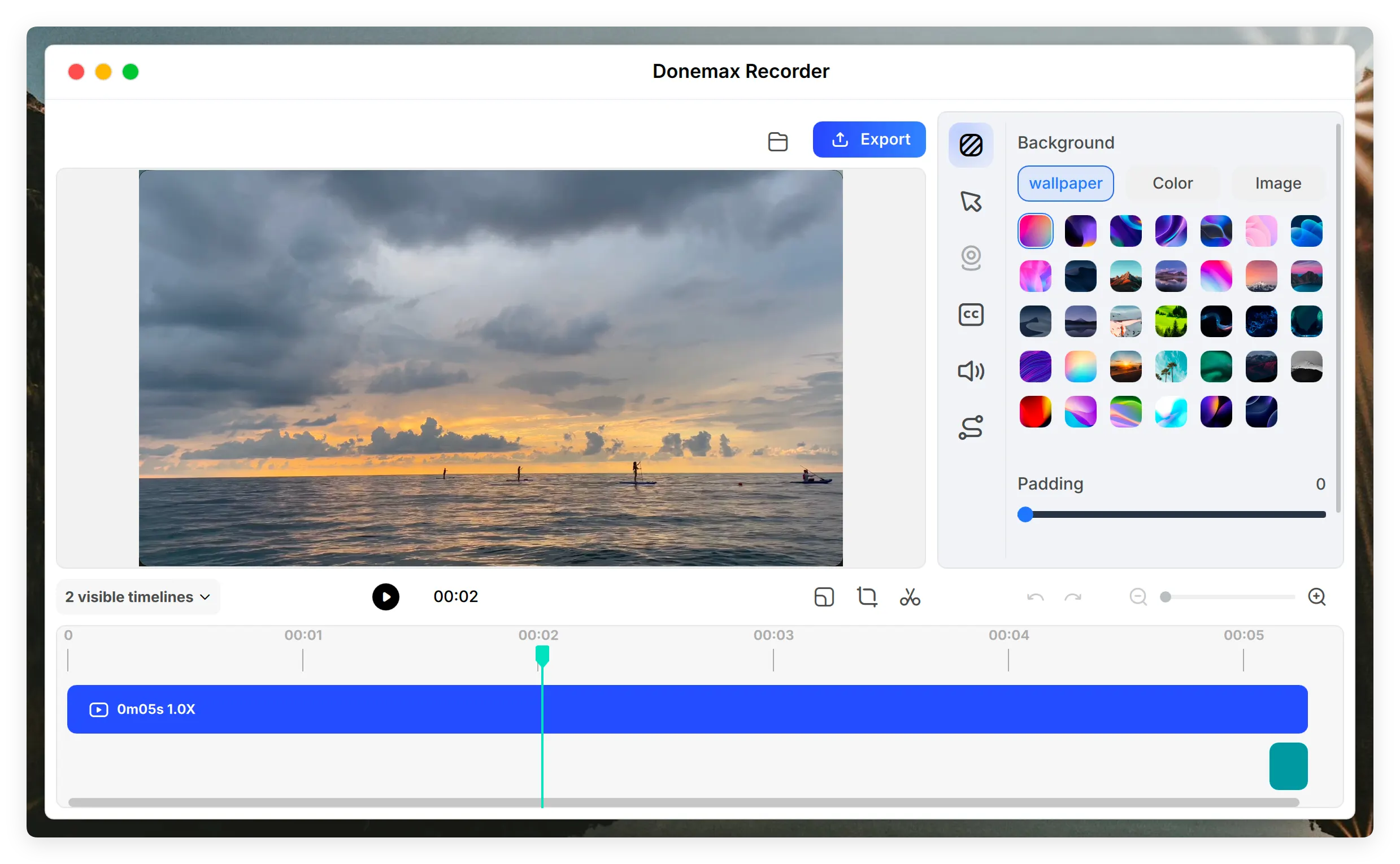
Step 7. Finish the recording and export. Stop the screen recording and then you can preview and edit the recorded video. At last, you can export the video.
If the game or recorder asks for screen-recording or microphone permissions, use macOS privacy settings to grant access. The names and locations of these controls may differ across macOS releases.
There is no single setting that is best for every MacBook Pro. A demanding game, an external display, or a high-resolution capture can change how much processing power the recorder needs.
Use these principles when you configure a recording:
If your recording is choppy, first reduce capture quality and close unnecessary applications. If the video looks smooth but the game audio is missing, check the recorder's audio-source settings and macOS permissions.
Issue 1: The game is missing from the recording
Confirm that you selected the correct display or capture area. Some games may behave differently in fullscreen and windowed modes, so try switching modes and make another short test recording.
Issue 2: The recording has no sound
Check that the game-audio source is enabled and that the correct microphone is selected if you are recording commentary. Also check macOS privacy permissions and the recorder's audio settings. Test each source separately to identify which one is missing.
Issue 3: Gameplay becomes slow or choppy
Recording adds work for your Mac while the game is running. Lower the recording resolution or frame rate, close unnecessary apps, and check whether the issue persists with a short test. Avoid assuming that a higher frame rate will automatically produce better footage if it makes the game less responsive.
Issue 4: The video looks blurry
Check the capture resolution and the size of the game window. Capturing a smaller area and enlarging it later can reduce sharpness. Make sure your recording settings fit the display resolution and the quality you need.
Issue 5: The file is too large
Long recordings and higher-quality settings create larger files. Record only the section you need, choose a more moderate quality setting, or use an export option suited to the intended destination. Keep an original copy if you plan to edit the footage later.
A dedicated screen recorder can be useful when you want a focused workflow for capturing and saving gameplay. When comparing products, look for clear information about supported macOS versions, audio capture, output formats, and available recording controls.
For example, Donemax offers screen-recording software for Mac users. Check the current product page for its supported macOS versions and specific features before choosing it for gameplay recording. If you need live streaming tools, complex scene layouts, or extensive source controls, compare those requirements with a streaming-focused option such as OBS Studio.
The best choice is the one that captures the sources you need and performs reliably on your particular MacBook Pro. A short test is more useful than relying on a feature list alone.
A gaming screen recorder for MacBook Pro should match your games, macOS version, and recording goals. Compare built-in tools, dedicated recorders Donemax Recorder for Mac, and OBS Studio based on the sources and controls you need. Keep settings practical, check audio and permissions, and make a short test recording before a long session.
Donemax Recorder for Mac
Donemax Recorder is an auto-zoom Mac screen recorder that automatically magnifies clicks and applies smooth cursor effects for effortless tutorial and demo creation.
Charles
Charles, who lives in Sydney, Australia, is an editor & writer of Donemax Team. He is good at writing articles related with Apple Mac computers, Windows operating systems, data recovery, data erasure, disk clone and data backup, etc. He loves reading and playing tennis in his spare time and is interested in testing new digital devices such as mobile phones, Macs, HDDs, SSDs, digital cameras, etc.
Gerhard Chou
In order to effectively solve the problems for our customers, every article and troubleshooting solution published on our website has been strictly tested and practiced. Our editors love researching and using computers and testing software, and are willing to help computer users with their problems