Written byCharlesUpdated on Nov 10, 2026

Before we start: How to capture smooth, high-definition (1080p/4K) screen video alongside dual-channel system sound and microphone audio on modern macOS environments - using Donemax Recorder for Mac. It highlights technical solutions for overcoming native macOS audio routing limits, details key features like AI auto-zoom, subtitles, and picture-in-picture webcams, and provides a simple workflow for exporting clean MP4 videos.
PAGE CONTENT:
Capturing your Mac screen with high-quality video and clear audio is essential for modern remote work, online learning, content creation, and software demonstrations. However, many Mac users discover that standard built-in utilities like QuickTime Player or the Screenshot Toolbar struggle to record internal system sound alongside microphone audio without complex virtual extensions.
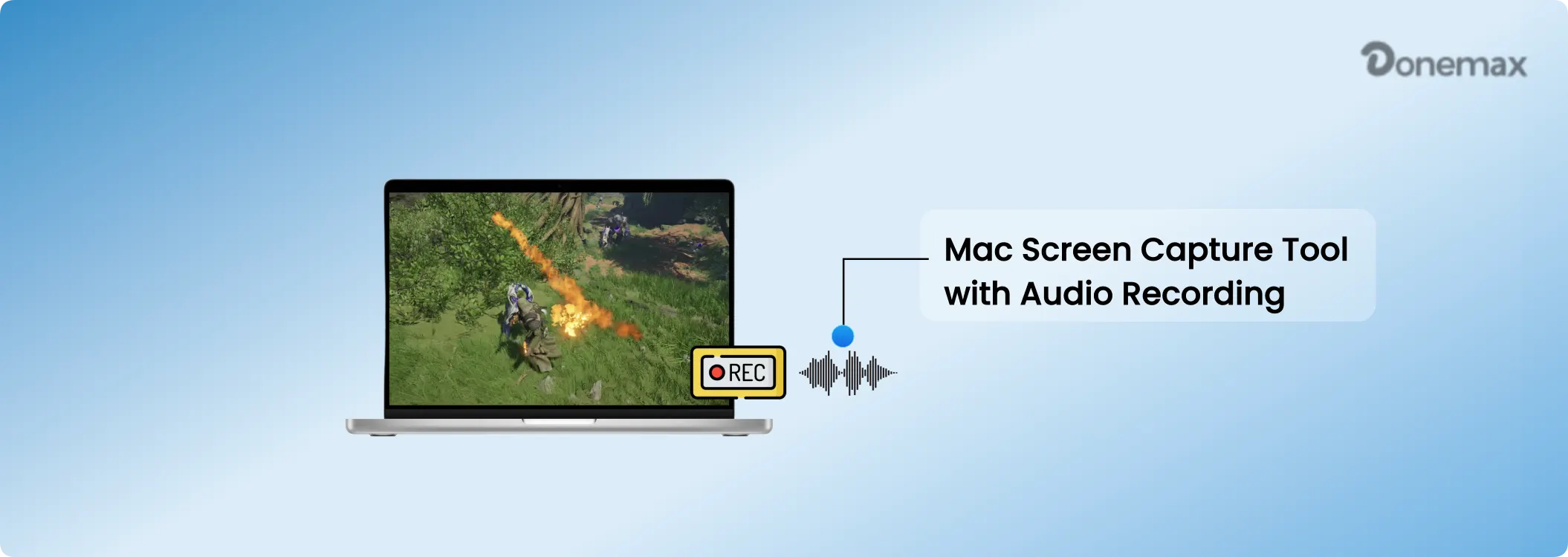
To capture seamless video and audio on modern macOS environments—including macOS Sequoia, macOS Tahoe 26, and macOS Golden Gate 27—users need a dedicated Mac screen capture tool with audio recording optimized for Apple Silicon (M1 through M6 series) architecture. This comprehensive guide evaluates native Mac recording limitations, breaks down audio routing mechanics, and highlights how specialized software delivers crisp, synchronous video and sound capture.
Screen recording on macOS is simple when you only need visual video. Pressing Shift + Command + 5 opens the native Screenshot app, allowing you to select any portion of your screen and start recording in seconds.
The problem arises when you need to capture internal system audio—such as sound from a video call, an online webinar, a YouTube clip, or gameplay background music. Due to strict macOS system privacy and sandboxing frameworks, built-in Apple tools restrict apps from directly capturing internal audio outputs without external microphone feedback.
If you attempt to record a meeting using QuickTime, your laptop microphone might pick up faint speaker sound, but the audio quality will be echo-filled and muffled. Finding a proper Mac screen capture tool with audio recording solves this hurdle by capturing internal system sound and external voice commentary simultaneously.
To choose the right screen recording setup, it helps to understand why macOS handles internal audio routing differently than Windows, and how Apple Silicon hardware improves capture performance.
1. Internal Audio Privacy Limits in macOS
Apple built macOS with tight kernel-level privacy restrictions. By default, applications cannot intercept the master system sound output stream. Standard recording utilities can only access hardware microphone inputs.
Historically, users had to install third-party Virtual Audio Cable drivers or kernel extensions like BlackHole or Soundflower. While these workarounds route sound, they can break after major macOS updates and often require disabling System Integrity Protection (SIP). Modern screen capture solutions bypass this hassle by utilizing native audio driver plugins and CoreAudio APIs.
2. Hardware Acceleration across M1 to M6 Apple Silicon Chips
Modern Mac computers powered by Apple Silicon chips (spanning the M1, M2, M3, M4, M5, and M6 series) feature dedicated VideoToolbox hardware encoders and unified memory architecture.
A purpose-built Mac screen capture tool takes advantage of ARM64 optimization to record 1080p or 4K video at 60 FPS while capturing multi-channel audio—all with minimal CPU usage, zero fan noise, and zero battery drain.
When evaluating screen capture software for Mac, ensure the utility delivers these core technical features:
Donemax Recorder for Mac is engineered specifically to deliver native, high-frame-rate screen recording alongside dual-channel audio capture across macOS Sequoia, Tahoe 26, and Golden Gate 27. Built with full native support for Apple Silicon (M1-M6 series) and Intel Mac architectures, it eliminates complex driver setups.
Key Technical Capabilities:
Follow these simple operational steps to record your Mac screen along with system audio and microphone input:
Step 1: Download and Launch Donemax Recorder. Download and install Donemax Recorder for Mac. Open the application to bring up the intuitive launcher bar.
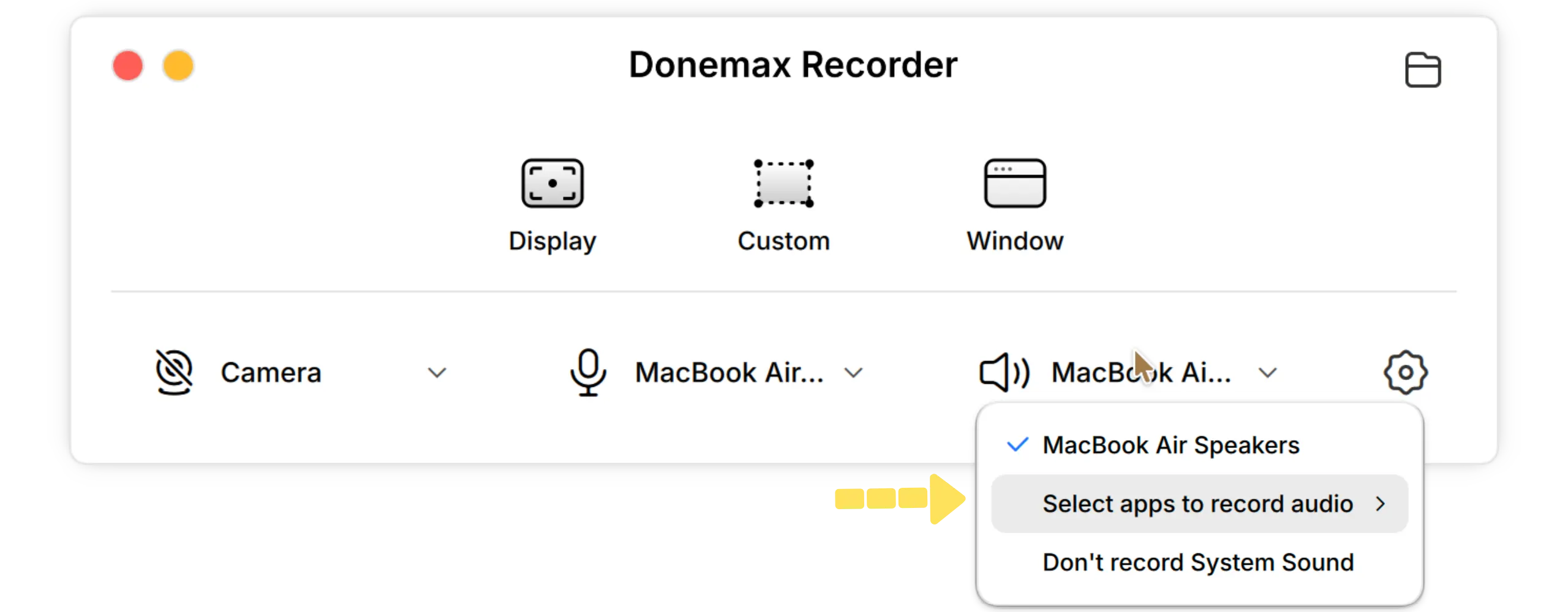
Step 2: Configure Audio and Camera Sources First. On the launcher bar, select your Webcam option (or 'Don't record Camera'), configure your Microphone input, and select System Sound to capture internal Mac audio.
Step 3: Select Capture Region (Triggers Recording). Click your desired recording mode on the launcher bar — choose 'Display' to record your full screen, 'Custom' to drag a specific region, or 'Window' to isolate a single application interface.
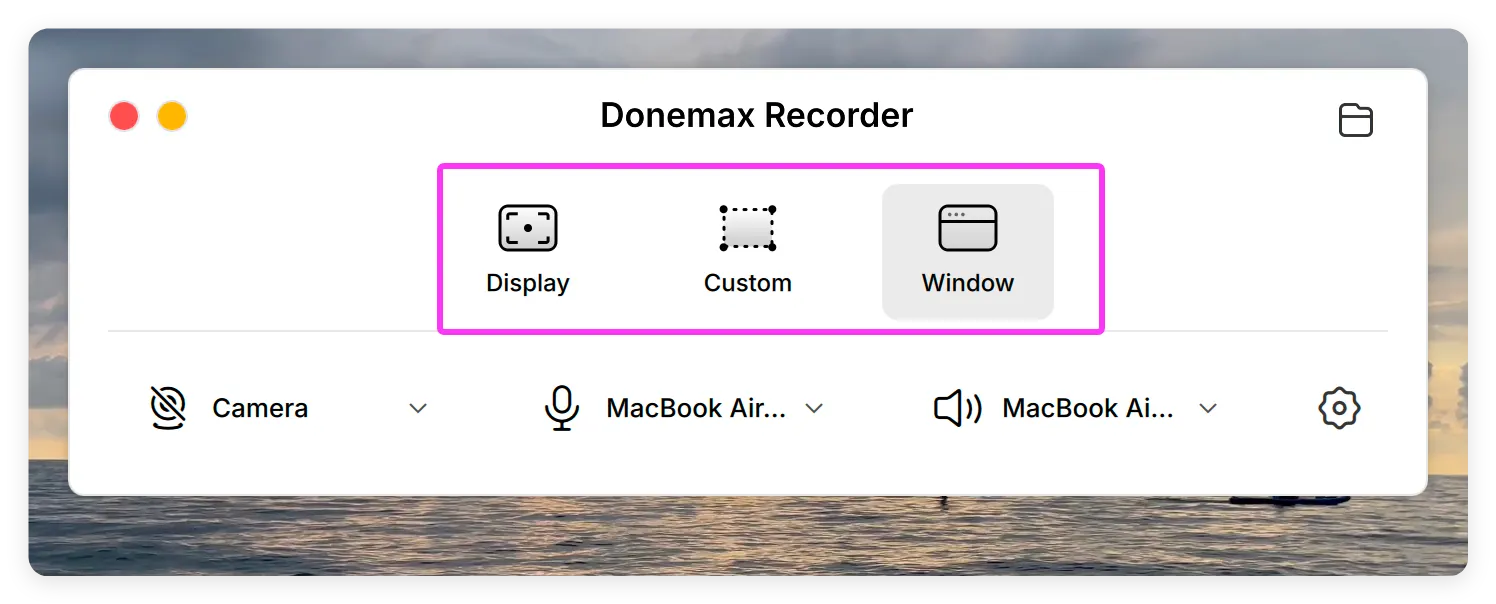
Step 4: Automatic Countdown & Audio-Visual Capture. Selecting the recording area and click Start Recording button to trigger the capture workflow immediately. After a 3-second countdown, Donemax Recorder captures your screen quietly in the background while a floating bar lets you pause or stop.
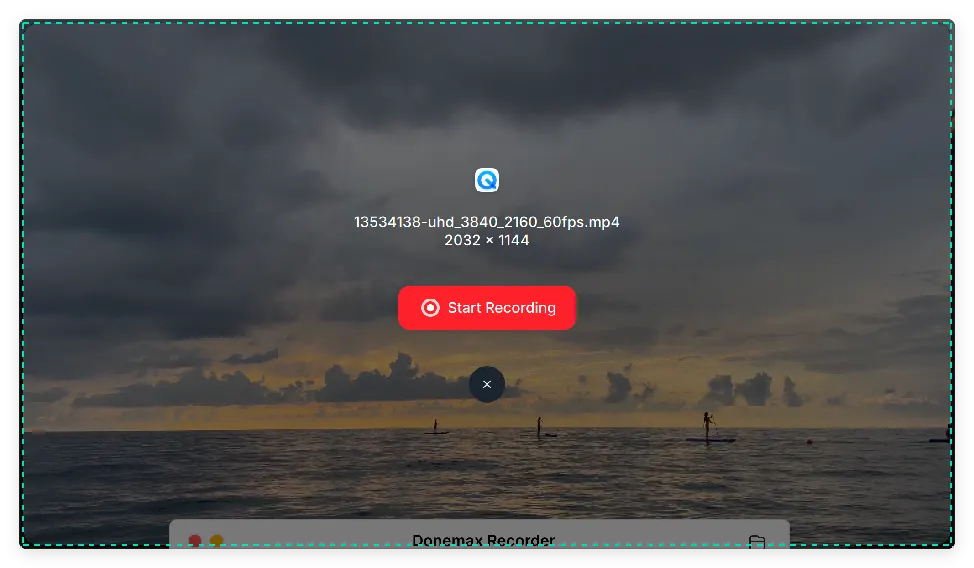
Step 5: Review and Export MP4. Click the Stop button when finished. The built-in Donemax Editor opens with auto-generated zooms and AI captions ready. Review your video and click Export to save your finished MP4 video file.
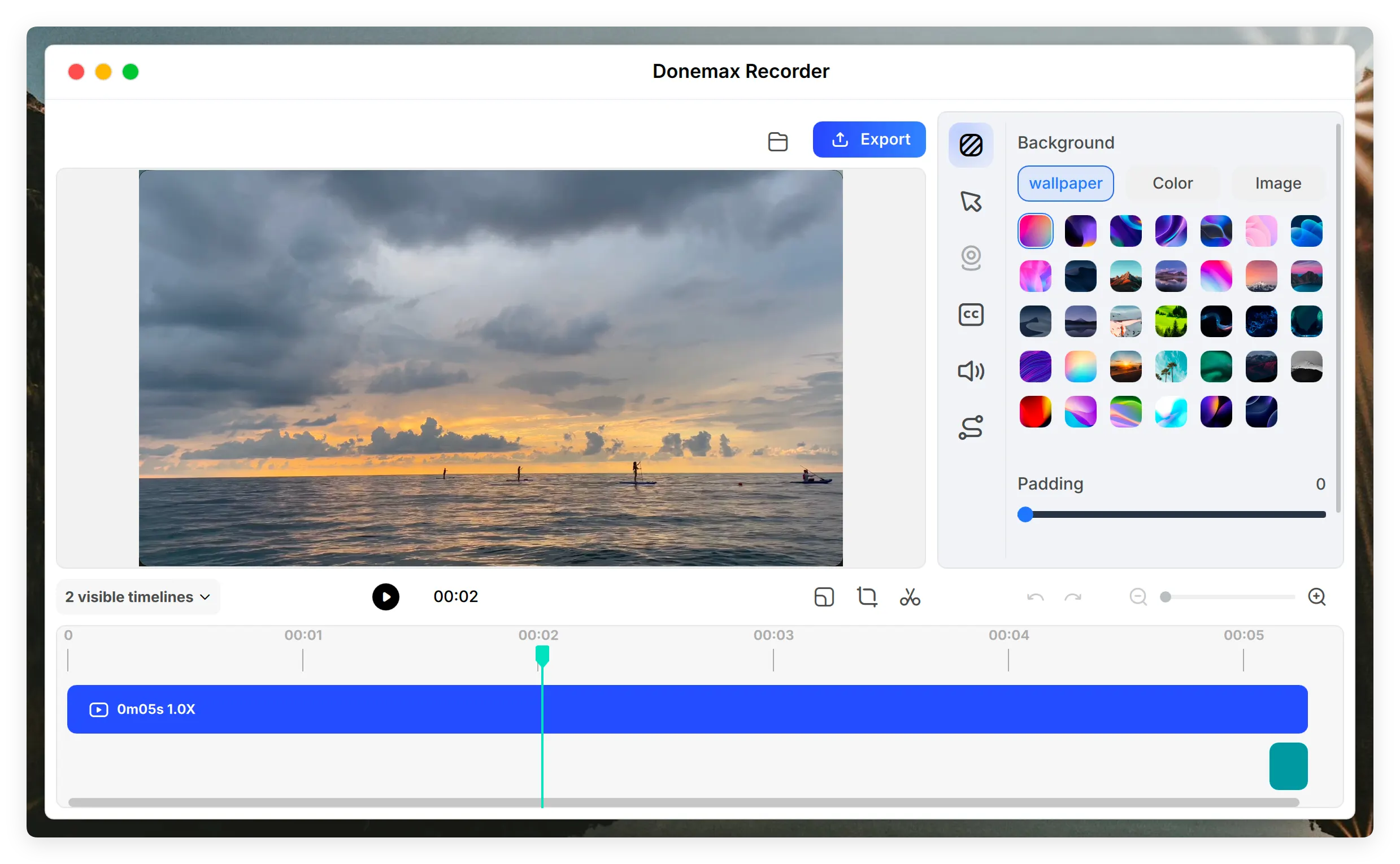
💡 Tip for Smooth Recording: Because selecting your capture area immediately triggers screen recording after setting your camera and audio devices, make sure your software windows are arranged before clicking your mode. Donemax Recorder exports clean MP4 videos at native display resolution.
Recording high-definition video alongside clear internal audio is crucial for creating professional tutorials, saving online meetings, and sharing content. Don't let default macOS audio restrictions limit your recording capabilities.
By choosing a dedicated Mac screen capture tool with audio recording optimized for Apple Silicon and modern macOS versions, you can capture full-screen video with crisp system sound and microphone voice-over in just a few clicks. Start capturing your Mac screen with perfect audio today!
Donemax Recorder for Mac
Donemax Recorder is an auto-zoom Mac screen recorder that automatically magnifies clicks and applies smooth cursor effects for effortless tutorial and demo creation.
Charles
Charles, who lives in Sydney, Australia, is an editor & writer of Donemax Team. He is good at writing articles related with Apple Mac computers, Windows operating systems, data recovery, data erasure, disk clone and data backup, etc. He loves reading and playing tennis in his spare time and is interested in testing new digital devices such as mobile phones, Macs, HDDs, SSDs, digital cameras, etc.
Gerhard Chou
In order to effectively solve the problems for our customers, every article and troubleshooting solution published on our website has been strictly tested and practiced. Our editors love researching and using computers and testing software, and are willing to help computer users with their problems