Written byStevenUpdated on Nov 12, 2026

Before we start: To record screen and computer sound on Mac without BlackHole or virtual audio drivers, use Donemax Recorder for Mac. It captures native internal system sound directly through built-in CoreAudio APIs alongside high-definition 60 FPS video, completely bypassing complex audio routing, terminal commands, or driver installations across Apple Silicon M1-M6 Macs.
PAGE CONTENT:
Capturing your Mac display along with internal system audio has historically forced users into configuring third-party virtual audio loopback drivers like BlackHole, Soundflower, or Loopback. These virtual extensions route internal sound to virtual microphones, but they frequently introduce complex multi-output device setups, audio latency, system update breaks, and missing volume controls.
Modern macOS environments—including macOS Sequoia, macOS Tahoe 26, and macOS Golden Gate 27—running on Apple Silicon hardware (spanning M1 through M6 chips) require a streamlined, driverless capture architecture. Dedicated software like Donemax Recorder for Mac captures internal computer audio directly via CoreAudio framework integration, delivering lag-free 1080p/4K 60FPS video and crisp system sound without requiring any virtual driver installations.
For years, tutorials recommended BlackHole as the go-to open-source solution for routing internal Mac audio into QuickTime Player or OBS Studio. While functional, virtual audio cables create several operational headaches for daily Mac users.
Donemax Recorder for Mac provides a direct, hardware-accelerated screen and audio capture engine built specifically for modern macOS environments. Tapping into native Apple VideoToolbox and CoreAudio APIs, it captures internal system audio and high-definition screen video without virtual loopback cables.
Follow these clear operational steps to record your Mac display and internal computer audio using Donemax Recorder for Mac:
Step 1: Download and Install Donemax Recorder for Mac. Download Donemax Recorder for Mac. Install the software into your Applications folder and launch it to bring up the compact launcher bar.
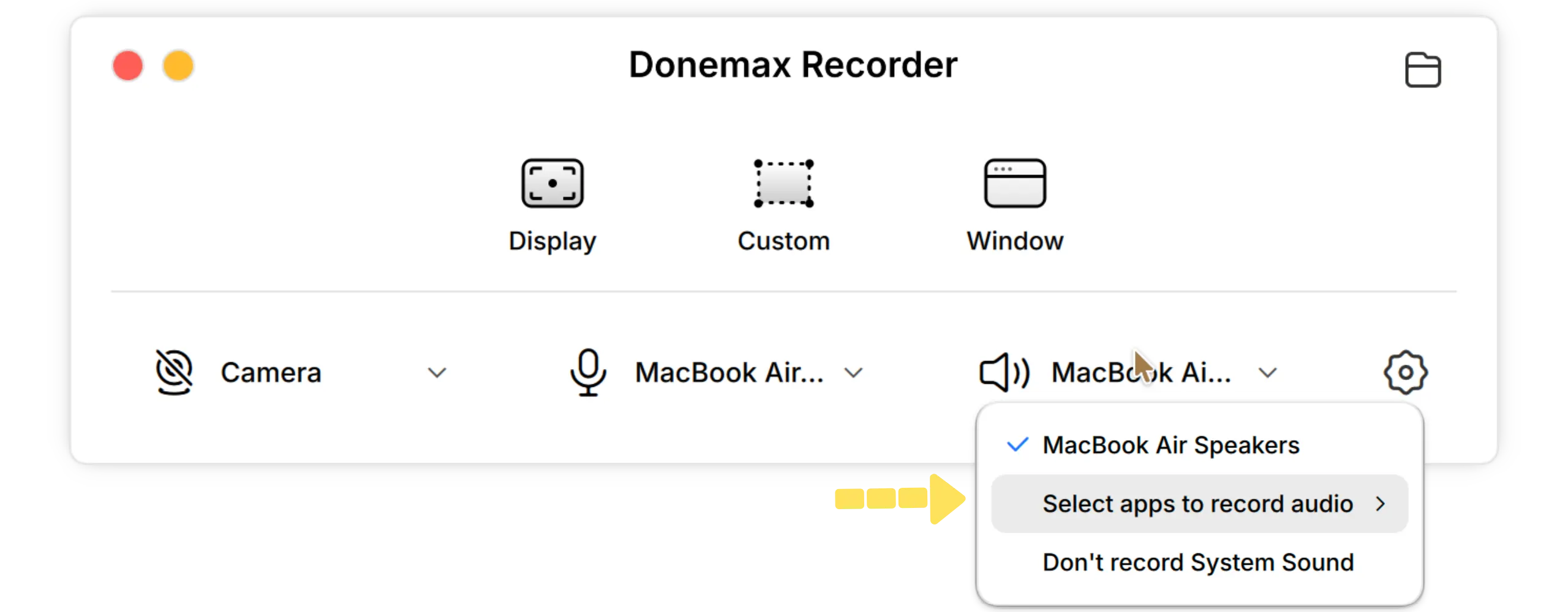
Step 2: Configure Audio and Camera Sources First. On the launcher bar, select your Webcam option (or 'Don't record Camera'), configure your Microphone input, and select System Sound to capture internal Mac audio natively.
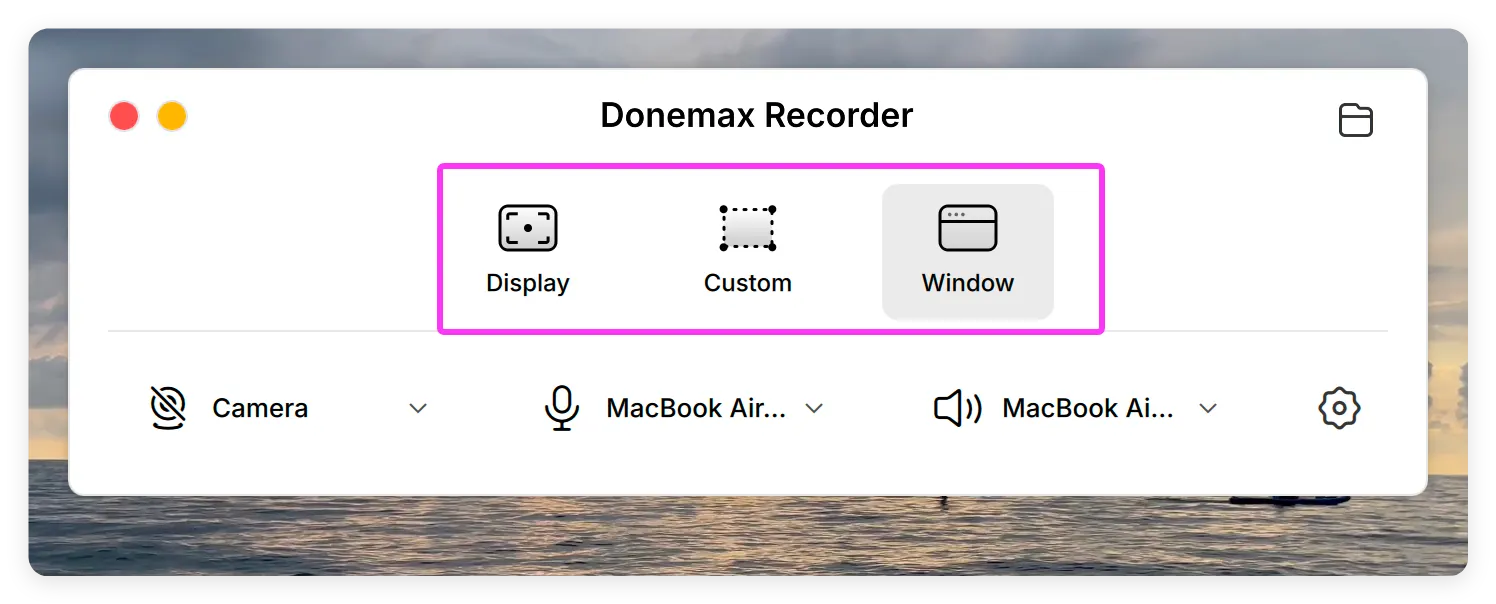
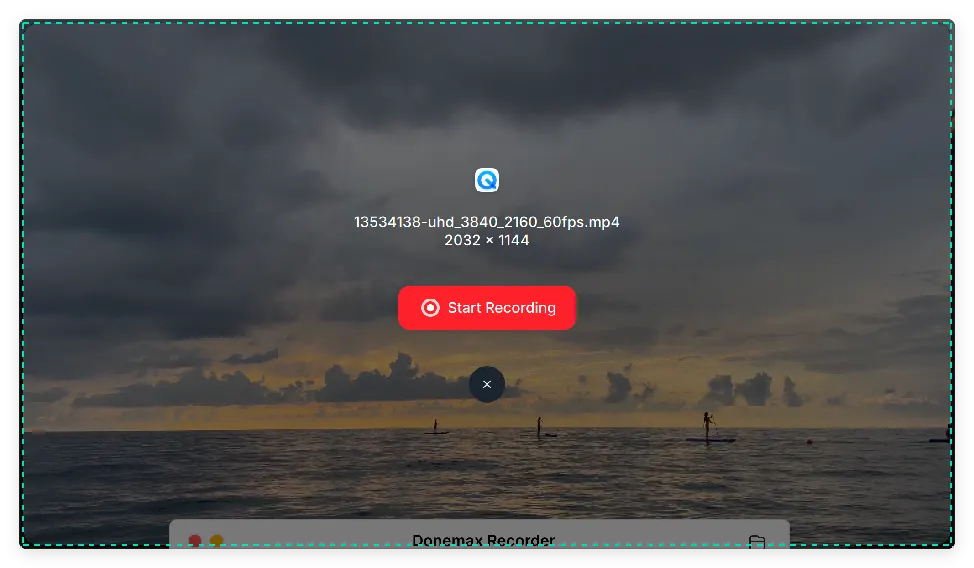
Step 3: Select Recording Area (Triggers Recording). Click your desired capture mode on the launcher bar — choose 'Display' for full screen, 'Custom' to select a specific 4K region, or 'Window' to isolate an app window.
Step 4: Automatic Countdown & Silent Capture. Selecting your recording area triggers the capture workflow immediately. After a 3-second countdown, Donemax Recorder captures screen video and internal sound quietly while a floating bar lets you pause or stop.
Step 5: Review and Export Clean MP4 Video. Click the Stop button when finished. The built-in Donemax Editor opens with auto-generated zooms and AI captions ready. Review your video and click Export to save your finished MP4 file.
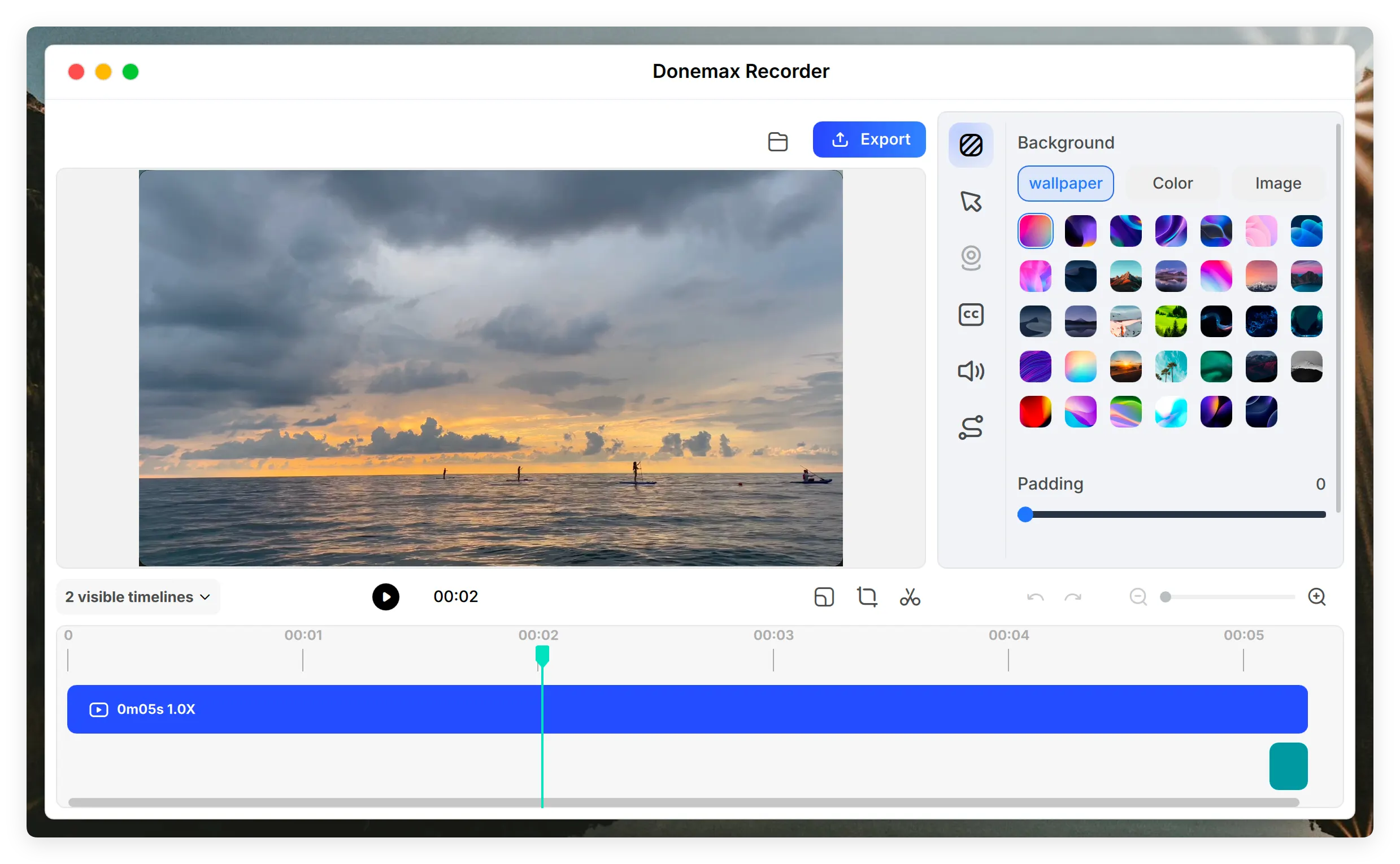
💡 Pro Tip: Because selecting your capture mode immediately triggers screen recording after setting your camera and audio devices, ensure your target windows are arranged before clicking your mode. Donemax Recorder exports clean MP4 videos with internal audio at native resolution.
If you are curious about alternative methods for capturing Mac audio, understanding their limitations highlights why native recorder apps are preferred.
1. QuickTime Player with Audio MIDI Setup Routing
Using QuickTime Player for internal audio capture requires opening Audio MIDI Setup, creating a Multi-Output Device combining your headphones and virtual driver, and selecting that virtual driver in QuickTime's recording menu. This method works but disables hardware volume hotkeys and breaks whenever the virtual driver unlinks.
2. Microphonic Speaker Pass-Through (Acoustic Capture)
Some users attempt to record internal audio by turning up their Mac speakers and setting QuickTime's microphone input to 'Built-in Microphone'. This captures room noise, fan humming, and heavy echo, producing unusable audio quality for professional presentations.
Recording your Mac screen with crystal-clear internal computer sound should be simple, not bogged down by complex virtual cable installations, Audio MIDI configuration errors, or broken audio drivers after macOS updates.
With Donemax Recorder for Mac, you can record screen and computer sound on Mac without BlackHole in just a few clicks. Tapping into native Apple Silicon GPU acceleration and CoreAudio APIs, it delivers smooth 60 FPS video, dual system/mic audio recording, AI auto-zoom, and clean MP4 exports. Download Donemax Recorder for Mac today and experience effortless Mac screen and audio capture!
Donemax Recorder for Mac
Donemax Recorder is an auto-zoom Mac screen recorder that automatically magnifies clicks and applies smooth cursor effects for effortless tutorial and demo creation.
Steven
Steven has been a senior writer & editor of Donemax software since 2020. He's a super nerd and can't imagine the life without a computer. Over 6 years of experience of writing technical solutions and software tesing, he is passionate about providing solutions and tips for Windows and Mac users.
Gerhard Chou
In order to effectively solve the problems for our customers, every article and troubleshooting solution published on our website has been strictly tested and practiced. Our editors love researching and using computers and testing software, and are willing to help computer users with their problems