
Written byStevenUpdated on Aug 26, 2026

Before we start: Comparing to reinstalling operating system, clone the system drive is easy and time-saving. With the software Donemax Disk Clone, you can easily migrate Windows or macOS to a new SSD and make sure the SSD is bootable.
PAGE CONTENT:
Is your computer running low on storage, or do you want to unlock faster startup and loading speeds? Upgrading to a brand-new solid-state drive (SSD) is one of the best improvements you can make for your PC. However, if you are running the Windows 11 26H2 update, reinstalling your operating system, reconfiguring your personalized settings, and downloading all your applications from scratch can take hours.
Fortunately, you do not have to start from scratch. You can seamlessly migrate Windows 11 26H2 to a new SSD and ensure it remains instantly bootable. In this complete 2026 guide, we will walk you through everything you need to know—from preparing your new drive to cloning your system with Donemax Disk Clone and configuring your BIOS/UEFI settings.
When upgrading your system drive, you generally have two choices: perform a clean installation of Windows or migrate your existing operating system.
While a clean installation provides a fresh start, it also wipes away your personal configuration, app settings, and installed programs. Migrating Windows 11 26H2 to a new SSD creates an exact 1:1 sector-by-sector or file-by-file copy of your system. This means:
Before starting the disk cloning process, taking a few minutes to prepare your hardware and system environment will guarantee a smooth migration without errors.
1. Choose and Install the Right SSD
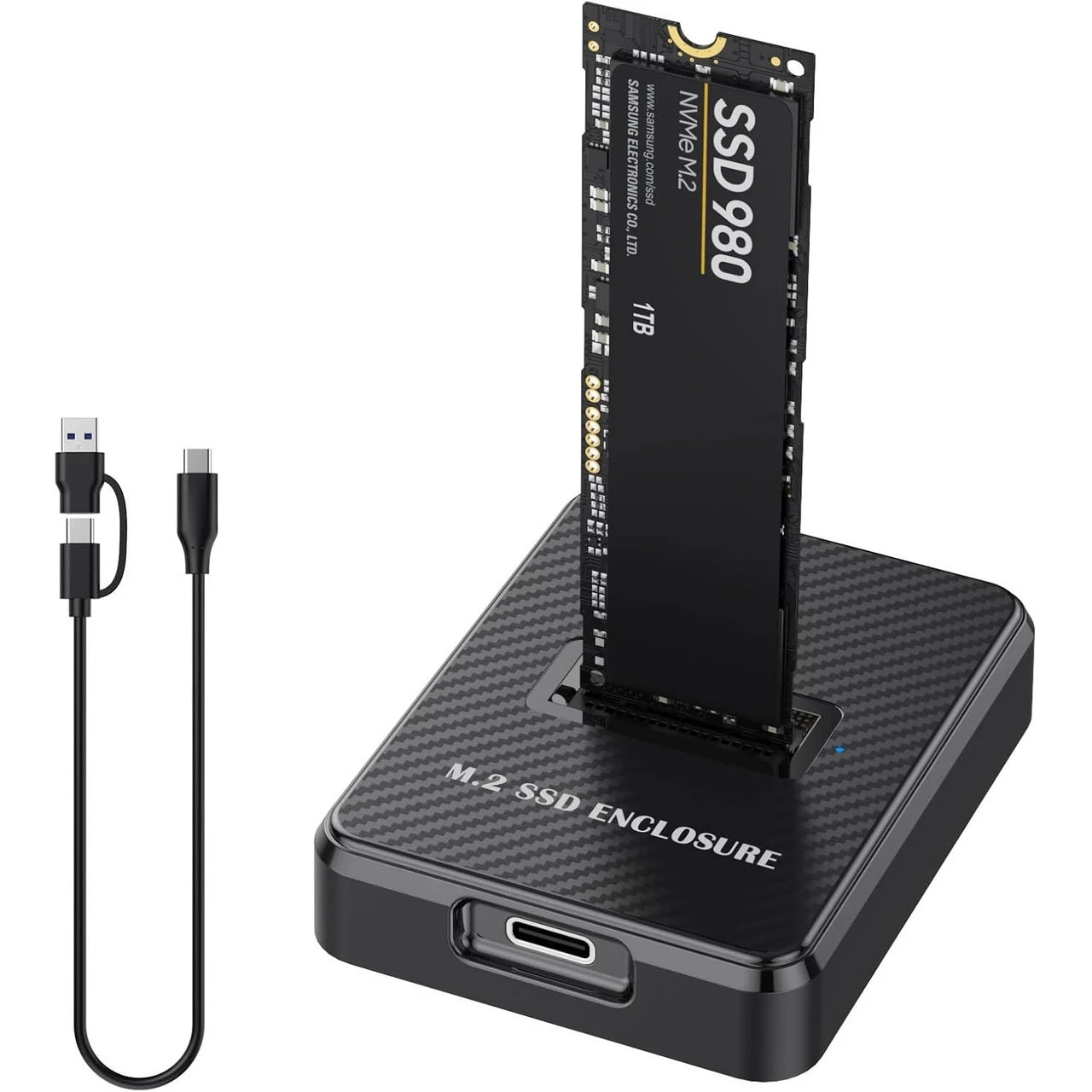
Make sure your new SSD has enough capacity to hold all the data from your current system drive. For best performance with Windows 11 26H2, an M.2 NVMe SSD is recommended over older SATA SSDs. If your PC only has one M.2 slot, you can connect the new SSD using an external USB-to-NVMe enclosure or adapter during the cloning process.
2. Initialize the New SSD to GPT Style
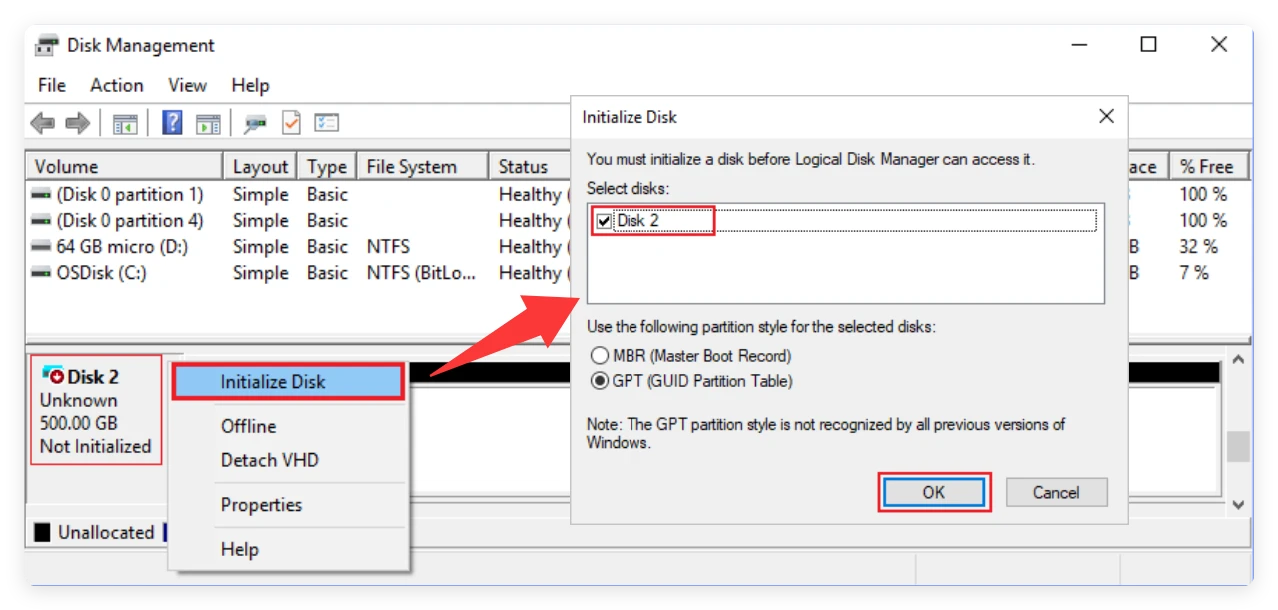
Windows 11 requires the UEFI boot mode and the GUID Partition Table (GPT) partition style. If your new SSD is brand new and uninitialized, follow these steps:
3. Clean Up Your Current Windows 11 26H2 System
To speed up the cloning process, delete temporary files, empty your Recycle Bin, and uninstall unnecessary applications. Running Windows Storage Sense or Disk Cleanup helps remove redundant temporary data so you only transfer clean, useful files to your new SSD.
4. Backup Critical Files
Disk cloning is safe and non-destructive to your source drive. However, cloning will overwrite all data on the target SSD. Make sure any existing files on the target drive are backed up to another storage device before proceeding.
To ensure that your cloned SSD is 100% bootable, you need reliable system cloning software. Donemax Disk Clone provides a specialized Disk Clone feature designed to clone Windows 11 system disk along with hidden EFI and Recovery boot partitions.
Follow these simple steps to migrate Windows 11 26H2 to your new SSD:
Step 1: Launch Donemax Disk Clone
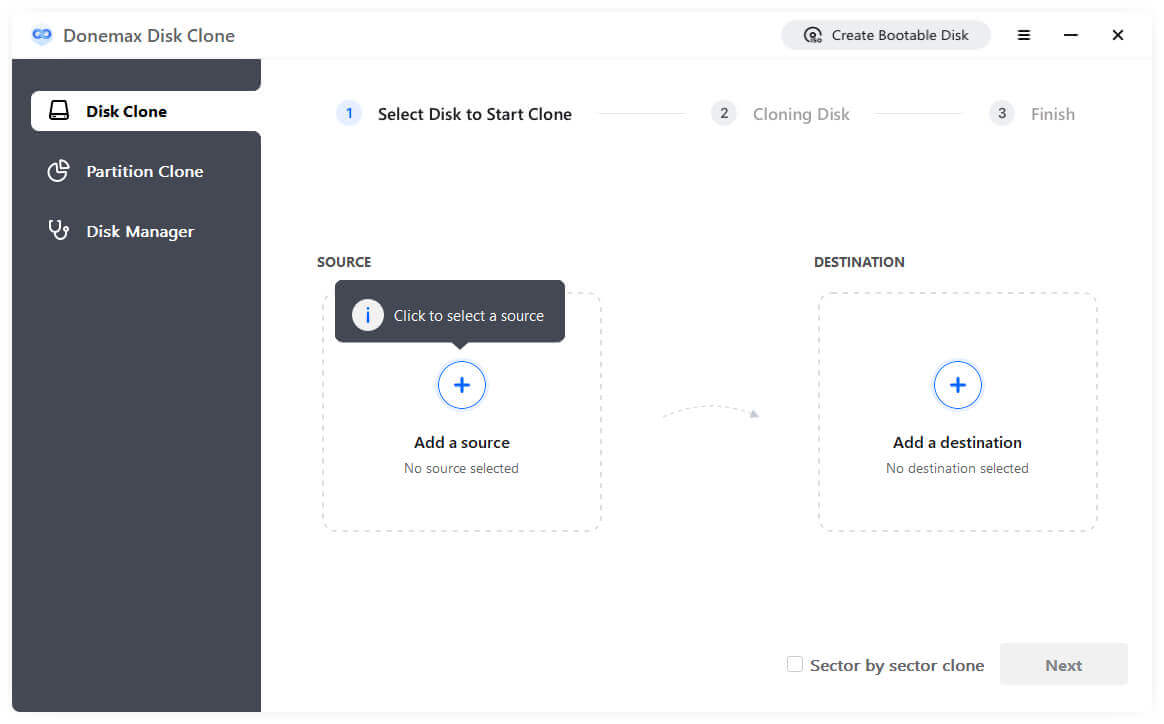
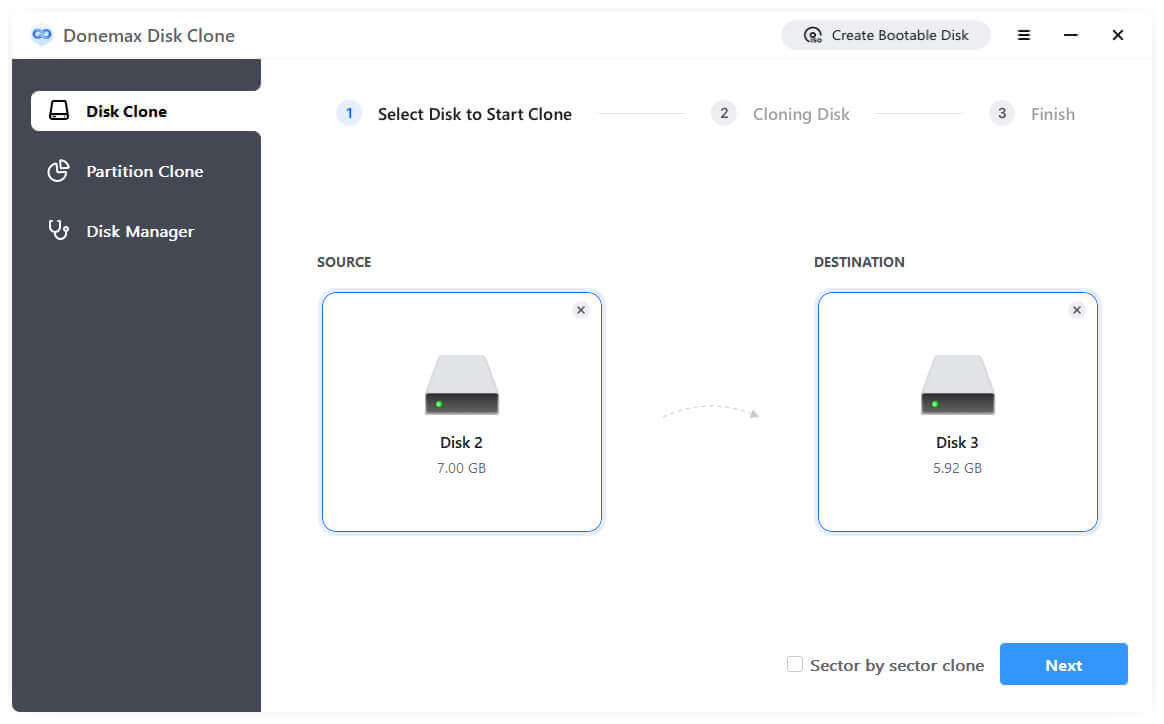
Download and install Donemax Disk Clone on your Windows 11 PC. Connect your new SSD via an adapter or internal slot, then launch the software. From the left sidebar menu, choose the Disk Clone mode.
Step 2: Select the Source System Disk and Target New SSD
Select your active Windows 11 26H2 OS drive as the source. Under Destination, select your newly installed or connected target SSD.
Step 3. Preview and Edit the Disk Layout
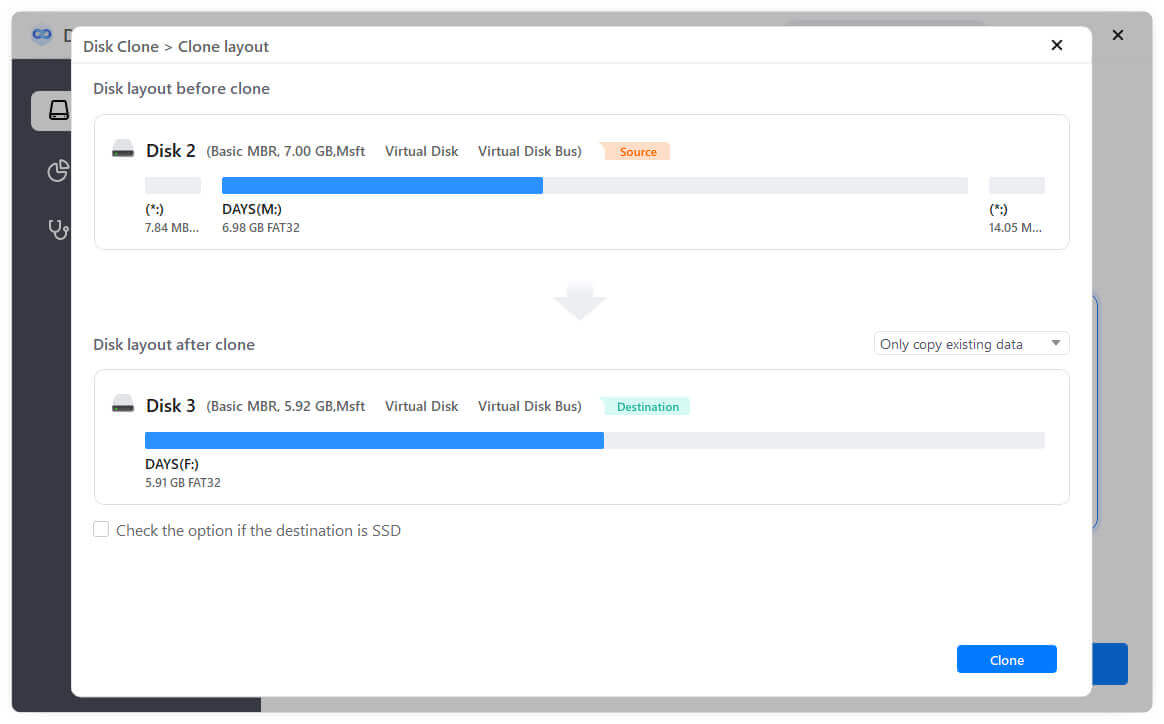
Click the Next button, then you can preview the layout of the destination SSD. If needed, you can also modify the layout. Otherwise, just leave the auto-fit disk layout. At last, enable "Check the option if th destination is SSD."
Step 4: Start the System Migration
Click the Clone button to start. Confirm the target disk overwrite prompt when prompted. The software will begin copying your Windows 11 26H2 system, user files, applications, and system boot partition to the new drive.
Step 5: Wait for Cloning to Complete
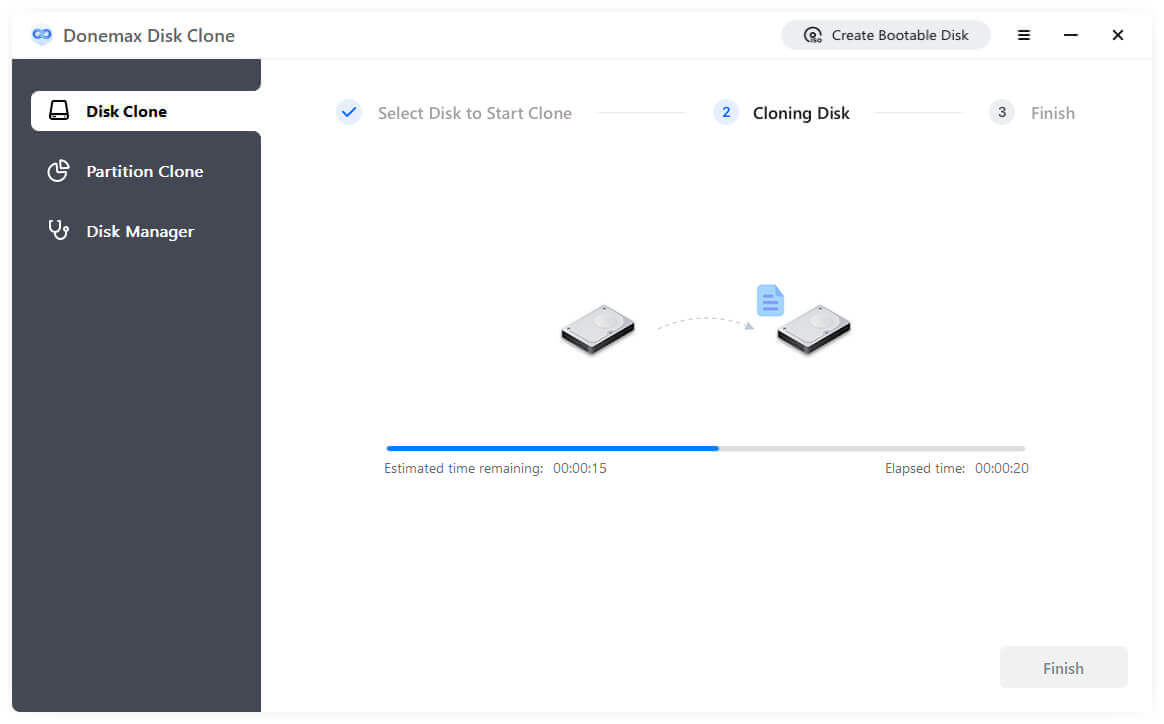
The progress bar will indicate the remaining time. Once finished, Donemax Disk Clone will notify you that the disk cloning process is successfully completed.
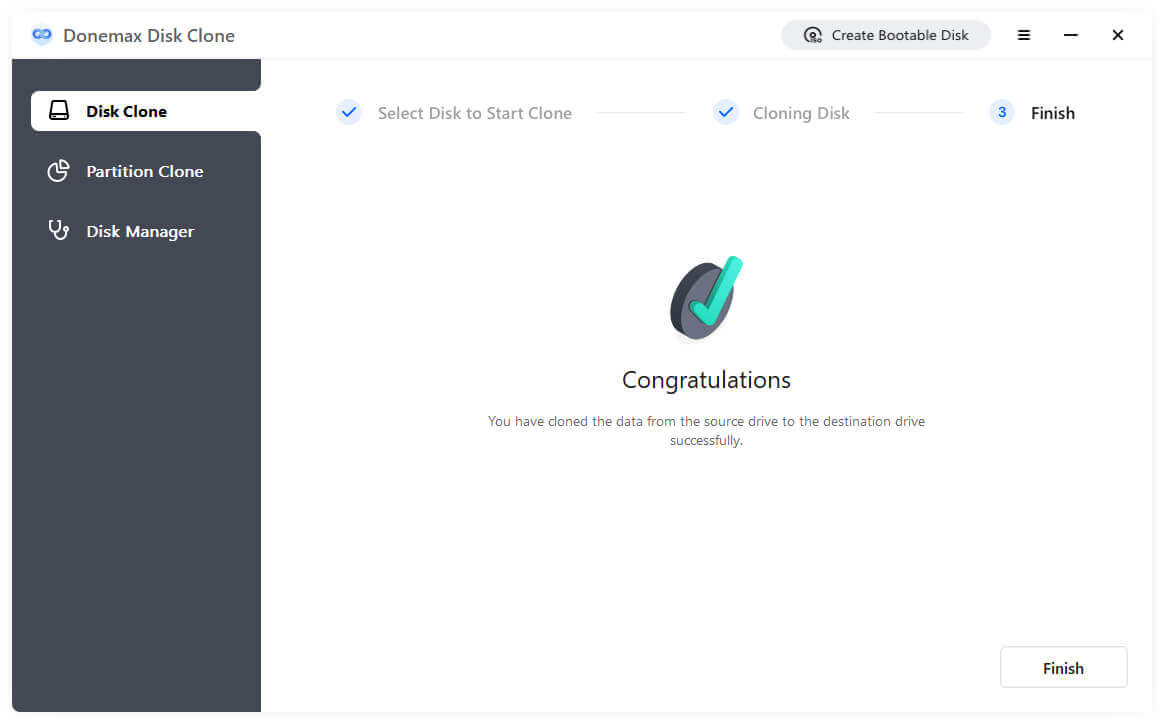
After the cloning process is complete, your new SSD contains your Windows 11 26H2 system. However, your computer might still try to boot from the old hard drive. To make the new SSD bootable, follow one of the two methods below:
Method 1: Replace the Old Drive with the New SSD (Recommended for Laptops)
Method 2: Change UEFI Boot Order in BIOS (For Desktop PCs with Multiple Drives)
If you want to keep your old drive connected as a secondary storage device, you must change the startup order in your system BIOS/UEFI setup:
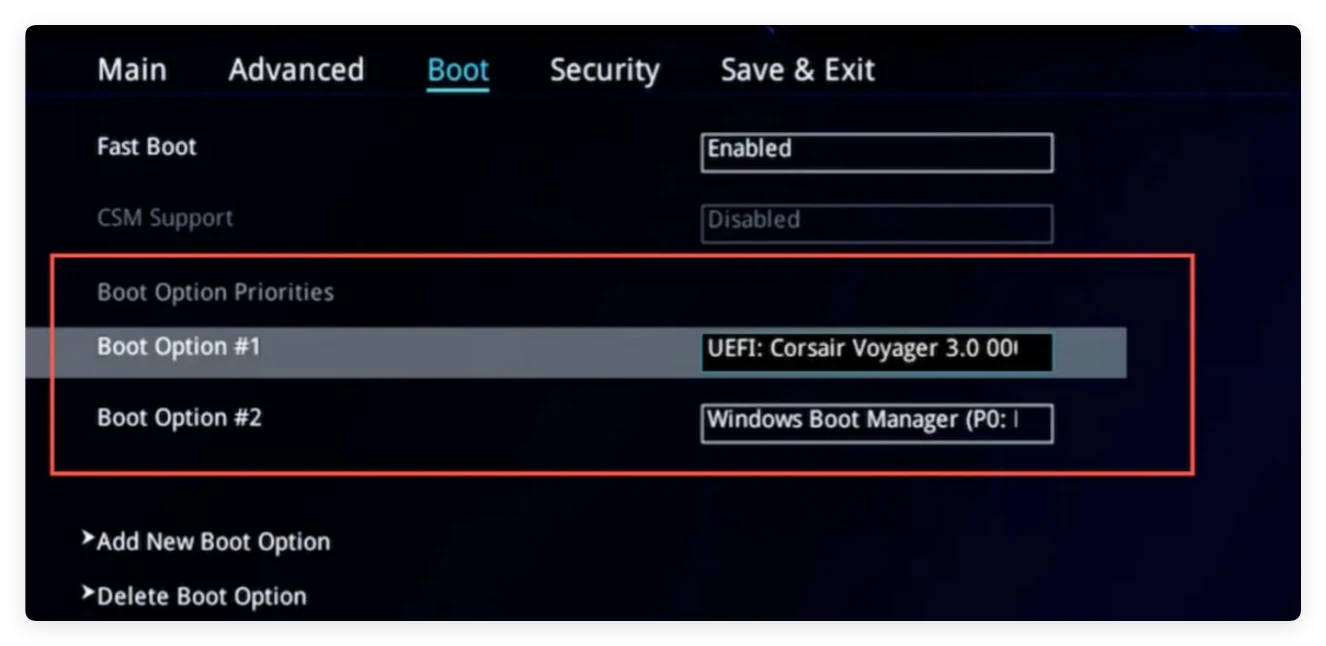
Once your PC successfully boots from the new SSD, complete these post-migration checks to ensure optimal system performance:
1. Verify Boot Drive Status
Open Disk Management and confirm that your new SSD is listed as Drive C: with the status active as Boot, Page File, Crash Dump, and Primary Partition.
2. Check SSD Alignment (4K Alignment)
Proper 4K alignment ensures your SSD reads and writes data at top speed. Donemax Disk Clone automatically aligns SSD sectors during the cloning process, so your new drive is optimized out of the box.
3. Format or Repurpose the Old System Drive
After confirming that your computer runs smoothly from the new SSD for a few days, you can use Disk Management or Donemax Disk Clone to format your old drive and use it as secondary data storage.
Migrating Windows 11 26H2 to a new SSD is the fastest and easiest way to upgrade your PC's performance without losing settings, applications, or valuable data. By using Donemax Disk Clone, you can migrate your operating system and boot partitions with just a few simple clicks. Follow our guide to set your new SSD as the primary boot drive, and enjoy lightning-fast startup speeds today!
Donemax Disk Clone
An award-winning disk cloning program to help Windows users and Mac users clone HDD/SSD/external device. It also can create full bootable clone backup for Windows PCs and Macs.
Steven
Steven has been a senior writer & editor of Donemax software since 2020. He's a super nerd and can't imagine the life without a computer. Over 6 years of experience of writing technical solutions and software tesing, he is passionate about providing solutions and tips for Windows and Mac users.
Gerhard Chou
In order to effectively solve the problems for our customers, every article and troubleshooting solution published on our website has been strictly tested and practiced. Our editors love researching and using computers and testing software, and are willing to help computer users with their problems