
Written byChristinaUpdated on Dec 01, 2025

Before we start: Be careful when working on a document, especially when the original version is still needed. After a document was saved over, it will be confusing. If there are previous versions or backups available, you will be lucky. Otherwise, try the data recovery software to restore a previous version of the document.
PAGE CONTENT:
We've all been there—you're working on an important project, only to realize too late that you accidentally saved over a document. Whether it's a critical report, a creative project, or a spreadsheet with complex formulas, overwriting a file can cause frustration, panic, and lost productivity.
The good news? In many cases, there are reliable ways to restore a previous version of saved over document, whether you're using Windows, macOS, or a cloud storage platform like Google Drive, OneDrive, or Dropbox. In this guide, we'll explore different recovery options, outline preventative measures, and show you how to avoid this problem in the future.
Accidentally saving over a file is a common human error. Here are the typical scenarios where it happens:
Modern software like Microsoft Word, Excel, and Google Docs often auto-save documents. While helpful, these features can sometimes overwrite a file unintentionally, especially if you open an older version by mistake.
You might open a file intending to create a modified copy but click "Save" instead of "Save As," thereby replacing the original version.
When using cloud storage platforms with automatic syncing, updates from one device can overwrite files across all devices.
On shared drives or team projects, one user might accidentally overwrite another's work without realizing.
These situations are more common than you might think, but recovering from them is often possible.
Yes, restoring a previous version is often possible, depending on several factors:
That being said, the chances of successful recovery increase significantly if you act quickly and follow the right steps.
Windows offers built-in options for recovering older versions of files:
Option 1. File History
If File History is enabled, you can recover earlier versions of your document easily:
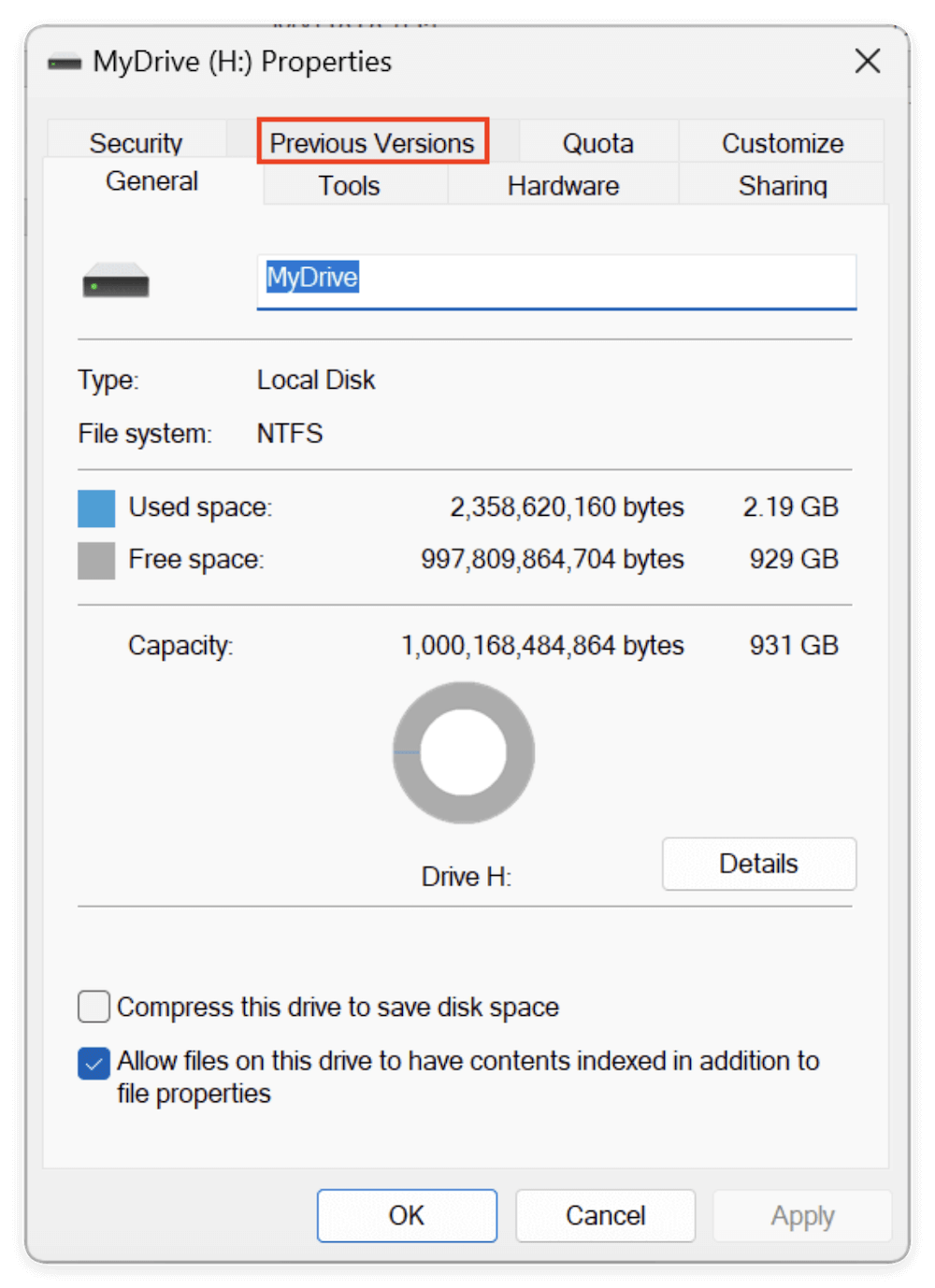
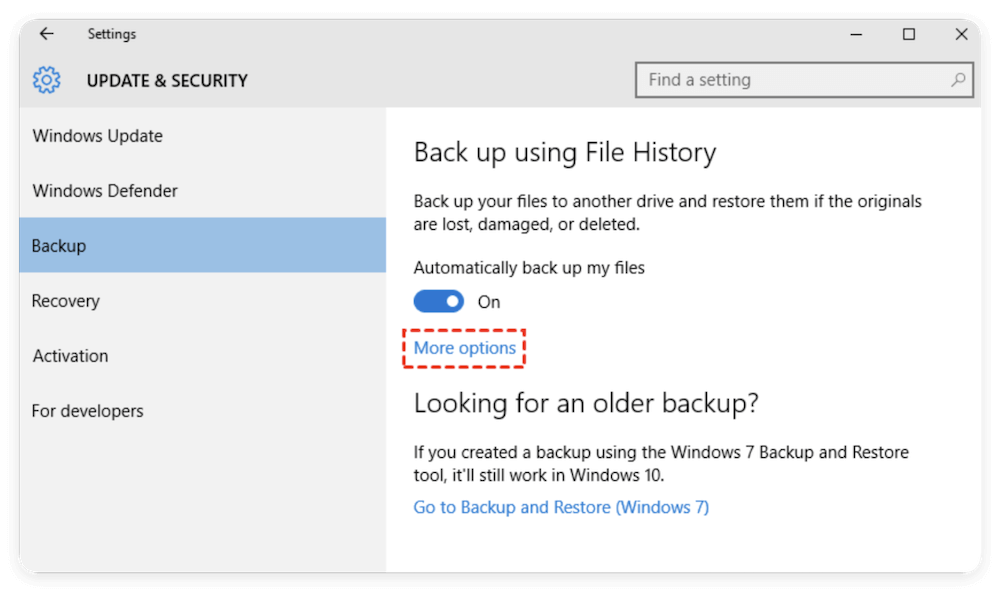
💡 Note: File History must have been activated previously for this method to work. To set it up:
Option 2. Restore Points or System Restore
If File History wasn't enabled, System Restore points may offer another route, although these are designed for system files more than personal documents. Still, it's worth checking if you've recently created a restore point.

Mac computers offer robust backup options through Time Machine:
Option 1. Using Time Machine
If Time Machine was configured:
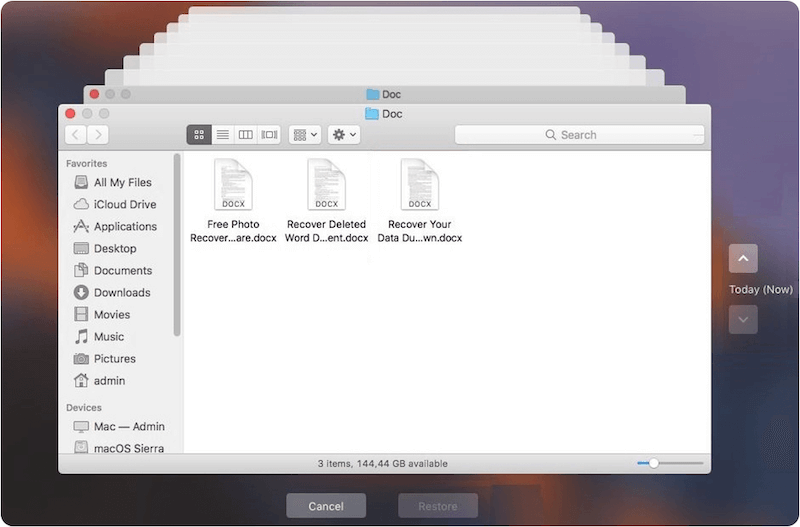
Time Machine captures snapshots of your system, allowing you to recover earlier versions even after overwriting.
Option 2. APFS Snapshots (macOS High Sierra and Later)
For Macs using APFS (Apple File System):
If you're using cloud platforms, version history is often your best friend:
Option 1. Google Drive
Google Drive keeps multiple versions of files:
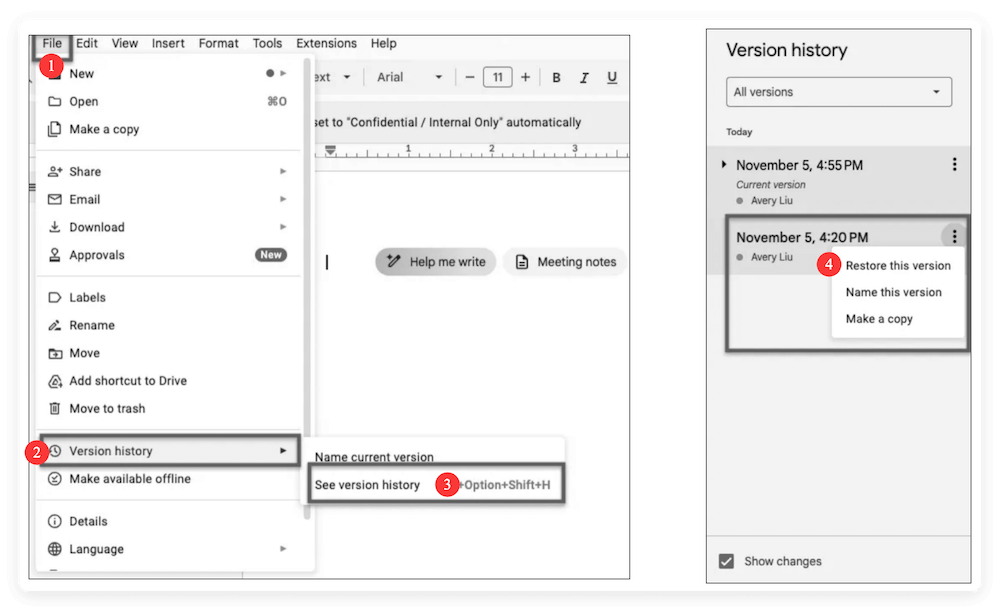
Drive maintains past versions for 30 days or up to 100 versions for free accounts; paid plans offer more flexibility.
Option 2. OneDrive
OneDrive also supports version history:

This works for documents, spreadsheets, presentations, and other files stored in OneDrive.
Option 3. Dropbox
Dropbox maintains up to 30 days of file history for standard accounts (longer for paid plans):
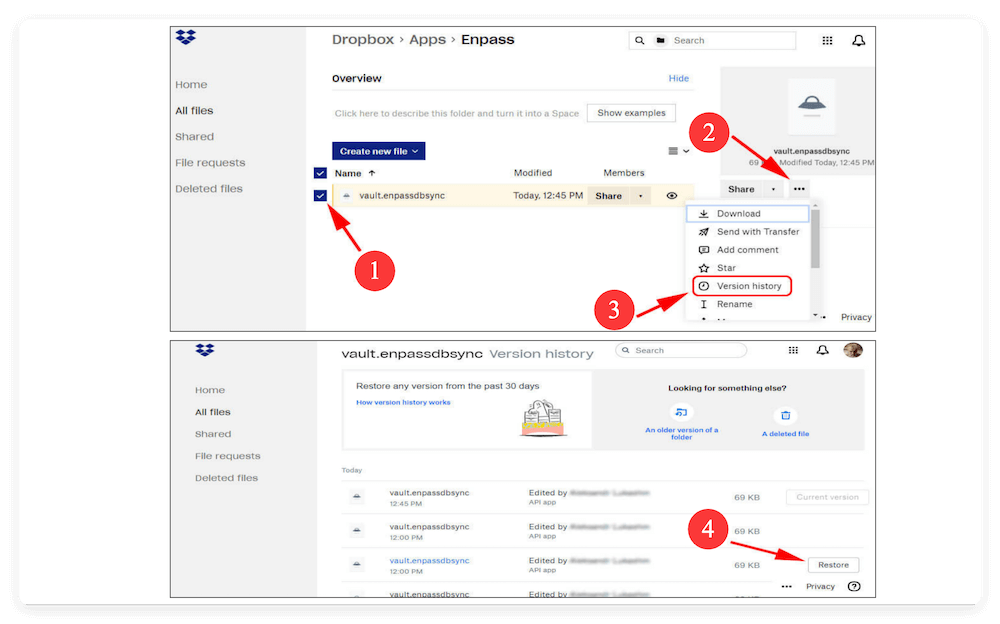
These cloud tools offer convenient, platform-independent recovery solutions, especially useful for collaborative environments.
If your system doesn't have version history enabled and your file wasn't stored on a cloud platform with recovery options, specialized file recovery software becomes your best bet. These tools work by scanning your hard drive for fragments of deleted or overwritten files that still reside in unallocated space on your storage device.
Common Scenarios Where Recovery Software Helps
Once a file is overwritten, chances of recovery diminish the more you use the drive. Stop saving new data to the affected drive immediately. Recovery tools work best if action is taken promptly
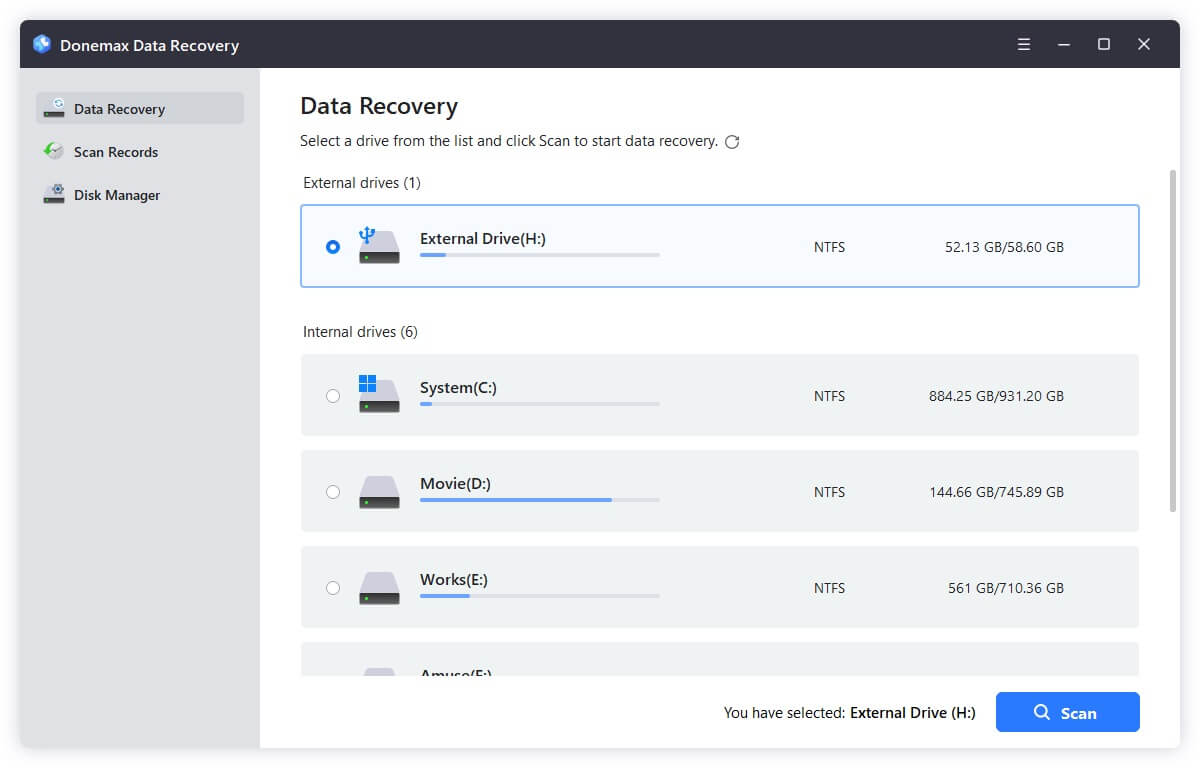
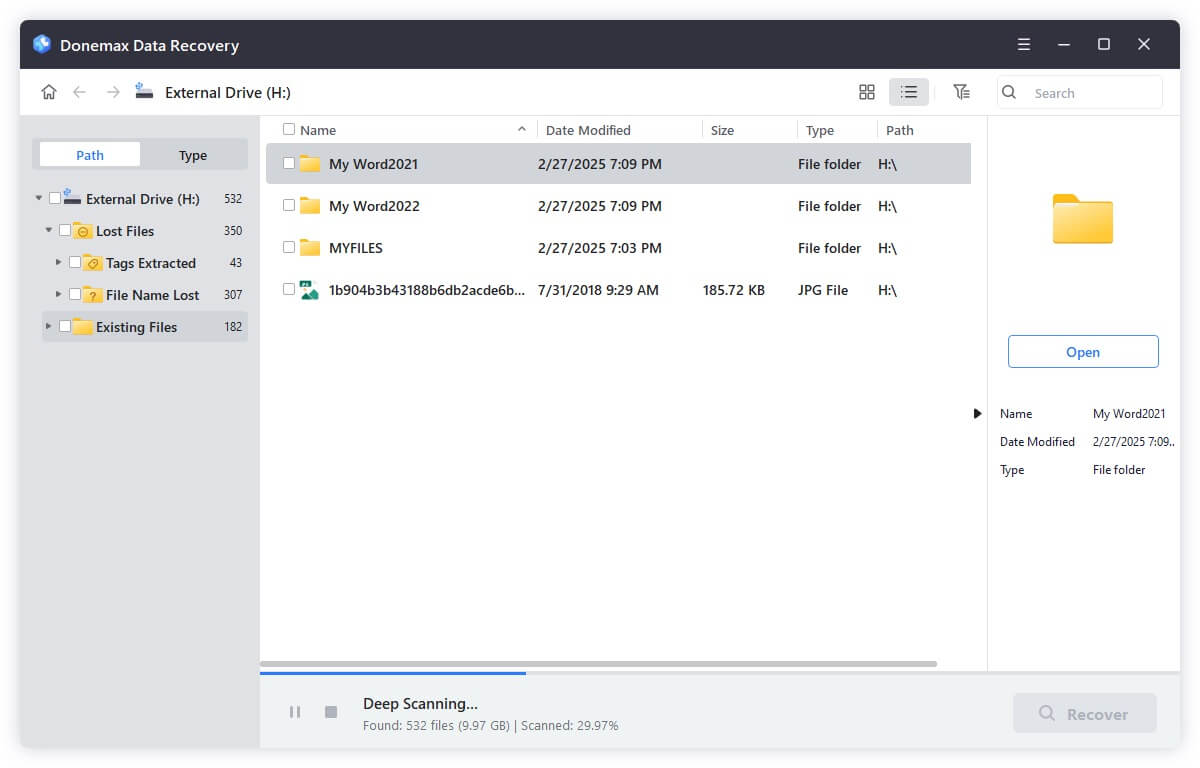
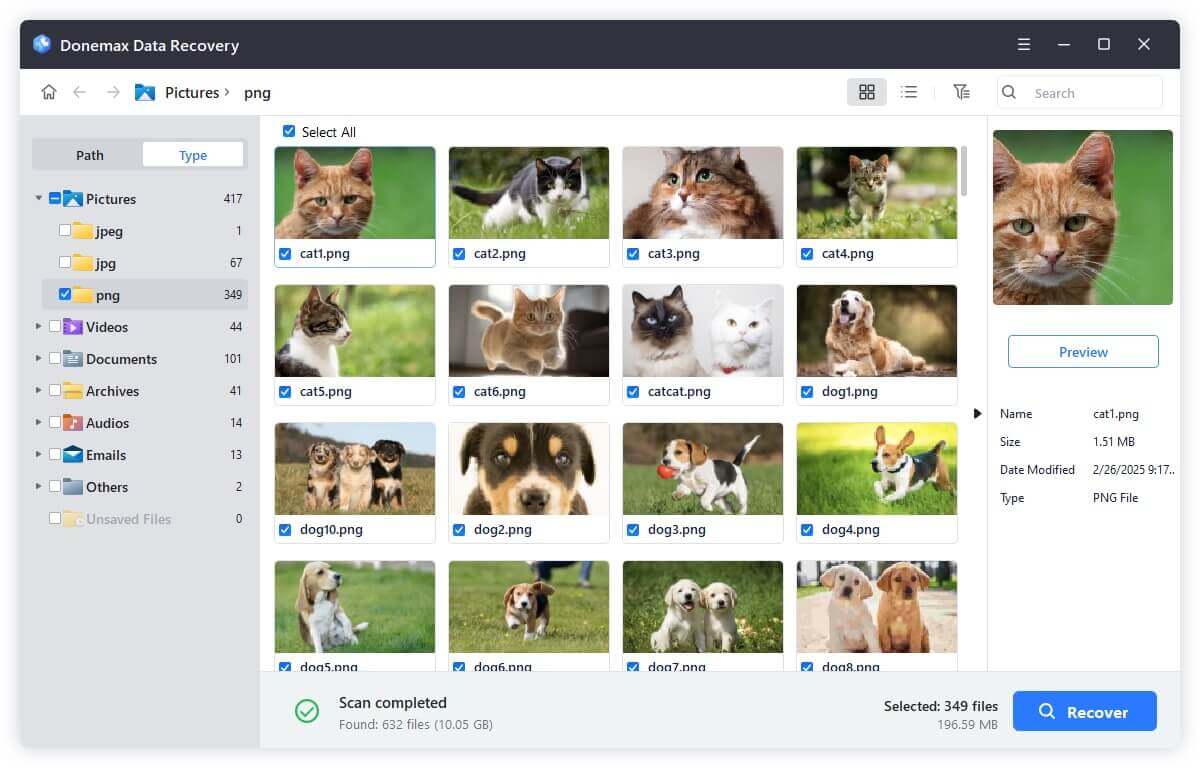
These tools scan for residual file fragments, allowing partial or full recovery, though success isn't guaranteed. You can use the recommended data recovery tool - Donemax Data Recovery (Windows & Mac). The software is easy to use and offers deep scans. The software can recover various file types from internal drives, external disks, etc. You can use the software to recover lost or saved over documents if the sectors haven't been reused.
The software is simple to use. Any user can easily handle it to recover saved over documents or other lost files. Here is a simple guide to use the software:
Tips to Maximize Recovery Success
If the above methods don't work, don't lose hope:
Look for Auto-Save or Temporary Files: Programs like Word and Excel sometimes store temporary backups. Check:
Check Emails and Attachments: You might have emailed the document or shared an earlier version with others
Team Collaboration: Ask colleagues or collaborators if they saved a copy elsewhere
Professional IT Help: If the document is mission-critical, data recovery experts may use advanced tools to retrieve overwritten data
Partial Recovery: In some cases, only portions of the overwritten document are recoverable, but this can still save significant effort
In the worst-case scenario, reconstructing the document manually may be necessary, emphasizing the importance of preventive strategies.
Prevention is the best solution for data loss:
Enable Backups:
Save As for New Versions:
Version Control:
Cloud Storage with Version History:
Regular Exports or Snapshots:
These simple habits can save you from future headaches.
Accidentally saving over a document is stressful, but recovery is often possible with modern systems and tools. Whether you rely on Windows' Previous Versions, macOS Time Machine, or cloud storage version histories, acting quickly increases your chances of success.
Key Takeaways:
By adopting good data management habits today, you can safeguard your documents and avoid costly overwrites in the future.
Donemax Data Recovery
Powerful, safe & easy-to-use data recovery software. Easily and completely recover deleted, formatted, or other lost data. The tool supports PC, Mac, HDD, SSD, USB drive, camera, SD card, RAID and other storage devices.
Christina
Christina is the senior editor of Donemax software who has worked in the company for 4+ years. She mainly writes the guides and solutions about data erasure, data transferring, data recovery and disk cloning to help users get the most out of their Windows and Mac. She likes to travel, enjoy country music and play games in her spare time.
Gerhard Chou
In order to effectively solve the problems for our customers, every article and troubleshooting solution published on our website has been strictly tested and practiced. Our editors love researching and using computers and testing software, and are willing to help computer users with their problems

