
Written byStevenUpdated on Jun 22, 2026

PAGE CONTENT:
So, you downloaded the shiny new macOS 27 Golden Gate beta. You wanted to see all the futuristic features, the new interface tweaks, and the latest smart optimizations. But now, reality has set in. Maybe your absolute favorite work app keeps crashing every ten minutes. Maybe your MacBook's battery life is draining faster than ice cubes melting in the sun. Or perhaps the system lag is just making it impossible to stay productive.
Don't panic! It is completely normal to experience buyer's remorse when dealing with operating system betas. Apple explicitly releases these builds so developers and tech enthusiasts can find bugs—and boy, can they be buggy.

The good news is that you don't have to stay stuck in the Golden Gate beta cycle forever. You can easily roll back to a stable, reliable version of macOS. In this guide, we will walk you through exactly how to uninstall macOS 27 Golden Gate beta and get your Mac back to perfect working order.
Beta versions are notorious for testing your patience. While exploring new tools is fun, standard day-to-day work often requires absolute stability.
Here are the most common reasons users choose to leave the macOS 27 Golden Gate beta program:
Before we talk about formatting hard drives or entering recovery menus, let's establish one non-negotiable rule: you must back up your files.
Uninstalling a major operating system beta involves completely wiping your Mac's startup drive. If you do not create a safe backup, you will lose every single photo, document, password, and file currently stored on your computer.
Keep in mind that Time Machine backups created while running macOS 27 Golden Gate beta cannot be directly restored onto older macOS versions. However, your individual files can still be manually moved back later.
We highly recommend using a reliable external drive or cloning software like Donemax Disk Clone for Mac to securely clone your system files, documents, and assets to an external storage drive. Once your files are safe, you are ready to move forward.
The standard way to revert your Mac to a stable operating system is by utilizing the built-in macOS Recovery system.
Step 1: Enter macOS Recovery Mode
First, turn off your Mac completely. Once it shuts down, follow the instructions that match your hardware:
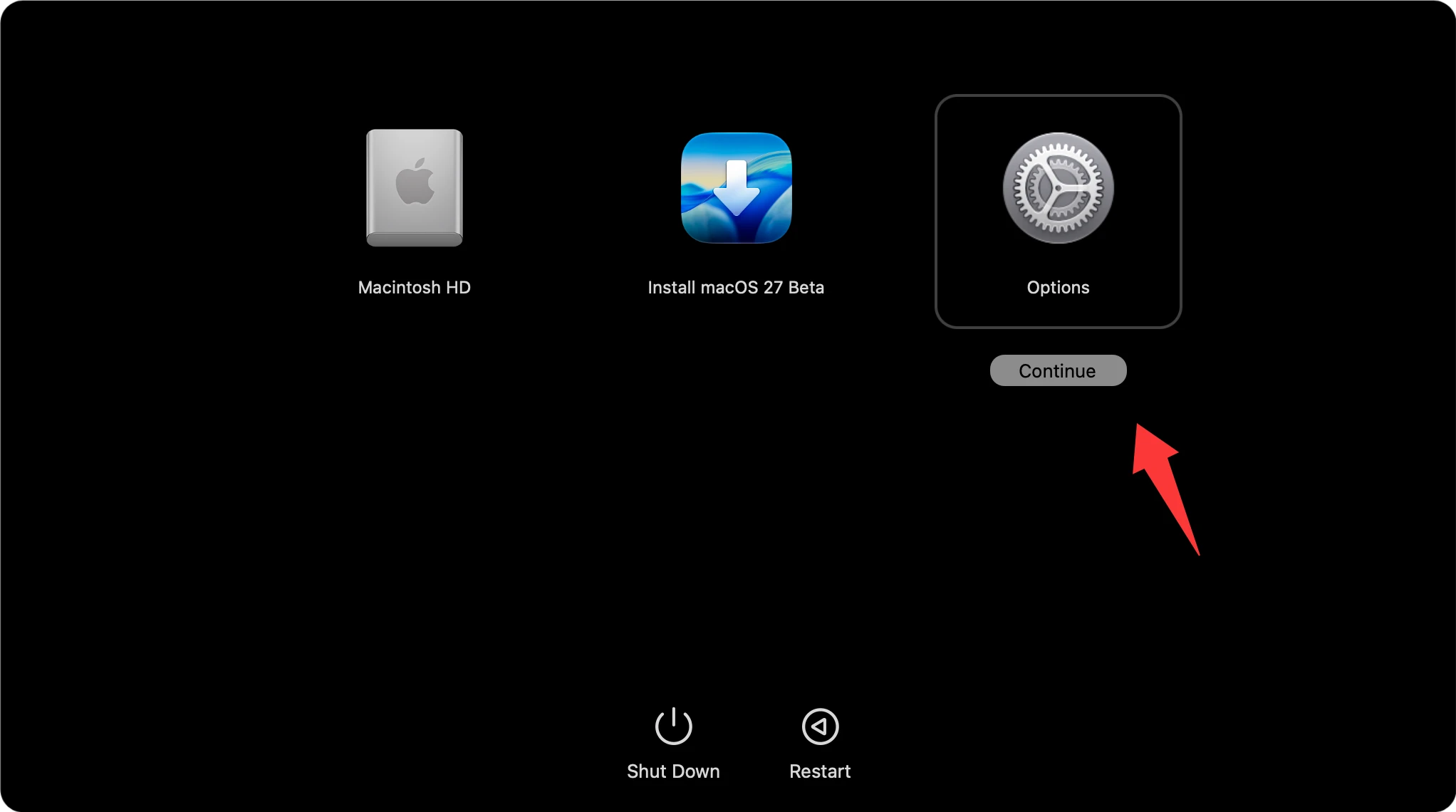
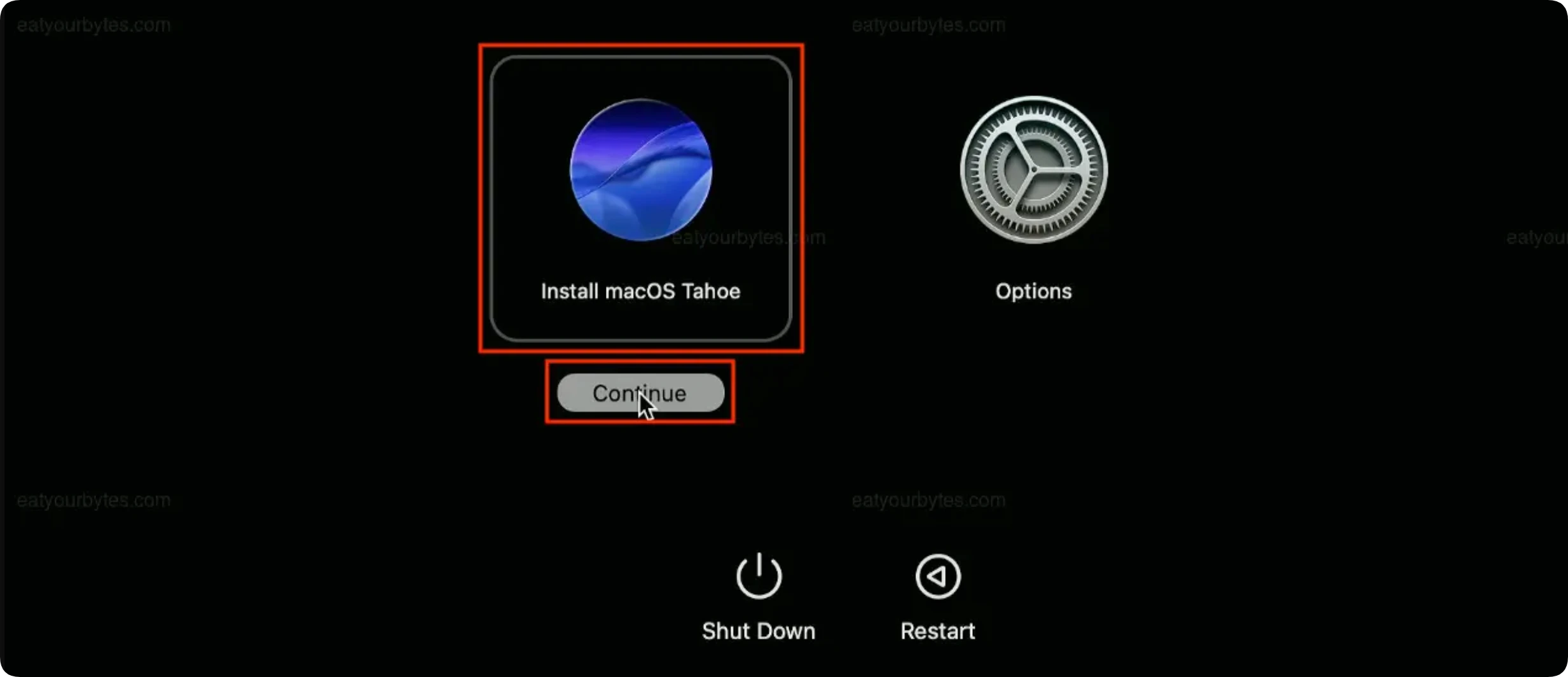
Press and hold the Power button. Keep holding it down until you see 'Loading startup options' appear on the screen. Select Options and click Continue.
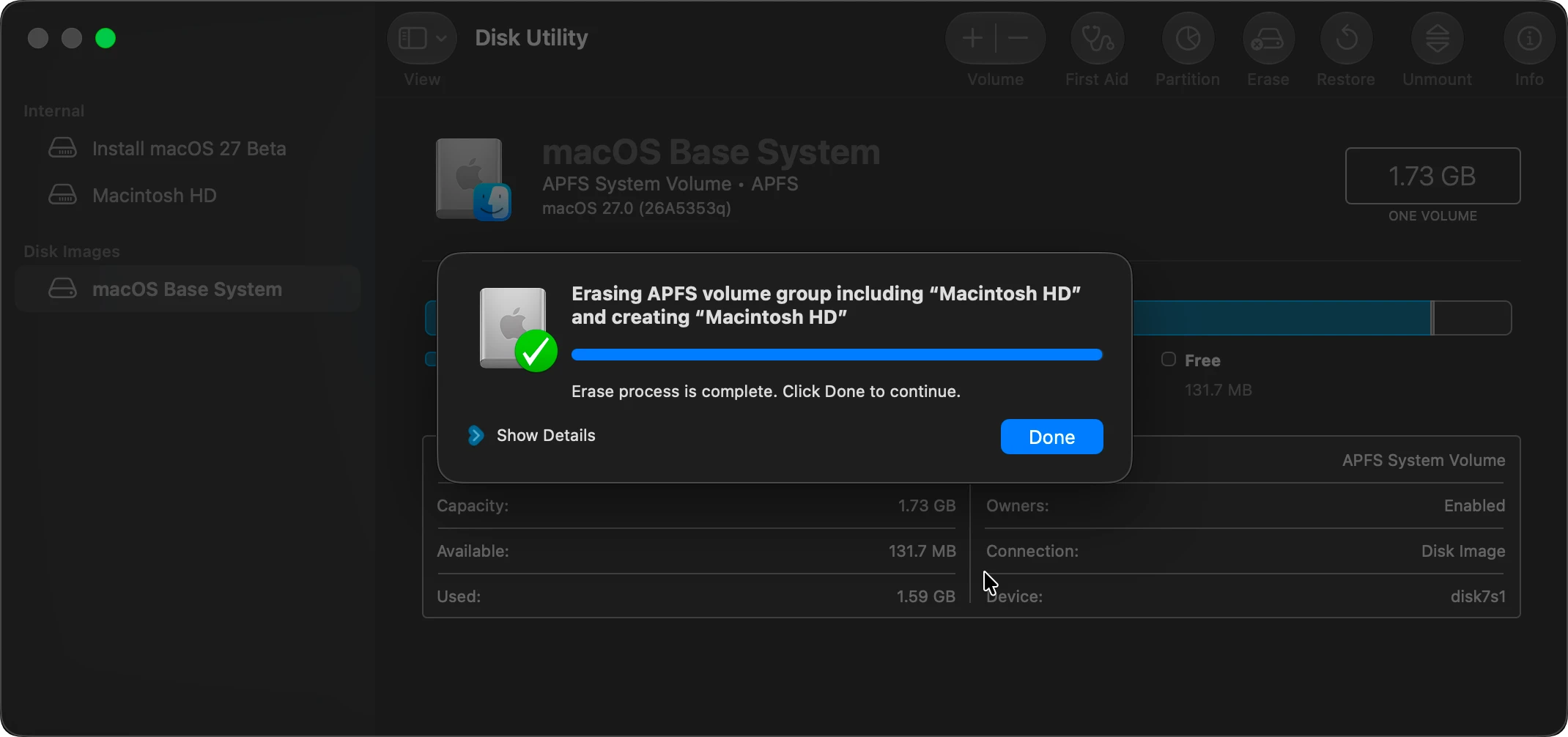
Step 2: Wipe the Startup Drive Using Disk Utility
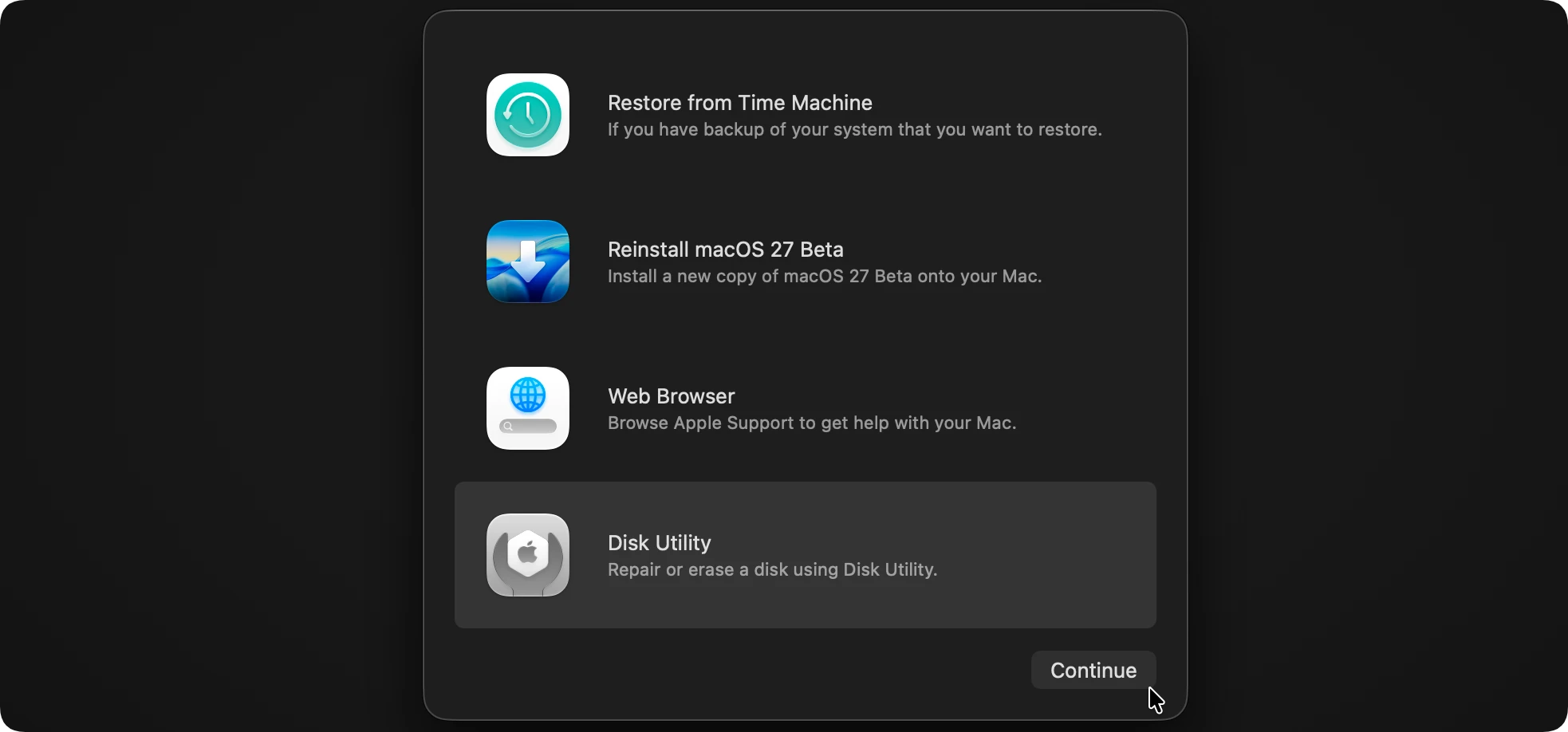
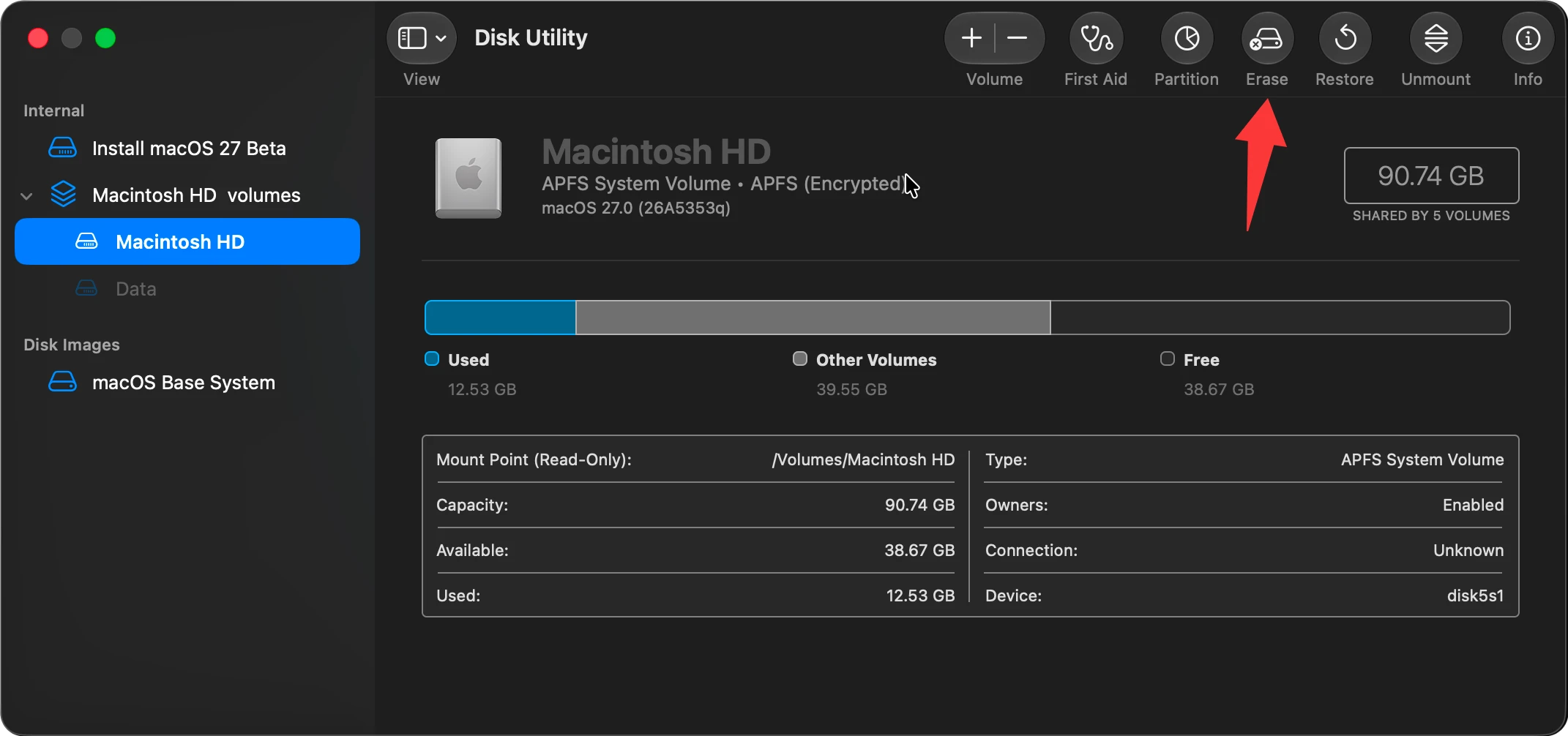
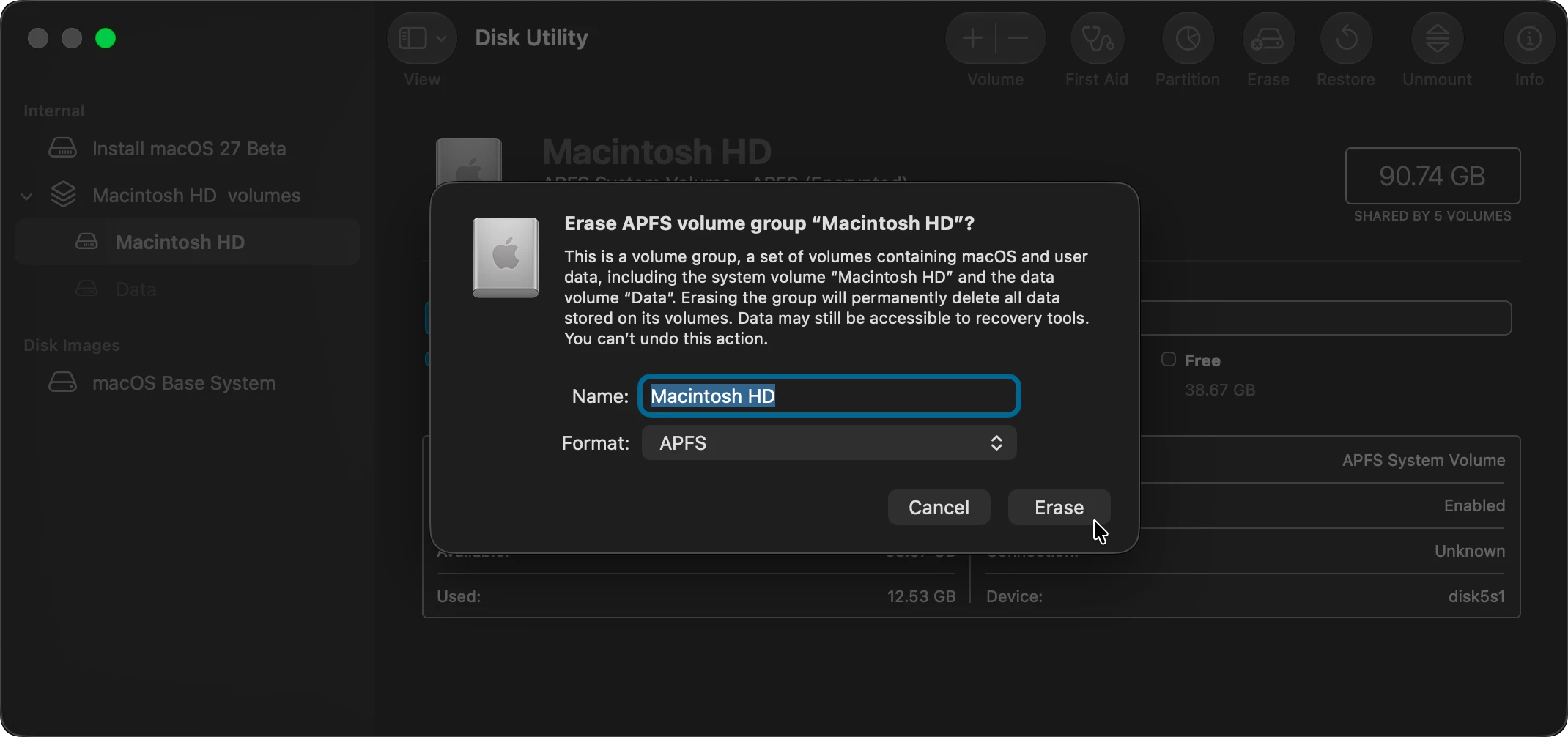
Once the macOS Recovery window loads up, you will see a list of utility tools. We need to clear out the beta operating system completely.
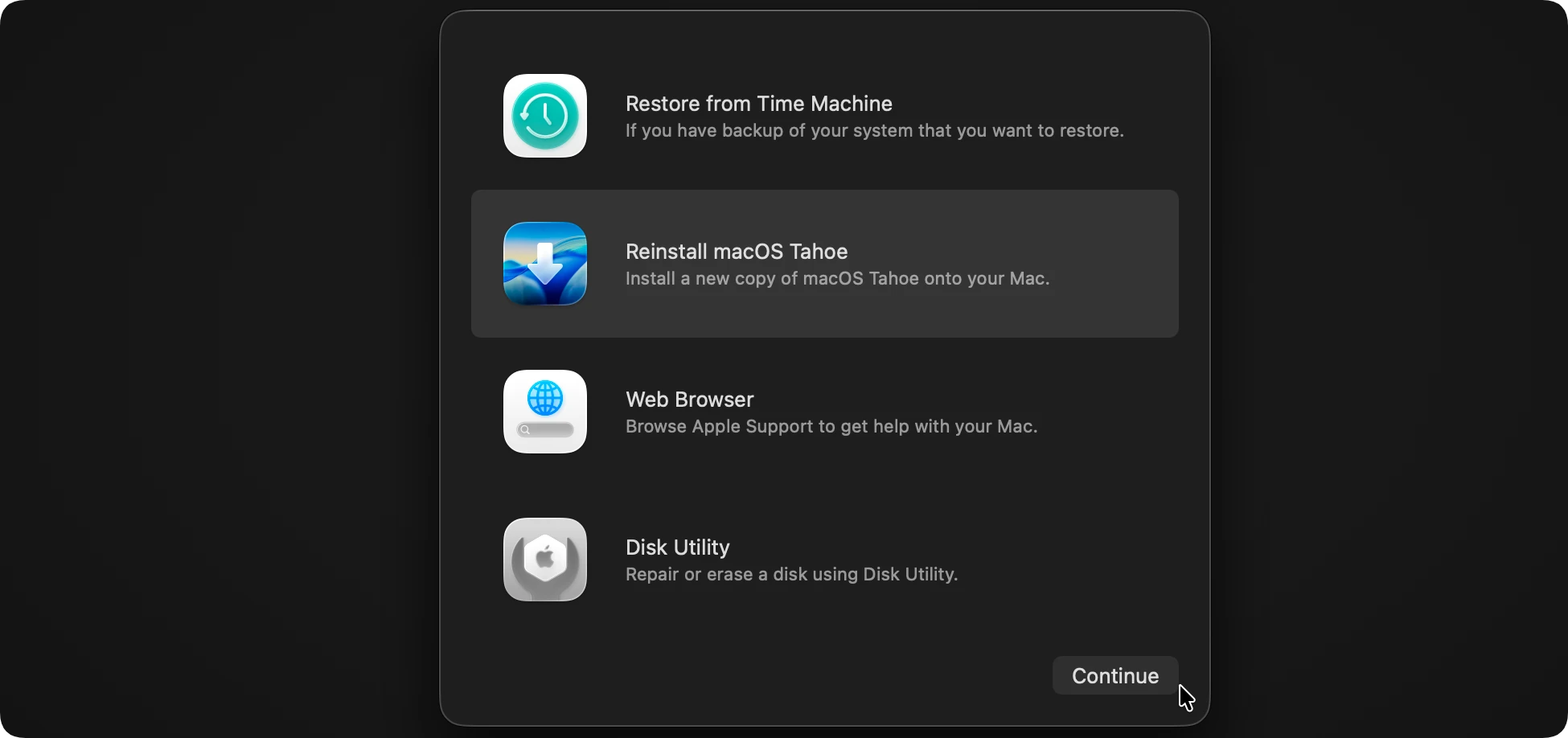
Step 3: Reinstall a Stable version of macOS
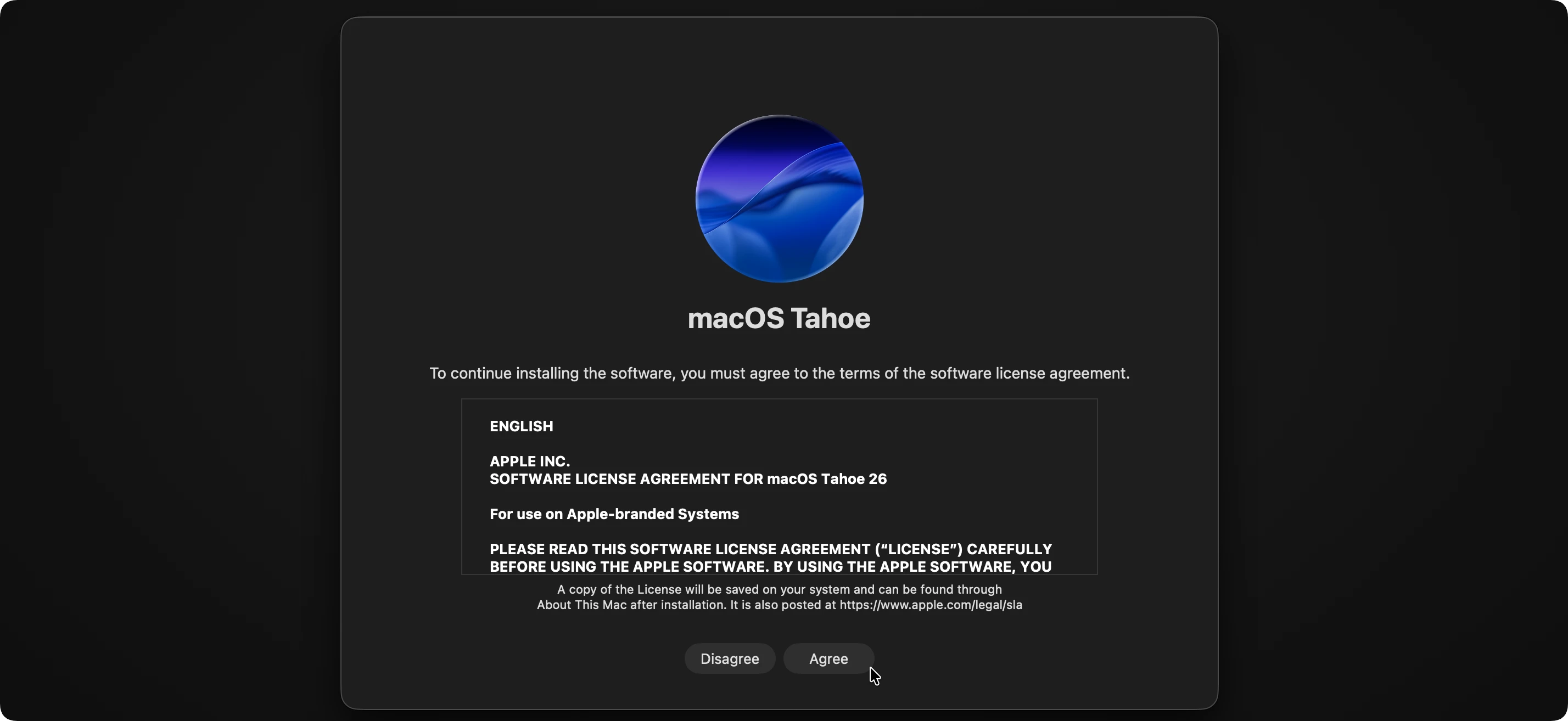
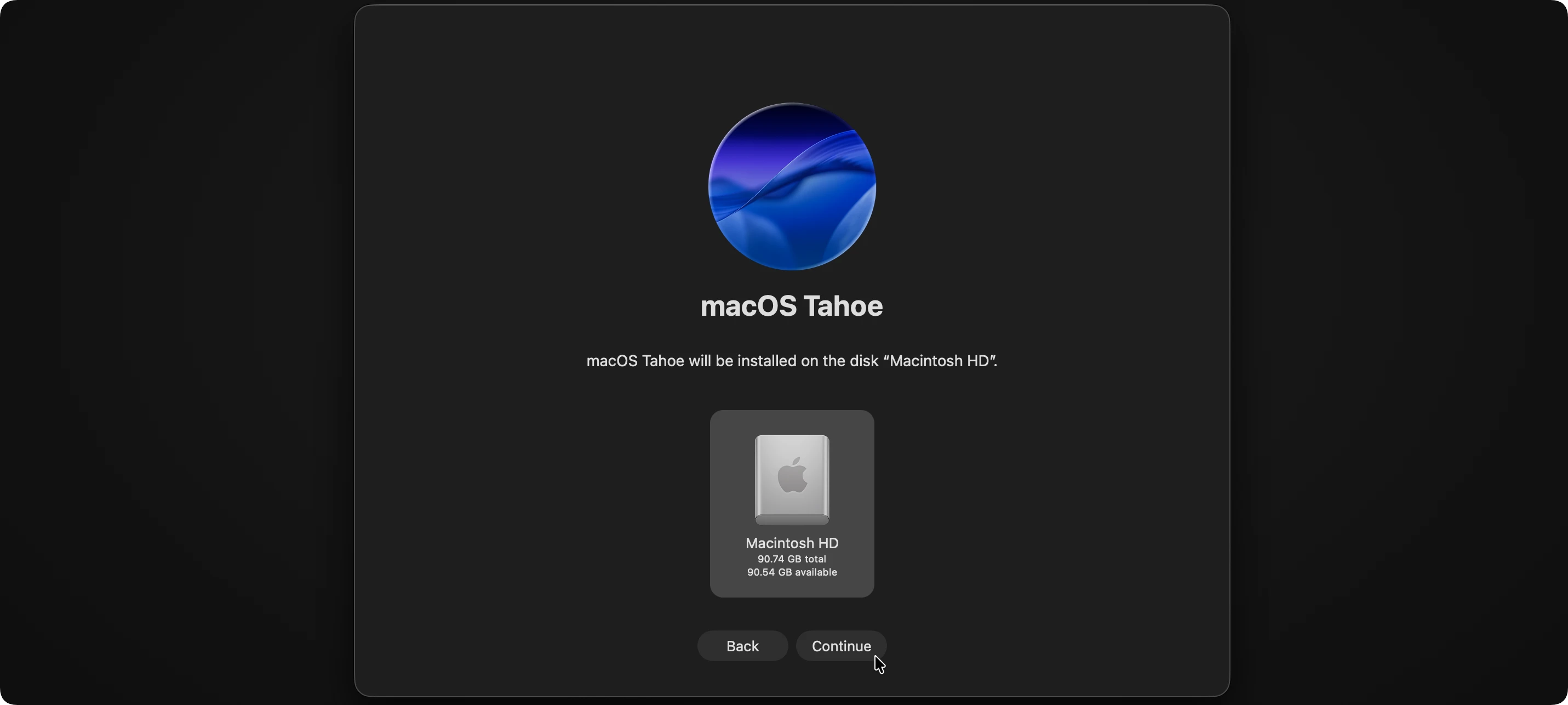
With a freshly wiped hard drive, you can now install a stable operating system version.
If the standard Recovery Mode method fails or doesn't offer the exact older version of macOS you want, your best alternative is using a bootable USB flash drive installer. This is widely considered the cleanest and most reliable way to perform a downgrade.
What You Will Need:
Step 1: Download the Stable macOS Installation File
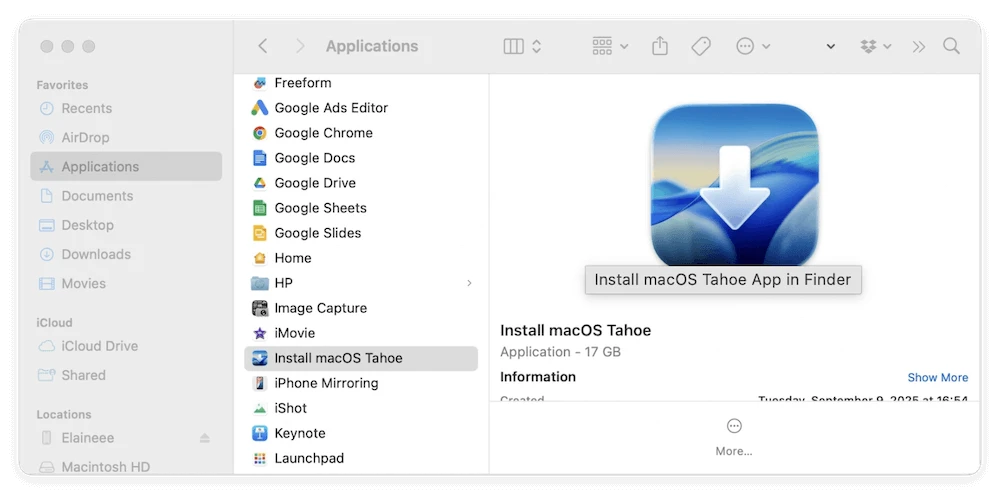
Open the Mac App Store on a machine running a regular operating system (or download it before wiping your current Mac). Search for the previous stable macOS version, such as macOS 26 or 15, and download the full installer installer package. Do not run the installer when it finishes downloading; just keep it in your Applications folder.
Step 2: Create the Bootable USB Drive
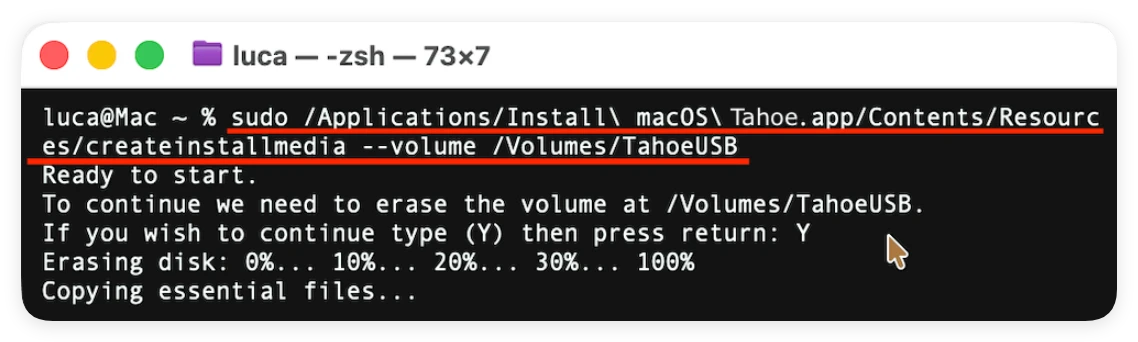
Connect your blank USB flash drive to your Mac. Open the Terminal application and copy-paste the appropriate creation command for your downloaded OS version. The command typically looks like this:
sudo /Applications/Install\ macOS\ [VersionName].app/Contents/Resources/createinstallmedia --volume /Volumes/[YourUSBName]
Press Enter, type your Mac's administrator password, and press Enter again. Type 'Y' to confirm that you want to format the flash drive. Wait for the Terminal window to show that the media creation process is 100% complete.
Step 3: Boot From the USB Drive and Install
Now, plug your newly created bootable USB drive into the Mac you want to downgrade.
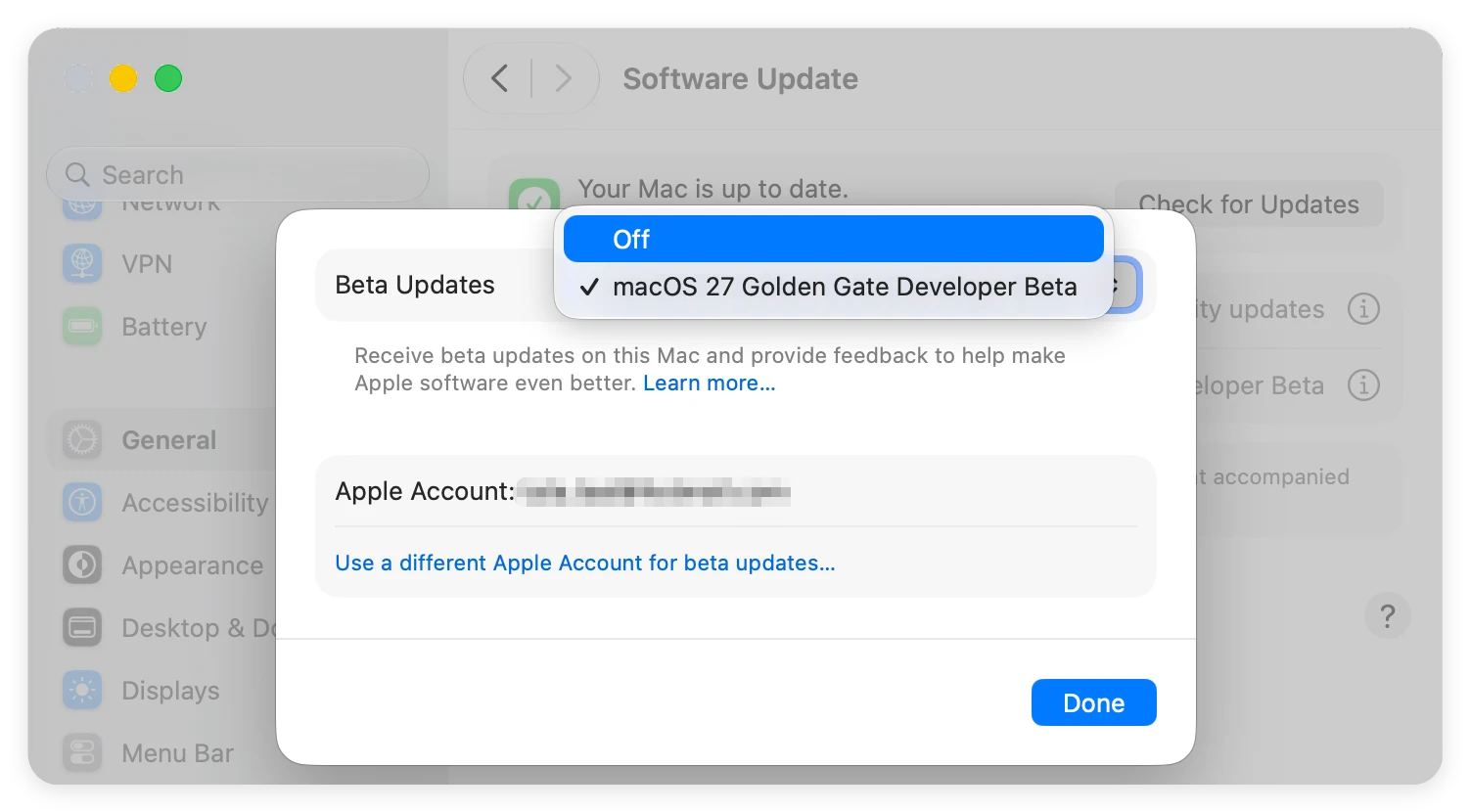
Once you are back on a stable version of macOS, you'll want to make sure your computer doesn't automatically download the next macOS 27 Golden Gate beta patch.
To stop getting beta update notifications, follow these quick steps:
Trying out a brand new operating system like macOS 27 Golden Gate beta is always exciting, but the bugs can quickly wear out their welcome. Fortunately, resetting your Mac back to a stable, reliable state is a straightforward process when you follow the right steps.
Just remember to back up your data, pick your preferred downgrade method, and turn off your beta profile updates in System Settings. Enjoy your clean, fast, and stable Mac environment!
Donemax Disk Clone for Mac
An award-winning disk cloning program to help Mac users clone HDD/SSD/external device. It also can create full bootable clone backup for Macs.
Steven
Steven has been a senior writer & editor of Donemax software since 2020. He's a super nerd and can't imagine the life without a computer. Over 6 years of experience of writing technical solutions and software tesing, he is passionate about providing solutions and tips for Windows and Mac users.
Gerhard Chou
In order to effectively solve the problems for our customers, every article and troubleshooting solution published on our website has been strictly tested and practiced. Our editors love researching and using computers and testing software, and are willing to help computer users with their problems

