
Written byStevenUpdated on Jul 06, 2026

Before we start: Whether you are cleaning out old financial reports, clearing personal identity documents, or wiping an external drive on macOS 27 Golden Gate before giving it to a friend, Donemax Data Eraser for Mac provides ultimate peace of mind.
PAGE CONTENT:
Apple's latest macOS 27 Golden Gate brings incredible new upgrades to our desktop experience. From the enhanced Siri powered by advanced on-device artificial intelligence to the beautifully refined 'Liquid Glass' UI adjustments, it is truly a massive step forward. But with all these modern improvements, one classic issue remains exactly the same: how we handle file privacy and data security.
When you delete a sensitive document, a private financial statement, or confidential work pictures from your Mac, you probably assume they are gone forever the moment you clear them. Unfortunately, that is far from the truth.
If you are looking for the best ways to completely shred files on macOS 27 Golden Gate so that nobody can ever recover them, you have come to the right place. In this conversational guide, we will break down how standard file deletion works on the new operating system, look at common built-in methods, and show you why a professional tool is required if you want your files gone for good.
Let's look at the built-in options that most daily users rely on to clear out clutter on macOS 27 Golden Gate. While these methods are great for everyday organization, it is important to understand their security limitations.
The most traditional method is dragging your file to the Trash icon on your Dock, or pressing Command + Delete on your keyboard. To take it a step further, you can right-click the Trash and choose 'Empty Trash.'
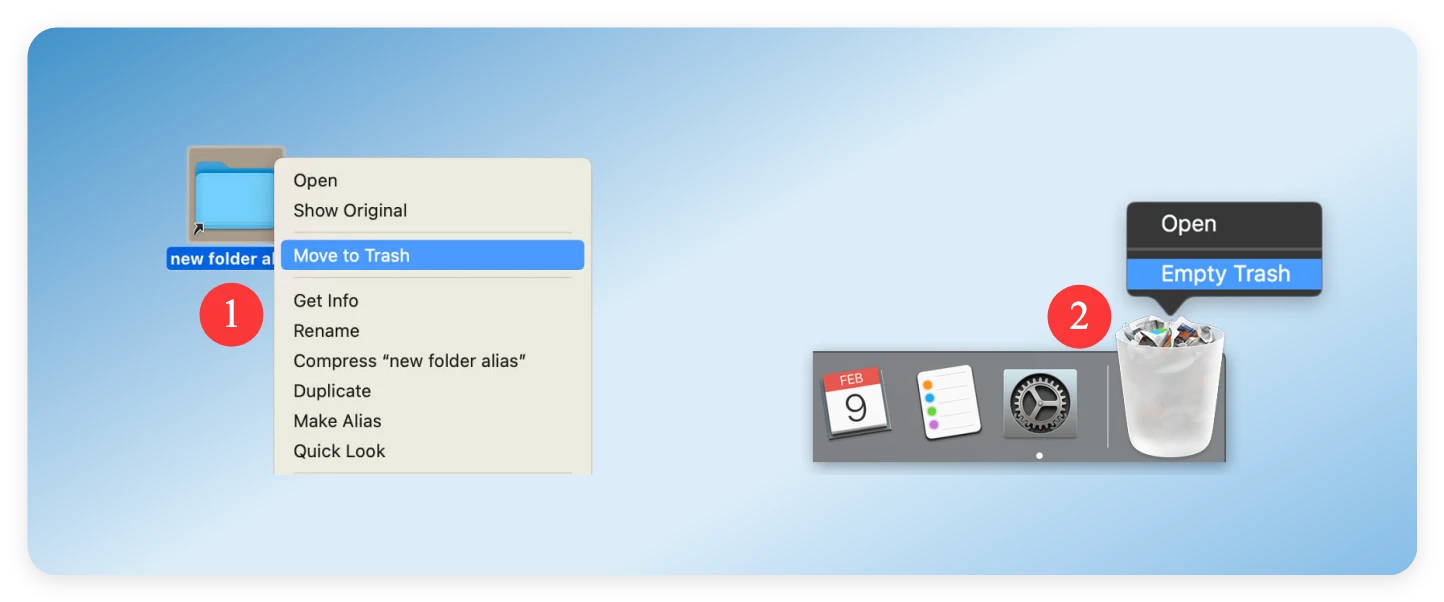
While this hides the file from your Finder window and frees up space on your desktop, it does absolutely nothing to overwrite the actual data blocks on your drive. The file stays fully retrievable behind the scenes.
To bypass the Trash can altogether, macOS allows you to select a file and press Command + Option + Delete. A prompt will appear asking if you want to delete the file immediately.
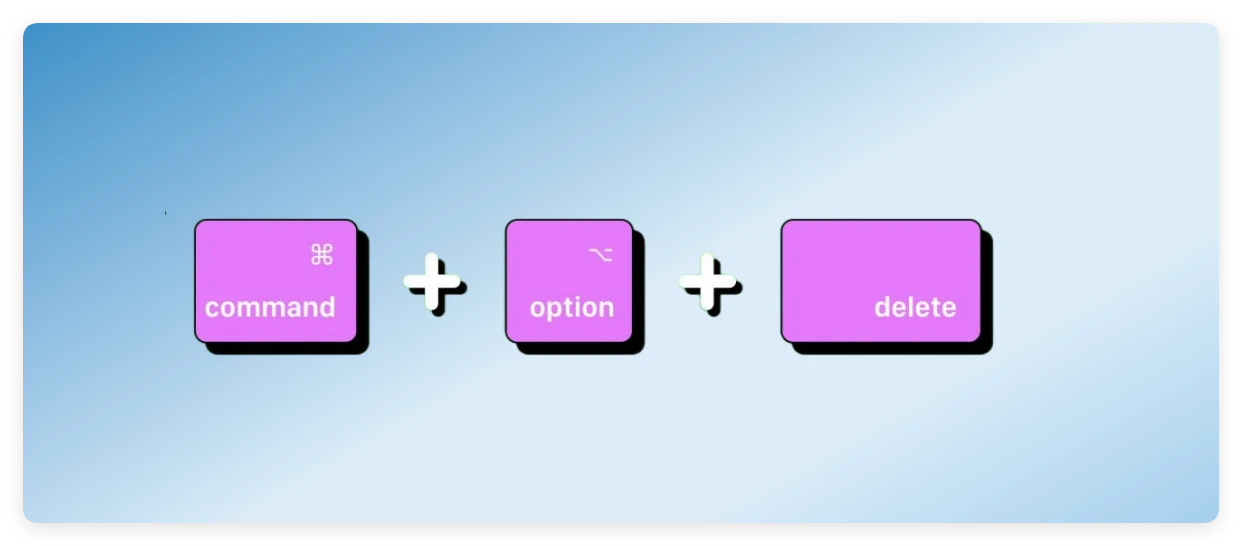
This is highly convenient because it skips the middleman. However, under the hood, it performs the exact same action as emptying the trash: it removes the index pointer but leaves the raw content of the file sitting in the background until it is naturally overwritten.
Some users open the built-in Disk Utility application to wipe entire external hard drives or partition volumes. While Disk Utility is excellent for formatting drives to start fresh, it doesn't give you a dedicated file shredder tool for individual files or folders. Furthermore, due to how modern Apple Silicon storage and modern SSDs handle wear leveling, standard formatting rarely guarantees complete file destruction at the physical layer.
Let's talk about what actually happens when you remove a file on your Mac. When you click 'Delete' or move an item into your folder system, macOS 27 Golden Gate does not immediately erase the binary bits and bytes from your solid-state drive (SSD) or external hard disk.
Instead, the operating system simply does a bit of digital housekeeping. It deletes the pointer to that specific file and marks the storage space it occupied as 'free space.' This tells your Mac that it is perfectly fine to write new information over that exact location whenever it needs to.
Until your Mac actually writes new data over that specific spot, the original file remains fully intact, hidden in the background. Anyone with basic, readily available data recovery software can scan your drive, find these invisible files, and restore them completely within minutes. This represents a massive privacy risk if you are selling your Mac, passing it on to a colleague, or sending it in for repairs.
If you have been a longtime Mac user, you might remember a feature called 'Secure Empty Trash' or the command-line 'srm' utility from older versions of OS X. These tools would actively overwrite files with random characters before deleting them.
Why did Apple remove them? The change happened because of the transition to Solid State Drives (SSDs) and Apple Silicon architecture, which is fully universal in macOS 27 Golden Gate. SSDs use complex controllers with features like wear leveling to distribute write operations evenly across the drive. Traditional single-file overwriting commands can actually cause unnecessary wear on the drive without guaranteed success of hitting the exact physical sector.
Because of this, macOS 27 Golden Gate does not offer a native, built-in file shredder tool for daily users. If you need to make absolutely certain that your private data cannot be un-deleted, you need a specialized solution.
When manual deletion isn't enough, the safest and most reliable way to handle private files is using a dedicated professional utility. Donemax Data Eraser for Mac is fully optimized and compatible with the latest macOS 27 Golden Gate operating system.
Donemax Data Eraser for Mac utilizes military-grade data overwriting algorithms. It systematically replaces your targeted files, folders, or entire storage partitions with multiple passes of randomized code. Once the shredding process finishes, the original structural fragments are completely destroyed, making data recovery completely impossible.
Using professional data erasure tools does not have to be confusing or highly technical. Donemax Data Eraser for Mac features a streamlined, clean interface designed for everyone. Here is how easy it is to use:
Step 1: Download and install Donemax Data Eraser for Mac on your computer. Launch the application from your Applications folder or Launchpad. From the clear navigation sidebar on the left-hand side of the main window, select the 'Erase Files/Folders' mode.
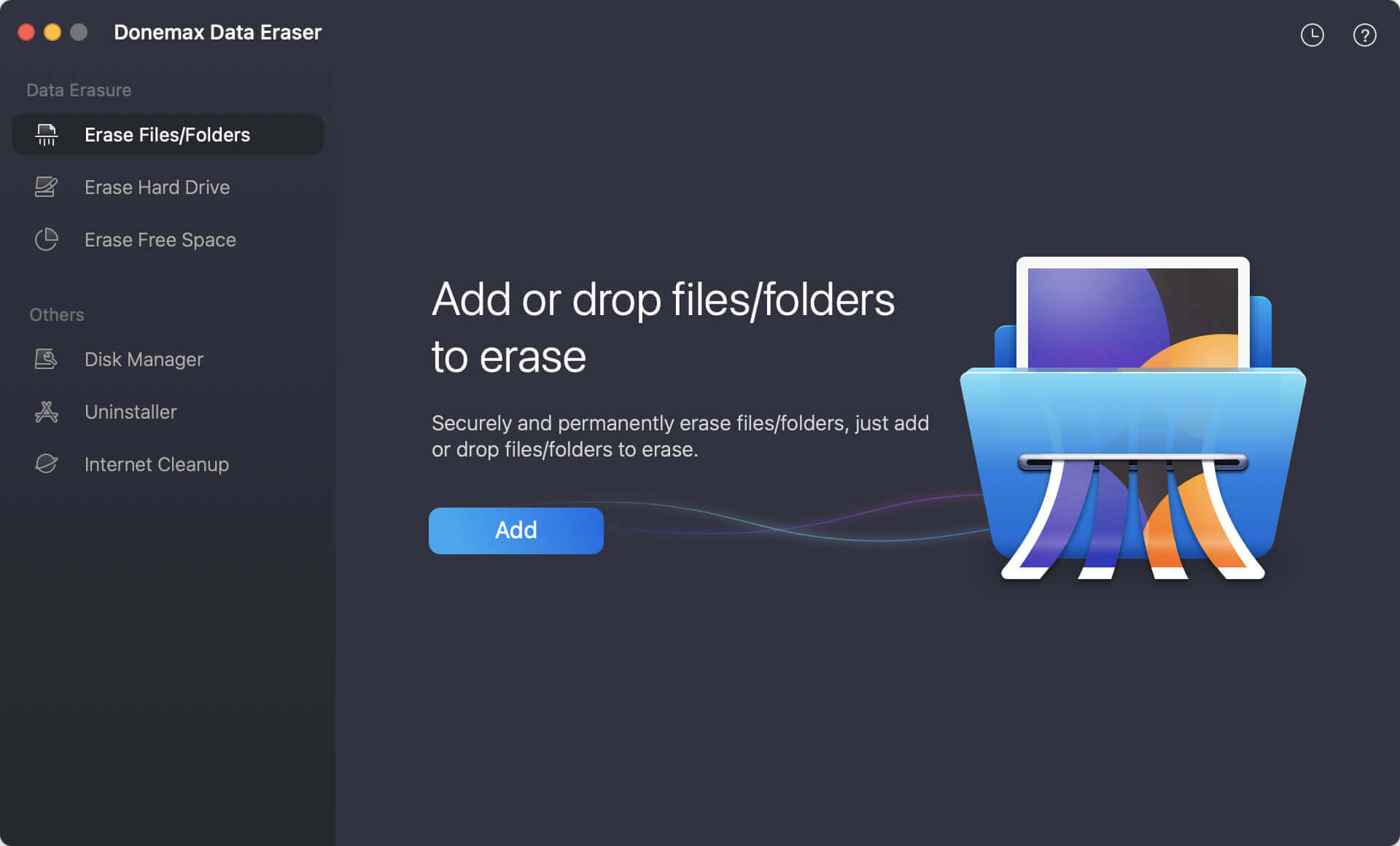
Step 2: Click the 'Add' button to browse your Mac and choose the specific files or folders you want to delete forever. Alternatively, you can simply drag and drop them directly into the application pane.
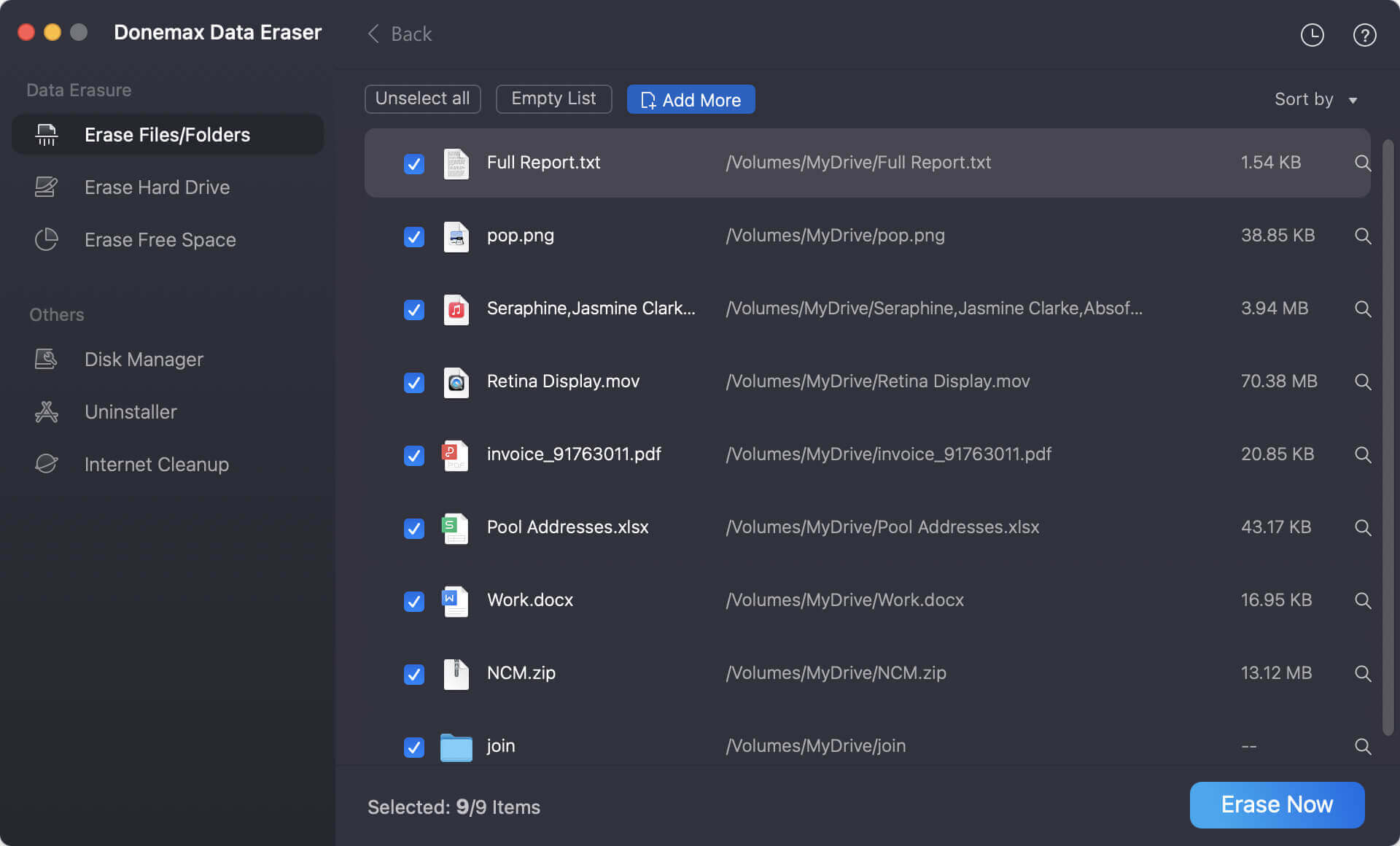
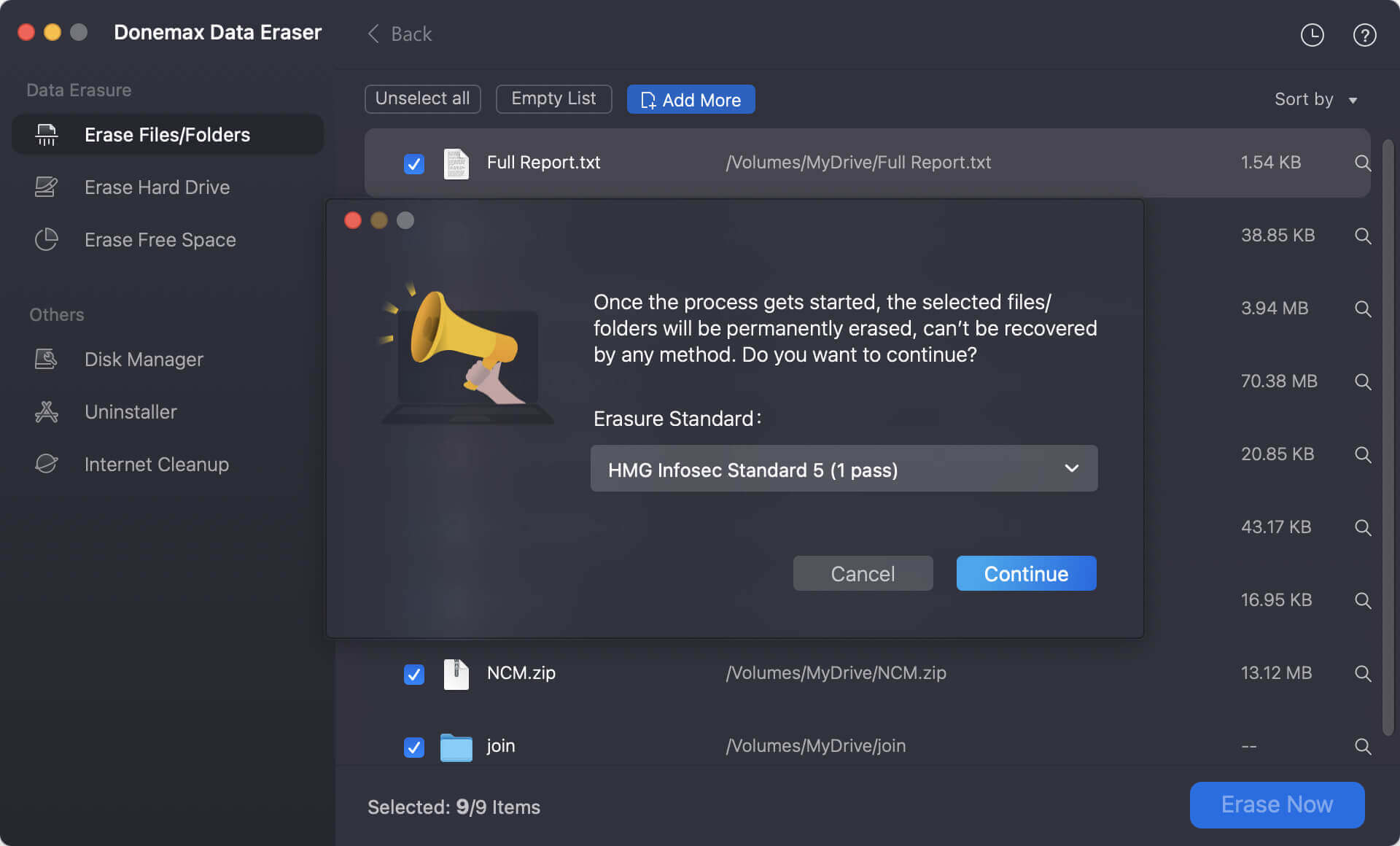
Step 3: Review your list to ensure you have selected the correct files. Once confirmed, click the prominent 'Erase Now' button. Select your preferred data wiping standard from the list and hit Continue. The software will instantly shred the files permanently.
Keeping your private data safe shouldn't feel like a guessing game. While macOS 27 Golden Gate provides excellent tools for everyday task management and beautiful layout customizability, its standard file deletion methods leave behind hidden trails that can compromise your privacy.
Taking a brief moment to shred files on macOS 27 Golden Gate with a professional utility like Donemax Data Eraser for Mac ensures that your deleted information stays strictly private. Protect your data identity today by taking full control over your Mac's digital footprint.
Donemax Data Eraser for Mac
100% safe and powerful Mac data erasure program. It offers certified data erasure standards including U.S. Army AR380-19, DoD 5220.22-M ECE to securely and permanently erase data from Mac HDD/SSD and external storage devices, making data recovery impossible.
Steven
Steven has been a senior writer & editor of Donemax software since 2020. He's a super nerd and can't imagine the life without a computer. Over 6 years of experience of writing technical solutions and software tesing, he is passionate about providing solutions and tips for Windows and Mac users.
Gerhard Chou
In order to effectively solve the problems for our customers, every article and troubleshooting solution published on our website has been strictly tested and practiced. Our editors love researching and using computers and testing software, and are willing to help computer users with their problems