
Written byChristinaUpdated on Jul 22, 2026

Before we start: How to back up M4 Mac mini fully to SSD? It's highly suggested to use the software Donemax Disk Clone for Mac. It can not only clone the data, but also the system to SSD. It can help you create a completely and bootable clone backup for your Mac.
PAGE CONTENT:
The new M4 Mac mini is a compact powerhouse. Its small size and incredible performance make it a favorite for tech lovers, creators, and everyday users. However, internal storage on base models fills up quickly. Photos, video files, music projects, and software updates can easily consume your built-in drive in no time.
Upgrading the internal storage on an Apple Silicon Mac after buying it is practically impossible because the storage components are soldered onto the board. Fortunately, there is a simple and cost-effective fix. You can clone M4 Mac mini to SSD. Creating a bootable SSD clone lets you expand your space, speed up your workflow, and build an exact copy of your system for safe keeping.
Cloning your system is different from making a standard backup or dragging files to a flash drive. When you clone M4 Mac mini to SSD, you copy everything. This includes macOS, your apps, settings, system preferences, personal files, and hidden user data.
Here are the top reasons why cloning your M4 Mac mini is a smart move:
Before you begin the process to clone M4 Mac mini to SSD, make sure you have the right tools ready. Having everything set up beforehand guarantees a smooth and hassle-free cloning process.
Apple's built-in tools like Disk Utility do not offer an easy way to create a bootable system clone on modern Apple Silicon Macs. Because Apple Silicon devices rely on secure boot chips (T2/M-series secure enclave), standard disk copying tools often fail to create bootable external drives.
This is where Donemax Disk Clone for Mac shines. Designed specifically for macOS, Donemax Disk Clone for Mac fully supports Apple M1, M2, M3, and the latest M4 chips, as well as macOS Sequoia.
Key benefits of using Donemax Disk Clone for Mac include:
Follow these simple steps to clone M4 Mac mini to SSD using Donemax Disk Clone for Mac.
Step 1: Connect and Format Your External SSD
Connect your external SSD to your M4 Mac mini using a high-speed Thunderbolt or USB-C cable.
💡 Note: When cloning to the SSD, the data on SSD will be overwritten. So check if there are important files and back up them first if necessary.
Step 2: Download and Launch Donemax Disk Clone for Mac
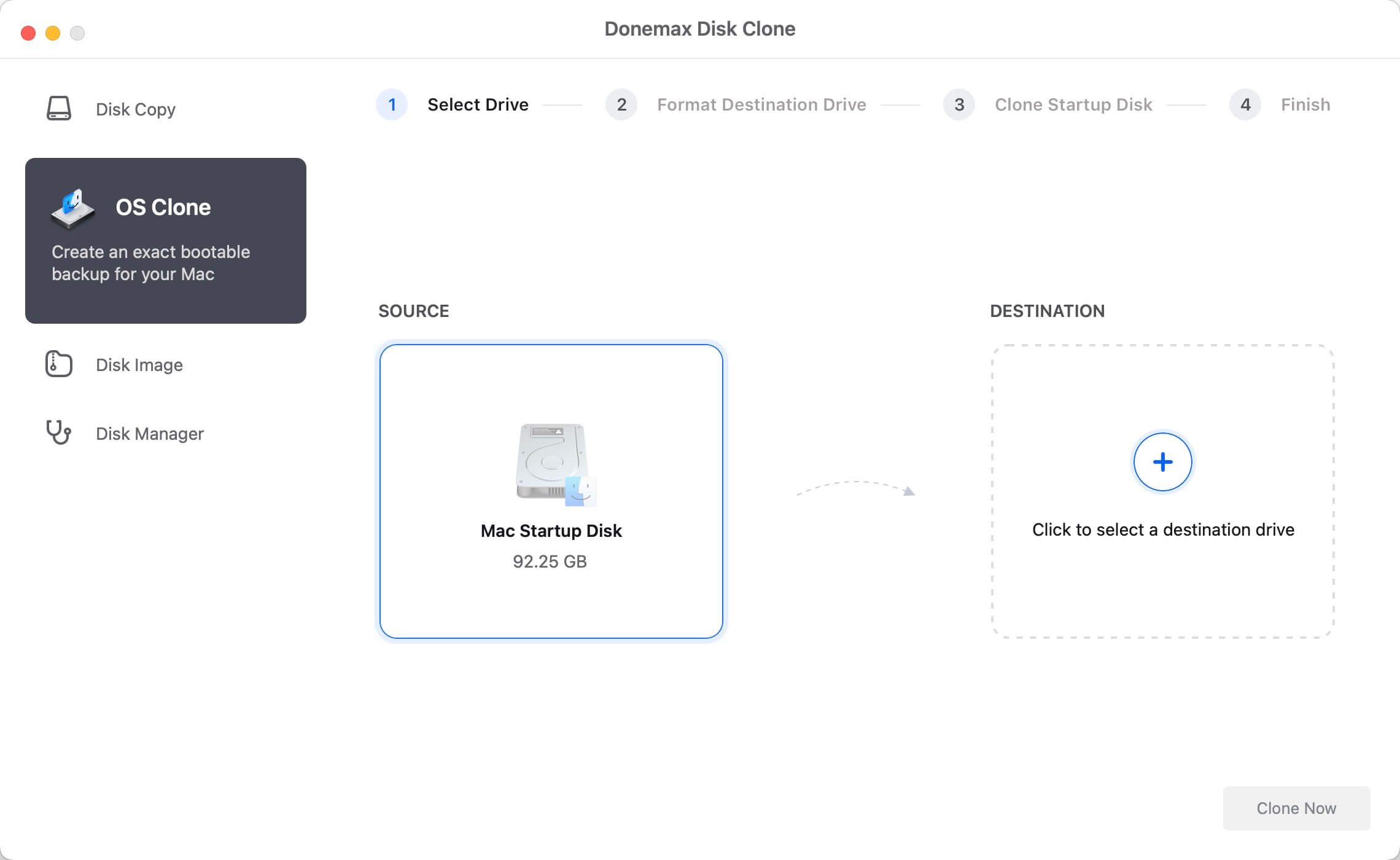
Download Donemax Disk Clone for Mac from the official Donemax website and install it on your M4 Mac mini. Launch the software. On the main menu, select the OS Clone feature. This mode is designed to clone your operating system and create a bootable SSD.
Step 3: Select Your Target External SSD
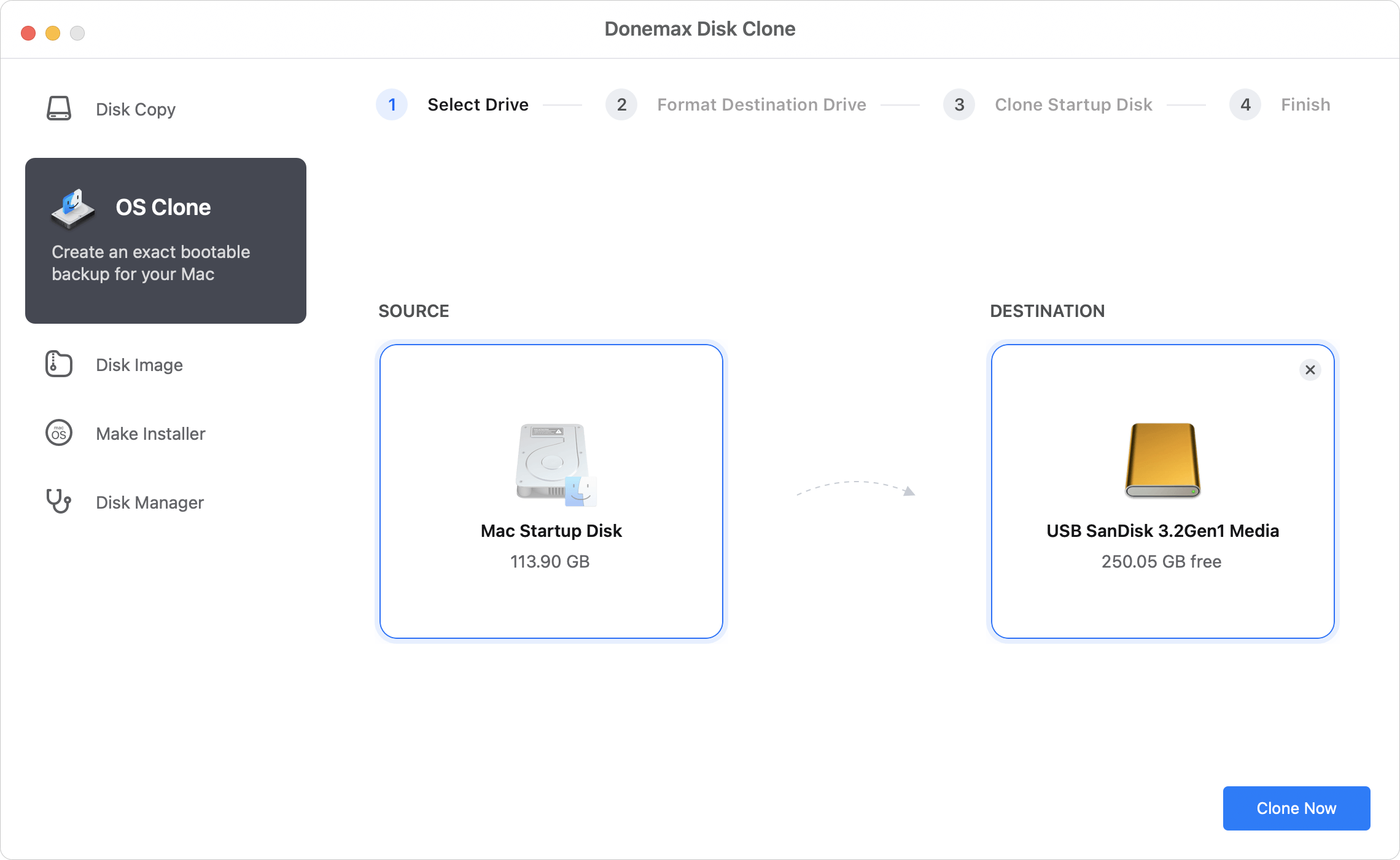
The software will automatically detect your Mac mini's internal drive as the source. Under the target drive option, select your formatted external SSD.
Step 4: Click Clone Now
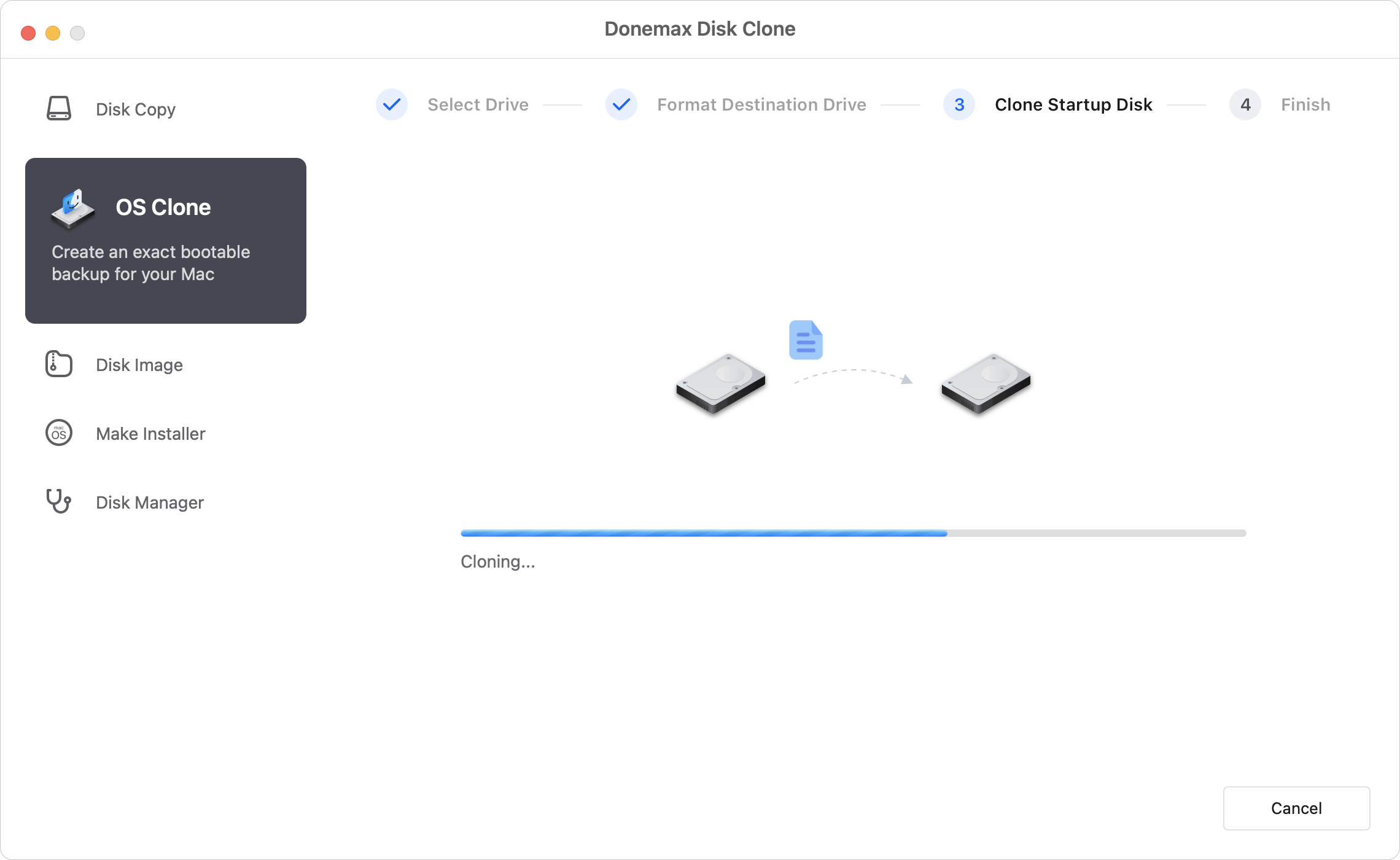
Click the Clone Now button. Donemax Disk Clone for Mac will begin copying your operating system, applications, files, and settings to the target SSD. Wait for the cloning process to complete. Keep your Mac connected to power during the transfer.
Once Donemax Disk Clone for Mac finishes cloning, your external SSD is ready to act as a full startup drive. Follow these steps to boot your M4 Mac mini directly from the external SSD:
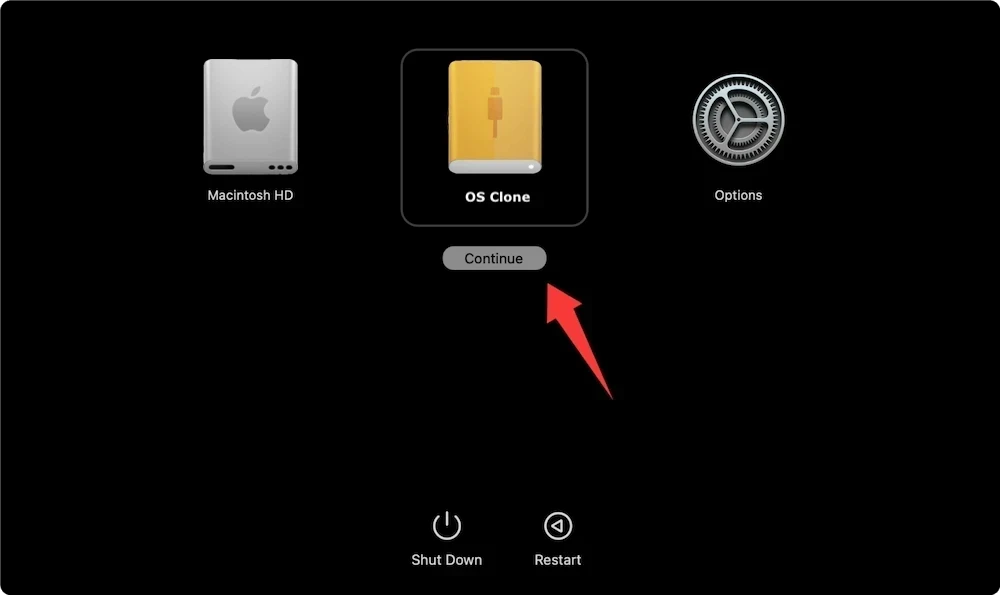
To ensure maximum speed and stability when running your M4 Mac mini from an external drive, keep these tips in mind:
Learning how to clone M4 Mac mini to SSD is the easiest way to solve storage limitations and safeguard your digital life. Instead of spending extra on expensive factory storage upgrades, an external SSD combined with reliable software offers a flexible, affordable solution.
With Donemax Disk Clone for Mac, creating a bootable copy of your M4 Mac mini takes just a few simple clicks. Download Donemax Disk Clone for Mac today, clone your M4 Mac mini to SSD, and enjoy expanded storage and total peace of mind!
Donemax Disk Clone for Mac
An award-winning disk cloning program to help Mac users clone HDD/SSD/external device. It also can create full bootable clone backup for Macs.
Christina
Christina is the senior editor of Donemax software who has worked in the company for 4+ years. She mainly writes the guides and solutions about data erasure, data transferring, data recovery and disk cloning to help users get the most out of their Windows and Mac. She likes to travel, enjoy country music and play games in her spare time.
Gerhard Chou
In order to effectively solve the problems for our customers, every article and troubleshooting solution published on our website has been strictly tested and practiced. Our editors love researching and using computers and testing software, and are willing to help computer users with their problems