
Written byCharlesUpdated on Jul 17, 2026

Before we start: How to make a full and bootable clone for A18 Pro MacBook Neo? A reliable disk cloning software is required. Donemax Disk Clone for Mac is the best choice, which is fully compatible with MacBook Neo. The software can create complete and bootable clone for startup disk on MacBook Neo.
PAGE CONTENT:
Unboxing a brand-new laptop is always an exciting feeling. If you are one of the lucky tech enthusiasts or professional creators who just upgraded to the new MacBook Neo powered by the cutting-edge A18 PRO chip, you already know how fast and smooth it is. With its advanced processing power and ultra-efficient neural engines, this laptop handles massive creative tasks, heavy coding, and daily workflows like an absolute dream.
However, a faster computer comes with a familiar challenge: how do you manage, move, and protect your precious data without slowing things down? Whether you need to back up your entire digital setup, upgrade to a larger external SSD, or create a flawless bootable duplicate for emergencies, a standard manual copy-and-paste simply will not cut it.
That is exactly why so many power users are turning to Donemax. In this guide, we will explore why Donemax Disk Clone for Mac - a good tool for cloning drive on A18 PRO MacBook Neo, should be the very next utility you install on your new machine.
Cloning a hard drive used to be straightforward on older computers. But as Apple transitioned to its advanced system architecture, things became significantly more complex. Modern macOS setups use complex security enclaves, APFS volume groups, and strict boot policies that protect your data at a hardware level.
If you use an outdated or unoptimized cloning tool on an A18 PRO machine, the process can fail, skip hidden recovery partitions, or worse, slow down your system's high-speed flash memory architecture. A true cloning utility must be built to understand how the A18 PRO chip talks to your internal solid-state drive.
Donemax Disk Clone for Mac has been meticulously optimized from the ground up for this specific purpose. It bypasses the common errors associated with traditional backup methods, providing a reliable, safe, and lightning-fast solution for managing your MacBook Neo's storage structure.
Let us look closely at the standout reasons why this utility is perfectly matched for your next-generation laptop setup. It combines high-speed performance with a simple approach that anyone can master in seconds.
Many disk tools rely on emulation layers to run on newer hardware, which eats up battery life and caps data transfer speeds. Donemax Disk Clone for Mac features full native compatibility with the A18 PRO chip and the latest macOS updates.
Because it communicates directly with the Apple Silicon processing nodes, it utilizes the full read-and-write bandwidth of your laptop's high-performance internal bus. This results in incredibly fast cloning times while keeping the computer cool and saving your battery life.
A standard backup saves your documents, but if your internal drive ever encounters a system failure, you cannot boot your computer from it. Donemax solves this by creating an identical bootable clone of your startup disk.
This means it copies your operating system files, user settings, hidden system data, applications, and personal folders onto an external drive. If anything goes wrong with your primary system, you can plug in your cloned drive, hold the power button to access boot options, and get right back to work immediately.
Every cloning project is a little bit different. Donemax offers three simple modes tailored to whatever goal you are trying to achieve:
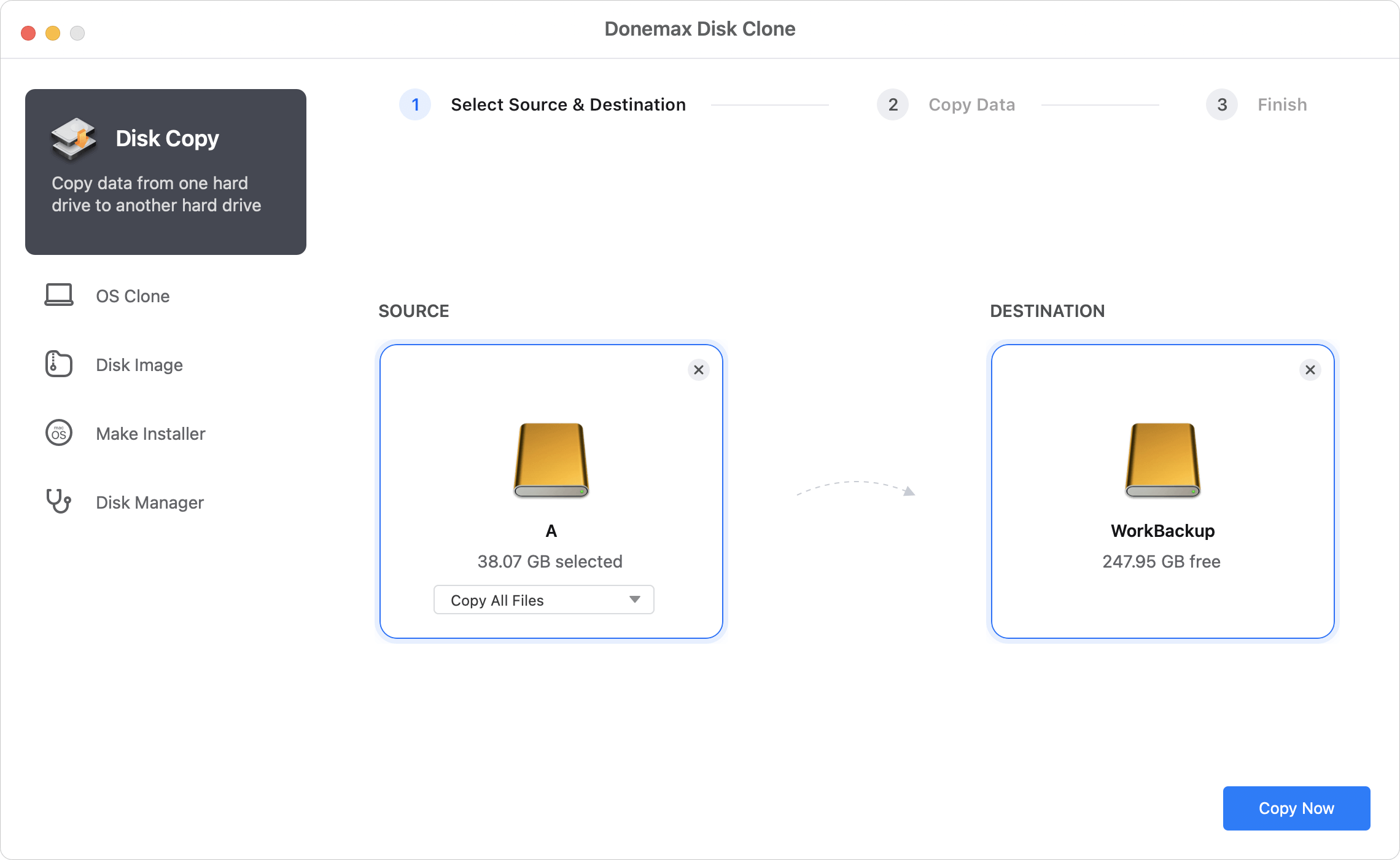
Mode 1: Disk Copy / File Copy
Disk Copy function can clone the drive and place all the files or specified files from source drive to the destination drive. Then you can access the files on the destination drive directly in Finder.
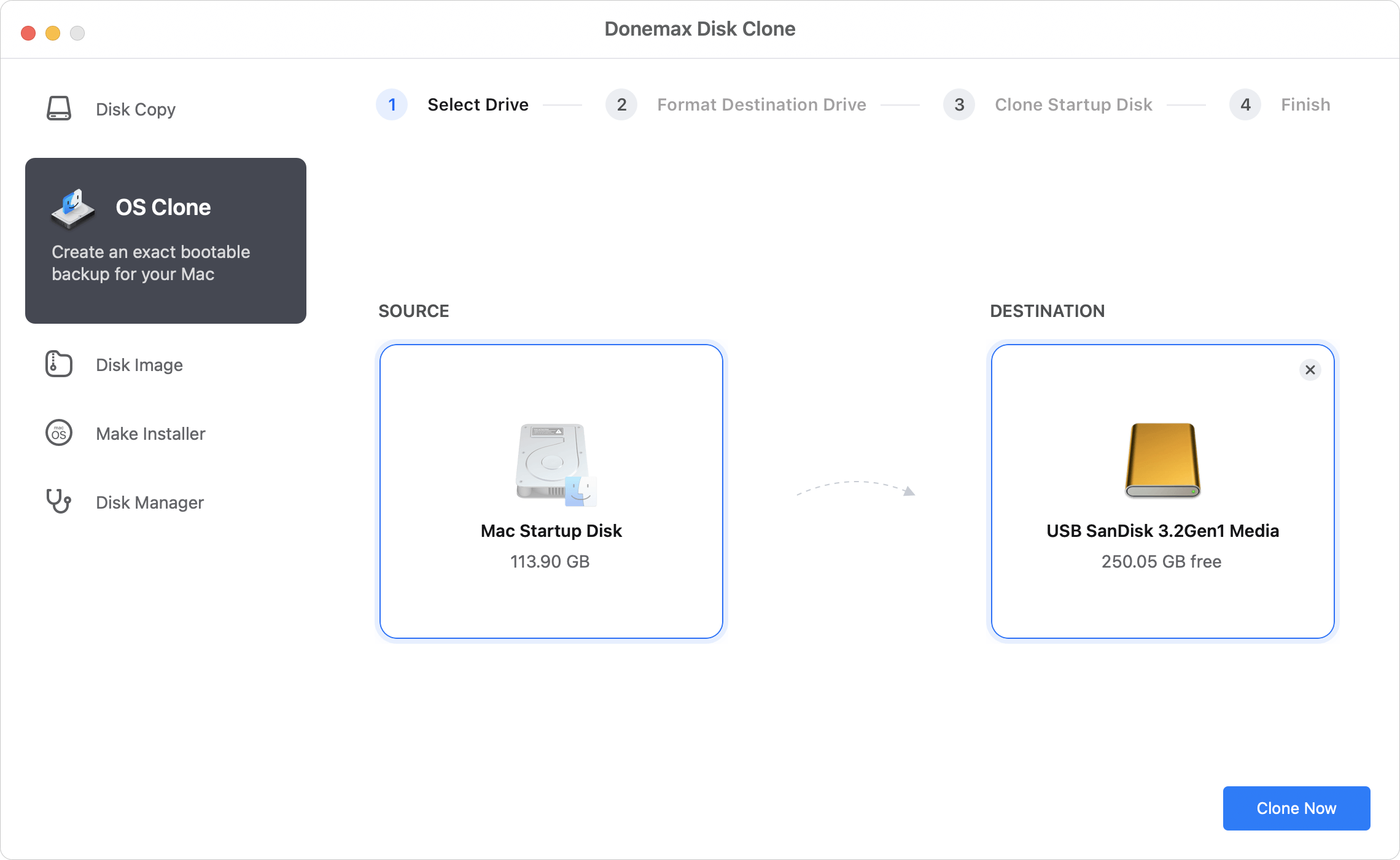
Mode 2: OS Clone / System Copy
This mode lets you target specific volume sets, folders, or focus entirely on duplicating the primary operating system components onto a secure external drive without touching irrelevant data fragments. With this mode, you can create a bootable clone for the startup disk.
Most users would be benefited with the feature to make a bootable clone backup for Mac startup disk. You do not need to be an experienced IT technician or understand complex terminal commands to protect your computer. The application utilizes a clean wizard interface designed for everyday users
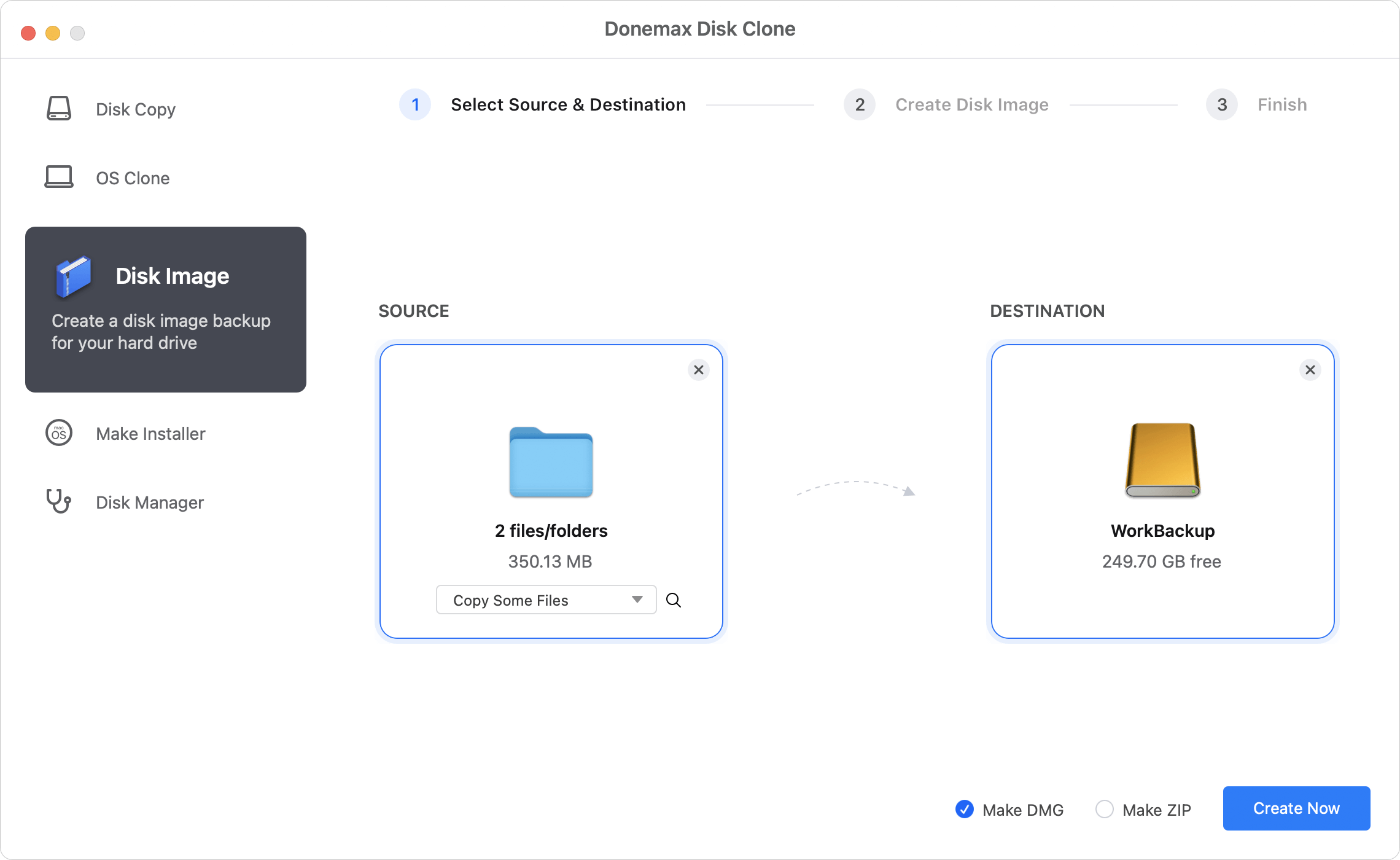
Mode 3: Disk Image / File Archive
It helps you to create a disk image of a hard disk to make a full backup of your important data to realize all-round protection, and save the disk image to anywhere you want. You can archive image files to DMG or ZIP format to save Mac disk space.
Since modern MacBook internal storage cannot be physically upgraded after purchase, managing your storage footprint with external devices is essential. Donemax serves as the perfect bridge for expanding your storage capacity.
If your internal drive is getting full, you can easily clone your large media libraries, applications, or past archives onto high-capacity external drives. You can then clear up local space while knowing your external copies are beautifully organized, secure, and ready to deploy at a moment's notice.
Furthermore, the software is highly compatible with all popular external hardware brands and configurations, including:
Investing in a premium computer like the A18 PRO MacBook Neo means you should also invest in premium care for your data. Manual dragging and dropping puts your file structures at risk and misses critical system data required for full recovery.
With its native performance optimization, smart dual-mode cloning engine, and simple user interface, Donemax Disk Clone for Mac provides complete peace of mind. Keep your files safe, create robust bootable backups, and manage your storage like a pro.
Donemax Disk Clone for Mac
An award-winning disk cloning program to help Mac users clone HDD/SSD/external device. It also can create full bootable clone backup for Macs.
Charles
Charles, who lives in Sydney, Australia, is an editor & writer of Donemax Team. He is good at writing articles related with Apple Mac computers, Windows operating systems, data recovery, data erasure, disk clone and data backup, etc. He loves reading and playing tennis in his spare time and is interested in testing new digital devices such as mobile phones, Macs, HDDs, SSDs, digital cameras, etc.
Gerhard Chou
In order to effectively solve the problems for our customers, every article and troubleshooting solution published on our website has been strictly tested and practiced. Our editors love researching and using computers and testing software, and are willing to help computer users with their problems