Written byStevenUpdated on Jun 29, 2026

Before we start: Reinstalling macOS 27 Golden Gate can help you solve some issues or clean the system. However, to avoid data loss while reinstalling macOS, it's essential to back up your Mac first. For example, you can use Donemax Disk Clone for Mac to make a boot and complete clone backup. It can save your system and data in case issues happened.
PAGE CONTENT:
Is your Mac running a bit slower than usual? Or maybe you are facing unexpected bugs after a major update, or simply want to clean out the digital clutter for a fresh start. Reinstalling your operating system is one of the most effective ways to get your Mac back to its lightning-fast, factory-fresh state.
Upgrading to Apple's latest operating system brings amazing features, but sometimes things don't go perfectly. That is exactly why knowing how to reinstall macOS 27 Golden Gate is a superpower for any Mac owner. Don't worry—the process is much easier than it sounds.

In this comprehensive guide, we will break down the entire process into plain, simple English. We will cover the two best and most reliable methods: using the built-in Recovery Mode and creating an external bootable USB installer. Plus, we will show you how to keep your valuable data perfectly safe throughout the entire journey.
Before we press a single button, let us talk about your data. Reinstalling macOS 27 Golden Gate can sometimes overwrite files if you choose to wipe your drive, or things can go wrong if your internet connection drops midway. Your photos, projects, documents, and settings are irreplaceable.
What happens if you already started the process and realized you forgot to back up something vital? That is where professional data recovery tools save the day.
Data Protection Hint: If you ever lose files, documents, or photos during an operating system update or reinstallation, Donemax Data Recovery for Mac can quickly scan your Mac's internal drive and restore your missing data in just a few clicks.
The easiest way to get a clean copy of your operating system is by using the built-in macOS Recovery system. This method does not require any external tools or downloads, making it the perfect first choice.
This method is available if there is no problem with your startup disk. You can follow the steps below to reinstall macOS 27 Golden Gate with easy steps:
Step 1: Shut Down Your Mac Completely
Click the Apple logo in the top-left corner of your screen and select Shut Down. Wait about 10 seconds until the screen goes completely black and all fan noises stop.
Step 2: Boot Into Recovery Mode (for Apple Silicon Macs)
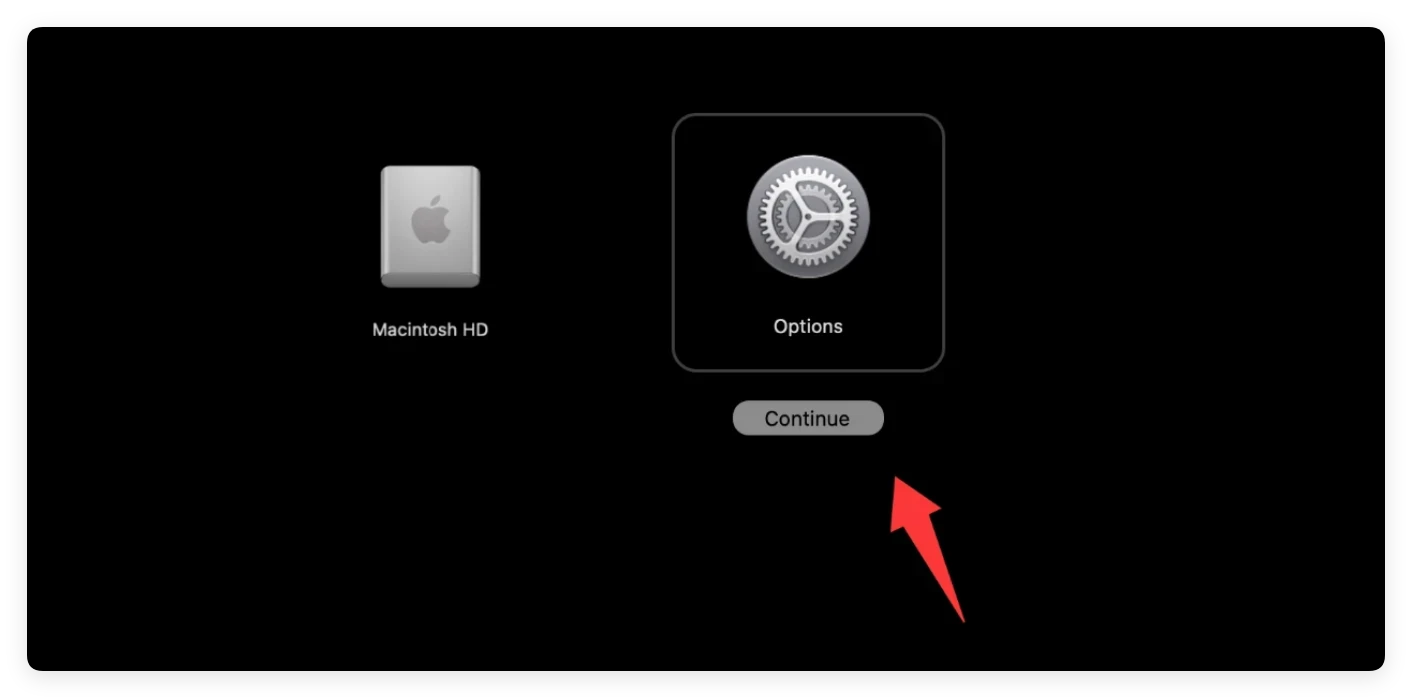
The way you open Recovery Mode on macOS 27 Macs: Press and hold the Power button. Keep holding it down until you see the 'Loading startup options' text appear on your screen. Click Options, then click Continue.
Step 3: Select the Reinstallation Option
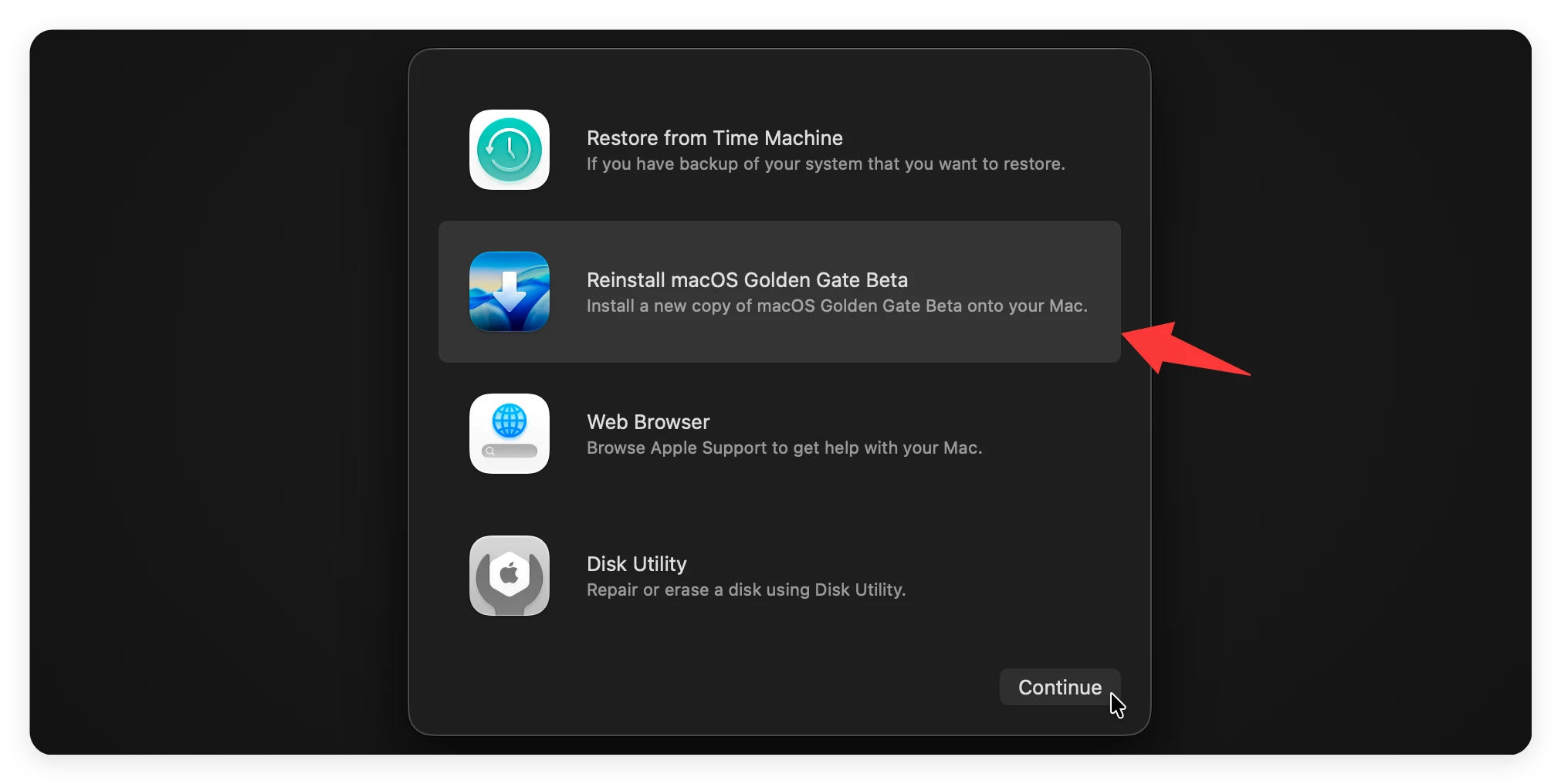
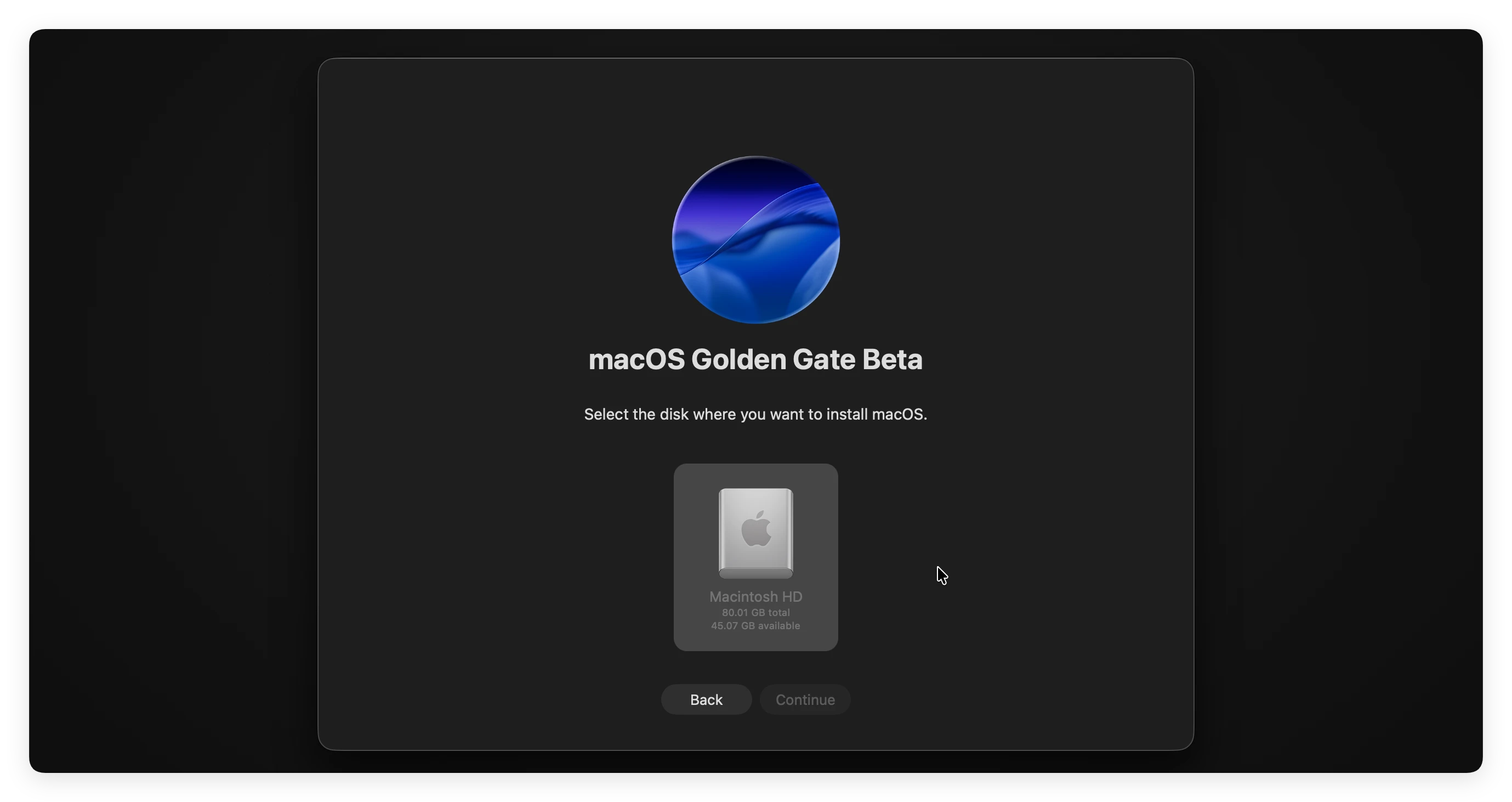
Once the system loads, you will see a window called macOS Utilities. From the list of options on your screen, select 'Reinstall macOS Golden Gate'. Click Continue, accept the terms of service, and select your main internal drive (usually named Macintosh HD) as the destination. Your Mac will handle the rest!
Sometimes, your Mac's recovery partition might be damaged, or you might want to install the OS on multiple Macs without waiting for a massive internet download each time. In these scenarios, creating a bootable installer for the macOS 27 is the absolute best route.
What You Need Before Starting:
A USB flash drive with at least 32GB of total storage capacity. Ensure to format the USB flash drive with the file system Mac OS Extended.
⚠️ Warning: Keep in mind that the formatting process will completely empty the flash drive, so move any existing files off it first.
Step 1: Create macOS 27 Golden Gate USB Installer
First, you need to download the full installer file for macOS 27 Golden Gate. Then use the USB flash drive to create a bootable USB installer for macOS 27.
How to Create Installer for macOS 27 Golden Gate?
Step-by-step Terminal guide with expert tips to backup and clone your Mac data first.
Step 2: Connect the USB and Shut Down
Plug your newly created bootable USB installer drive directly into the Mac you want to update, then completely shut down the computer.
Step 3: Access the Boot Options Menu
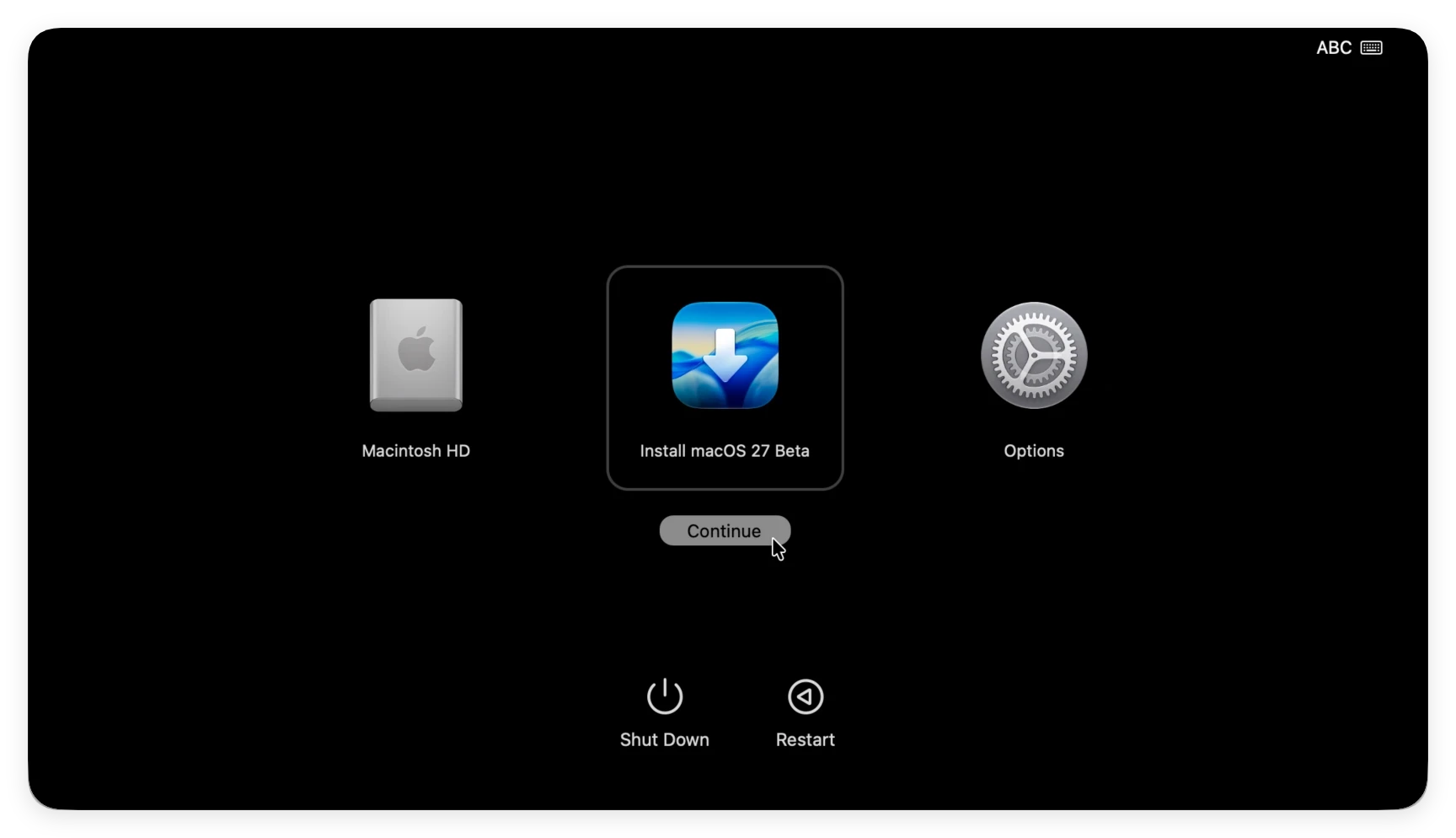
Turn on the Mac while holding down the correct keys to access the alternative startup drives: Press and hold down the physical Power button until the startup options screen shows up. You will see your internal hard drive alongside your external USB installer.
Step 4: Start the Installation Process
Use your mouse or arrow keys to highlight the external USB drive labeled 'Install macOS Golden Gate' or similar options, then click the arrow underneath or press Return. Your Mac will boot straight from the flash drive. When the utilities window pops up, click 'Install macOS' and follow the easy on-screen prompts to finish your clean installation.
Reinstalling macOS 27 Golden Gate is the absolute finest way to fix stubborn system glitches, clear up cluttered storage, and breathe fresh life into your favorite machine. Whether you choose the quick built-in Recovery Mode or build an external bootable USB installer, you now possess all the step-by-step tools to complete the job safely and easily.
Before starting reinstall macOS 27, it's highly suggested to back up your data. If there are issues happened during the process, you can still have your important data safe. You can back up your Mac with Time Machine, manually copy files to another drive, or use Donemax Disk Clone for Mac to make a full copy for the system and data.
Donemax Disk Clone for Mac
An award-winning disk cloning program to help Mac users clone HDD/SSD/external device. It also can create full bootable clone backup for Macs.
Steven
Steven has been a senior writer & editor of Donemax software since 2020. He's a super nerd and can't imagine the life without a computer. Over 6 years of experience of writing technical solutions and software tesing, he is passionate about providing solutions and tips for Windows and Mac users.
Gerhard Chou
In order to effectively solve the problems for our customers, every article and troubleshooting solution published on our website has been strictly tested and practiced. Our editors love researching and using computers and testing software, and are willing to help computer users with their problems