Written byMariaUpdated on Aug 20, 2026

Before we start: NTFS external SSD is read-only on Mac by default. Fortunately, with the Microsoft NTFS driver for Mac - Donemax NTFS for Mac, you can easily make the NTFS drive writable on Mac and enjoy the fastest read-write speed.
PAGE CONTENT:
Apple's M5 Max chip is an absolute performance monster. Whether you are editing 8K video timelines, processing multi-gigabyte RAW photo libraries, or managing massive data archives, the speed of Apple Silicon is unmatched. However, many creative professionals encounter a sudden speed bump when plugging in an external drive: macOS only offers read-only access for Windows-formatted NTFS drives.
If you try to copy a project file to your high-speed NTFS external SSD, macOS either blocks you entirely or forces you to use slow, unreliable workarounds. To get true native performance, you need a setup that maintains full read-write functionality without throttling your drive.
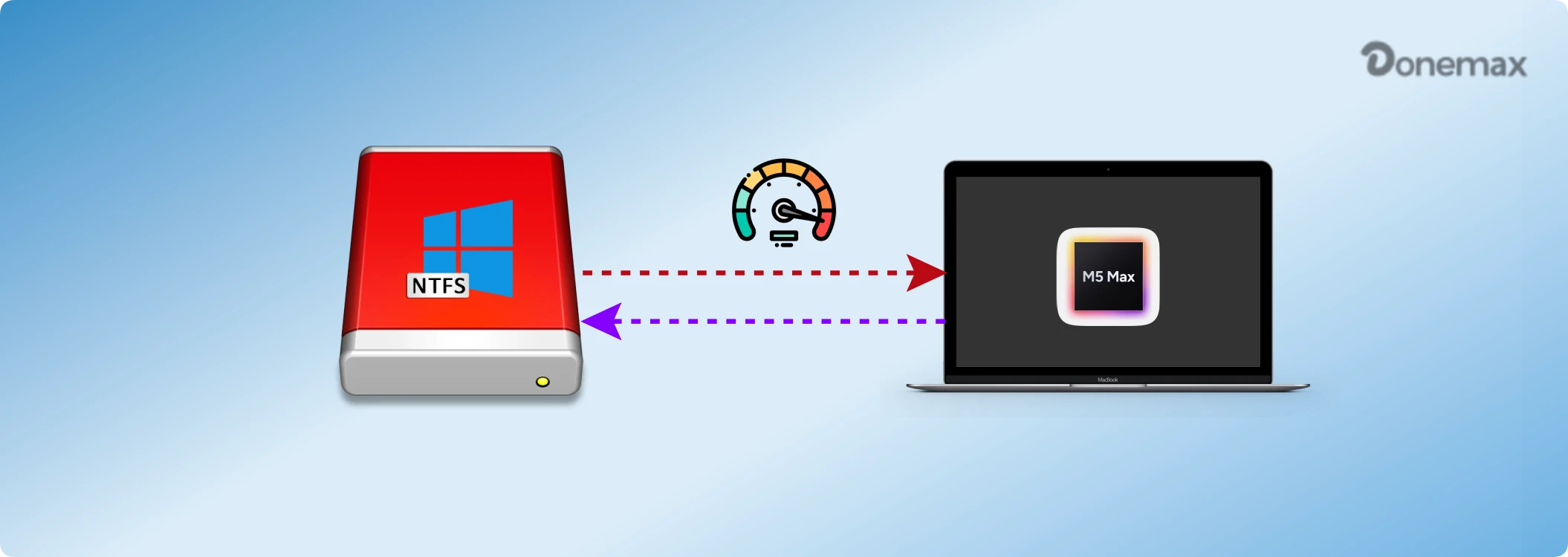
In this guide, we will break down what affects your NTFS external SSD read write speed on M5 Max Mac, compare the best ways to get full read-write access, and show you how to achieve maximum transfer speeds with Donemax NTFS for Mac.
To understand why external SSDs face performance hurdles, we need to look at file system compatibility. NTFS (New Technology File System) is Microsoft's proprietary file system for Windows. Apple macOS includes built-in support to read NTFS drives so you can open and copy files off them. However, native writing support is disabled by default.
While macOS used to hide an experimental native write driver deep within Terminal commands, Apple completely removed this legacy driver in recent macOS updates. Trying to force native experimental drivers today can lead to drive corruption, kernel panics, and significant speed drops.
When you pair a top-tier M5 Max Mac with a high-performance NVMe external SSD capable of 3000 MB/s+, relying on outdated software bridges or misconfigured drivers will limit your transfer speeds to a fraction of what your hardware can actually deliver.
Getting ultra-fast transfer speeds on your M5 Max Mac depends on a few critical factors. If any element in your transfer chain is limited, your transfer speeds will suffer.
⭐ Key Speed Benchmark Insight: On an M5 Max Mac with a Thunderbolt 4 / USB4 NVMe SSD, native APFS read/write speeds usually reach 2800 MB/s - 3100 MB/s. With Donemax NTFS for Mac, you can achieve identical real-world speeds of up to 2800 MB/s+, effectively removing the Windows-to-Mac speed penalty.
Let us look at the three primary methods to handle NTFS external drives on your M5 Max Mac, along with their impact on speed, safety, and convenience.
Formatting your external SSD to exFAT makes it compatible with both Mac and Windows natively without extra software. If you only use your drive on Mac, formatting to APFS provides maximum performance.
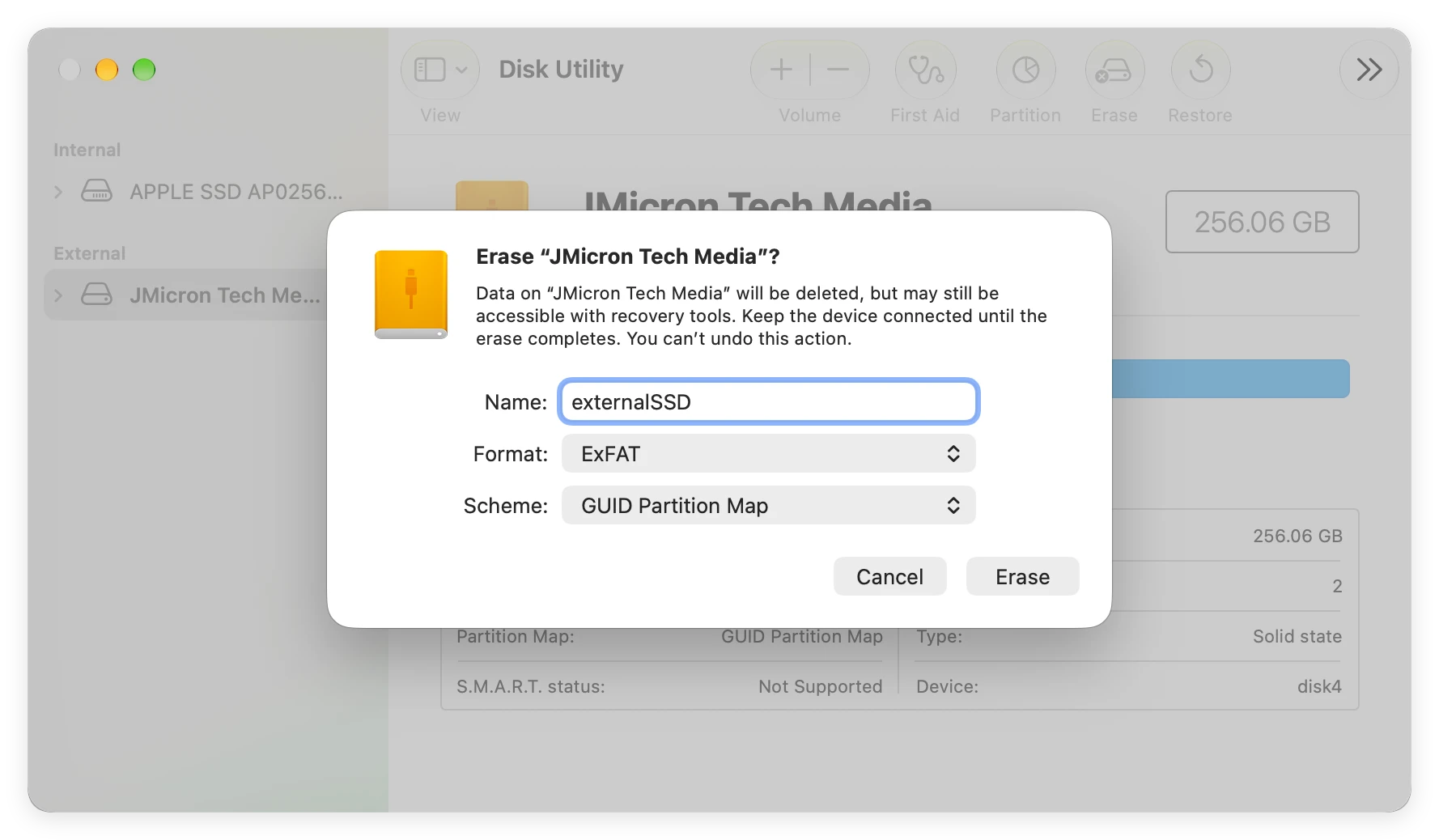
👍 Advantages: Free, native support on macOS, decent speeds.
👎 Drawbacks: Requires erasing all existing data on the drive. exFAT lacks journaling, making it prone to file corruption if unplugged unexpectedly during heavy workloads.
Open-source tools like NTFS-3G via FUSE or free wrapper apps attempt to mount NTFS drives with write permissions.
👍 Advantages: Free to download.
👎 Drawbacks: Highly complex command-line setup, incompatible with recent macOS security models (Apple Silicon System Extensions), high failure rate, and severely throttled transfer speeds (often capped below 100 MB/s).
Donemax NTFS for Mac is a commercial-grade driver designed specifically for modern Apple Silicon chips (M1 through M5 series) and the latest macOS versions.
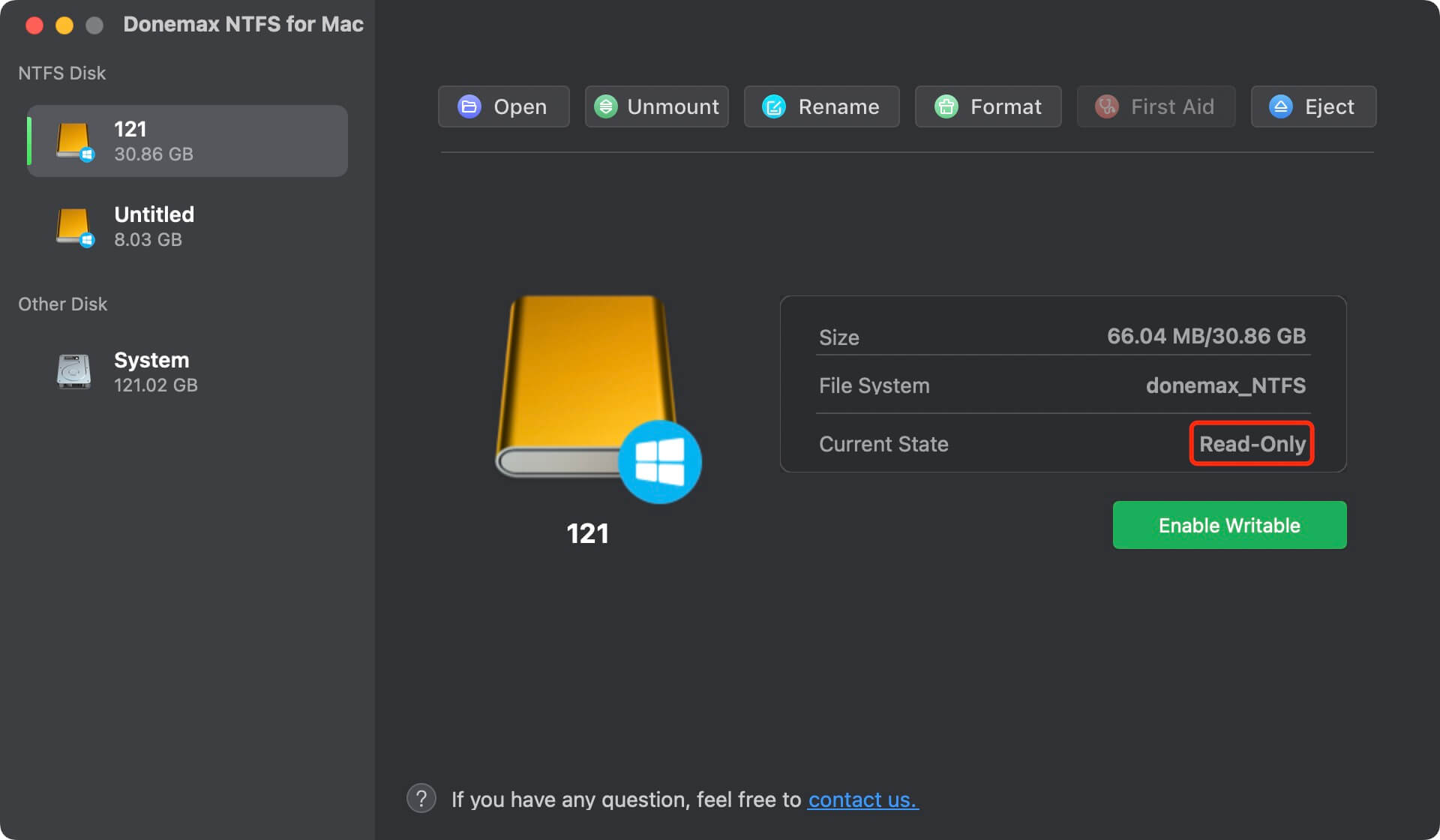
👍 Advantages: True native read-write speed, instant automatic mounting, zero command-line tweaking, safe data protection, and full support for high-speed Thunderbolt SSDs.
👎 Drawbacks: Requires installing a driver (free trial available).
Maximize NTFS External SSD Speed using Donemax NTFS for Mac
Setting up Donemax NTFS for Mac on your M5 Max Mac takes less than two minutes. Follow these simple steps to unlock full read-write speed for your external drives:
Step 1: Download the latest version of Donemax NTFS for Mac from the official website. Open the installer package and follow the quick setup wizard.
Step 2: Plug your NTFS-formatted external SSD directly into one of the Thunderbolt / USB4 ports on your M5 Max Mac. For best results, avoid unpowered USB hubs or cheap adapter dongles.
Step 3: Launch Donemax NTFS for Mac. Select your connected NTFS external SSD from the left panel list, and click the 'Enable Writable' button. The drive will instantly mount with full read-write permissions.
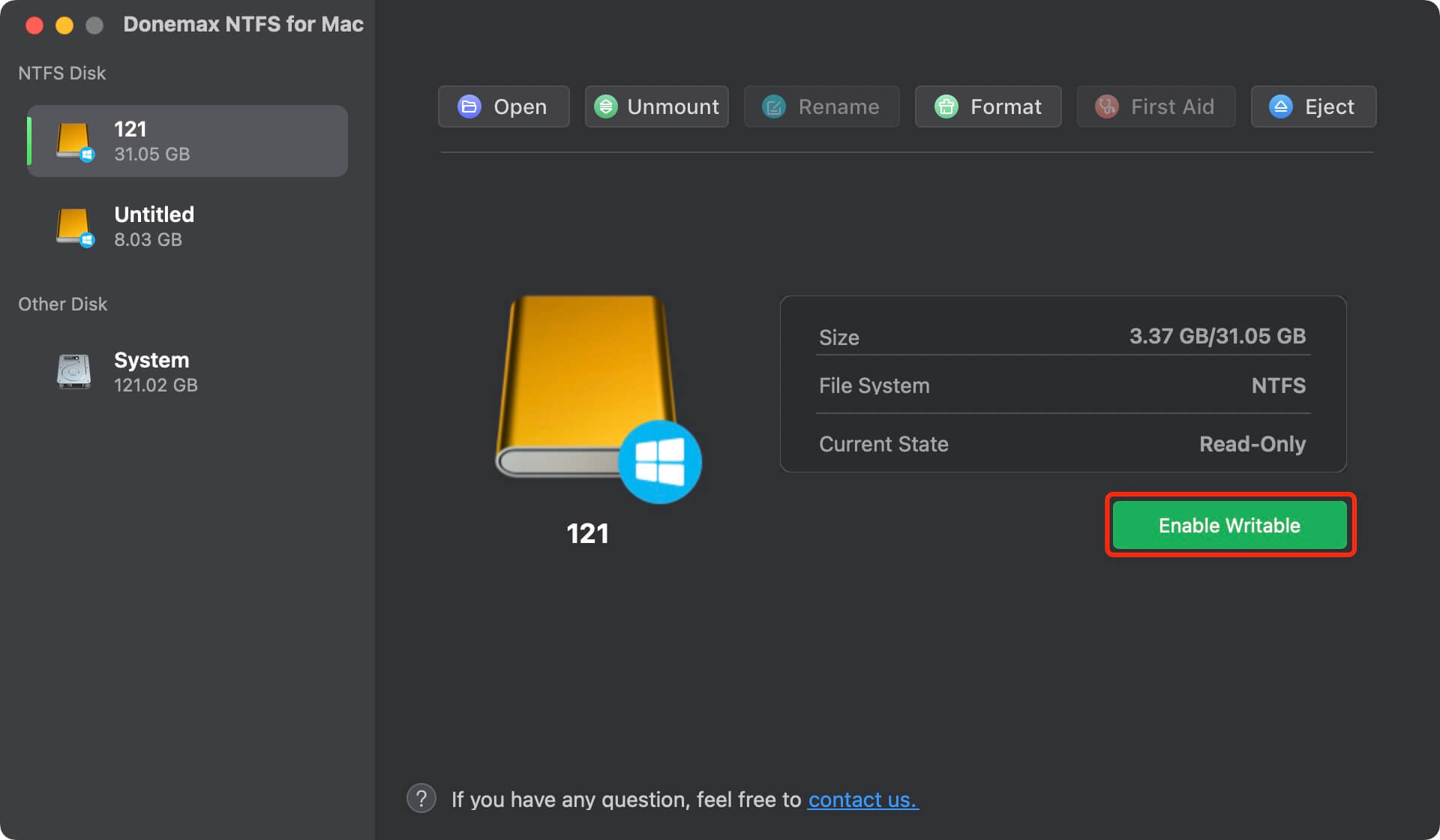
Step 4: Open Finder or your preferred benchmarking software (such as Blackmagic Disk Speed Test). Drag and drop heavy video files or high-resolution photo folders to test your full read-write speed.
💡 Tip: Always plug your external SSD directly into the Mac's built-in Thunderbolt port using the original 40Gbps rated cable. Avoid daisy-chaining multiple displays or secondary USB peripherals on the same hub when performing heavy data writes.
Performance & Feature Comparison Summary
| Method | Read-Write Speed | Data Safety | Ease of Use |
|---|---|---|---|
| Reformatting to exFAT | Moderate (400-800 MB/s) | Low (No Journaling) | Requires Data Wipe |
| Open-Source (FUSE) | Very Slow (<100 MB/s) | Low (Frequent Errors) | Complex / Technical |
| Donemax NTFS for Mac | Ultra-Fast (800+ MB/s) | High (Native Security) | One-Click Automated |
Your M5 Max Mac is designed for incredible output, and your external drive setup shouldn't hold you back. You don't have to compromise on transfer speed or risk corrupting your data with outdated workarounds just to use Windows-formatted drives on macOS.
By choosing a dedicated, high-performance driver like Donemax NTFS for Mac, you can unlock full NTFS external SSD read write speed on M5 Max without formatting your drives or typing complex commands. Download Donemax NTFS for Mac today and enjoy smooth, ultra-fast file transfers across all your devices!
Maria
Maria is one of the senior writers & editors of Donemax who lives and works in Sydney, Australia. She loves PC, Mac and Internet Technology. She has 6 years of writing articles about data recovery on PC/Mac, disk cloning solution, data eraser and computer OS optimization, etc. She is also interested in testing various software and digital products.
Gerhard Chou
In order to effectively solve the problems for our customers, every article and troubleshooting solution published on our website has been strictly tested and practiced. Our editors love researching and using computers and testing software, and are willing to help computer users with their problems