Written byChristinaUpdated on Jul 29, 2026

Before we start: If your other NTFS for Mac solutions are not working on macOS 27 Golden Gate, you can try the most reliable and fully compatible NTFS driver for macOS 27 - Donemax NTFS for Mac. It can enable NTFS drive writable permission on Mac with 1-click.
PAGE CONTENT:
Have you recently updated your Mac to macOS 27 Golden Gate, only to find that your external Windows hard drive or USB flash drive suddenly became read-only? You plug in your NTFS drive, try to copy a document, edit a photo, or drag a video folder into it, but nothing moves. Even worse, your existing NTFS utility may pop up an error or crash altogether.
If you are facing this issue, you are not alone. Many Mac users discover that after updating to macOS 27 Golden Gate, their trusted NTFS for Mac driver completely stops working. You cannot save new files, edit existing data, or rename folders on your NTFS drives.

In this guide, we will explain the technical reasons why older NTFS drivers fail on macOS 27 Golden Gate and provide the most reliable, modern solution to get full read-write access back in just a few clicks.
To understand why your NTFS software stopped working, it helps to know how macOS handles Windows-formatted drives. By default, Apple's macOS provides native read support for Microsoft's NTFS file system, but write access is disabled.
To enable write access, third-party software uses system extensions, file system frameworks, or kernel-level drivers. With the release of macOS 27 Golden Gate, Apple introduced critical updates to system security and kernel permissions:
If your NTFS software is struggling with macOS 27 Golden Gate, you will likely notice one of the following symptoms:
When traditional tools and legacy scripts fail on macOS 27 Golden Gate, you need a modern, fully updated NTFS driver built specifically for the latest Apple silicon and macOS architectures.
Donemax NTFS for Mac is the premier, reliable NTFS driver designed to grant seamless, high-speed read and write access to all NTFS-formatted hard drives, SSDs, and USB flash drives on macOS 27 Golden Gate.
Why Choose Donemax NTFS for Mac for macOS 27?
Donemax NTFS for Mac is built on Apple's newest system APIs, completely eliminating the need for unsafe kernel modifications. It works automatically in the background—once enabled, your NTFS drives mount with full read and write permissions just like native Mac drive formats (APFS or Mac OS Extended).
Getting your NTFS drive working on macOS 27 Golden Gate takes less than two minutes. Follow these simple steps using Donemax NTFS for Mac:
Step 1: Download and Install Donemax NTFS for Mac
Download the latest installer for Donemax NTFS for Mac. Double-click the installation package and follow the quick setup wizard.
Step 2: Connect NTFS Drive and Launch Donemax NTFS for Mac
Plug your NTFS-formatted external hard drive, SSD, or USB thumb drive into your Mac running macOS 27 Golden Gate. Open Donemax NTFS for Mac from your Launchpad or Applications folder. The software will automatically detect all connected external drives, including your NTFS volume.
Step 3: Enable Read & Write Access
Select your NTFS drive from the list. Click the Enable Writable button. Donemax NTFS for Mac instantly grants write permissions.
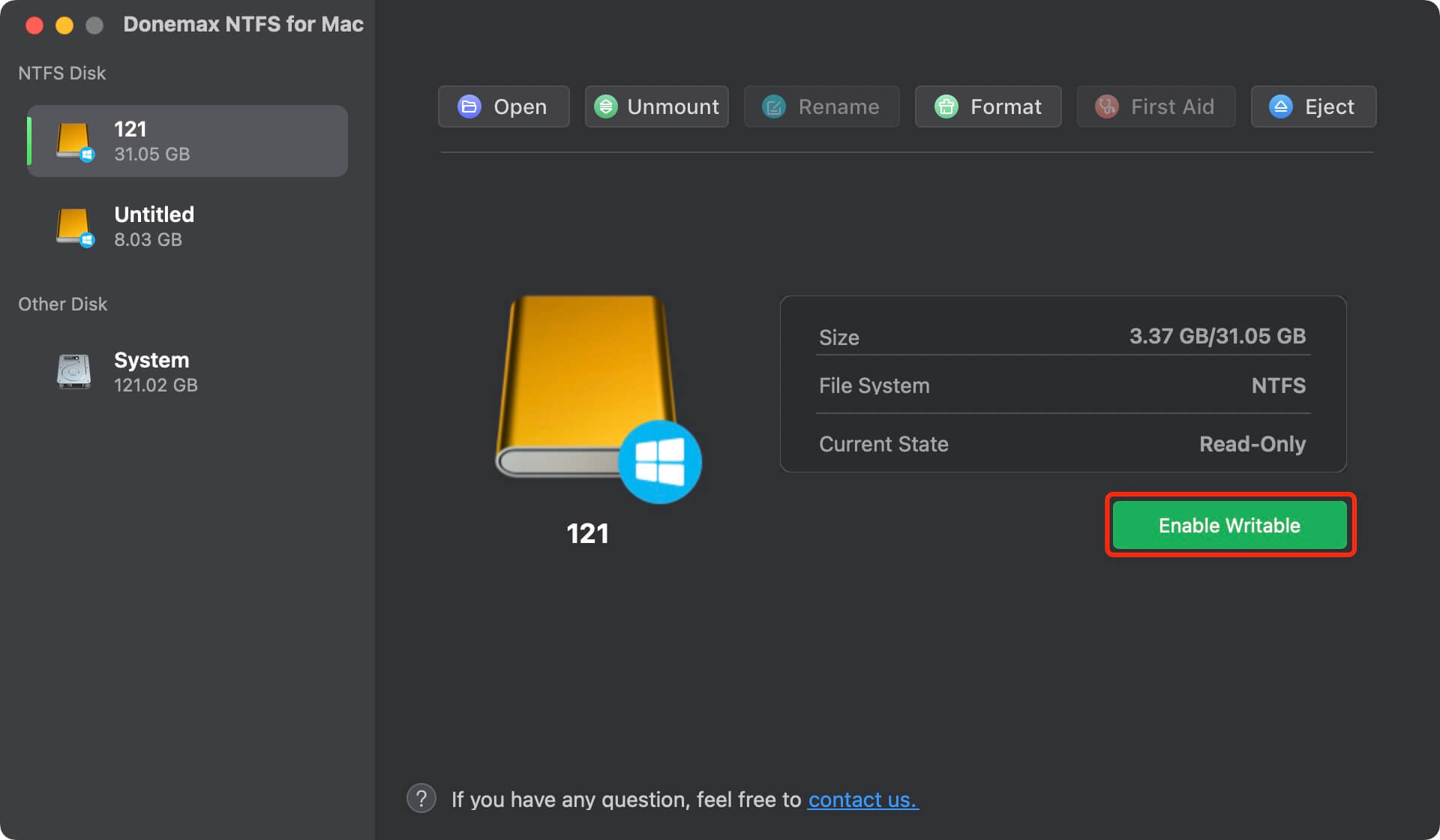
Step 4: Use Your NTFS Drive Seamlessly
Open Finder. You can now copy files to the drive, edit documents, delete unwanted items, and format or eject your NTFS drive safely without any restriction!
Upgrading to macOS 27 Golden Gate brings exciting features, but unexpected compatibility issues like locked NTFS drives can derail your workflow. Because Apple restricted legacy extensions, older NTFS tools no longer work on macOS 27.
Fortunately, Donemax NTFS for Mac offers a fast, reliable, and hassle-free fix. By updating to Donemax, you can enjoy seamless read and write access to all your Windows NTFS drives on macOS 27 Golden Gate in seconds.
Download Donemax NTFS for Mac today from Donemax.com to unlock full control over your external drives!
Christina
Christina is the senior editor of Donemax software who has worked in the company for 4+ years. She mainly writes the guides and solutions about data erasure, data transferring, data recovery and disk cloning to help users get the most out of their Windows and Mac. She likes to travel, enjoy country music and play games in her spare time.
Gerhard Chou
In order to effectively solve the problems for our customers, every article and troubleshooting solution published on our website has been strictly tested and practiced. Our editors love researching and using computers and testing software, and are willing to help computer users with their problems