Written byMariaUpdated on Nov 23, 2026

Before we start: If you want an ApowerREC Mac alternative, consider Donemax Recorder for Mac. It offers a straightforward way to capture screen activity on a Mac, with options for recording system sound and microphone audio. Choose a recorder based on the features you need, its compatibility with your Mac, and how easily it fits your recording workflow.
PAGE CONTENT:
ApowerREC is a screen recording application for capturing on-screen activity, and it may suit users who want recording and editing tools in one place. But your preferred app can change as your needs, Mac setup, or workflow changes. You may want a simpler interface, a different feature set, or a tool that better matches the recordings you make.
Before switching, identify what is missing from your current setup. For example, someone recording software tutorials may prioritize microphone input and a selected recording area. A user capturing an online presentation may need system audio. Someone making a quick demonstration may care most about starting and stopping a recording without extra steps.
A useful ApowerREC Mac alternative is not necessarily the app with the longest feature list. It is the one that supports your recording needs, works reliably on your Mac, and produces files you can use.
Screen recorders vary in the way they capture video, handle sound, and manage recordings. Check the following points before installing an alternative:
These details matter more than a broad claim that one recorder is “best.” Compare the features you will actually use.
ApowerREC and Donemax Recorder for Mac are options for capturing activity on a Mac. Their suitability depends on the specific controls and workflow you need. Check each product's current feature list and system requirements before installing, since supported features can change with software updates and macOS versions.
| Comparison point | ApowerREC | Donemax Recorder for Mac |
|---|---|---|
| Main purpose | Mac screen recording | Mac screen recording |
| Screen capture | Check the current product details for available capture modes | Check the current product details for available capture modes |
| Audio recording | Confirm support for your required audio sources | Confirm support for your required audio sources |
| Webcam recording | Confirm current webcam options | Confirm current webcam options |
| Ease of use | Evaluate the interface against your workflow | Designed as a screen recording option for Mac users |
| Best next step | Review the current features and requirements | Review the product page and user guide |
The comparison is intentionally focused on practical checks rather than assuming every version has identical capabilities.
Donemax Recorder for Mac is an option for users who want a dedicated Mac screen recording tool. It may be worth considering if you want to capture a tutorial, software demonstration, presentation, or other on-screen activity without relying on ApowerREC.
Before choosing it, verify that its current feature set covers your recording plan. Confirm whether you need full-screen or region capture, microphone or system audio, webcam recording, or particular output settings. Reviewing the user guide first can also help you understand the workflow before you install or begin a project.
A good screen recorder should make the recording task clear: select what to capture, set the inputs you need, record, then check the resulting file. If an app makes those steps difficult or lacks an essential feature, it may not be the right fit for your use case.
The exact controls may vary by software version. Use the official Donemax Mac recorder guide for version-specific instructions. A typical screen recording workflow looks like this:
Step 1. Install and open the application. Download Donemax Recorder for Mac from the official product page and follow the installation instructions.
Step 2. Set recording options. Enable the microphone, system audio, or both, according to what the recording should include. If you plan to include a webcam or adjust output settings, configure them before recording.
Step 3. Choose what to record. Select the full screen, a specified app windows or a smaller area as you want.
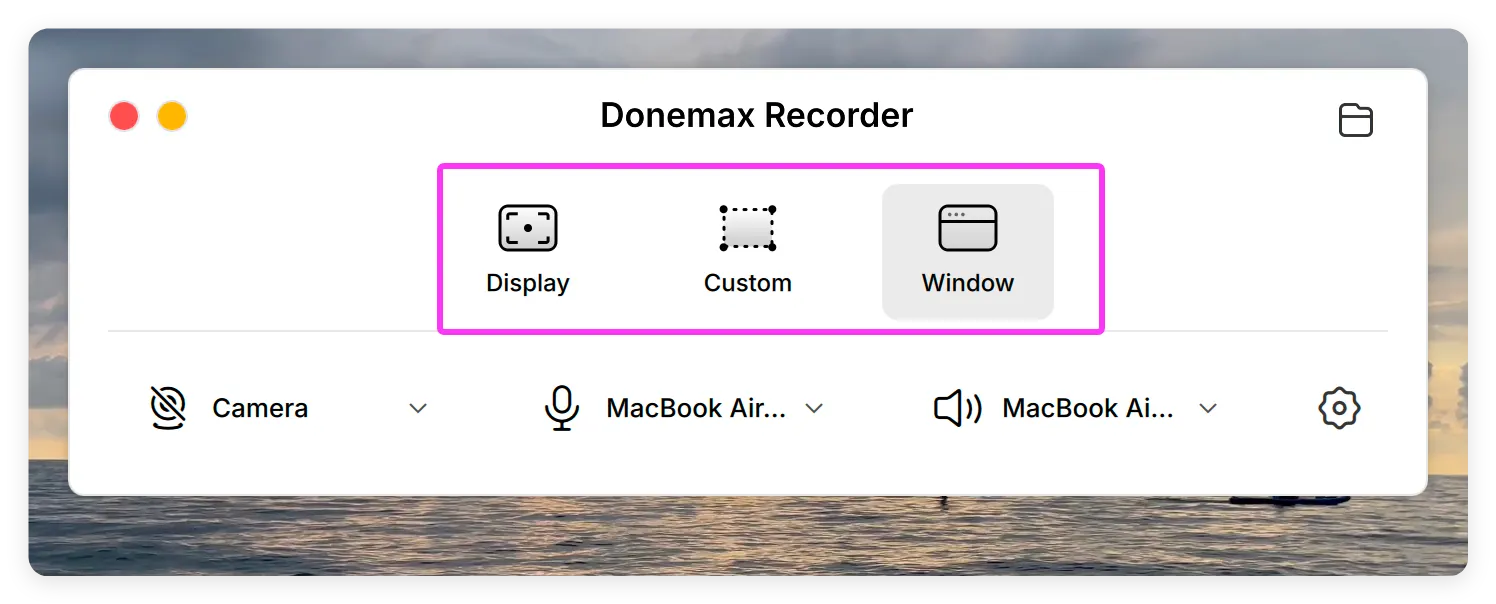
Step 4. Start the recording. Begin the on-screen activity after confirming that the selected area and audio inputs are correct.
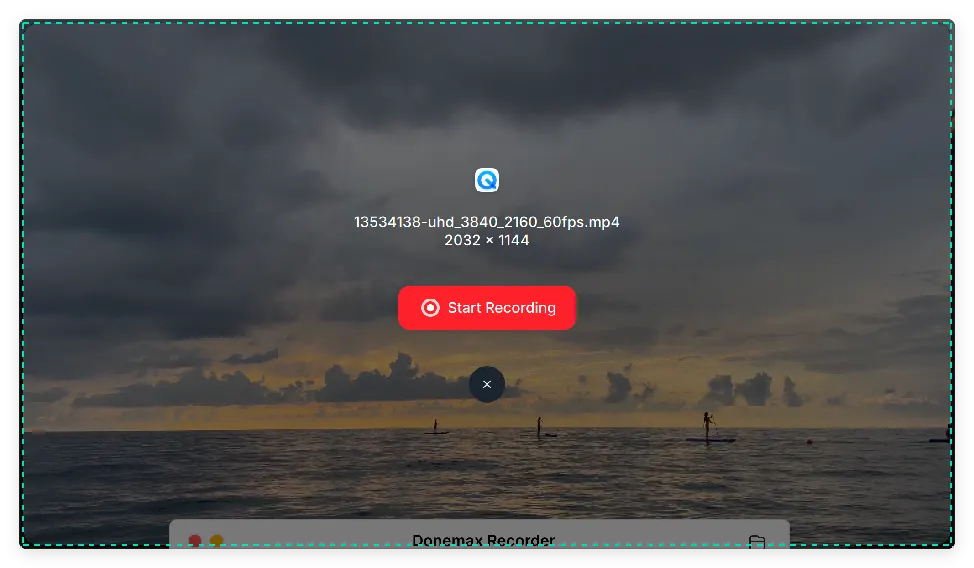
Step 5. Stop and review the file. Play back the recording to check the picture, sound, and saved output before sharing it. You can also edit the recorded video before export it.
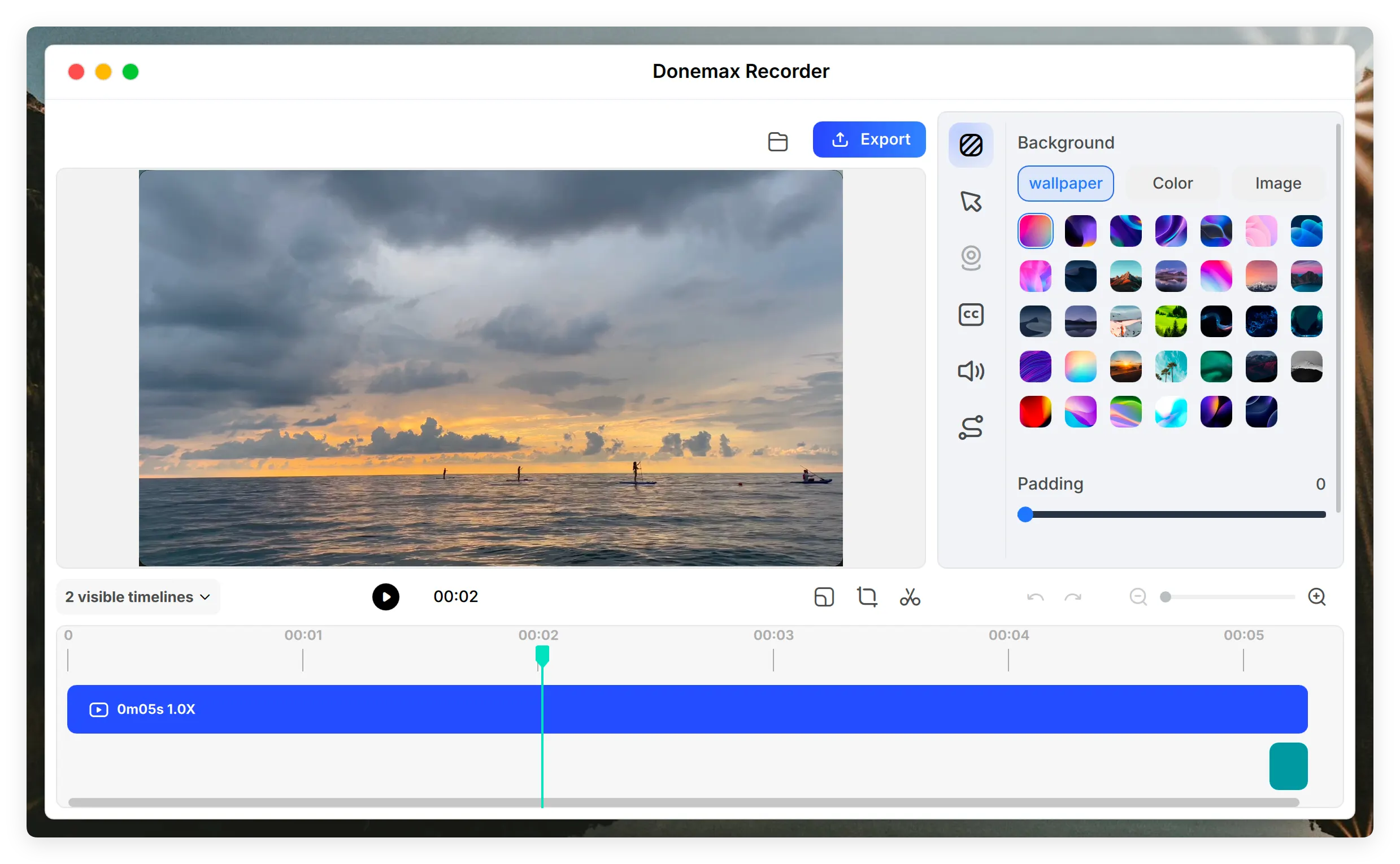
For a tutorial, record a short test first. This helps catch issues such as a muted microphone, missing system audio, or an incorrectly selected capture area before you make a longer recording.
A few preparation steps can make recordings easier to follow and reduce the chance of having to start over.
Recording performance can depend on the Mac, the apps running at the same time, and the recording settings. If a recording stutters, try closing demanding applications or reducing the capture area or quality settings, if available.
The recorder captures video but no sound. Check the selected audio source and confirm that macOS has granted the app microphone access. System audio capture may depend on the software's supported features and your macOS setup.
The screen recording is blank or blocked. Review macOS screen-recording permissions, then quit and reopen the recorder if the permission settings were changed.
The recording looks choppy. Close unnecessary applications and try a shorter test. A high-resolution recording or a busy Mac can affect performance.
The file is too large to share. Check the recording settings and export options. If your workflow includes compression, preserve an original copy before reducing the file size.
When troubleshooting, change one setting at a time and make a short test recording. That makes it easier to identify whether the issue comes from permissions, audio selection, recording settings, or system load.
If ApowerREC no longer fits your Mac screen recording workflow, compare alternatives by the tasks you need to complete: capturing the right screen area, recording the required audio, and saving a usable video. Donemax Recorder for Mac is one option to review. Check its current features, system requirements, and user guide before choosing it.
Donemax Recorder for Mac
Donemax Recorder is an auto-zoom Mac screen recorder that automatically magnifies clicks and applies smooth cursor effects for effortless tutorial and demo creation.
Maria
Maria is one of the senior writers & editors of Donemax who lives and works in Sydney, Australia. She loves PC, Mac and Internet Technology. She has 6 years of writing articles about data recovery on PC/Mac, disk cloning solution, data eraser and computer OS optimization, etc. She is also interested in testing various software and digital products.
Gerhard Chou
In order to effectively solve the problems for our customers, every article and troubleshooting solution published on our website has been strictly tested and practiced. Our editors love researching and using computers and testing software, and are willing to help computer users with their problems