Written byChristinaUpdated on Nov 20, 2026

Before we start: To record screen on Windows 11, there are different methods. If you want to make a full and stable recording for gameplay on Windows 11, Donemax Recorder is suggested. The software can easy capture screen image and audio. Also, the tool provides full of video editing functions.
PAGE CONTENT:
You can record gameplay on Windows 11 with Xbox Game Bar for quick clips, Snipping Tool for basic screen capture, or OBS Studio and Donemax Recorder for more control. Choose a method based on whether you need game audio, microphone narration, webcam footage, or longer recordings. Save recordings to a drive with enough free space.
A few quick checks can prevent missing audio, interrupted captures, and oversized video files.
A test recording is especially helpful when using a headset, external microphone, or multiple audio devices. It lets you check volume levels before recording a full match or playthrough.
Xbox Game Bar is Windows 11's built-in option for recording many games and apps. It works well for quick clips and does not require a separate recorder installation.
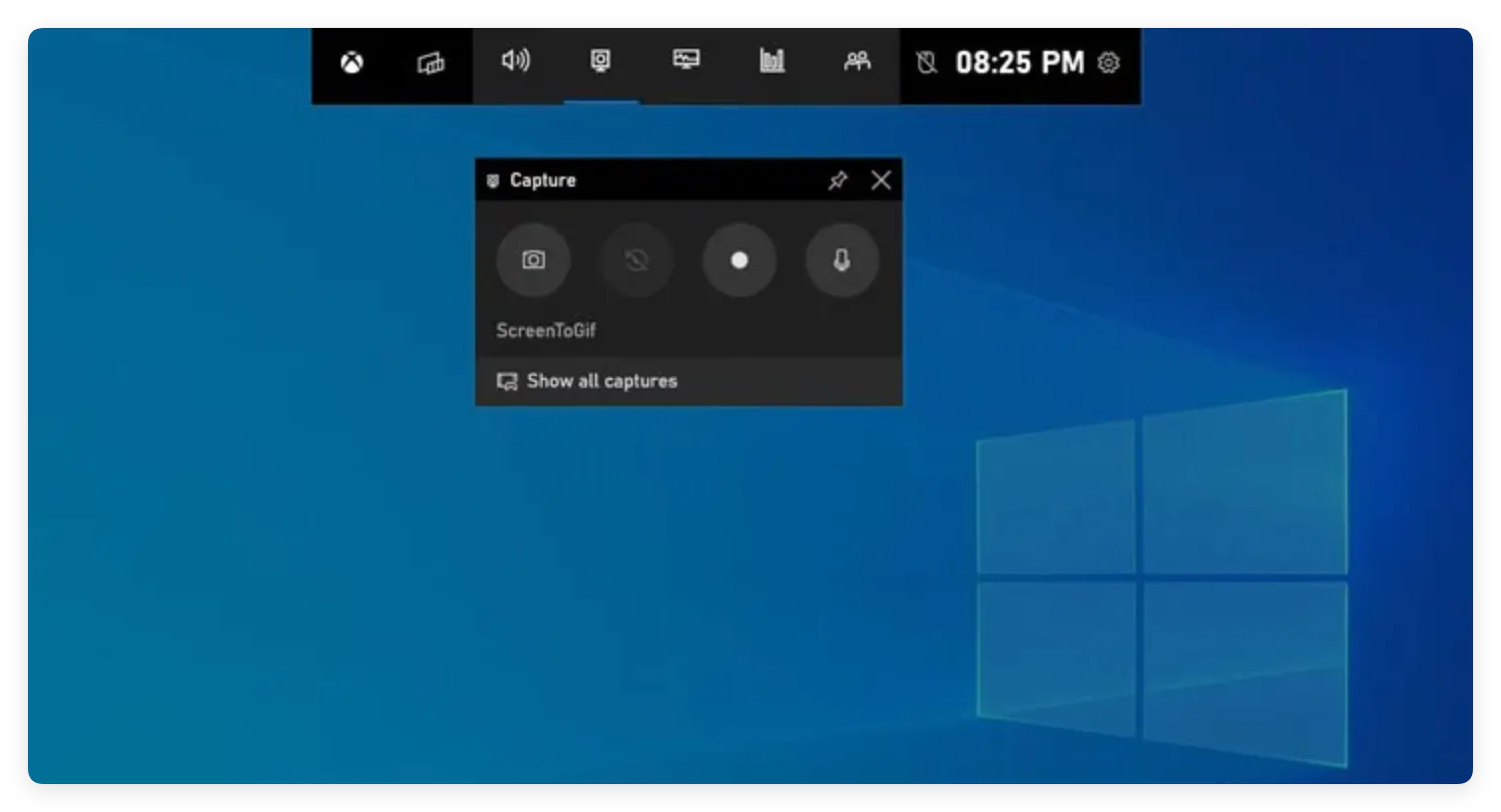
Steps to record with Xbox Game Bar
Xbox Game Bar usually saves recordings in MP4 format. You can review its capture and audio options in Settings > Gaming > Captures.
Useful Xbox Game Bar shortcuts
|
Action |
Shortcut |
|---|---|
|
Open Xbox Game Bar |
Windows + G |
|
Start or stop recording |
Windows + Alt + R |
|
Turn the microphone on or off while recording |
Windows + Alt + M |
|
Take a screenshot |
Windows + Alt + Print Screen |
If the shortcut does not work, check Settings > Gaming > Xbox Game Bar and confirm that Game Bar is enabled. Some games, apps, or protected content may not be capturable.
Snipping Tool can record a selected portion of the screen on supported Windows 11 versions. It is useful for short demonstrations, tutorials, or gameplay clips where you want to capture a particular area.
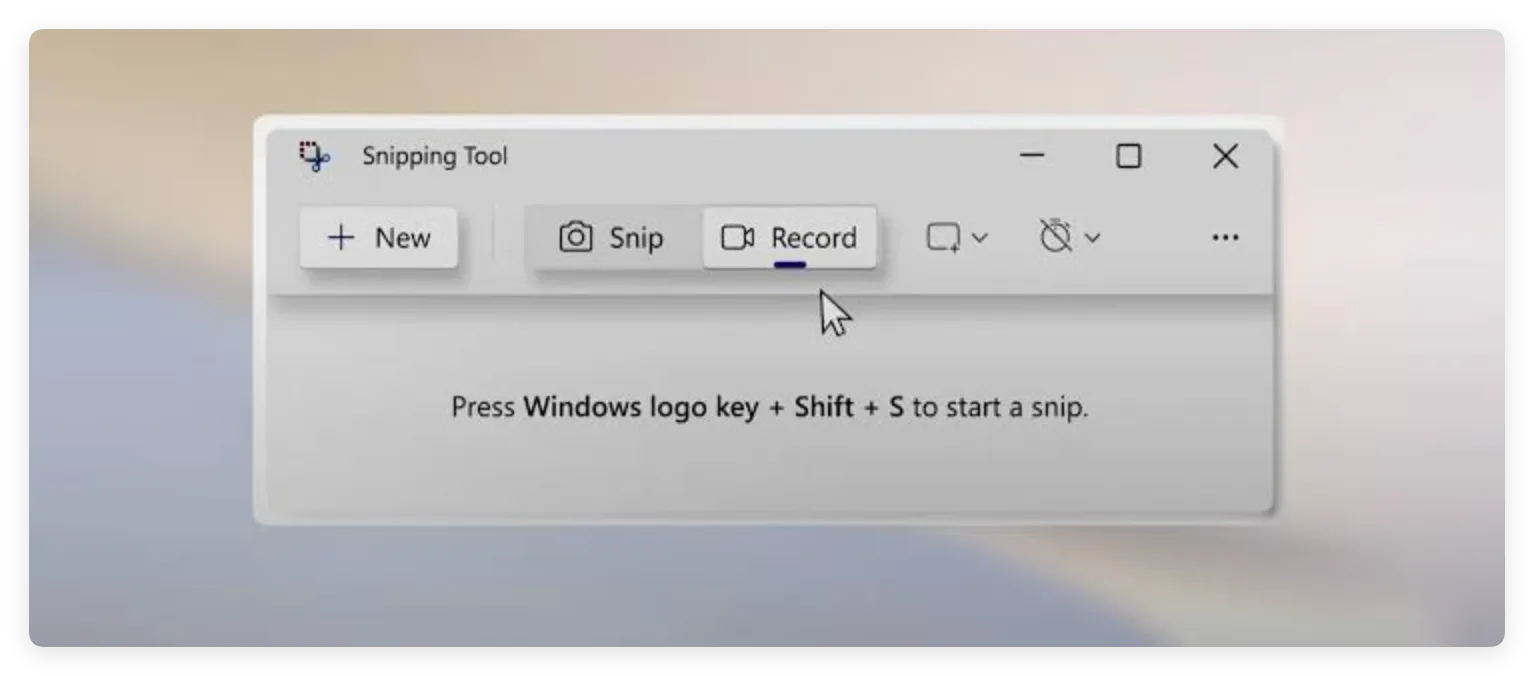
Steps to record with Snipping Tool
Snipping Tool is simple, but it may not provide the game-specific controls or audio options you need. Availability and features can vary by Windows version, so update the app through Microsoft Store if the recording option is missing.
Donemax Recorder is a desktop recording option for users who want more control than a basic built-in capture tool. Depending on the version, it can offer options for recording the screen, system sound, microphone, and webcam.
Steps to record with Donemax Recorder
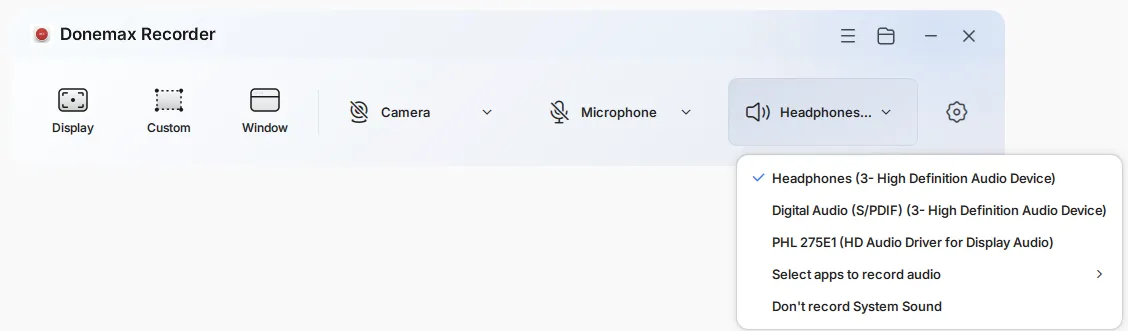
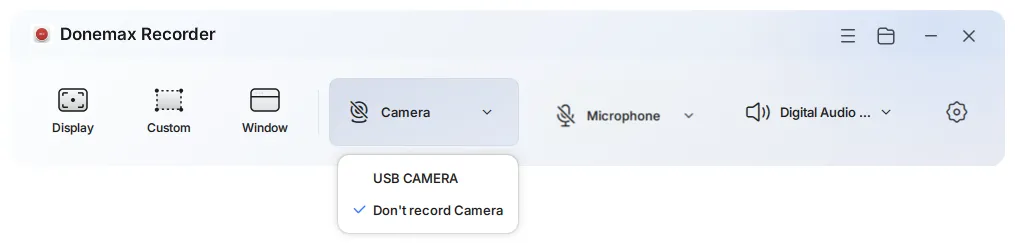

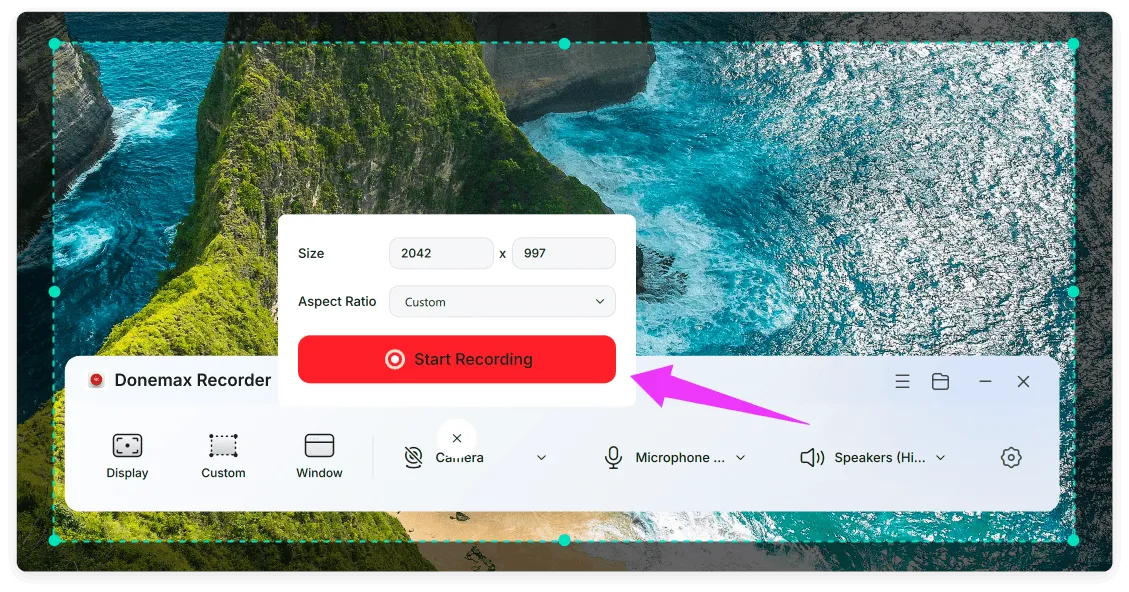
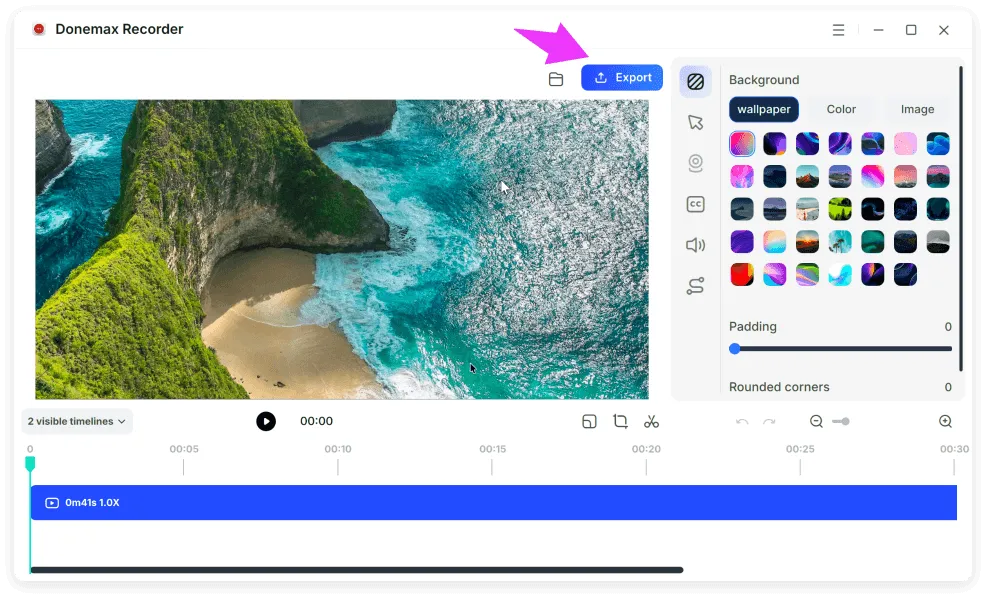
Before recording a long session, make a short test clip. Confirm that the game image is smooth, the microphone is audible, and the recording is saved in the expected folder.
OBS Studio is a free, open-source recorder and streaming application. It is a good fit for users who want to build scenes, mix audio sources, or use detailed encoder settings.
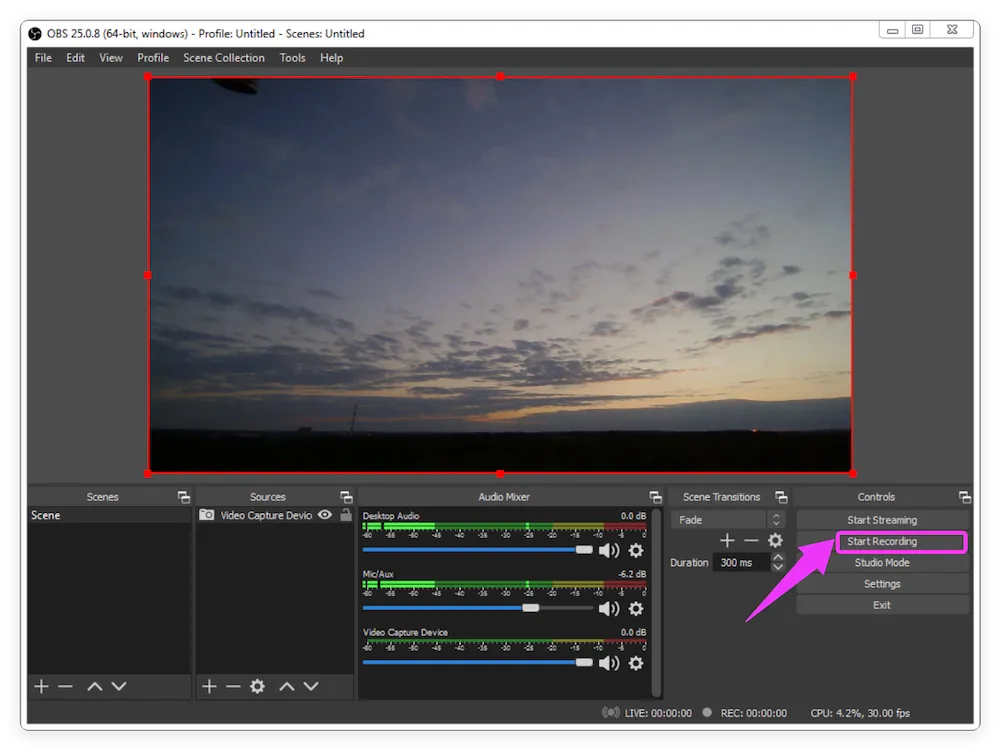
Basic OBS recording steps
OBS offers extensive control, but the number of settings can be confusing at first. Start with the automatic configuration, record a short test, and adjust only the settings that need improvement.
Windows 11 includes built-in recording tools, so you can capture gameplay without installing extra software. Third-party recorders are useful when you need more control over audio, video quality, webcam placement, or recording formats.
Method |
Best for |
Main strengths |
Limitations |
|---|---|---|---|
Xbox Game Bar |
Quick game clips |
Built into Windows; easy keyboard shortcut |
Limited control over recording sources and layout |
Snipping Tool |
Short screen recordings |
Simple interface; no extra download |
Fewer game-focused controls |
OBS Studio |
Advanced streaming and recording |
Detailed scene, audio, and encoder settings |
Takes time to configure |
Donemax Recorder |
Straightforward, flexible recording |
Captures screen and supports audio and webcam options |
Requires installation; available features may depend on version |
For a short clip, start with Xbox Game Bar. For a longer recording with separate microphone or webcam options, consider Donemax Recorder or OBS Studio. Check the current software's supported features and system requirements before installing.
Issue 1. Xbox Game Bar will not record
Confirm that Xbox Game Bar is enabled and that you are recording a supported game or app. Restart the game and check the capture settings. Some protected content cannot be recorded.
Issue 2. The video has no game sound
Check that system audio capture is enabled and that Windows is using the expected playback device. Make a test recording after changing audio settings.
Issue 3. The microphone is missing or too quiet
Select the intended microphone in Windows and in the recording app. Check microphone access under Windows privacy settings, then review the input level before recording.
Issue 4. Gameplay looks choppy
Recording can compete with a game for CPU, GPU, and storage resources. Reduce the recording resolution or frame rate, close unnecessary apps, and check that the drive is not nearly full.
Issue 5. The recording file is too large
Shorten the recording, reduce quality settings, or choose a more efficient supported format. Keep the original until you have confirmed that the edited or compressed version plays correctly.
Issue 6. The game appears as a black screen
Try another capture source, such as Game Capture, Window Capture, or Display Capture. Run the recording app and game with compatible permission levels, and update your graphics drivers if the issue continues.
To record gameplay on Windows 11, use Xbox Game Bar for quick clips, Snipping Tool for simple screen captures, OBS Studio for detailed scene and encoder control, or Donemax Recorder for a more guided recording workflow. Select the method that fits your setup, test the audio and video, and make sure the destination drive has enough space before starting a full session.
Donemax Recorder
Donemax Recorder is an auto-zoom Windows screen recorder that automatically magnifies clicks and applies smooth cursor effects for effortless tutorial and demo creation.
Christina
Christina is the senior editor of Donemax software who has worked in the company for 4+ years. She mainly writes the guides and solutions about data erasure, data transferring, data recovery and disk cloning to help users get the most out of their Windows and Mac. She likes to travel, enjoy country music and play games in her spare time.
Gerhard Chou
In order to effectively solve the problems for our customers, every article and troubleshooting solution published on our website has been strictly tested and practiced. Our editors love researching and using computers and testing software, and are willing to help computer users with their problems