Written byMariaUpdated on Nov 24, 2026

Before we start: A good Windows screen recorder depends on what you need to capture. For a simple setup with webcam, microphone, system audio, and editing tools in one workflow, Donemax Recorder is a practical option.
PAGE CONTENT:
The best screen recorder for tutorials and gameplay on Windows should capture the content you need without making setup difficult. For tutorials, that often means recording a selected window or screen, adding narration, and showing a webcam. For gameplay, it means smooth capture, game audio, microphone input, and reliable performance.
Before choosing a tool, check whether it supports:
Flexible recording areas: Full screen, a selected region, or a specific application window.
No single recorder is best for every user. The right choice depends on whether you prioritize easy tutorial creation, gameplay performance, streaming controls, or a quick built-in capture.
The following options serve different needs. Feature availability, system requirements, and pricing can change, so check each product's current documentation before installing.
| Recorder | Best for | Main strengths | Things to consider |
|---|---|---|---|
| Donemax Recorder | Tutorials and general screen recording | Screen, audio, and webcam capture in a straightforward workflow; recording and editing features | Check current edition details and system requirements |
| OBS Studio | Streaming and customizable recording | Extensive scene, source, and streaming controls | More setup is required for new users |
| Xbox Game Bar | Quick game clips | Built into Windows; convenient for supported games | Limited control compared with dedicated recorders |
| Camtasia | Polished tutorials and training videos | Recording and editing workflow suited to instructional content | Paid product; may be more than a casual user needs |
| ShareX | Lightweight screen captures and short recordings | Many capture and sharing options | Interface and recording workflow may take time to learn |
Donemax Recorder is designed for users who want to capture screen activity without building a complex recording setup. It can suit tutorial creators who need to record a screen, narration, or webcam footage as part of a single workflow. Its available features and export options depend on the current version and license.
For a lesson or software walkthrough, choose the screen area, select the relevant audio sources, and test the microphone before recording. If the recording needs cleanup, use the product's supported editing tools or an external editor. Confirm the latest feature list on Donemax's official website before relying on a specific capability.
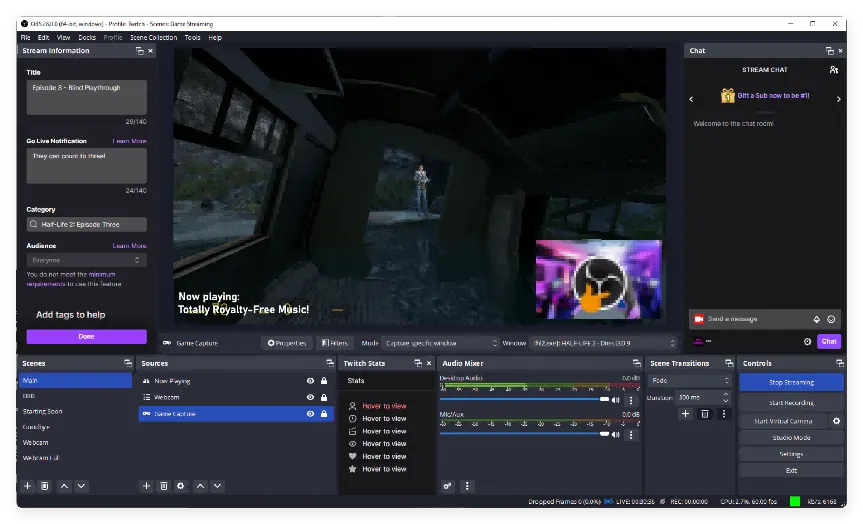
OBS Studio is a free, open-source option for users who want detailed control over recording and live streaming. It lets users organize sources into scenes, such as a game window, webcam, microphone, and overlays. This flexibility is useful for gameplay videos, but the initial configuration can feel complicated.
OBS is a strong fit when you want to customize layouts, manage multiple audio sources, or stream to a supported platform. It may be less convenient when you only need to record a short tutorial quickly and do not want to configure scenes and output settings.
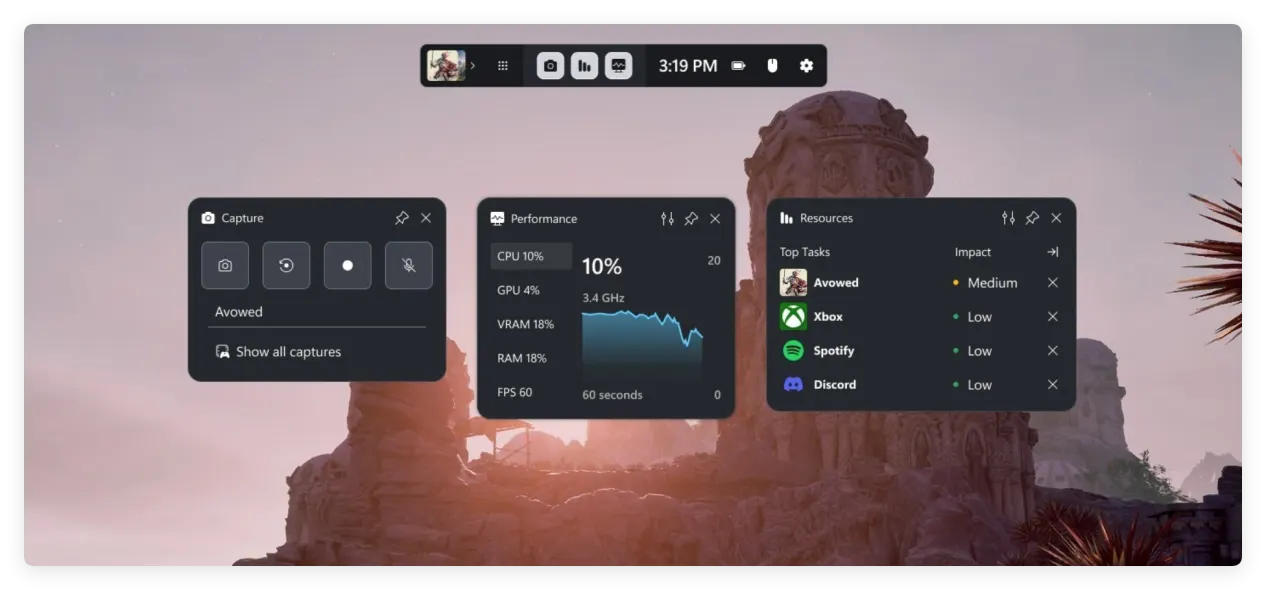
Xbox Game Bar is included with supported Windows installations and offers a quick way to record many games and applications. Open the overlay with Windows + G, then use its capture controls. Shortcuts and availability can vary depending on the Windows version and the app being recorded.
Game Bar is useful for casual clips because it does not require installing a separate recorder. It offers fewer options for editing, webcam layout, and detailed capture configuration than dedicated tools. It may also be unsuitable for some desktop or protected content.
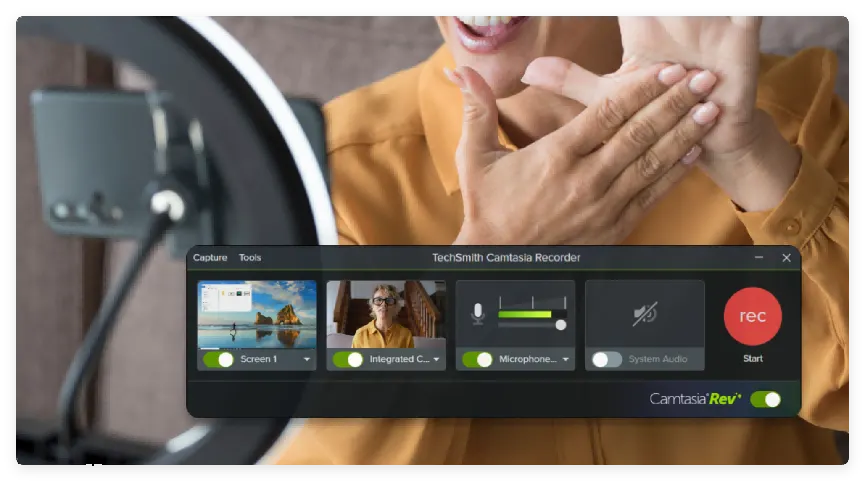
Camtasia combines screen recording with video-editing features for instructional content. Creators can use it to assemble demonstrations, add callouts, and refine a lesson in one application. This can save time when a tutorial needs more than a raw screen capture.
Its editing capabilities are useful for structured training videos, but they may be unnecessary for users who only want to save gameplay clips. Review the current price, trial terms, and export limitations before choosing it.
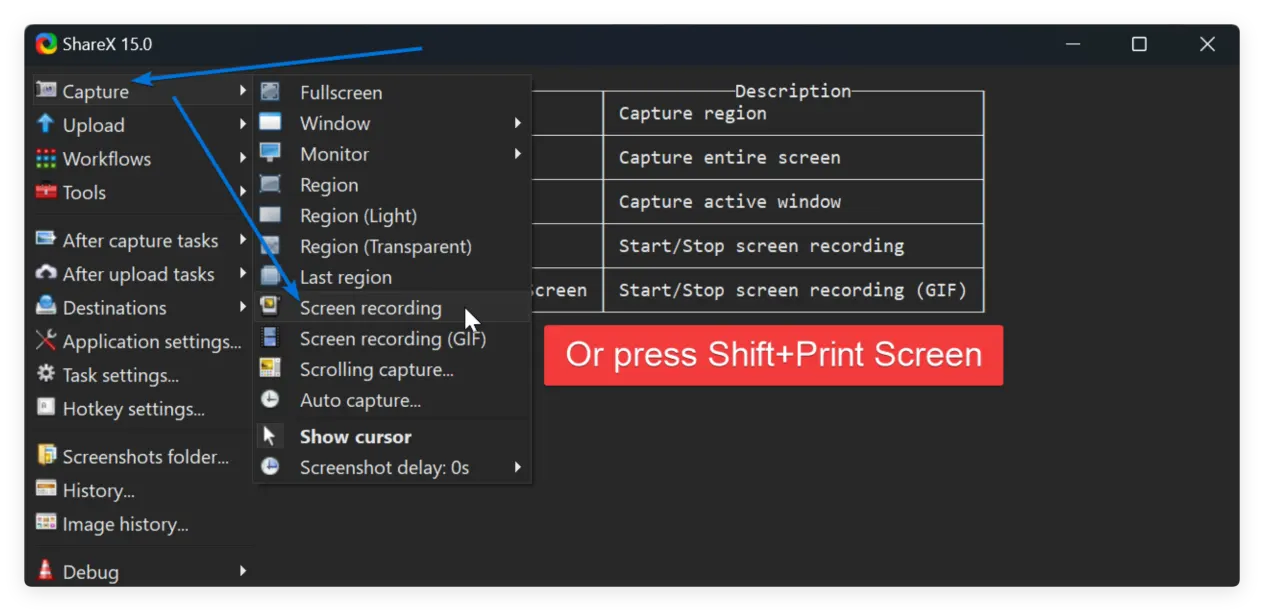
ShareX is a free, open-source tool known for screenshots and capture workflows. It can be useful for users who need frequent screen captures, short recordings, or sharing tools. Its many options are powerful, though the interface may feel less guided than a recorder designed around a simple record-and-edit process.
For longer gameplay sessions or polished tutorials, compare its recording workflow and output controls with those of a dedicated video recorder.
Start with the type of video you plan to make. A screen tutorial and a high-frame-rate game recording have different needs, so choosing based only on a software's feature count can lead to unnecessary complexity.
Also consider your computer's hardware. Recording at high resolution and frame rates uses more storage and processing power. If a game becomes choppy, lower the recording resolution or frame rate, close unnecessary applications, or test a hardware-encoding option if your recorder supports one.
Good results depend on preparation as much as software. A short test recording can reveal audio problems, unreadable text, or performance drops before you capture a full session. Here we will show you how to do the job with Donemax Recorder:
Step 1. Download and install. Download the software Donemax Recorder and install it on your computer.
Step 2. Select audio sources. Enable system audio for game or application sound, and enable the microphone for narration. Check that the correct input device is selected. Set up the webcam if needed. Place it where it does not cover menus, controls, or important on-screen text.
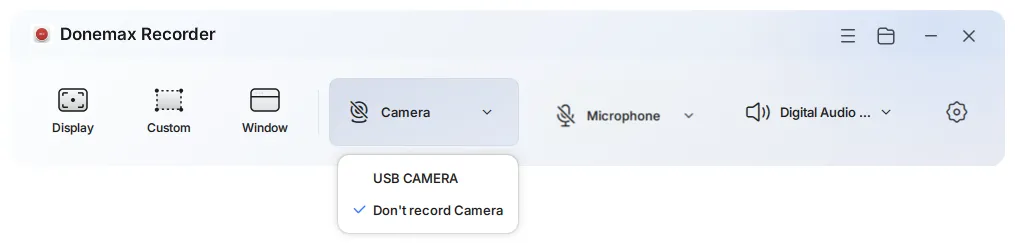
Step 3. Choose the capture area. Record only the application or screen region viewers need to see.

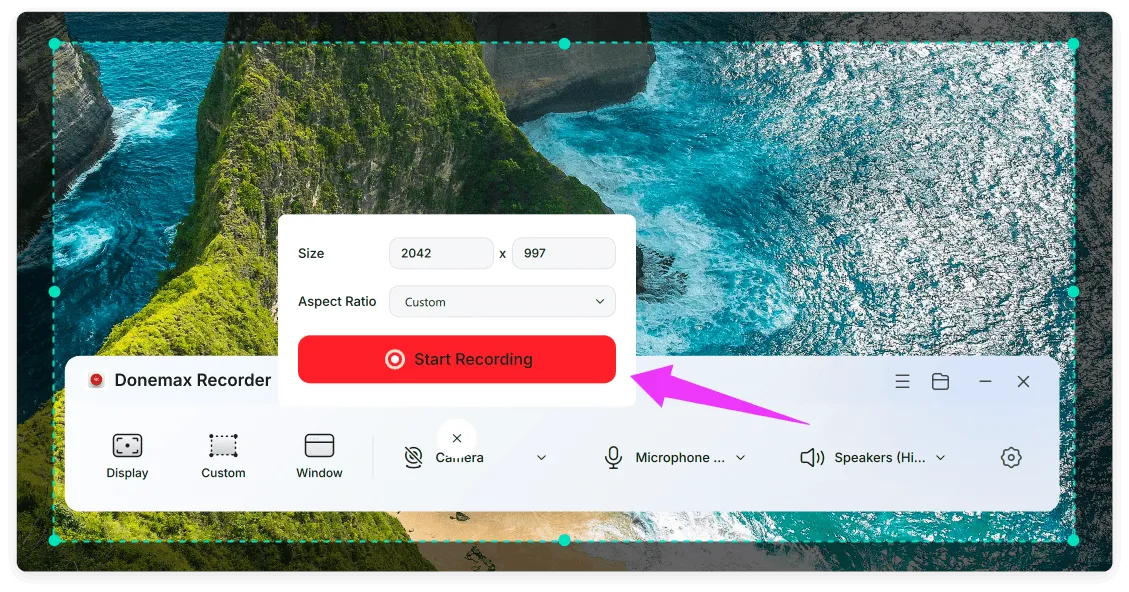
Step 4. Record and review. After choosing the capture area, you can see and click the red Start Recording button. Then the software will start the recording. You can click the Stop button to finish the recording.
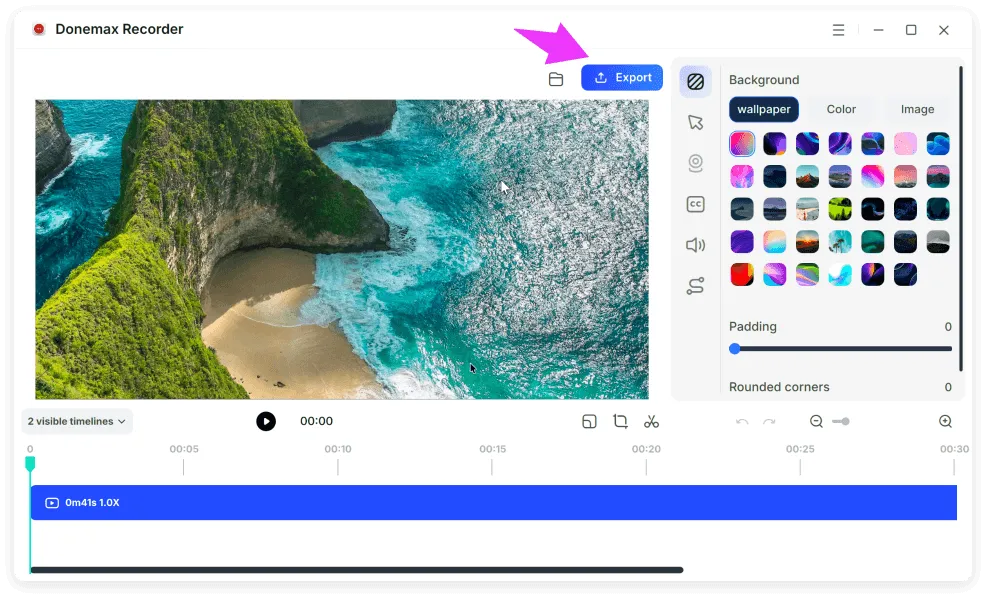
Step 5. Edit and export. After the recording is done, Check the beginning and end of the file, confirm the image is clear. You can also edit the captured video in the software if necessary. At last, export the video and make sure the exported file plays correctly.
For tutorials, speak at a steady pace and pause briefly between steps. For gameplay, test a demanding scene before recording a long session, since performance can vary during intense action.
The recording has no sound. Check that the recorder is using the correct microphone and system-audio sources. Also check Windows privacy settings and the device's input level.
The video looks choppy. Reduce the resolution or frame rate, close unused programs, and check whether the recorder offers hardware encoding. A slow storage drive or a heavily loaded system can also affect capture.
The file is too large. Lower the resolution or bitrate, shorten the recording, or use a more efficient supported format. Keep an original copy before converting or deleting large files.
The webcam covers important content. Move or resize the webcam overlay before recording, then make a short test clip to confirm the layout.
A game does not record correctly. Try a different capture mode, such as game or window capture, and check the recorder's compatibility notes. Some games and protected applications restrict capture.
For users who want a straightforward tool for both tutorials and gameplay, Donemax Recorder is worth considering because it brings common recording needs into one workflow. It can be a practical choice when you want to capture screen activity and audio, with webcam support and editing options depending on the current edition.
Choose OBS Studio if you need extensive customization or streaming controls. Use Xbox Game Bar for quick supported captures without installing another app. For polished lessons, compare dedicated recording-and-editing products and make sure their current features, pricing, and system requirements fit your workflow.
Donemax Recorder
Donemax Recorder is an auto-zoom Windows screen recorder that automatically magnifies clicks and applies smooth cursor effects for effortless tutorial and demo creation.
Maria
Maria is one of the senior writers & editors of Donemax who lives and works in Sydney, Australia. She loves PC, Mac and Internet Technology. She has 6 years of writing articles about data recovery on PC/Mac, disk cloning solution, data eraser and computer OS optimization, etc. She is also interested in testing various software and digital products.
Gerhard Chou
In order to effectively solve the problems for our customers, every article and troubleshooting solution published on our website has been strictly tested and practiced. Our editors love researching and using computers and testing software, and are willing to help computer users with their problems