Written byChristinaUpdated on Nov 18, 2026

Before we start: Recording full-screen gameplay on Windows 11 is simple. Donemax Recorder is a practical choice for recording full-screen games on Windows 11. It provides flexible screen-capture options, system-audio and microphone support, customizable recording settings, and an easy workflow for creating high-quality gameplay videos.
PAGE CONTENT:
If you want to record full screen game on Windows 11, Donemax Recorder is a practical choice because it can capture the entire display, system sound, microphone input, and other on-screen activity from one simple interface. It is suitable for gameplay videos, tutorials, live commentary, and clips that need clear audio and stable recording.
Yes. Windows 11 supports several ways to record a full-screen game. You can use the built-in Xbox Game Bar, install OBS Studio, or use dedicated recording software such as Donemax Recorder.
The best method depends on your priorities. Xbox Game Bar is convenient and already included with Windows 11. OBS Studio offers advanced streaming and recording controls but can take time to configure. Donemax Recorder focuses on an easier workflow for users who want to record the whole screen without managing many technical settings.
A full-screen recording captures everything displayed on the selected monitor. This can include the game window, menus, notifications, taskbar activity, and other applications. Before recording, close private applications and disable notifications to avoid exposing unwanted information.
Xbox Game Bar is a good starting point because it is already available on many Windows 11 computers. However, it may not provide all the controls needed for longer gameplay recordings or tutorials.
| Feature | Xbox Game Bar | Donemax Recorder |
|---|---|---|
| Built into Windows 11 | Yes | No |
| Full-screen recording | Yes, in supported situations | Yes |
| Custom recording area | Limited | Available depending on mode |
| Microphone recording | Yes | Yes |
| System audio recording | Yes | Yes |
| Webcam options | Limited | Available depending on version and settings |
| Recording controls | Basic | More flexible |
| Suitable for tutorials | Basic | Yes |
| Ease of use | Very simple | Simple after installation |
| Output and recording settings | Limited | text |
Xbox Game Bar may not work with every desktop application or game configuration. It can also be affected by graphics settings, hardware acceleration, and Windows privacy permissions.
Donemax Recorder is more appropriate when you need a general-purpose screen recorder that can capture a game and other desktop content using the same workflow.
Donemax Recorder can record the full Windows 11 screen without requiring you to create complex scenes or configure multiple recording sources. This makes it useful for players who want to start recording quickly.
The software can be used for several types of content:
When recording a game, audio is just as important as the picture. Donemax Recorder can help capture system audio from the game and microphone input for live commentary, depending on the selected recording settings and Windows audio permissions.
A dedicated recorder also gives you more control over the recording area. You can record the complete screen, a selected area, or a specific window when you do not need to capture the entire desktop.
A small amount of preparation can improve recording quality and reduce interruptions.
Gaming performance and recording quality depend on your processor, graphics card, RAM, storage speed, game settings, and chosen recording format. A test recording is the fastest way to find suitable settings.
The following workflow is based on the standard screen-recording process described in the Donemax Recorder user guide.
Step 1: Install and Open Donemax Recorder
Download and install Donemax Recorder. Open the application after installation.
Before recording, launch the game and set it to full-screen mode if you want the game to occupy the entire display. You can also keep the game in windowed or borderless mode if that works better with your computer.
Step 2: Select Audio Sources
Enable system sound if you want to record the game's music, dialogue, sound effects, or other in-game audio.
Enable the microphone if you plan to add live commentary. Speak briefly and check the input level before recording. If your voice is too loud compared with the game, lower the microphone volume or increase the system audio level.
When you do not need commentary, disable the microphone. This prevents background noise from being included in the final video.
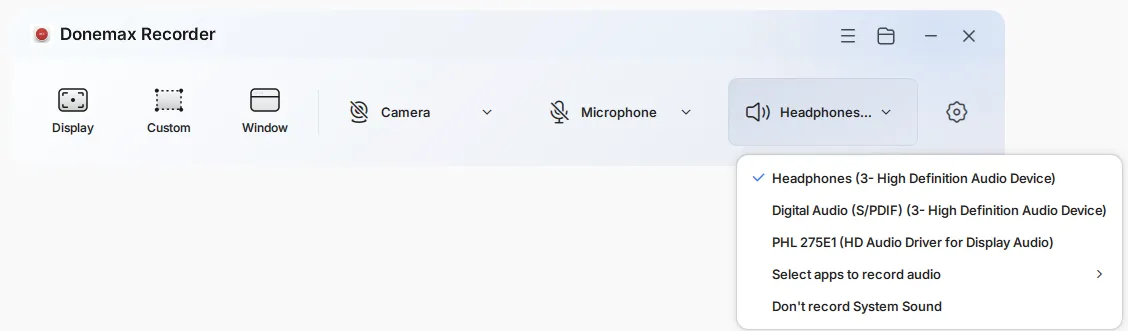
Step 3: Choose the Screen Recording Function
Select the screen recording option in Donemax Recorder. The application should provide options for choosing the recording area.
For a full-screen game recording, select the entire screen or the monitor where the game is running. If you use more than one monitor, check the selected display carefully before starting.
Selecting the correct monitor is important because recording the wrong screen can produce an empty video or capture unrelated desktop activity.

Step 4: Start Recording
Depending on the selected mode, Donemax Recorder may display a countdown before capture begins.
Step 5: Stop and Save the Recording
When you finish, use the stop control provided by Donemax Recorder. Before you save the recording video, you can edit it first if necessary. Then click Export and the software will save the recording to the selected output folder.
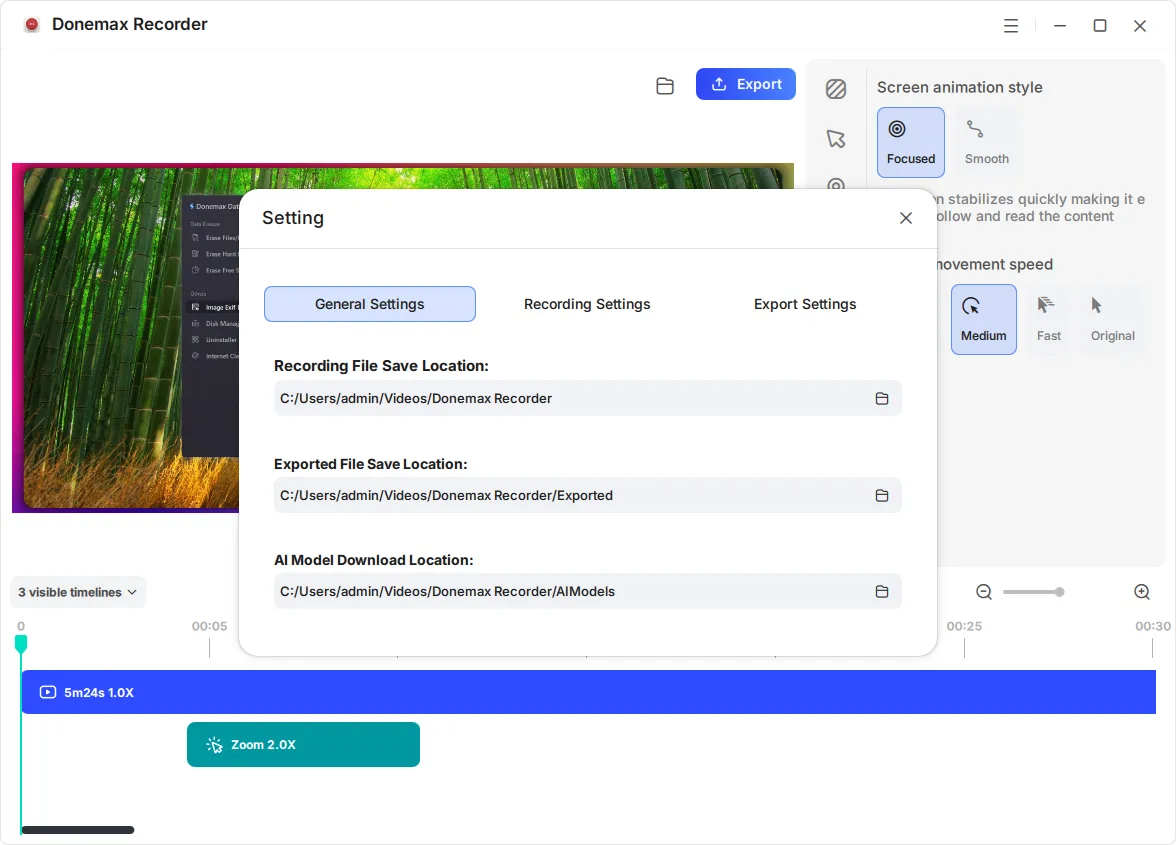
Open the saved file and review the beginning, middle, and end of the video. Check the game picture, microphone volume, system audio, frame smoothness, and file format before uploading or sharing it.
For detailed options and interface information, refer to the Donemax Recorder user guide.
To record full screen game on Windows 11, choose the correct display, enable the required audio sources, select practical quality settings, and test the recording before starting a long session. Xbox Game Bar works for quick clips, while Donemax Recorder offers a simple and flexible workflow for gameplay, commentary, tutorials, and other screen recordings.
Donemax Recorder for Windows
Donemax Recorder is an auto-zoom Windows screen recorder that automatically magnifies clicks and applies smooth cursor effects for effortless tutorial and demo creation.
Christina
Christina is the senior editor of Donemax software who has worked in the company for 4+ years. She mainly writes the guides and solutions about data erasure, data transferring, data recovery and disk cloning to help users get the most out of their Windows and Mac. She likes to travel, enjoy country music and play games in her spare time.
Gerhard Chou
In order to effectively solve the problems for our customers, every article and troubleshooting solution published on our website has been strictly tested and practiced. Our editors love researching and using computers and testing software, and are willing to help computer users with their problems