Written byCharlesUpdated on Nov 25, 2026

Before we start: To record games, online meetings, tutorials, or other videos, a reliable tool is essential. Donemax Recorder is the best choice which can capture screen and audio without lag.
PAGE CONTENT:
A recorder can affect gameplay because recording uses system resources. Capturing frames, encoding video, and writing a large file to storage all require work from your PC. So it's important to find a screen recorder without lag for gaming PC. If the game and screen recorder compete for limited CPU, GPU, memory, or disk capacity, you may notice lower frame rates, stuttering, or audio-video problems.
There is no recorder or setting that guarantees zero impact on every PC. The goal is to reduce recording overhead while preserving the video quality you need. Hardware, game requirements, resolution, frame rate, encoder, and storage speed all affect the result.
A good gameplay recorder should let you choose what to capture and adjust video settings to suit your computer. Look for game capture or a suitable screen-recording mode, adjustable frame rate and resolution, audio controls, and a recording format that works with your editing or sharing workflow.
A recorder's feature names and available settings can differ by operating system and software version. Check the current product guide and test your configuration before recording important gameplay.
Donemax Recorder provides screen-recording controls for capturing activity on a computer. Its online user guide explains how to set up a recording and adjust available options. Follow these general steps, then use the guide for the exact controls shown in your installed version.
Step 1. Install and open Donemax Recorder. Download and install the software. Launch the program.
Step 2. Choose the settings. Set resolution and frame rate according to your target quality and PC performance. Start with a moderate configuration and raise it only after a successful test.
Enable game or system audio and microphone input as needed. Make a short test recording to confirm that sound is captured correctly.

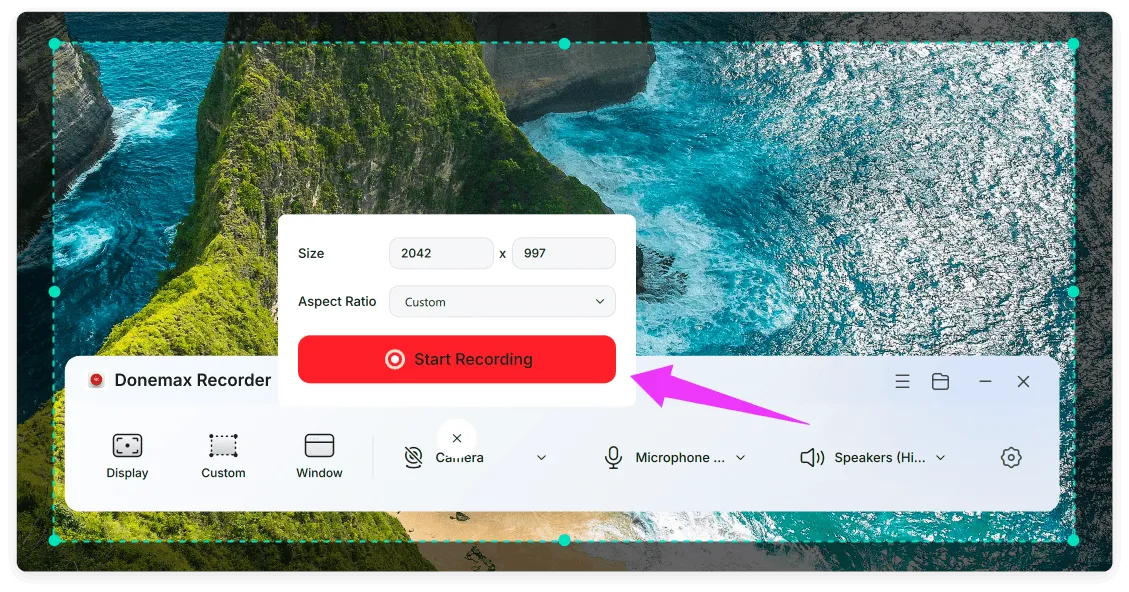
Step 3. Choose a recording mode. Select the mode that fits your gameplay capture. If a dedicated game mode is available in your version, use it for supported games; otherwise, select the game window or display area as directed by the guide.
Choose the game window or screen region you want to record. Avoid capturing unnecessary desktop space if you only need gameplay.

Step 4. Start the game and record a short test. Check the video, sound, frame pacing, and in-game performance before recording a full match.
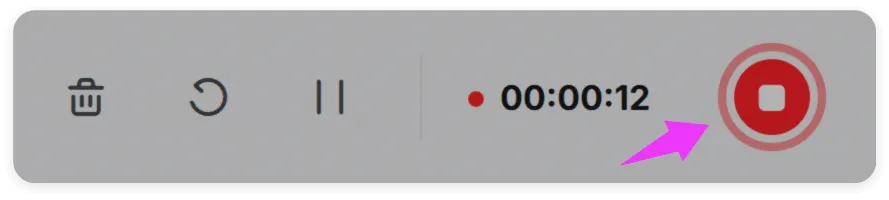
After the game is ended, you can click the stop icon to finish the screen recording and review the captured video.
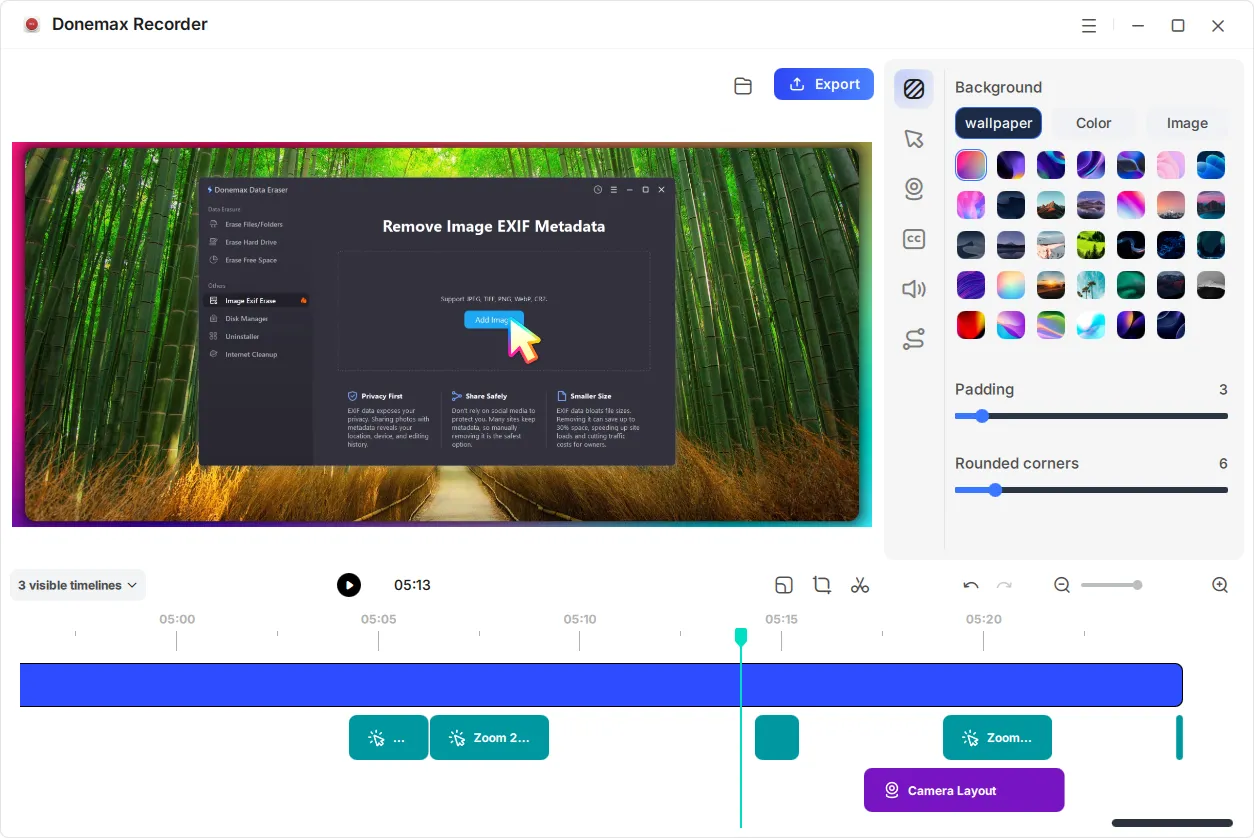
Step 5. Review and edit your recording. Confirm the file plays as expected after the recording. You can also edit the video in the software directly.
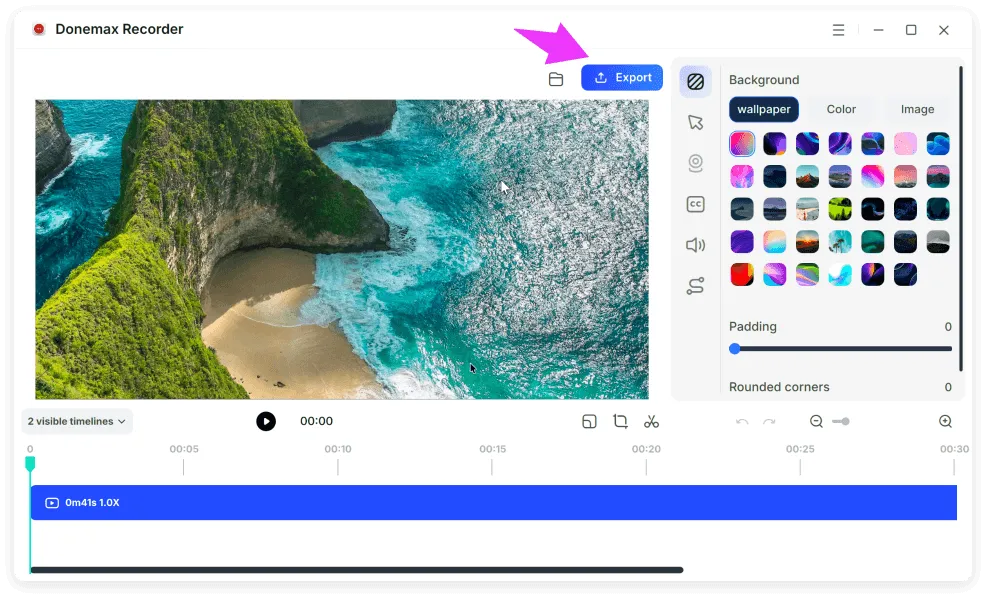
Step 6. Export and save the recorded video. At last, click the Export button to save the video. Choose a drive with enough free space. A separate fast drive can help when your game and recording would otherwise compete for disk activity.
The best settings depend on the PC and game. Use a short test rather than assuming one preset will work for every system.
| Setting | Lower-impact choice | Higher-quality choice | When to adjust |
|---|---|---|---|
| Resolution | 720p or the game's native output at a reduced scale | 1080p or higher | Lower it if performance drops or files are too large |
| Frame rate | 30 FPS | 60 FPS or more, if supported | Reduce it when the game stutters during capture |
| Encoder | Supported hardware encoder, if available | Higher-quality encoder settings | Use hardware encoding if CPU usage is high |
| Bitrate or quality | Moderate quality | Higher bitrate or quality setting | Increase only if the video looks blocky and performance remains stable |
| Capture area | Game window or needed region | Full display | Use a smaller area if your workflow allows it |
Higher resolution and frame rate can make gameplay videos look smoother and sharper, but they also increase processing and storage demands. If the recording is for a quick tutorial or social post, a moderate setting may be sufficient. For detailed footage, test higher settings and watch both game performance and recording quality.
You can often improve recording stability without changing software. Prepare the PC so the game and recorder have enough resources.
Recording can create large files, especially at high resolution and frame rates. Check available storage before a long session and avoid filling the system drive.
The game frame rate drops while recording. Lower the capture resolution or frame rate, close background apps, or reduce demanding game graphics settings. If the recorder offers a supported hardware encoder, test it.
The video stutters but the game runs smoothly. The recording drive may be under load, or the encoder may not keep up. Try a different drive, reduce video settings, and make another short test.
The audio is missing or out of sync. Check the recorder's selected audio sources and system permissions. Test game audio and microphone separately to identify which source is causing the issue.
The game screen is black in the recording. Try another capture mode, run the recorder with appropriate permissions, or check whether the game's display mode affects capture. Consult the recorder guide for supported capture options.
The recording file is too large. Reduce resolution, frame rate, or quality settings, or record only the sections you need. Keep the original file until you have checked any compressed or edited copy.
To record PC gameplay with minimal lag, use a recorder that can capture your game while keeping the frame rate, resolution, and encoding settings appropriate for your hardware. Donemax Recorder offers screen, game, and audio recording options. Before a long session, test a short clip, check performance, and save recordings to a drive with enough free space.
Donemax Recorder
Donemax Recorder is an auto-zoom Windows screen recorder that automatically magnifies clicks and applies smooth cursor effects for effortless tutorial and demo creation.
Charles
Charles, who lives in Sydney, Australia, is an editor & writer of Donemax Team. He is good at writing articles related with Apple Mac computers, Windows operating systems, data recovery, data erasure, disk clone and data backup, etc. He loves reading and playing tennis in his spare time and is interested in testing new digital devices such as mobile phones, Macs, HDDs, SSDs, digital cameras, etc.
Gerhard Chou
In order to effectively solve the problems for our customers, every article and troubleshooting solution published on our website has been strictly tested and practiced. Our editors love researching and using computers and testing software, and are willing to help computer users with their problems