
Written byChristinaUpdated on Sep 28, 2026

Before we start: When you delete a file on your computer and empty the Recycle Bin or Trash, you might think it is gone forever. However, standard file deletion does not actually remove your sensitive information from your hard drive or SSD. Donemax Data Eraser can help you overwrite the deleted data and make it unrecoverable for any recovery software.
PAGE CONTENT:
When you delete files, the operating system simply deletes the file's index pointer and marks that storage area as 'free space.' The actual content of your private photos, financial documents, tax records, or passwords remains intact on your storage sectors until new data happens to write over it.
Anyone with data recovery software can easily scan your drive, locate these lost pointers, and restore your deleted files in just a few minutes. If you are selling your old laptop, donating a USB drive, or handing off a hard drive to a buyer, this poses a major privacy risk.
To guarantee your private information is 100% unrecoverable, you must explicitly overwrite deleted data to prevent recovery software from retrieving it. In this guide, we explain how data overwriting works and show you the easiest methods to shred deleted files permanently.
To understand why overwriting is necessary, it helps to look at how storage devices manage files.
Think of your hard drive like a large book with a table of contents. When you save a file, the computer creates an entry in the table of contents (MFT on NTFS, or inode on APFS/EXT) and writes the content onto the physical pages (disk sectors).
When you click 'Delete', your system only erases the page number from the table of contents. The actual text on the physical page remains unchanged. The computer simply considers that page available for future writing.
Data recovery tools exploit this exact mechanism. They bypass the operating system's table of contents and scan the raw storage sectors directly. If the sector has not been overwritten by new files, the recovery tool reconstructs the original file instantly.
Overwriting deleted data means filling the storage sectors previously occupied by deleted files with new binary patterns, such as all zeros, all ones, or completely random characters.
Once a storage sector is overwritten with new data, the original magnetic or electronic state representing your file is completely destroyed. Even advanced lab recovery equipment or AI-powered recovery algorithms cannot restore the original information.
Data destruction standards define how many times (passes) and in what patterns the drive should be overwritten. Common standards include:
The easiest and most reliable way to overwrite deleted files without reformatting your entire hard drive is by using dedicated software like Donemax Data Eraser.
Donemax Data Eraser is designed specifically to permanently destroy data from HDDs, SSDs, USB flash drives, memory cards, and digital cameras. It guarantees that deleted files become 100% unrecoverable without harming your active system files.
Key Erasure Modes in Donemax Data Eraser:
Why Choose Donemax: Certified international erasing standards (DoD 5220.22-M, Gutmann); clear user interface; zero risk to existing files when using 'Erase Free Space' mode; full support for Windows 11, 10, 8, 7, and macOS.
Windows includes a built-in command-line utility called Cipher that can overwrite unused disk space.
To use this command, open Command Prompt as Administrator and type:
cipher /w:C: (Replace 'C:' with the drive letter you want to clean).
Cipher runs three overwriting passes: first with zeros, second with 255s (ones), and third with random numbers. While free, it offers no graphical interface, works slowly, and lacks progress bars or file preview controls.
Many users perform a format thinking it erases everything securely. However, perform a 'Quick Format' only erases the file index table—recovery software can easily restore files from a Quick Formatted drive!
A 'Full Format' in Windows 10 and Windows 11 performs a single zero-pass write across the drive, which prevents basic recovery. However, a Full Format wipes your whole partition, so you cannot use it if you only want to clear previously deleted files on your drive.
Here is a side-by-side comparison of the common methods to overwrite deleted data:
| Method | Erases Deleted Data Only? | Pass Options | Ease of Use | Safety for System |
|---|---|---|---|---|
| Donemax Data Eraser | Yes (Erase Free Space) | 1 to 35 Passes | Very Easy (GUI) | 100% Safe |
| Windows Cipher Command | Yes | Fixed 3 Passes | Hard (CMD line) | Safe if typed right |
| Windows Full Format | No (Wipes whole drive) | 1 Pass (Zeros) | Moderate | Destroys all active files |
| Recycle Bin Emptying | No (Zero Overwrite) | 0 Passes | Very Easy | Leaves data exposed |
If you want to ensure your deleted sensitive files can never be recovered, follow these simple steps using Donemax Data Eraser:
Step 1: Download and Install Donemax Data Eraser
Download the official setup package and install the software on your Windows PC or Mac computer. Launch the program.
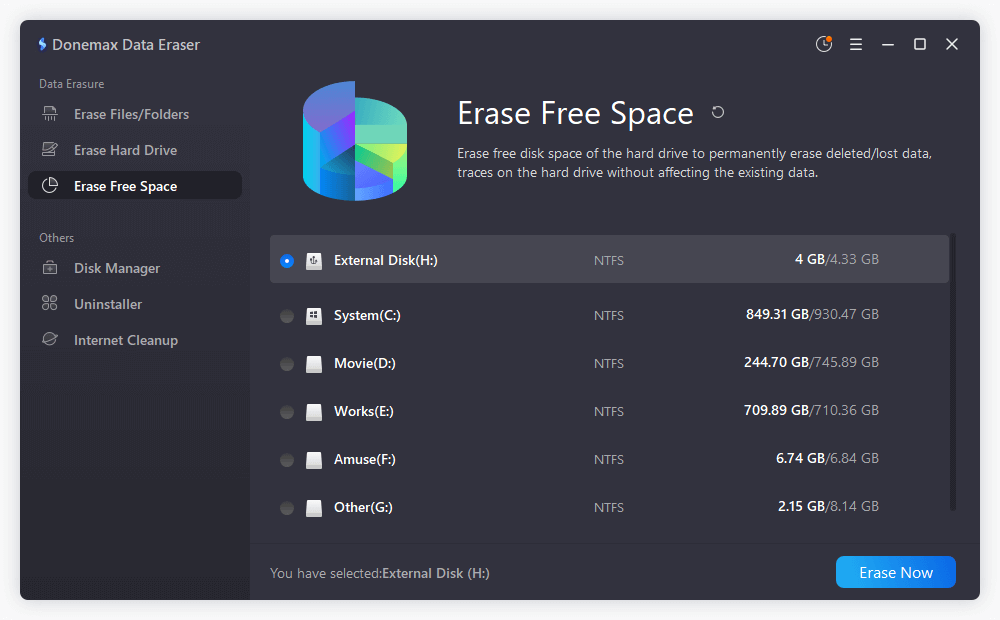
Step 2: Choose 'Erase Free Space' Mode
In the left menu, select 'Erase Free Space'. This mode targets only the unused storage sectors on your drive where deleted files reside. Choose the drive partition (e.g., C: drive, D: drive, or external USB) where you previously deleted your files. Click the 'Erase Now' button.
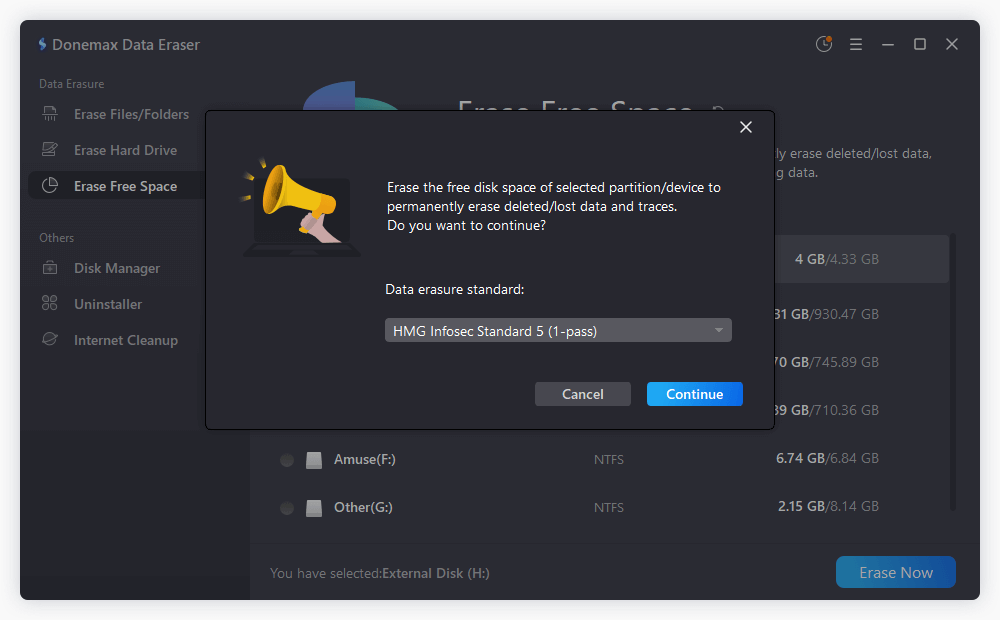
Step 3: Select Wipe Standard and Start Wiping
Choose a data erasure standard from the list and click the Continue button. Then the software will start wiping.
Donemax Data Eraser will automatically overwrite every bit of free space with military-grade shredding algorithms. Once finished, no data recovery software will ever be able to recover your deleted files!
Solid State Drives (SSDs) handle data differently than traditional magnetic Hard Disk Drives (HDDs). Knowing these differences helps ensure thorough data erasure:
Simply deleting a file or emptying your Recycle Bin does not protect your personal privacy. Data recovery software is widely accessible, and failing to clean your unused disk space leaves your sensitive documents exposed.
To make sure your deleted data is overwritten and cannot be recovered, using Donemax Data Eraser is the smartest, safest, and most efficient solution. Protect your identity, financial records, and confidential files today by permanently wiping deleted data with Donemax!
Donemax Data Eraser
The best data erasure program to permanently delete data. It works on PCs, Macs, HDDs, SSDs, USB drives, digital cameras, and other devices. Once the tool erases the data, no one can recover it by any method.
Christina
Christina is the senior editor of Donemax software who has worked in the company for 4+ years. She mainly writes the guides and solutions about data erasure, data transferring, data recovery and disk cloning to help users get the most out of their Windows and Mac. She likes to travel, enjoy country music and play games in her spare time.
Gerhard Chou
In order to effectively solve the problems for our customers, every article and troubleshooting solution published on our website has been strictly tested and practiced. Our editors love researching and using computers and testing software, and are willing to help computer users with their problems