
Written byCharlesUpdated on Sep 23, 2026

Before we start: System updates can occasionally fail, freeze halfway through installation, encounter driver conflicts, or corrupt your boot partition. If something goes wrong during the upgrade, you could face data loss, missing files, or an unbootable computer. So it's highly suggested to make a full clone backup with Donemax Disk Clone before upgrading to Windows 11 26H2.
PAGE CONTENT:
The release of Windows 11 26H2 brings a wealth of new artificial intelligence features, enhanced performance optimization, and refined interface improvements to personal computers worldwide. Upgrading to the latest major build is always exciting, but major system updates also come with inherent risks.
Learning how to back up entire PC before Windows 11 26H2 installation is the single most important step you can take to safeguard your digital life. In this comprehensive guide, we will cover why full backups are necessary, what data you must safeguard, and how to execute a complete full-disk backup quickly and safely.
While Microsoft tests major feature updates extensively, no software rollout is 100% bug-free across millions of unique hardware combinations.
Here are the top reasons why a complete full-system backup is essential before hitting 'Install':
Before backing up, it is crucial to understand the difference between saving individual files and creating a full PC backup:
To ensure a 100% safe upgrade to Windows 11 26H2, a Full System Backup is strongly recommended so you can restore your entire PC without reinstalling Windows or your software from scratch.
Before starting the backup process, complete these quick preparation steps to keep your backup clean and efficient:
There are several ways to create a full backup of your computer. Below is a comparison of the top methods available:
| Backup Method | Saves OS & Apps? | Ease of Use | Best For |
|---|---|---|---|
| Donemax Disk Clone | Yes (100% Bootable Copy) | Very High (3 Clicks) | Complete Full PC & OS Backup |
| Windows System Image | Yes (Built-in Tool) | Medium (Prone to Errors) | Basic Built-in Backup |
For most users, using a dedicated software tool like Donemax Disk Clone is the fastest, safest, and most reliable method to create a complete copy of your entire PC before installing Windows 11 26H2.
Donemax Disk Clone creates an exact sector-by-sector clone or disk image of your primary system drive. If the Windows 11 26H2 update fails, you can boot directly from your cloned drive or restore the image in minutes.
Key Benefits of Donemax Disk Clone:
Step-by-Step Guide: How to Backup Entire PC Using Donemax Disk Clone
Step 1: Download & Connect External Drive - Download and install Donemax Disk Clone on your Windows PC. Connect an external hard drive or SSD to your computer.
Step 2: Choose Backup Mode - Launch Donemax Disk Clone and choose Disk Clone (to clone the entire drive) mode from the main menu.
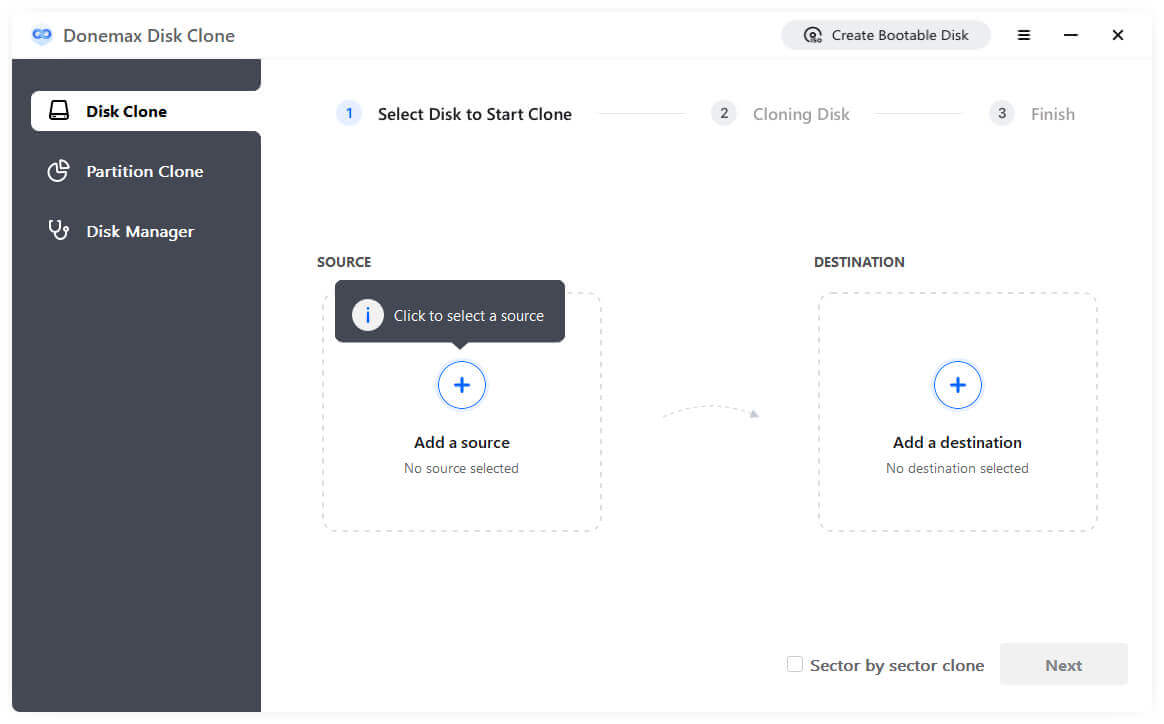
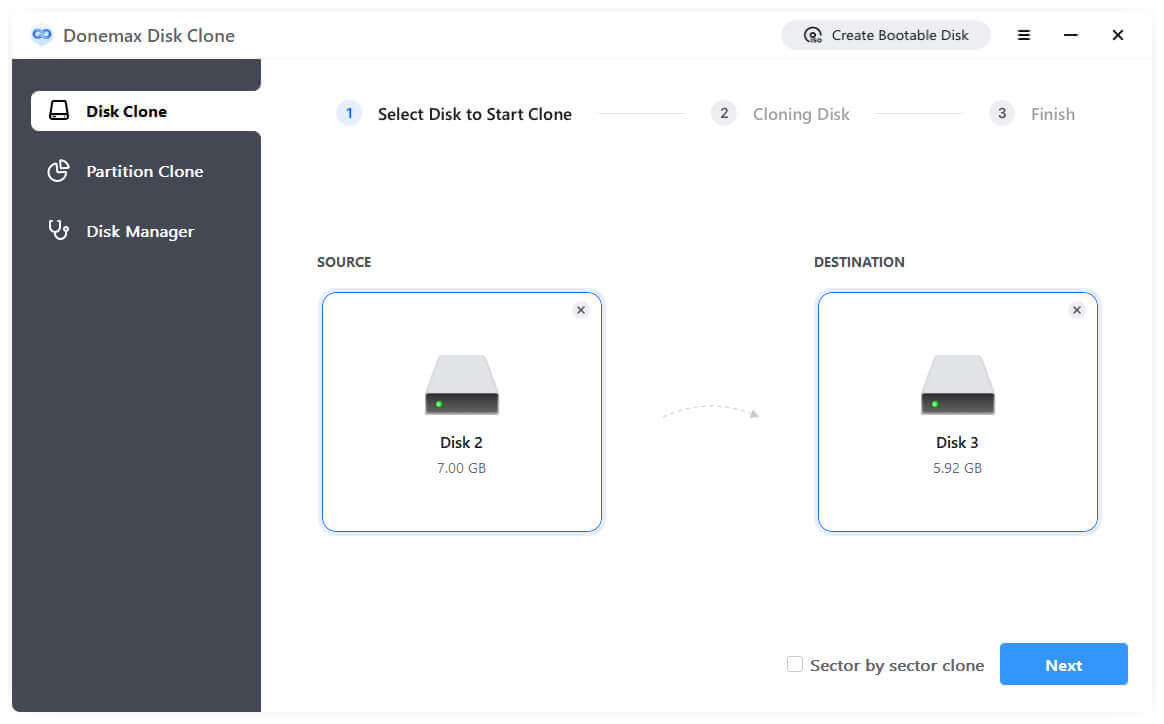
Step 3: Select Source & Destination Drives - Select your system drive (C: drive) as the Source and your external hard drive as the Destination. Click the Next button to continue.
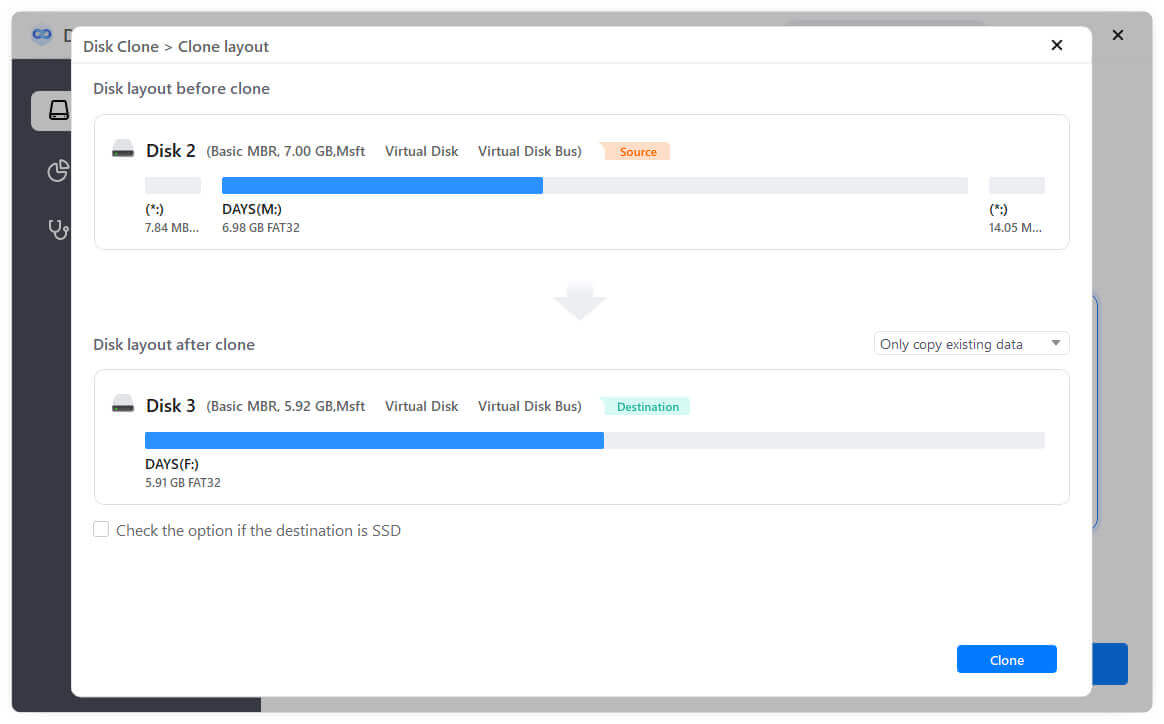
Step 4: Preview and Edit the Disk Layout - Preview the disk layout on the destination disk. If needed, you can modify the disk layout. Also enable the option for the SSD.
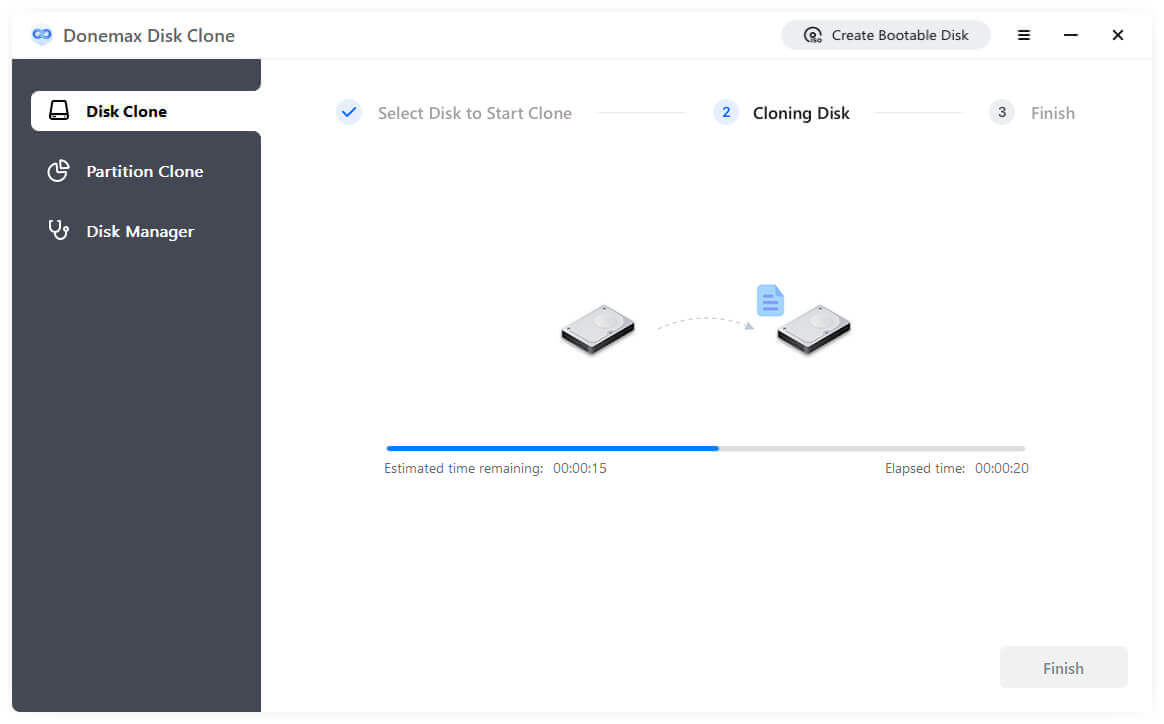
Step 5: Execute Full Backup - Click the Clone button to start the process. Donemax will safely clone your entire PC in the background.
Windows 11 also includes a built-in tool called System Image Backup (inherited from Windows 7 features). While functional, it is slightly more complex and can occasionally fail due to file permission issues.
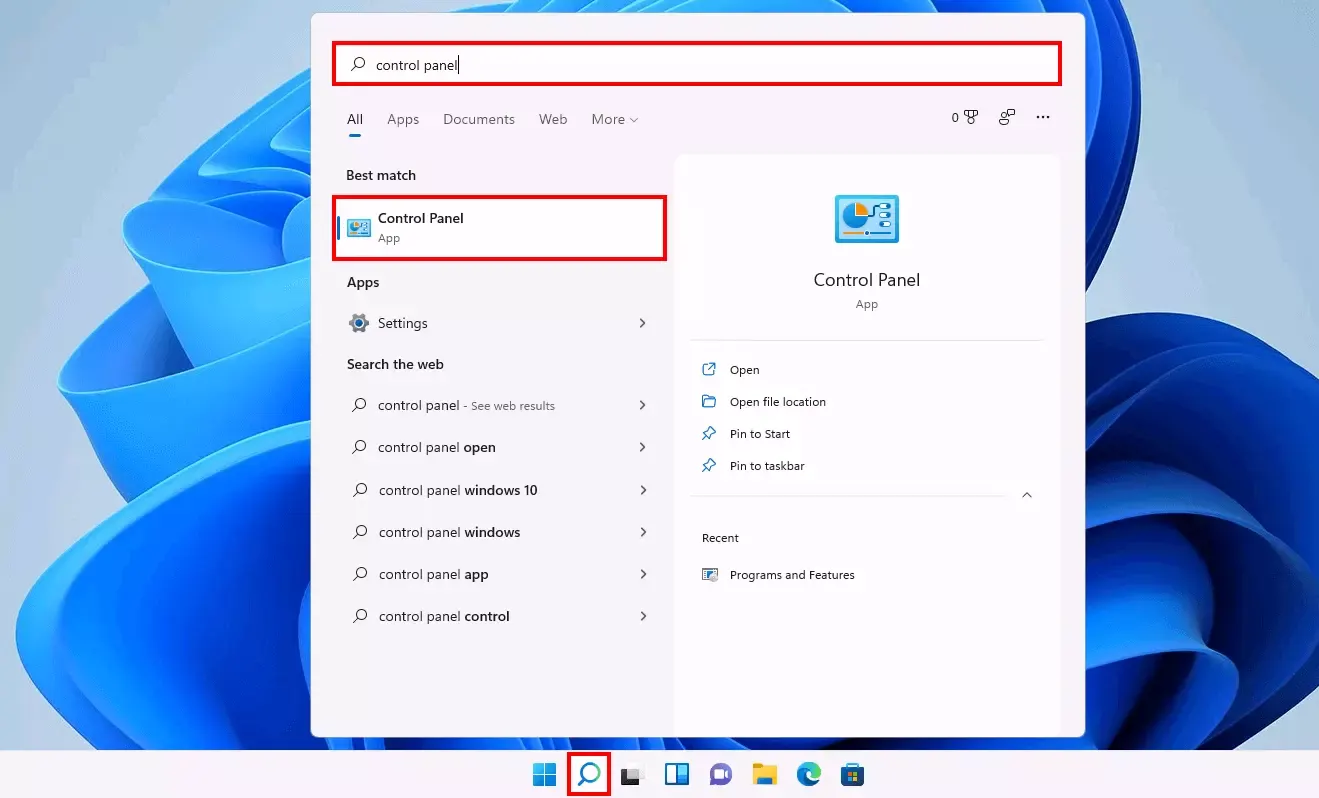
Step 1: Search and open Control Panel from the Start menu.
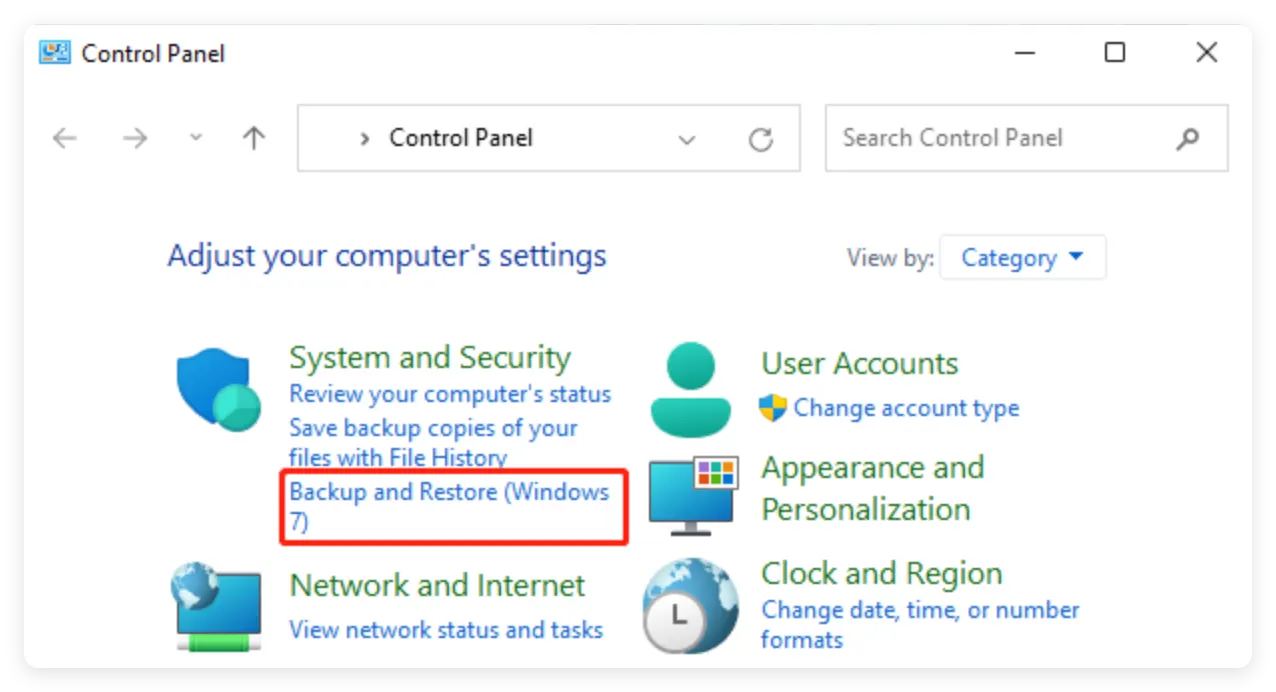
Step 2: Click on 'Backup and Restore (Windows 7)' under System and Security item.
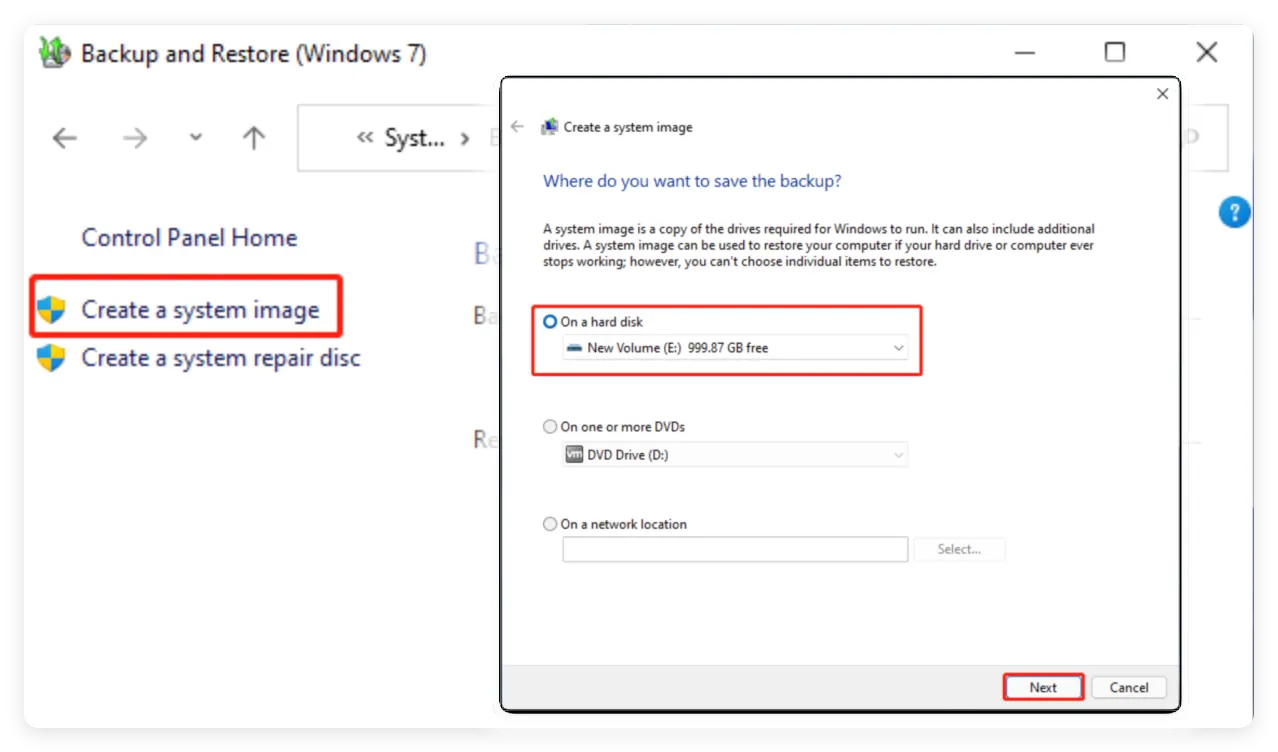
Step 3: In the left sidebar, click 'Create a system image'. Choose your external hard drive as the backup destination and click 'Next'.
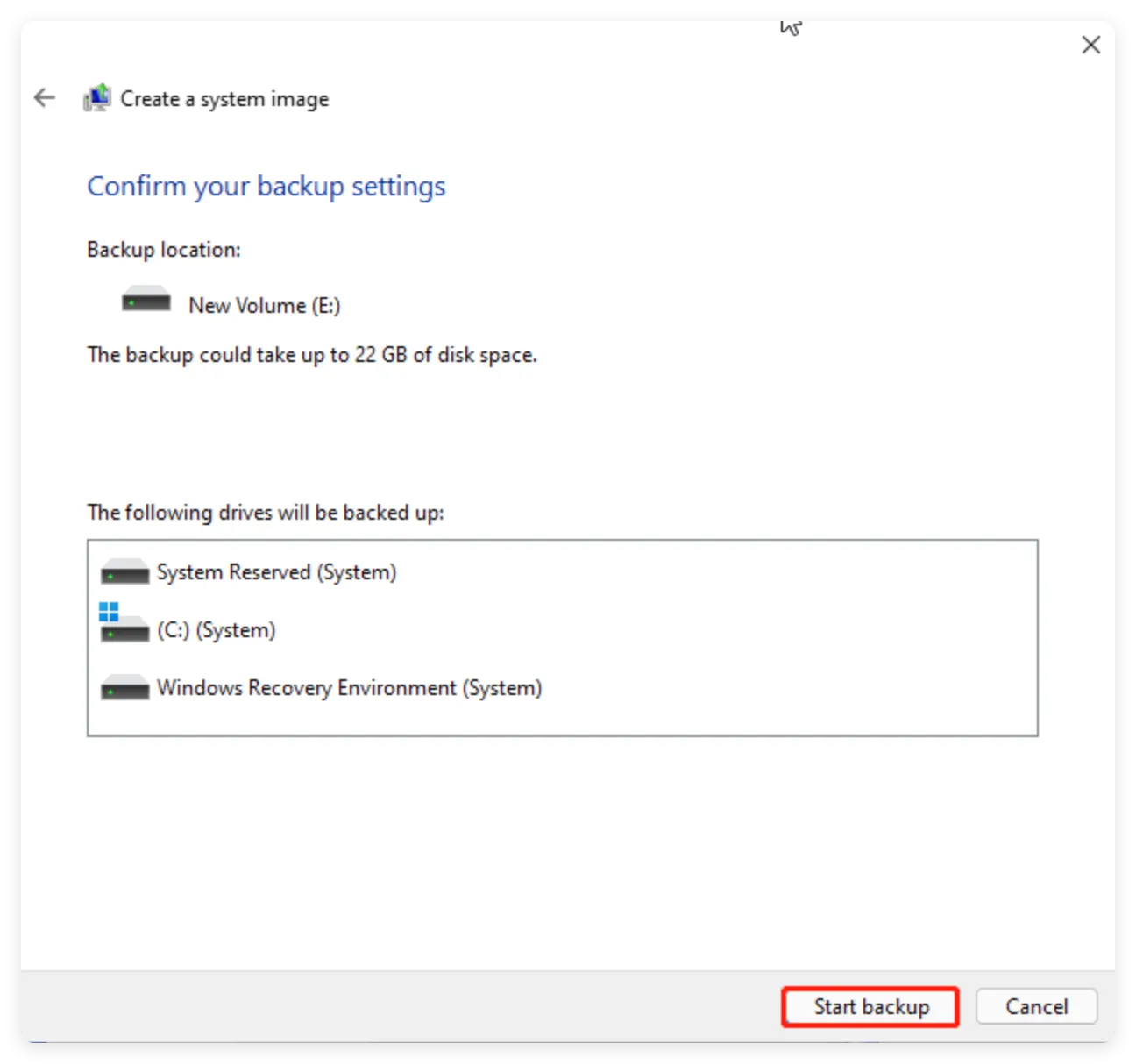
Step 4: Confirm your system partitions and click 'Start Backup'.
Once your full system backup is safely created on your external storage drive, you are ready to install Windows 11 26H2 safely:
Upgrading to Windows 11 26H2 is a great way to enjoy Microsoft's latest features and performance enhancements. However, taking a few minutes to protect your computer before updating is critical.
By following this guide on how to backup entire pc before Windows 11 26H2 installation, you eliminate all upgrade risks. Using Donemax Disk Clone ensures your operating system, installed applications, and personal memories are 100% safe—allowing you to update with total confidence.
Donemax Disk Clone
An award-winning disk cloning program to help Windows users and Mac users clone HDD/SSD/external device. It also can create full bootable clone backup for Windows PCs and Macs.
Charles
Charles, who lives in Sydney, Australia, is an editor & writer of Donemax Team. He is good at writing articles related with Apple Mac computers, Windows operating systems, data recovery, data erasure, disk clone and data backup, etc. He loves reading and playing tennis in his spare time and is interested in testing new digital devices such as mobile phones, Macs, HDDs, SSDs, digital cameras, etc.
Gerhard Chou
In order to effectively solve the problems for our customers, every article and troubleshooting solution published on our website has been strictly tested and practiced. Our editors love researching and using computers and testing software, and are willing to help computer users with their problems