
Written byChristinaUpdated on Oct 08, 2026

Before we start:: A standard file backup only saves your documents. Donemax Disk Clone can help you create a full and bootable clone backup for your system disk. A bootable disk clone copies your entire operating system, programs, drivers, and hidden system partitions so you can boot your PC immediately if your primary drive fails.
PAGE CONTENT:
Upgrading your PC or keeping up with major system updates like Windows 11 26H2 brings exciting new features, enhanced security, and performance optimizations. However, major system updates also come with inherent risks. Software conflicts, driver incompatibilities, or unexpected system crashes during the update can leave your computer unbootable or lead to permanent data loss.
To safeguard your personal files, installed applications, and system configurations, having a reliable backup is essential before making major system changes. While built-in utilities like File History or cloud backups save individual documents, they cannot restore a crashed operating system instantly.

That is where a dedicated Windows 11 26H2 backup tool comes into play. By creating a full and bootable system clone, you ensure that if anything goes wrong, you can boot directly from your backup drive and get right back to work. In this guide, we will explore the best clone backup solution for Windows 11 26H2 and step-by-step instructions on how to use it.
Windows 11 26H2 introduces deep system updates, updated driver requirements, and enhanced system security frameworks. While these upgrades improve overall user experience, they also alter core system files.
The Limits of Standard Cloud & File Backups
Cloud services like OneDrive and Google Drive are great for syncing office files and photos. However, they do not back up your Windows registry, installed software, system settings, or system boot partitions. If Windows fails to load, cloud files alone cannot rebuild your operating system.
Built-In Windows Utilities Are Outdated
Windows still includes legacy backup features like System Image (Windows 7). However, Microsoft no longer actively maintains these legacy features, making them notoriously unreliable when restoring modern Windows 11 GPT/UEFI system drives.
The Power of Disk Cloning
A disk clone creates an exact, 1-to-1 sector level or file-level replica of your hard drive or SSD. It captures everything: the operating system, bootloaders, partition maps, software configurations, personal files, and registry keys. If your main drive encounters an error, a cloned drive serves as a hot-swappable replacement.
When choosing the best Windows 11 26H2 backup tool, ensure it meets specific modern technical standards:
For users seeking a fast, secure, and straightforward disk cloning solution, Donemax Disk Clone stands out as an ideal choice for Windows 11 26H2.
Donemax Disk Clone is powerful yet easy-to-use disk management software designed for system migration, hard drive upgrades, and comprehensive data backups. It fully supports Windows 11 26H2, as well as Windows 10, 8, 7, and Windows Server environments.
Donemax Disk Clone provides two distinct modes tailored to different backup needs:
💡 Important Note: Always choose 'Disk Clone' mode when backing up your main system drive. This guarantees all hidden boot partitions (EFI/MSR) are copied alongside your C: drive, making the target disk bootable.
Creating a complete bootable backup of your Windows 11 26H2 PC using Donemax Disk Clone takes only a few minutes. Follow these simple steps.
Preparation Before Cloning
Step 1: Open Donemax Disk Clone. On the left menu bar, click on the 'Disk Clone' option. This mode enables full drive copying for bootable backups.
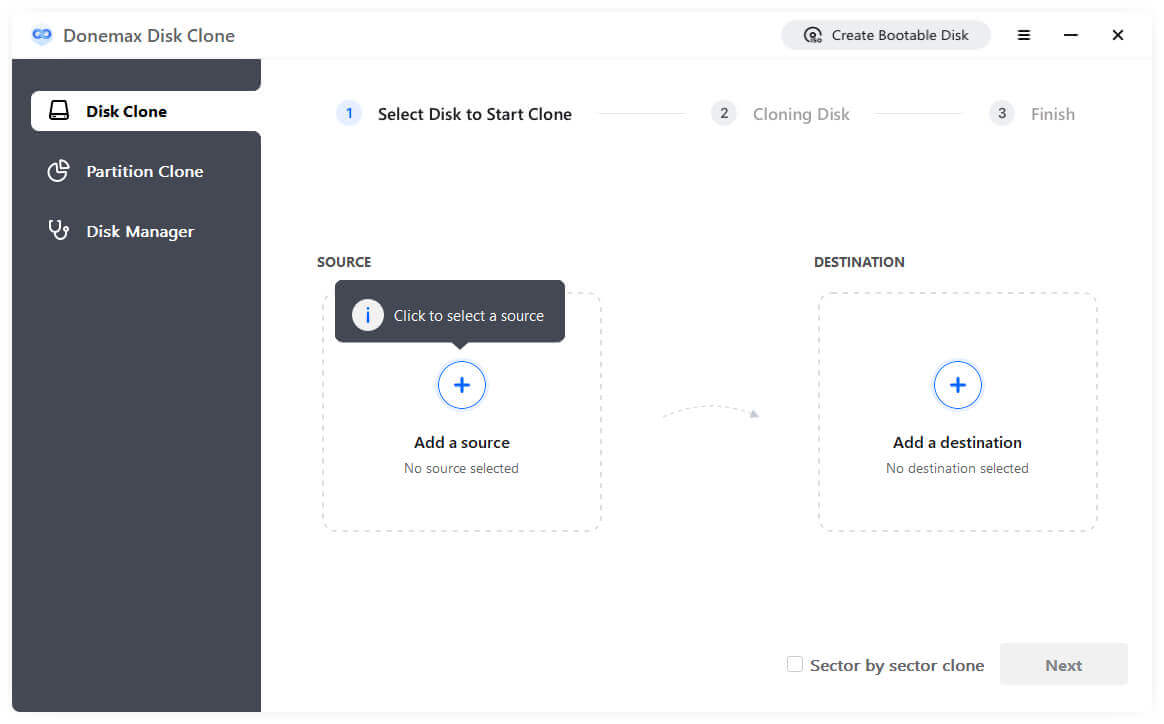
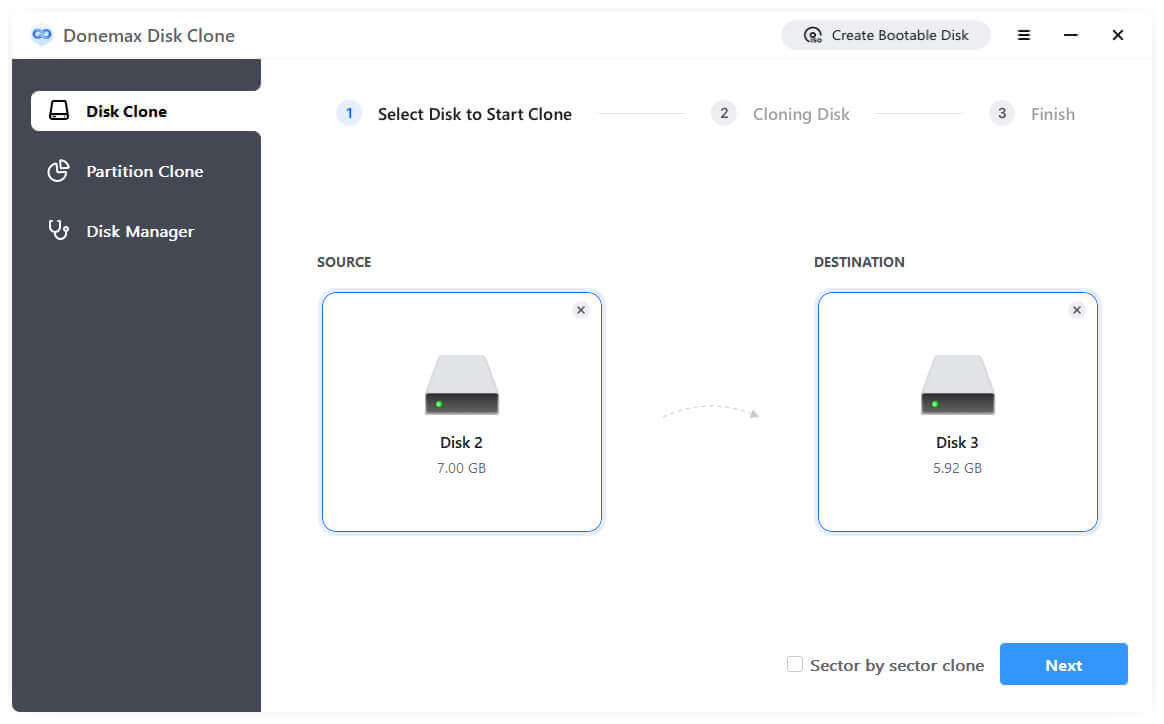
Step 2: Select your system disk (usually Disk 0 containing your C: drive) as the Source Disk. Next, choose your connected external drive or secondary disk as the Target Disk.
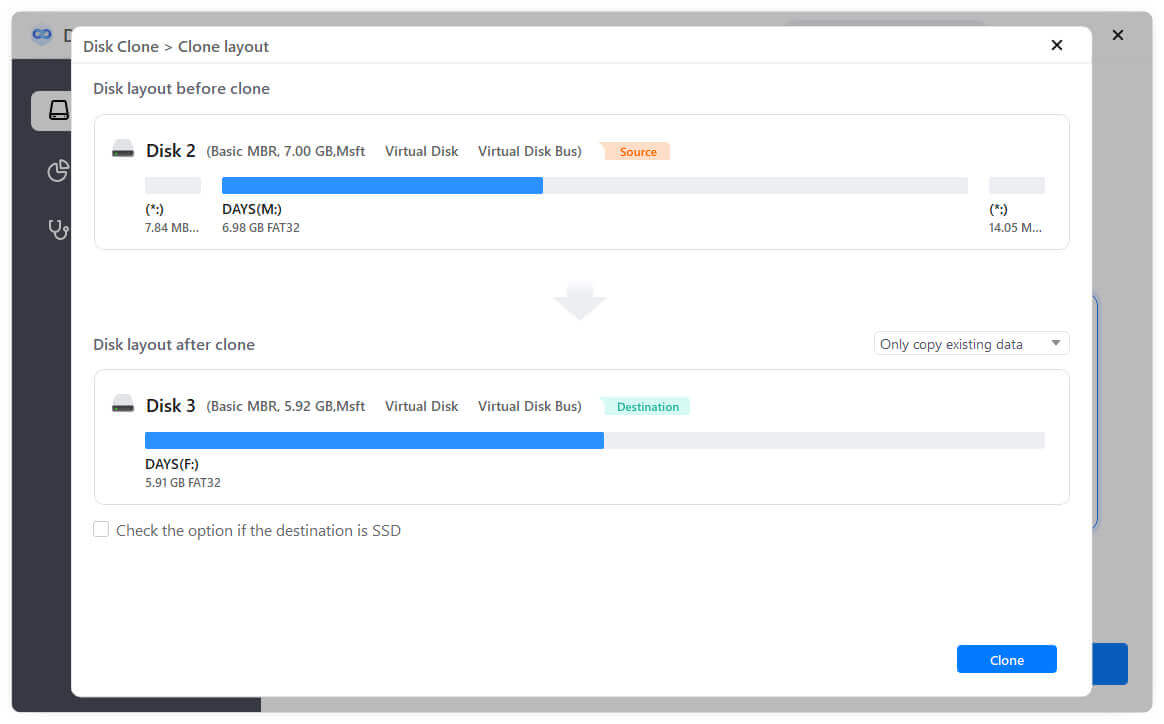
Step 3: Review the disk layout. If you are cloning to an SSD, ensure the 'Check the option if the target is SSD' box is checked to enable automatic SSD alignment. Click 'Clone' to start the process.
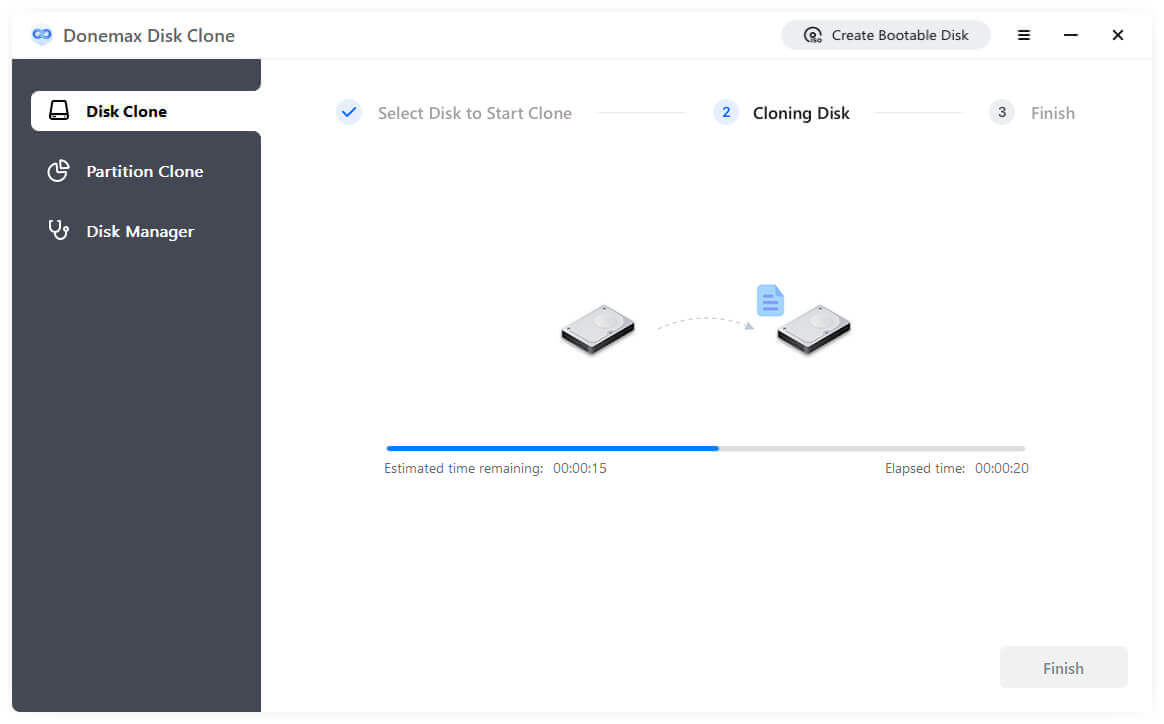
Step 4: The software will execute the cloning process in the background. Once completed, your target disk contains an exact, bootable copy of your Windows 11 26H2 operating system and files.
Having a bootable backup provides peace of mind. If your primary system drive crashes or gets corrupted after a Windows 11 26H2 update, follow these steps to boot from your clone:
To maintain optimal system performance and backup hygiene before and after major updates, keep these best practices in mind:
Upgrading to Windows 11 26H2 brings fantastic enhancements, but protecting your data should always be your top priority. Traditional file backups fall short when a system crash prevents your computer from booting.
By using Donemax Disk Clone and selecting Disk Clone mode, you can easily create a full and bootable clone backup of your Windows 11 26H2 system. With an identical bootable copy ready, you can perform updates and system changes with total confidence.
Donemax Disk Clone
An award-winning disk cloning program to help Windows users and Mac users clone HDD/SSD/external device. It also can create full bootable clone backup for Windows PCs and Macs.
Christina
Christina is the senior editor of Donemax software who has worked in the company for 4+ years. She mainly writes the guides and solutions about data erasure, data transferring, data recovery and disk cloning to help users get the most out of their Windows and Mac. She likes to travel, enjoy country music and play games in her spare time.
Gerhard Chou
In order to effectively solve the problems for our customers, every article and troubleshooting solution published on our website has been strictly tested and practiced. Our editors love researching and using computers and testing software, and are willing to help computer users with their problems