
Written byCharlesUpdated on Sep 24, 2026

Before we start: No matter you lost data due to system upgrade, or in any other scenarios, there is a great chance to get back the lost data with Donemax Data Recovery. When you found data loss happened, stop using the drive immediately and use the software to recover lost data as soon as possible.
PAGE CONTENT:
Upgrading to the Windows 11 26H2 update brings exciting new features, enhanced security, and performance optimizations to your PC. However, major system feature updates can sometimes come with unexpected issues. One of the most common problems users face post-upgrade is missing files from the Desktop, Documents, Downloads, Pictures or other folders.

If you just updated your system and noticed that your personal files have disappeared, do not panic. In most cases, these files are not permanently destroyed. In this comprehensive guide, we will walk you through 5 effective recovery methods, and show you how to recover files after Windows 11 26H2 upgrade.
Before jumping into the solutions, it helps to understand why this happens. Knowing the underlying cause makes it much easier to pick the right recovery path for your situation.
Here are the primary reasons why files disappear after updating to Windows 11 26H2:
Follow these solutions in order. Start with the simplest built-in checks before moving on to specialized recovery tools.
| Method | Difficulty | Data Recovery Rate | Best Suited Scenario |
|---|---|---|---|
| 1. Check Temporary Account | Very Easy | High (If logged into temp account) | Missing desktop icons after reboot |
| 2. Restore from Windows.old | Easy | High (Within 10 days of upgrade) | Files missing from default user folders |
| 3. Search via File Explorer & OneDrive | Easy | Medium | Files moved or synced to cloud |
| 4. Use Windows File History / Backups | Medium | High (If backup was active) | Accidentally overwritten or deleted files |
| 5. Donemax Data Recovery Software | Easy & Automated | Highest (100% Scan Efficiency) | Deleted or lost files |
If your desktop background reset to default and all your icons disappeared after updating to Windows 11 26H2, Windows likely logged you into a temporary profile.

To fix this and access your original profile:
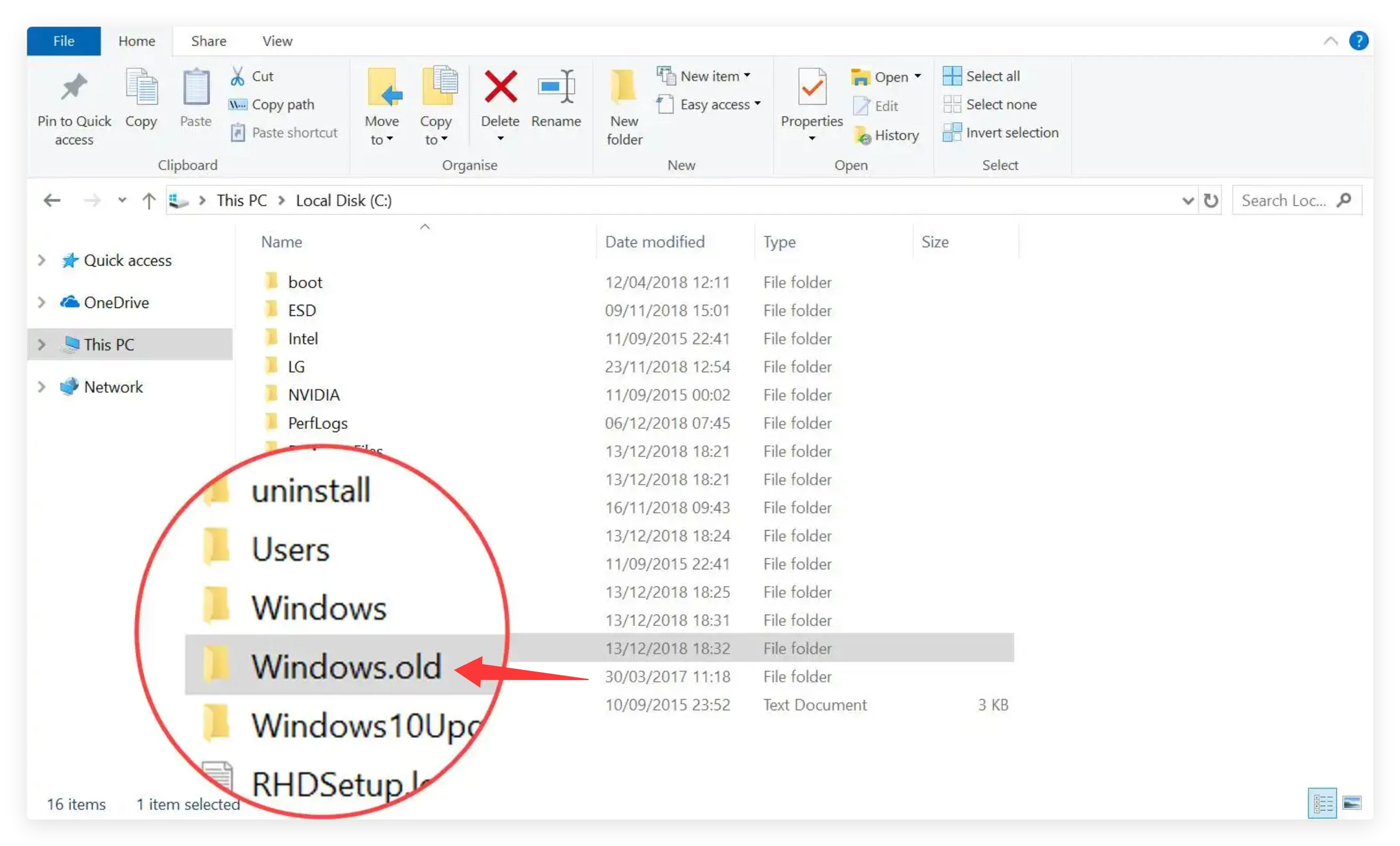
When Windows 11 updates to version 26H2, it creates a folder called Windows.old on your primary C: drive to store previous operating system files. Your personal data is often held here.
💡 Note: Windows automatically deletes this folder 10 days after the upgrade to free up disk space, so check it as soon as possible.
The Windows 11 26H2 upgrade frequently turns on OneDrive Backup by default. This changes the path of your Documents and Desktop folders to your OneDrive directory.
To check OneDrive and Windows Search:
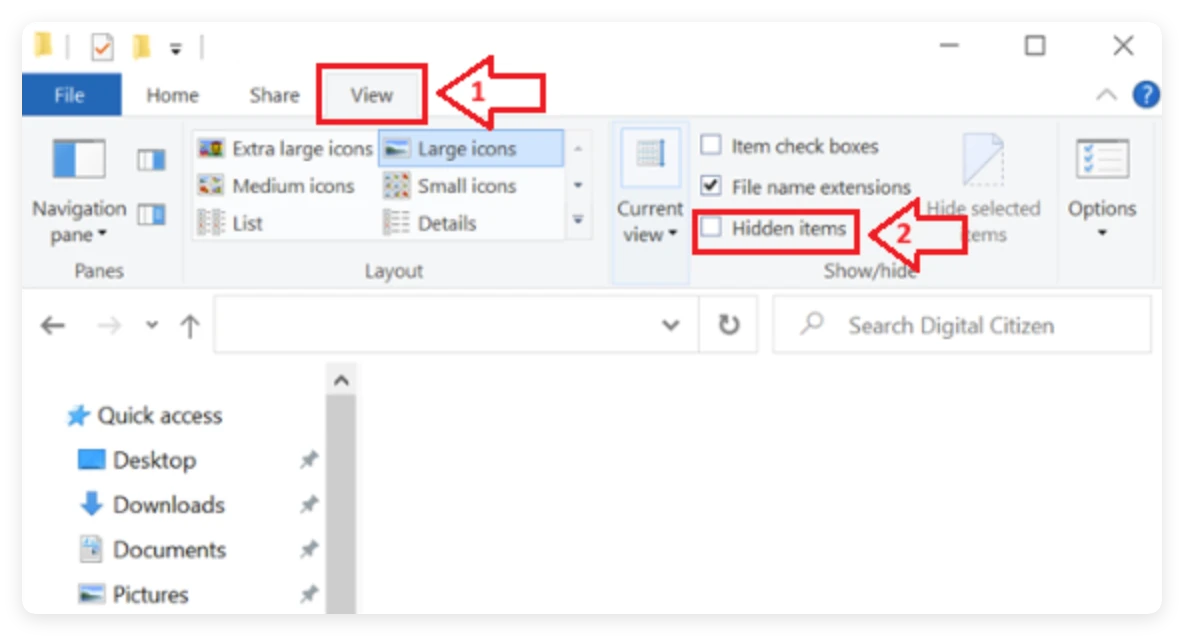
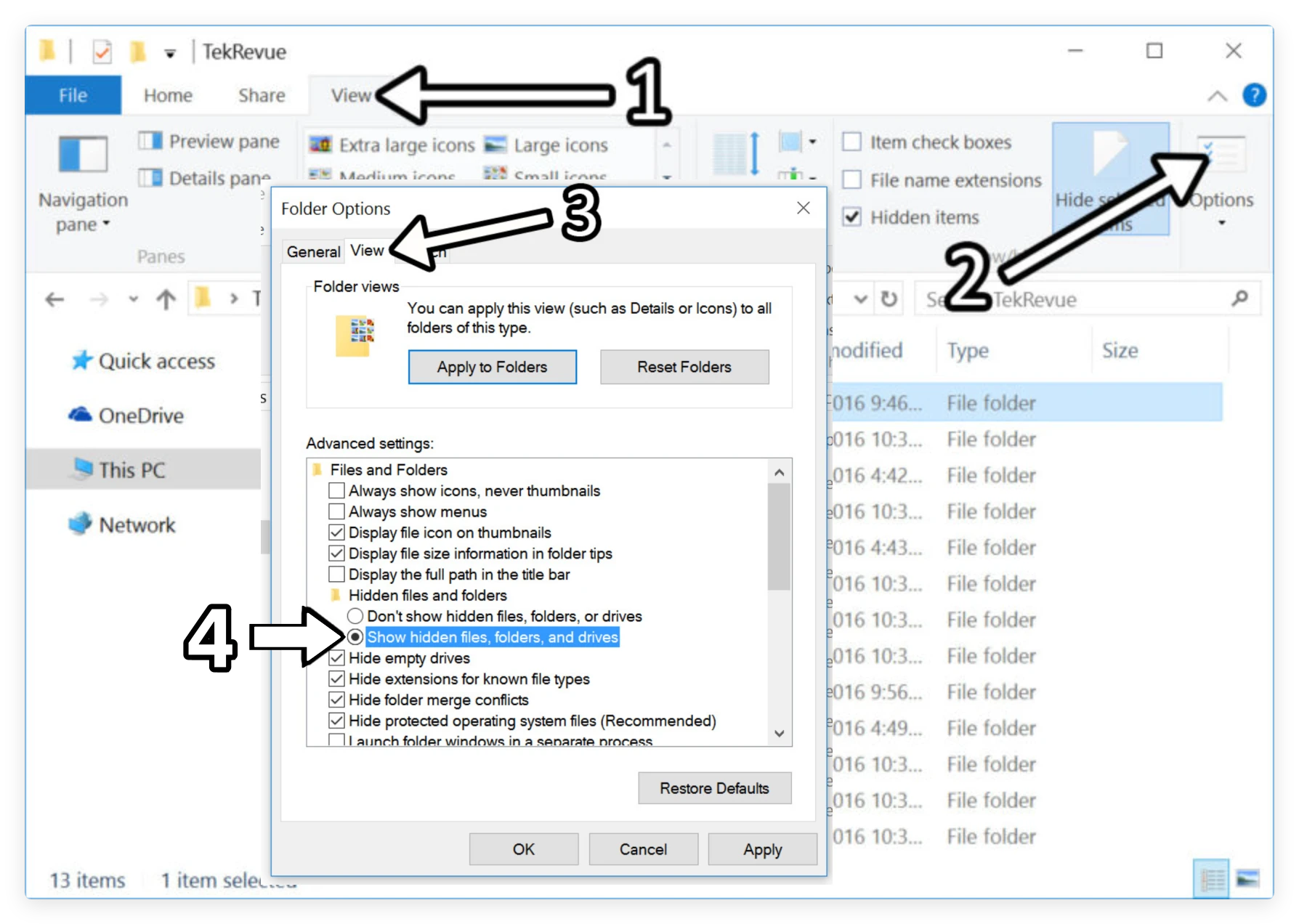
Updates can sometimes modify view settings, making your personal files hidden.
To make hidden files visible in Windows 11 26H2:
If you searched Windows.old, checked OneDrive, and restarted your PC, but your files are still missing, they may have been deleted or corrupted during the Windows 11 26H2 installation.
In this situation, Donemax Data Recovery is the most effective solution. Donemax is designed to deep-scan drive sectors, rebuild damaged partition links, and safely extract lost files without overwriting existing system data.
Why Choose Donemax Data Recovery?
Step-by-Step Tutorial: How to Recover Files with Donemax
Follow these steps to recover lost files after upgrading to Windows 11 26H2:
Step 1: Download Donemax Data Recovery and install the software on a secondary drive (such as D: drive) to avoid overwriting deleted data on your C: drive.
Step 2: Launch Donemax Data Recovery. Select the drive where your lost files were originally located (usually Local Disk C: or your User partition), then click the 'Scan' button.
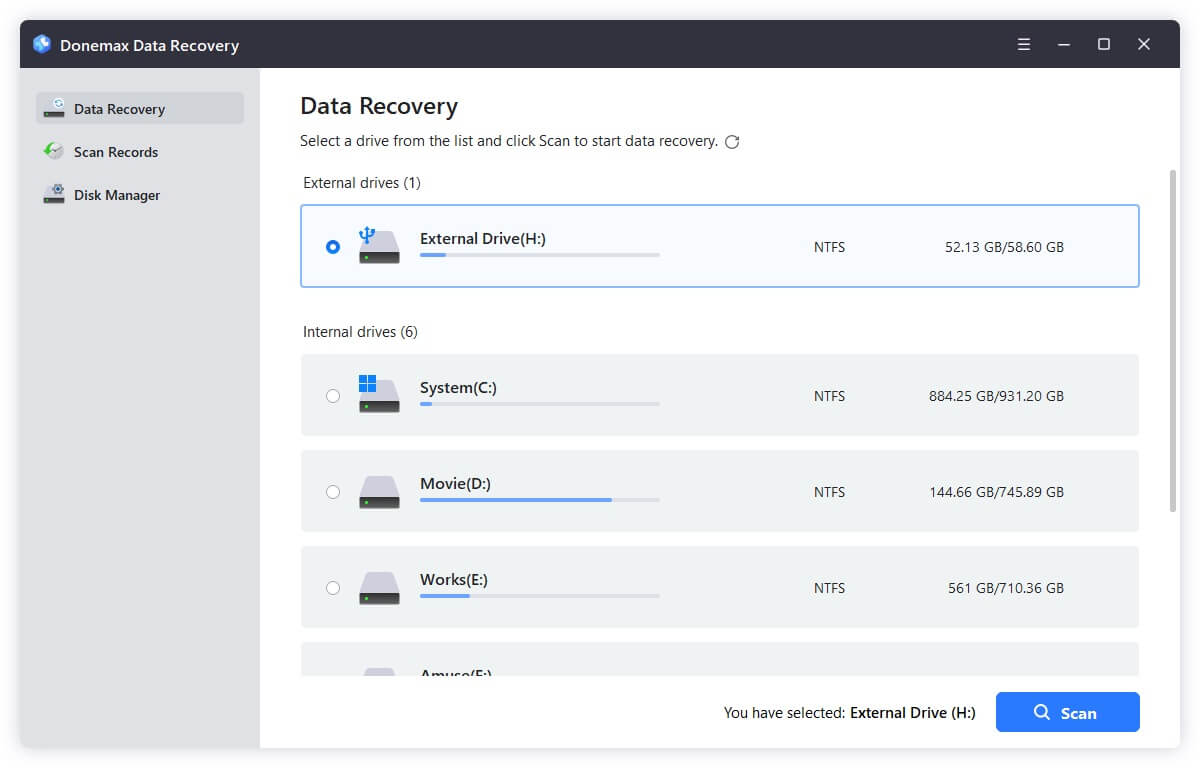
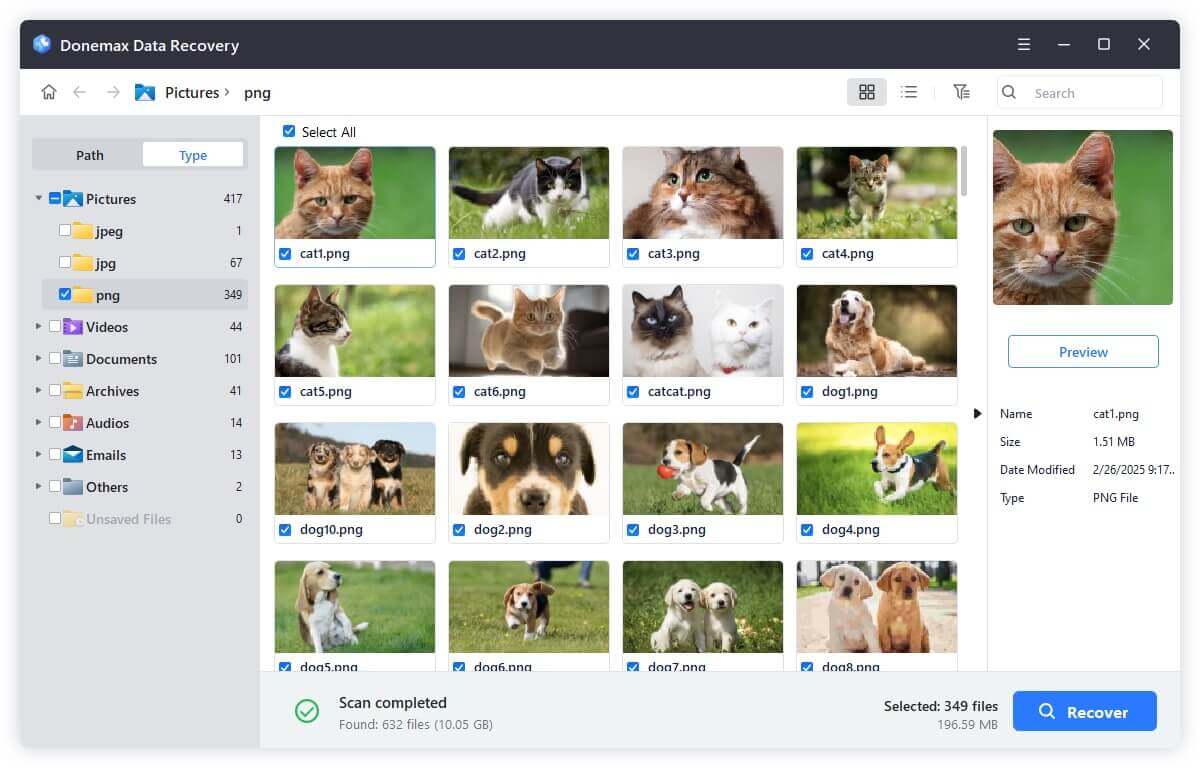
Step 3: Donemax will perform both a Quick Scan and a Deep Scan simultaneously. Once the scan finishes, browse through categories or use the search box to filter by file type. Double-click any file to preview its content.
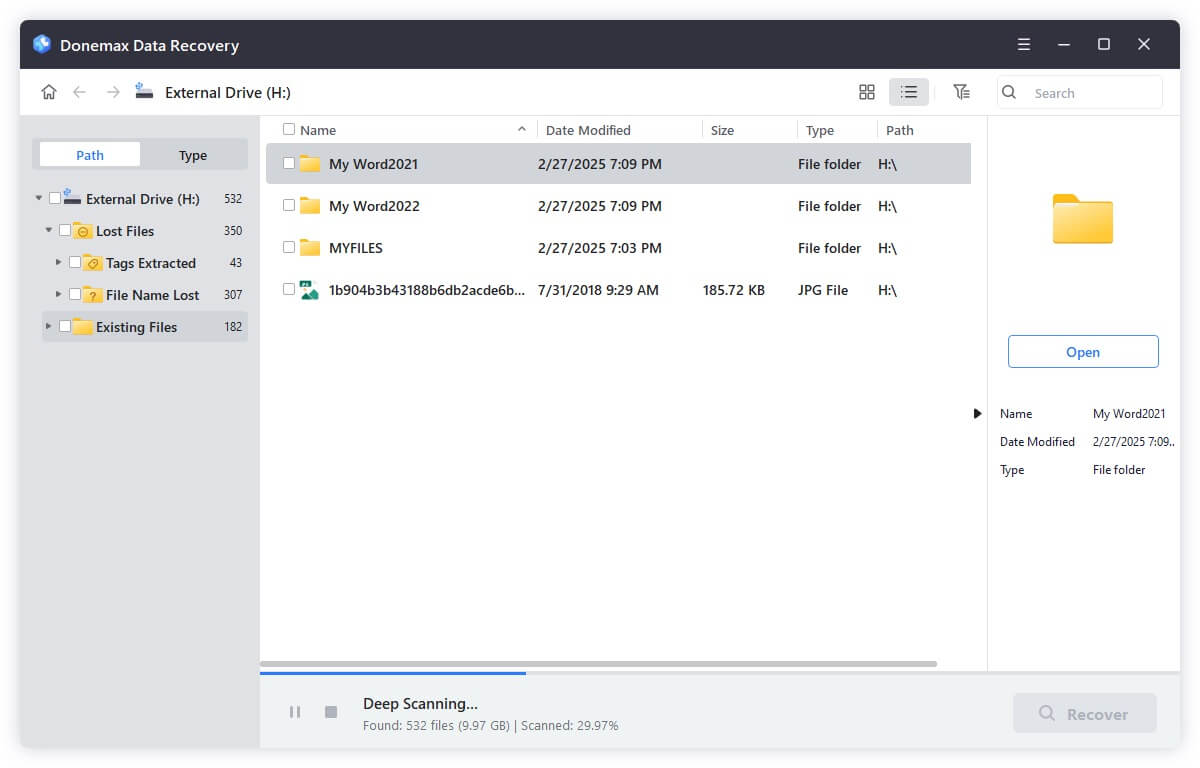
Step 4: Select the checkbox next to the files you want to retrieve. Click the 'Recover' button and choose a safe location (such as an external disk or secondary partition) to store your recovered data.
To protect your valuable data during future Windows updates, consider taking these simple steps:
Losing files after a major system update like Windows 11 26H2 can be frustrating, but your data is rarely lost forever. By checking temporary accounts, searching the Windows.old directory, and examining OneDrive settings, most users can locate their files within minutes.
If standard Windows options fail, Donemax Data Recovery offers a reliable, powerful, and easy-to-use solution to scan your drive and restore lost documents, photos, and videos. Download Donemax Data Recovery today to recover your missing files after the Windows 11 26H2 upgrade quickly and safely.
Charles
Charles, who lives in Sydney, Australia, is an editor & writer of Donemax Team. He is good at writing articles related with Apple Mac computers, Windows operating systems, data recovery, data erasure, disk clone and data backup, etc. He loves reading and playing tennis in his spare time and is interested in testing new digital devices such as mobile phones, Macs, HDDs, SSDs, digital cameras, etc.
Gerhard Chou
In order to effectively solve the problems for our customers, every article and troubleshooting solution published on our website has been strictly tested and practiced. Our editors love researching and using computers and testing software, and are willing to help computer users with their problems