
Written byStevenUpdated on Dec 29, 2025

Before we start: After erasing (formatting) SSD with Disk Utility on Mac wrongly, stop using the drive immediately to avoid further damaged to the formatted data. Then download and use the effective Mac data recovery tool - Donemax Data Recovery for Mac - to easily get back the files.
PAGE CONTENT:
If you ever erase a drive with Disk Utility on Mac, you should know that all data on the drive will be removed. No matter you format a hard drive, USB flash drive, memory card or SSD, the result should be the same. The drive will be empty after the erasing process is done in Disk Utility.
Is it possible to recover lost data from erased SSD on Mac? First, you need to know what happens to the SSD if you erased it on Mac. If you erased an SSD with Disk Utility on Mac, it just formats the drive simply without erasing the data permanently on the SSD. So the data on the erased SSD can be recovered.
After erasing SSD with Disk Utility on Mac, please don't add new data to the SSD or do other changes to it. Then you can have a great chance to recover the lost data. In order to recover the lost data successfully from the erased SSD on Mac, you need to get reliable data recovery software to do the job. This article will show you the best data recovery software for erased SSD on Mac, how to recover erased data from SSD, and reliable way to wipe data from SSD permanently on Mac.
To recover lost data from an erased SSD on Mac, it's essential to find and use a professional Mac data recovery software for SSD. With a professional recovery tool, you can easily recover the erased data from an SSD on Mac.
There are many data recovery applications that can work for Mac in the market. However, to recover data effectively from erased SSD, we suggest you choose the professional data recovery software Donemax Data Recovery for Mac. You can download the software first as follows.
The software is fully compatible with macOS, including latest macOS Tahoe 26, macOS Sequoia, macOS Sonoma, etc. It can recover lost data in different situations, including partition loss, file system corruption, system crash, partition formatting, accidental deleting, and so on.
As a reliable tool, the software can recover lost pictures, videos, documents, audio files, and any other files on Mac. With advanced data recovery algorithms, the software can recover the lost files quickly. Also, if the lost data is not damaged, it can even recover the lost files with the original names and folder structures without a problem
Donemax Data Recovery for Mac is a simple application and any user can handle it easily. With a simple interface and interactions, even a novice can follow the wizard to recover the lost data step by step. To recover the lost data effectively, we will show the guide in detail. Please recover lost data from erased SSD on Mac in the following steps.
Step 1. Choose the erased SSD in the software.
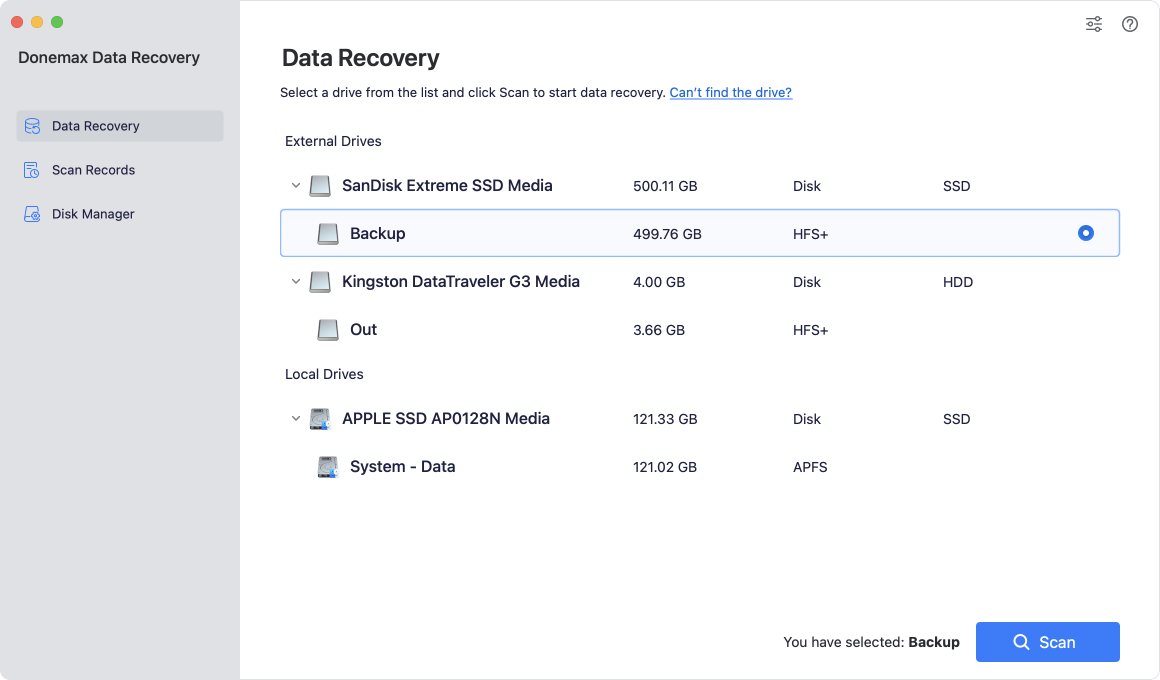
First, please connect the erased SSD to your Mac. Run the data recovery software and choose the SSD from the device list in the software.
Step 2. Search for lost data from erased SSD.
Click on the Scan button and the software will automatically scan the erased SSD. It will deeply scan the SSD to look for the lost files from the erased SSD.
Step 3. Recover lost files from the erased SSD.
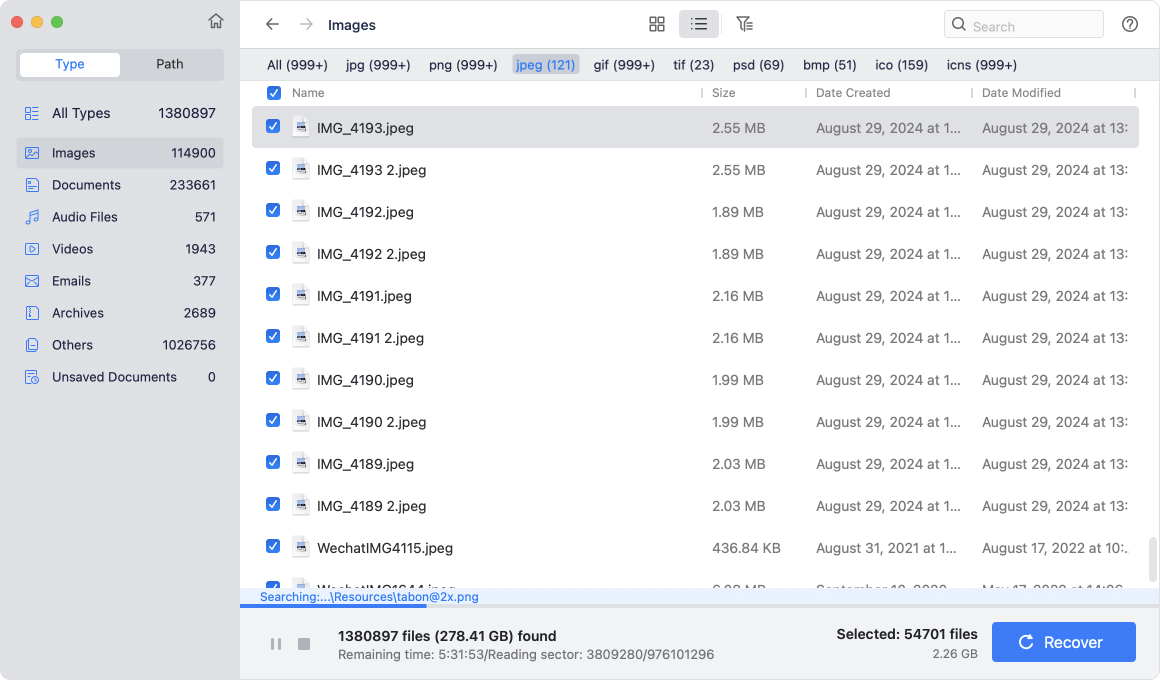
Once the scan process is done, the software will list all the found files. Please check and preview the files to find the wanted files. Then choose the files to recover and save to another drive.

💡 Tips: Due to Trim mechanism of SSD, the wiped or deleted data might be wiped permanently, it's better to take actions and recover data immediately once you found data loss on SSD. Also, when recovering data, ensure selecting another hard drive to save the recovered files. Otherwise, the recovered files might be damaged and cannot open.
As you can see, it's very simple to recover the lost files from erases SSD with the software. Also, if you lost files in other cases, you can use the software to recover the lost files from different devices on Mac. It supports data recovery for the memory card, SSD, memory card, hard drive, digital camera, etc.
If you accidentally erased an SSD, you can still have a chance to recover the data from the drive. However, you may want to erase the data permanently from the SSD sometimes. For example, if you want to abandon, sell or give away the SSD, you will need to wipe the data permanently from the SSD. Then it's not able to recover the data from the erased SSD in any way.
How to permanently erase SSD? You have to use reliable data wiping software to help you. Donemax Data Eraser for Mac is such a tool that can wipe data permanently from an SSD on Mac. You can download the software first.
To erase data from the SSD, please connect it to your Mac and run the data wiping tool. Change to the mode Erase Hard Drive. Choose the SSD from the list and click on the Erase Now button. You will be asked to select a data erasure algorithm to wipe data forever. Then the software will wipe all the data on the SSD permanently.
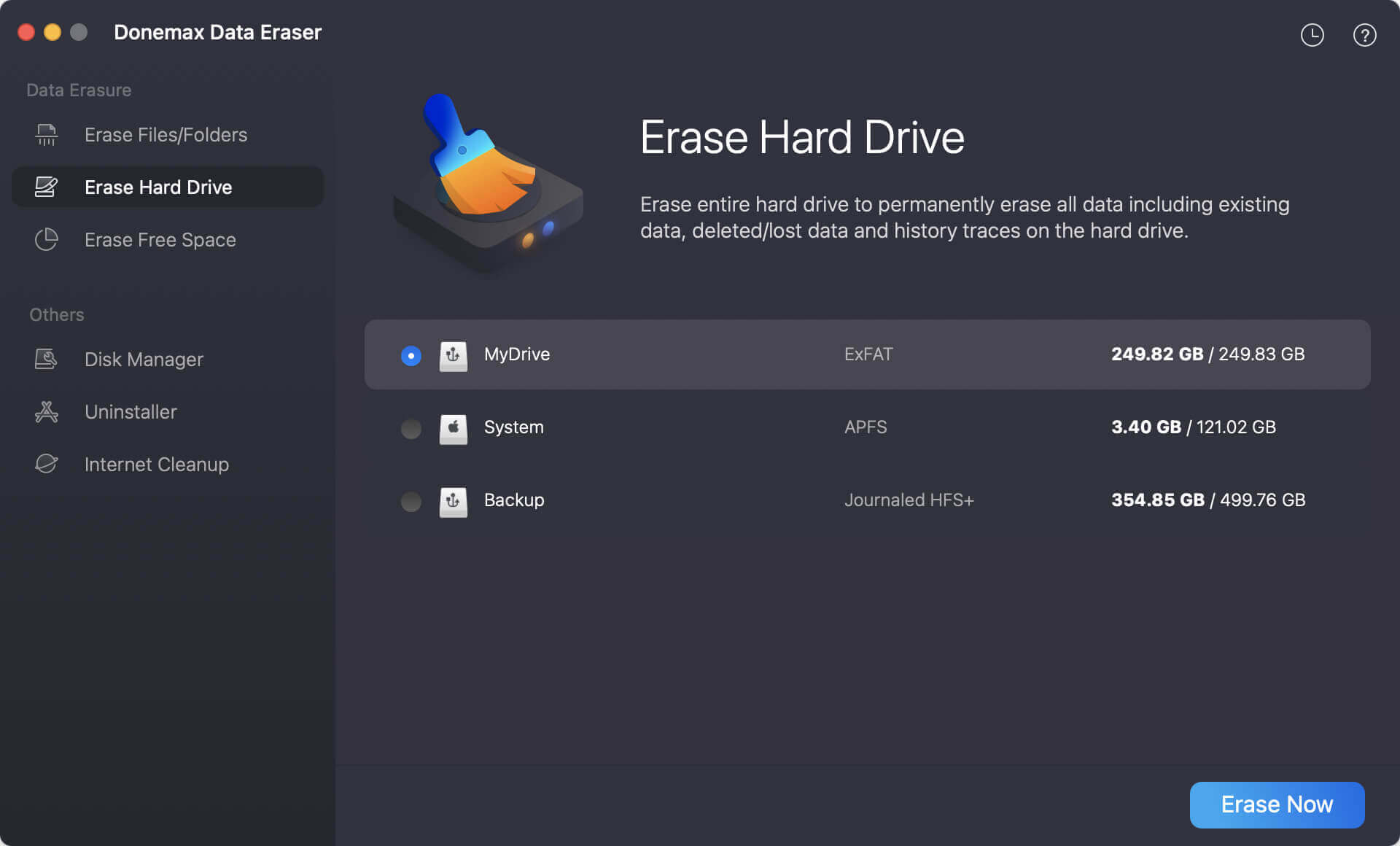
After wiping the SSD, all the data on the SSD will be erased permanently. Then no data recovery software can recover the erased data from the SSD. You can feel free to trade in or give away the wiped SSD.
After erasing an SSD, HDD, USB flash drive or memory card with Disk Utility on Mac, the data is not gone forever immediately. If you stop using the drive immediately and haven't added data, there is no problem to get back the lost files. With reliable Mac data recovery software, such as Donemax Data Recovery for Mac, it's easy and quick to rescue the data after erasing the drive.
To avoid data loss in the future, it's highly suggested to back up data regularly. Before formatting a drive or delete files, check twice and avoid formatting wrong drive or deleting wrong data.
In some cases, you may want to deleted data or wiped all drive data permanently and avoid data recovery. Simply erasing the drive with Disk Utility is not enough. You can use a professional data wiping software to make sure the data is gone for good.
Donemax Data Recovery for Mac
Donemax Data Recovery for Mac is one of the best Mac data recovery software. It is easy-to-use and can help in recovering deleted, formatted, inaccessible or lost data from Mac HDD/SSD, external disk, USB drive, SD card, camera or other storage devices.
Steven
Steven has been a senior writer & editor of Donemax software since 2020. He's a super nerd and can't imagine the life without a computer. Over 6 years of experience of writing technical solutions and software tesing, he is passionate about providing solutions and tips for Windows and Mac users.
Gerhard Chou
In order to effectively solve the problems for our customers, every article and troubleshooting solution published on our website has been strictly tested and practiced. Our editors love researching and using computers and testing software, and are willing to help computer users with their problems

