
Written byChristinaUpdated on Jun 04, 2026

Before we start: For the new Mac Users, it's a common issues that Disk Utility cannot clone Mac drive successfully with the Restore feature. How to make a successful for Mac drive? Using the professional disk cloning software Donemax Disk Clone for Mac.
PAGE CONTENT:
Imagine this scenario: you just bought a fast new external SSD to speed up your Mac, or perhaps you want to make a complete backup copy before updating to the latest version of macOS. You confidently open your Mac's built-in disk management tool, click on the Restore button, and wait for it to mirror your drive. Instead of a success bar, your screen flashes an unhelpful error message like 'Operation couldn't be completed' or Operation failed.'
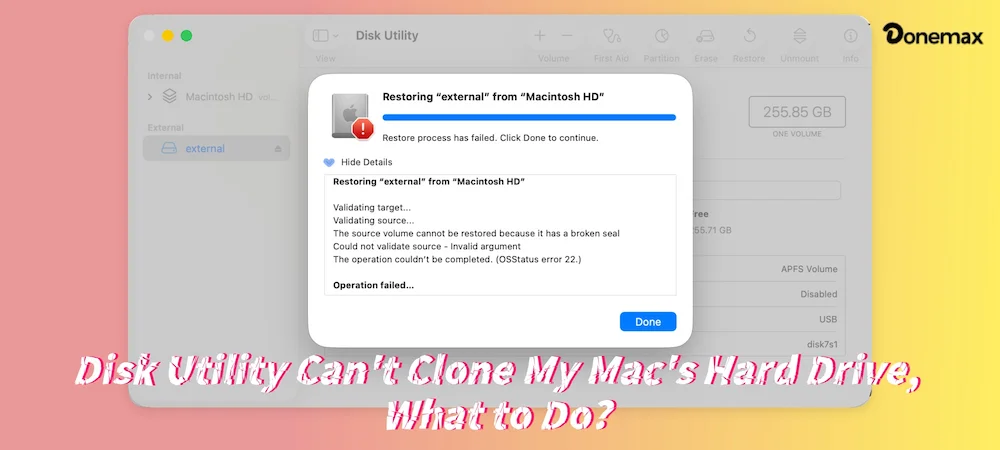
You try again, but the result remains exactly the same. You start feeling stuck and search online wondering: Disk Utility can't clone my Mac's hard drive, what to do? If this is happening to you right now, don't worry. You are definitely not alone, and your Mac's hardware is likely completely fine.
In this simple guide, we will break down exactly why Apple's built-in tool struggles to create full, bootable clones on modern Mac computers. Even better, we will show you an effortless way to create a perfect copy of your system drive without dealing with confusing terminal commands or error screens.
For many years, Disk Utility was the default solution for cloning drives. You could easily use the 'Restore' feature to copy everything from an old drive to a new one. However, if you are using a modern Mac—especially an Apple Silicon Mac powered by the M series chips—the rules of the game have completely changed.
Here are the real, underlying reasons why Disk Utility keeps throwing errors when you try to clone your drive:
The Signed System Volume (SSV) Security Barrier: Starting with macOS Big Sur and carrying all the way through to modern versions like macOS Sequoia and Tahoe, Apple introduced a heavy security layer called the Signed System Volume. Your Mac's operating system files are locked away in a completely separate, read-only drive slice that is digitally signed by Apple. Disk Utility is simply not allowed to freely copy this encrypted, signed system layer block-by-block, causing the process to fail immediately.
Apple Silicon and Boot Volume Architecture: Newer Mac computers do not boot up like traditional PCs or old Intel Macs. They rely on an intricate hardware startup process linked tightly to the Mac's built-in security chip. A true bootable drive needs special file structures and specific internal container layout setups. Disk Utility's basic restore function often leaves out these crucial elements, resulting in a drive that refuses to boot your Mac.
Drive Ownership and Permissions Lock: Because modern macOS treats security so seriously, file system ownership permissions are strictly enforced. When you attempt to copy files from a live, active system using Disk Utility, the tool regularly encounters system files that are currently in use or protected by the root user. When it cannot access these items, it stops the entire cloning process and gives you an error.
If you search the web for solutions to this issue, most tech articles will tell you to try basic troubleshooting tricks. They might suggest running First Aid to repair your drive permissions, formatting the drive to APFS again, or booting your Mac into Recovery Mode to try the clone from there.
While those steps sound good on paper, they almost never solve the real problem on a modern Mac. Why? Because First Aid cannot change Apple's built-in system security layout. Even if your internal drive is completely healthy, Disk Utility still will not have the security clearance required to clone the active, locked operating system files.
The true solution isn't to try and fix an unfixable limitation in Apple's software. The answer is to use a dedicated, smart third-party tool designed specifically to handle modern macOS security restrictions.
When the built-in tool lets you down, that is where Donemax Disk Clone for Mac comes to the rescue. This software is engineered specifically to bypass the complex restrictions that make Disk Utility fail. It provides an efficient, straightforward way to clone your Mac's internal drive, making it the perfect choice for both complete beginners and daily home users.
Let's look at the main advantages that make Donemax Disk Clone for Mac the best alternative on the market:
Ready to make your backup copy without any errors? Follow these easy steps to clone your Mac internal storage over to your external drive using Donemax Disk Clone for Mac:
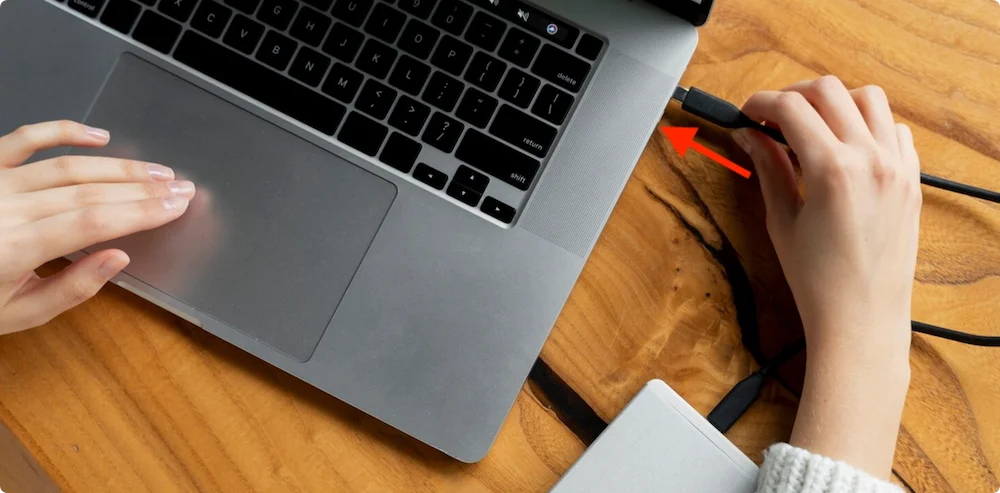
Step 1: Plug in Your External Drive. Connect your external hard drive or solid-state drive to your Mac using a proper cable. Make sure you have saved any existing files from it, as the cloning process will clear the destination drive.
Step 2: Launch the App and Select OS Clone. Download and open Donemax Disk Clone for Mac on your computer. From the left sidebar menu, click on the 'OS Clone' mode option.
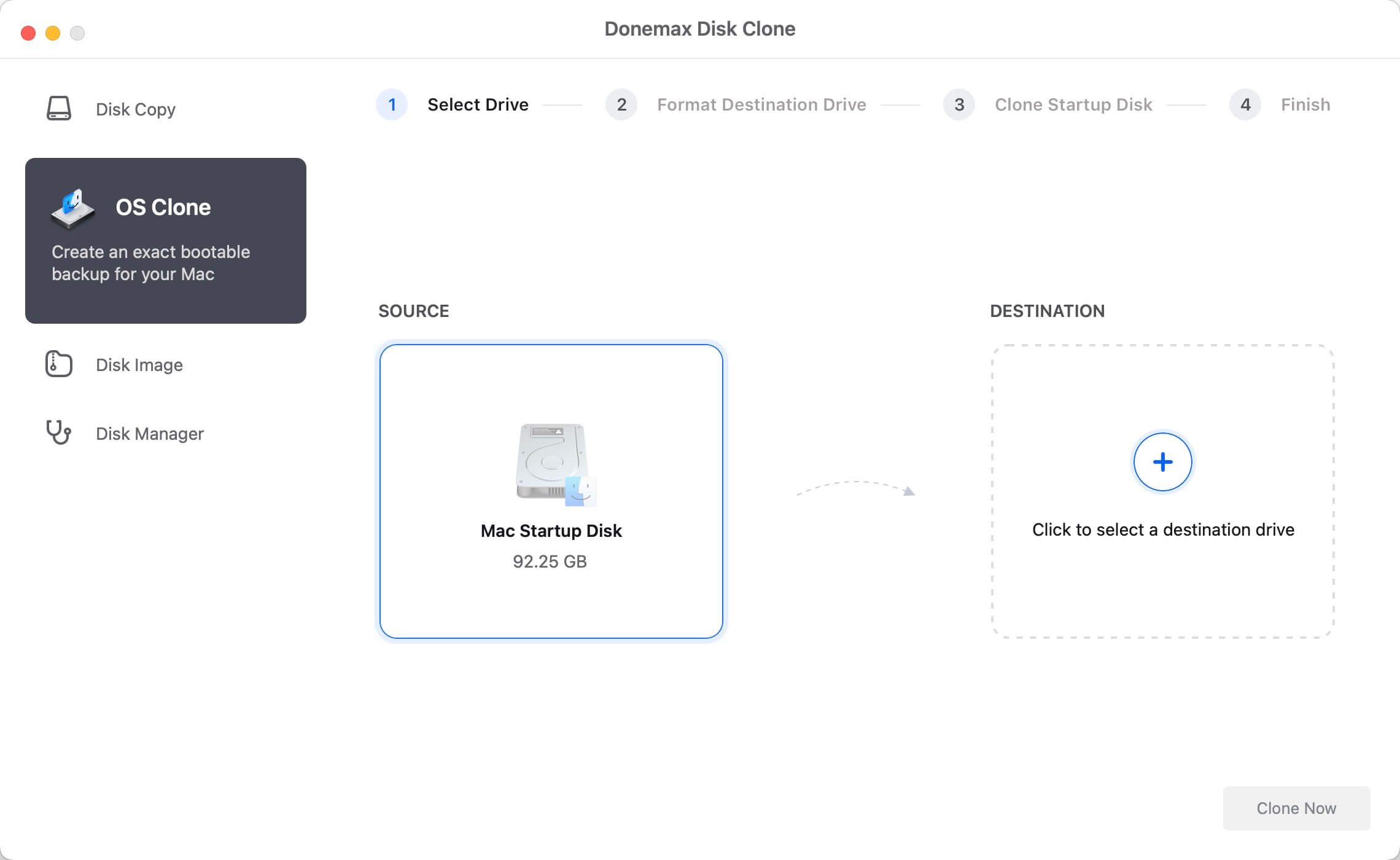
Step 3: Choose the Destination Drive. Look at the screen options. Your Mac's main internal hard drive will be automatically selected as the source, and you just need to select the newly connected external drive as the destination target.
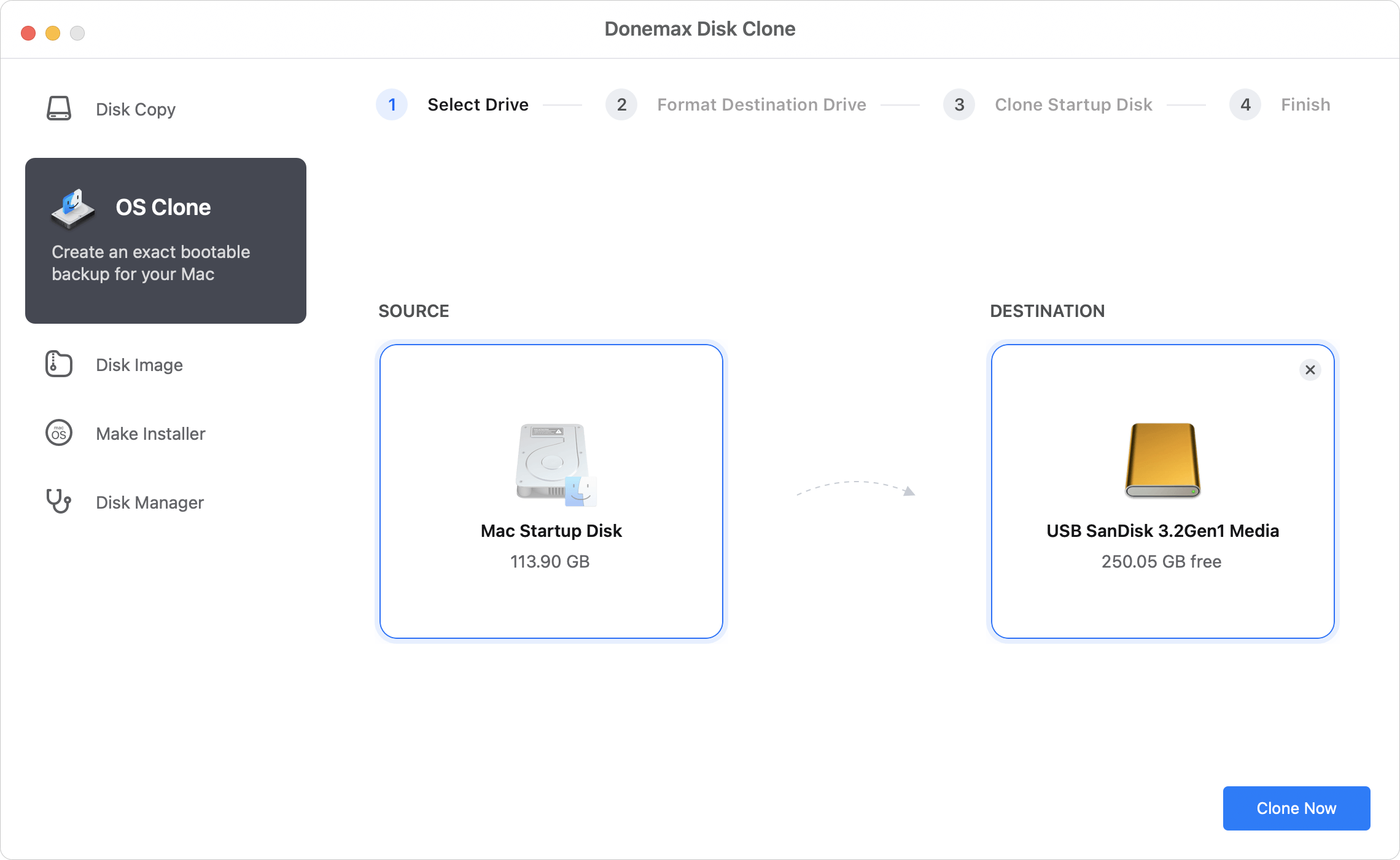
Step 4: Start Clone Process. Click the blue 'Clone Now' button. The software will begin analyzing your files and securely copy everything—including your operating system, system settings, programs, and personal documents.
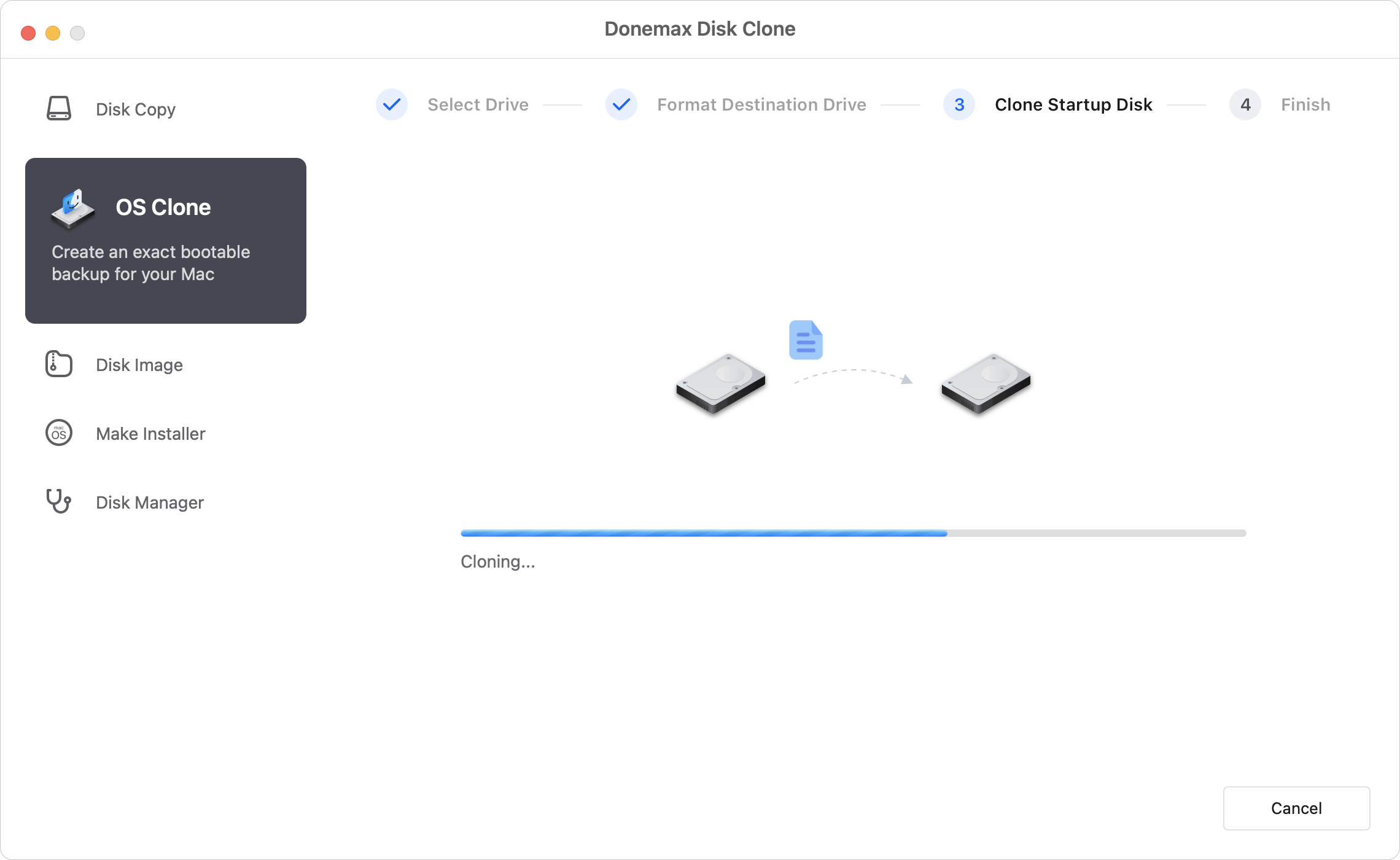
Once the application finishes its work, the process is complete! You will have a perfect, identical copy of your Mac's drive ready to protect your data or start up your machine in case of an emergency.
It can be deeply frustrating when a built-in tool like Disk Utility stops working out of nowhere. But as we have learned, these errors aren't your fault. They are simply the result of Apple's strict modern security layout, which blocks standard disk utility cloning practices.
Instead of spending hours typing complex commands into the Terminal or dealing with repetitive error screens, the smartest move is to let a specialized program do the heavy lifting. By choosing Donemax Disk Clone for Mac, you can completely ignore those annoying system restrictions and get a reliable, bootable clone in no time.
Donemax Disk Clone for Mac
An award-winning disk cloning program to help Mac users clone HDD/SSD/external device. It also can create full bootable clone backup for Macs.
Christina
Christina is the senior editor of Donemax software who has worked in the company for 4+ years. She mainly writes the guides and solutions about data erasure, data transferring, data recovery and disk cloning to help users get the most out of their Windows and Mac. She likes to travel, enjoy country music and play games in her spare time.
Gerhard Chou
In order to effectively solve the problems for our customers, every article and troubleshooting solution published on our website has been strictly tested and practiced. Our editors love researching and using computers and testing software, and are willing to help computer users with their problems

