
Written byCharlesUpdated on Aug 25, 2026

Before we start: Update to a larger SSD or make a full backup for M5 Max Mac? Cloning the drive is the easiest way. By using the disk clone software, like Donemax Disk Clone for Mac, you can easily make a complete and bootable clone backup for your M5 Max Mac.
PAGE CONTENT:
The M5 Max Mac is an absolute powerhouse. Whether you are editing 8K video timelines, compiling massive software builds, or running local AI models, its processing speed is unmatched. However, even the most capable Apple Silicon machine faces one universal challenge: internal storage limits. Upgrading your internal drive after purchase is practically impossible, and running out of space can quickly throttle your workflow.
That is where high speed external SSD cloning for M5 Max Mac comes into play. By transferring your entire system—apps, user settings, OS system files, and personal documents—to a lightning-fast NVMe or Thunderbolt external drive, you gain massive storage expansion without sacrificing performance.
In this guide, we will explore why cloning your M5 Max Mac to a high-speed SSD is the best performance upgrade, what to look for in external hardware, and how to use Donemax Disk Clone for Mac to create a 100% bootable clone seamlessly.
Apple's high-tier M5 Max chip handles massive throughput. Standard USB flash drives or older external hard drives simply cannot keep up with this architecture. When you pair an M5 Max Mac with a top-tier external solid-state drive, you unlock several key advantages:
To get the best results from high speed external SSD cloning for M5 Max Mac, picking the right hardware is essential. Here are the main drive types to consider:
Many users ask: 'Can I just use Apple's built-in Disk Utility or Time Machine?' While Disk Utility has a Restore feature, Apple's APFS architecture and secure boot security on Apple Silicon (M1 through M5 series) make bootable cloning complex. Time Machine creates file backups, but it does not produce a plug-and-play bootable copy.
To guarantee that your high speed external SSD cloning for M5 Max Mac creates a fully functioning, bootable drive, you need specialized software like Donemax Disk Clone for Mac.
Donemax Disk Clone for Mac is specifically optimized for Apple Silicon machines, including the latest M5 Max chips. It features a modern interface, high-throughput copying engines, and full support for macOS APFS bootable volume creation.
Follow these simple steps to clone your M5 Max Mac drive and make the target external SSD bootable:
Step 1: Connect External SSD and Launch Clone Software
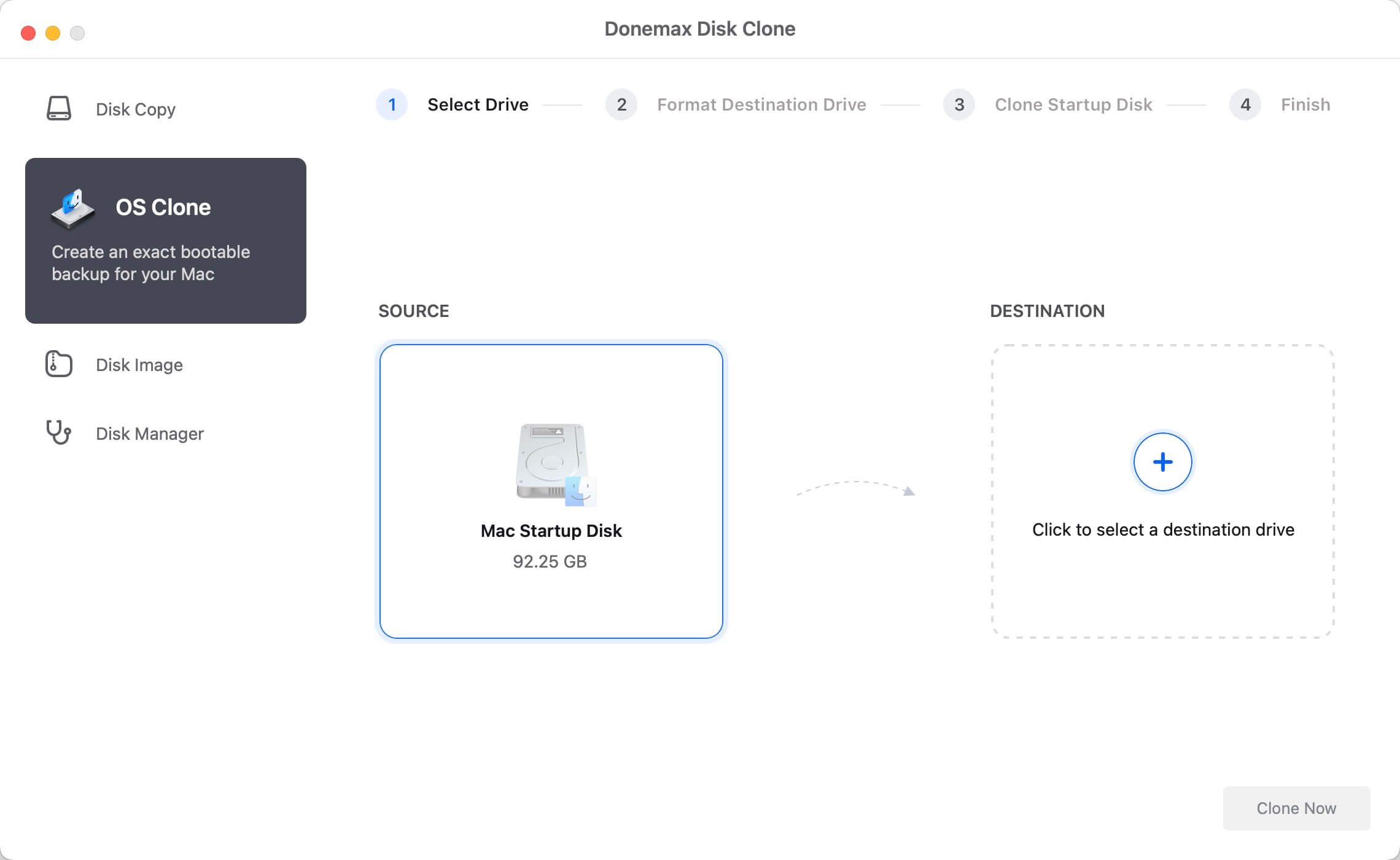
Connect your high speed external SSD to your M5 Max Mac using a compatible Thunderbolt 4 or USB4 cable. Run the software Donemax Disk Clone for Mac. You will see a clean, intuitive layout designed for easy navigation.
Step 2: Choose 'OS Clone' Mode
To make the external SSD bootable, select the OS Clone feature. This mode specifically targets your Mac's startup volume, copying the operating system, system files, user accounts, and applications.
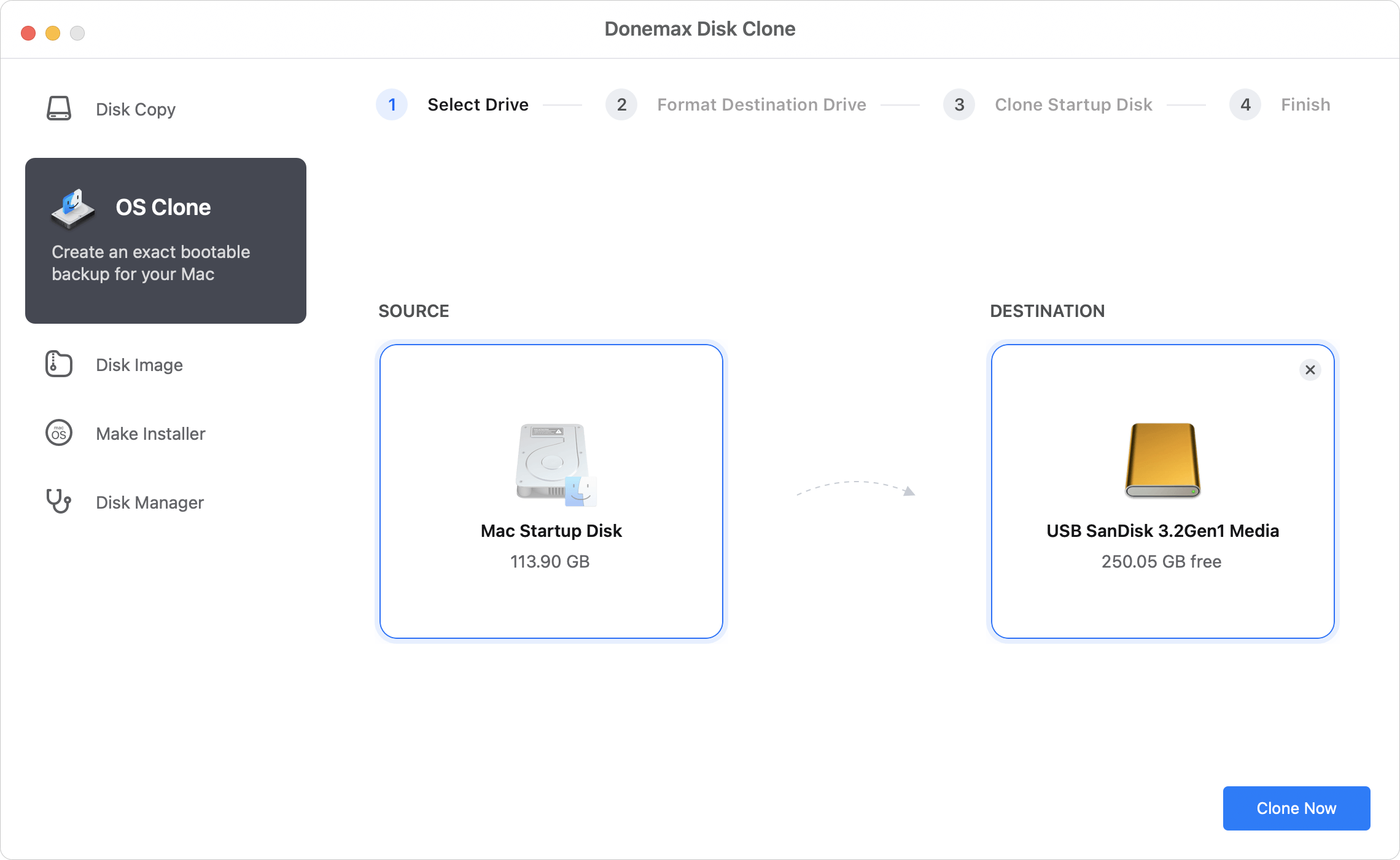
Step 3: Select the Target External SSD
Choose your connected high speed external SSD as the destination disk. Make sure you select the correct drive, as the cloning process will prepare the destination volume for the new OS installation.
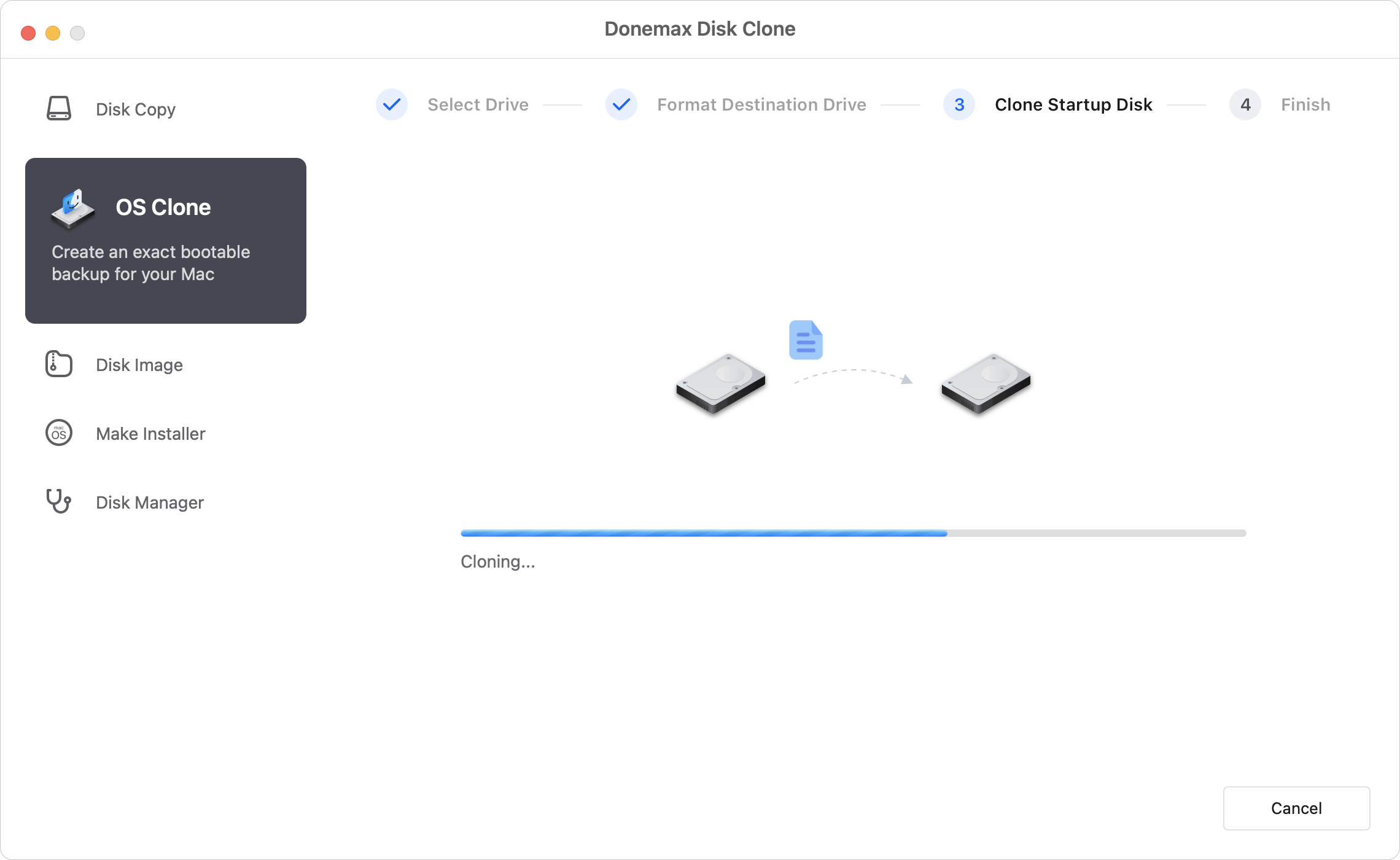
Step 4: Start the High-Speed Cloning Process
Click Clone Now. Donemax Disk Clone will begin copying data at maximum bus speed. Thanks to optimization for M5 Max processing architecture, gigabytes of data transfer in just minutes.
Donemax Disk Clone for Mac offers powerful capabilities tailored for modern Mac users:
Once the cloning process finishes, your external SSD contains an exact, bootable duplicate of your M5 Max Mac. Here is how to boot from it:
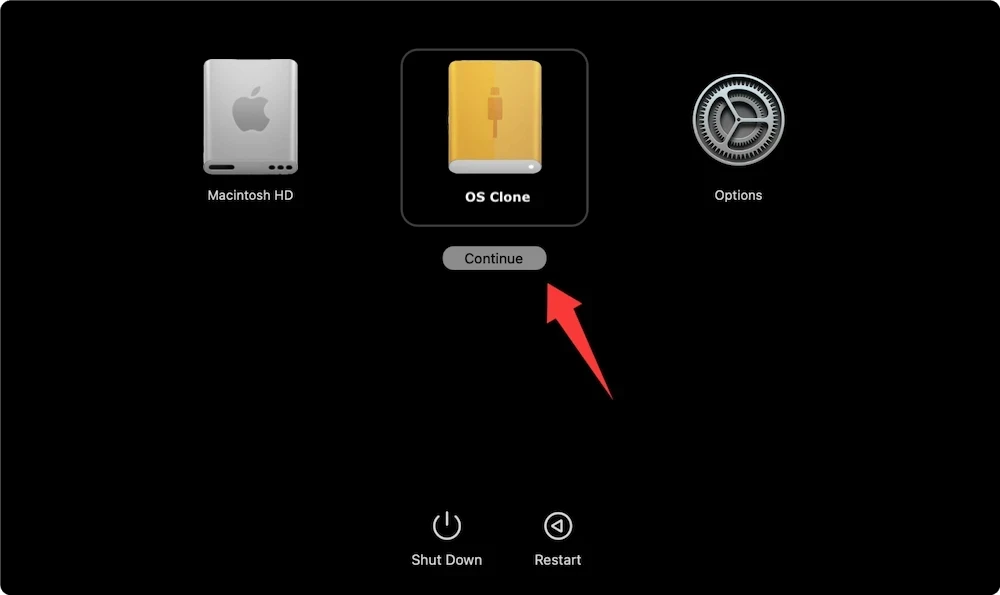
Your Mac will now start up directly from the external SSD, delivering full desktop functionality at ultra-fast speeds!
Performing a high speed external SSD cloning for M5 Max Mac is the ultimate way to protect your data, expand storage, and maintain peak productivity. By pairing a fast Thunderbolt SSD with Donemax Disk Clone for Mac, you can create a reliable, 100% bootable backup copy of your Mac in just a few clicks.
Download Donemax Disk Clone for Mac today to experience effortless high-speed Mac cloning!
Donemax Disk Clone for Mac
An award-winning disk cloning program to help Mac users clone HDD/SSD/external device. It also can create full bootable clone backup for Macs.
Charles
Charles, who lives in Sydney, Australia, is an editor & writer of Donemax Team. He is good at writing articles related with Apple Mac computers, Windows operating systems, data recovery, data erasure, disk clone and data backup, etc. He loves reading and playing tennis in his spare time and is interested in testing new digital devices such as mobile phones, Macs, HDDs, SSDs, digital cameras, etc.
Gerhard Chou
In order to effectively solve the problems for our customers, every article and troubleshooting solution published on our website has been strictly tested and practiced. Our editors love researching and using computers and testing software, and are willing to help computer users with their problems